> This is part 1 of 3 of the full documentation (pages 1–100 of 212).
> The content is paginated: fetch every part to see all of it.
> Next part: https://guides.tability.io/docs/llms-full.txt/1
> Page index: https://guides.tability.io/docs/llms.txt

# Tability Knowledge Base

Find the right Tability guide and get moving quickly.

Find the guidance you need to set up Tability, connect your tools, and help your team get more from its goals.

## Get more done with AI

* [AI Mode how-tos](/docs/become-a-tability-power-user/ai-mode-how-tos): twelve practical guides for execs, managers, and individual contributors working inside Tability.
* [Playbooks for connected AI assistants](/docs/playbooks): guided workflows for Claude, ChatGPT, Grok, and other assistants connected through MCP.

<table data-view="cards"><thead><tr><th></th><th></th><th data-hidden data-card-target data-type="content-ref"></th></tr></thead><tbody><tr><td><strong>Getting started guide</strong></td><td>Set up your first plan, invite your team, automate updates, and start tracking progress.</td><td><a href="/docs/tutorials/tability-quick-start-guide">Tability Quick Start Guide</a></td></tr><tr><td><strong>Agent Workforce Manager</strong></td><td>Put your agents to work. Let them manage goals and initiatives end to end.</td><td><a href="/docs/become-a-tability-power-user/features/ai-features/agent-workforce-manager">Agent Workforce Manager</a></td></tr><tr><td><strong>MCP setup</strong></td><td>Connect Tability to ChatGPT, Claude, Microsoft Copilot, or another MCP-ready assistant.</td><td><a href="/docs/become-a-tability-power-user/integrations/tability-mcp-server">Tability MCP Server</a></td></tr><tr><td><strong>Become a Tability Power User</strong></td><td>Explore courses, practical how-tos, and detailed guides to Tability's features.</td><td><a href="/docs/become-a-tability-power-user">Become a Tability Power User</a></td></tr><tr><td><strong>Integrations</strong></td><td>Connect Tability to the tools and data sources your team already uses.</td><td><a href="/docs/become-a-tability-power-user/integrations">Integrations</a></td></tr><tr><td><strong>Enterprise</strong></td><td>Scale strategy execution to thousands of users with enterprise security, governance, reporting and hands-on rollout support.</td><td><a href="/docs/tability-for-enterprise">Enterprise</a></td></tr></tbody></table>


# How does Tability work?

Get a quick overview of Tability

Tability bridges the gap between strategy and execution, empowering teams to understand priorities and make a meaningful impact.

Founded by former Atlassian employees, Tability is built with execution at the core of the product with an emphasis on usability, functionality, and simplicity.

## Where does Tability sit?

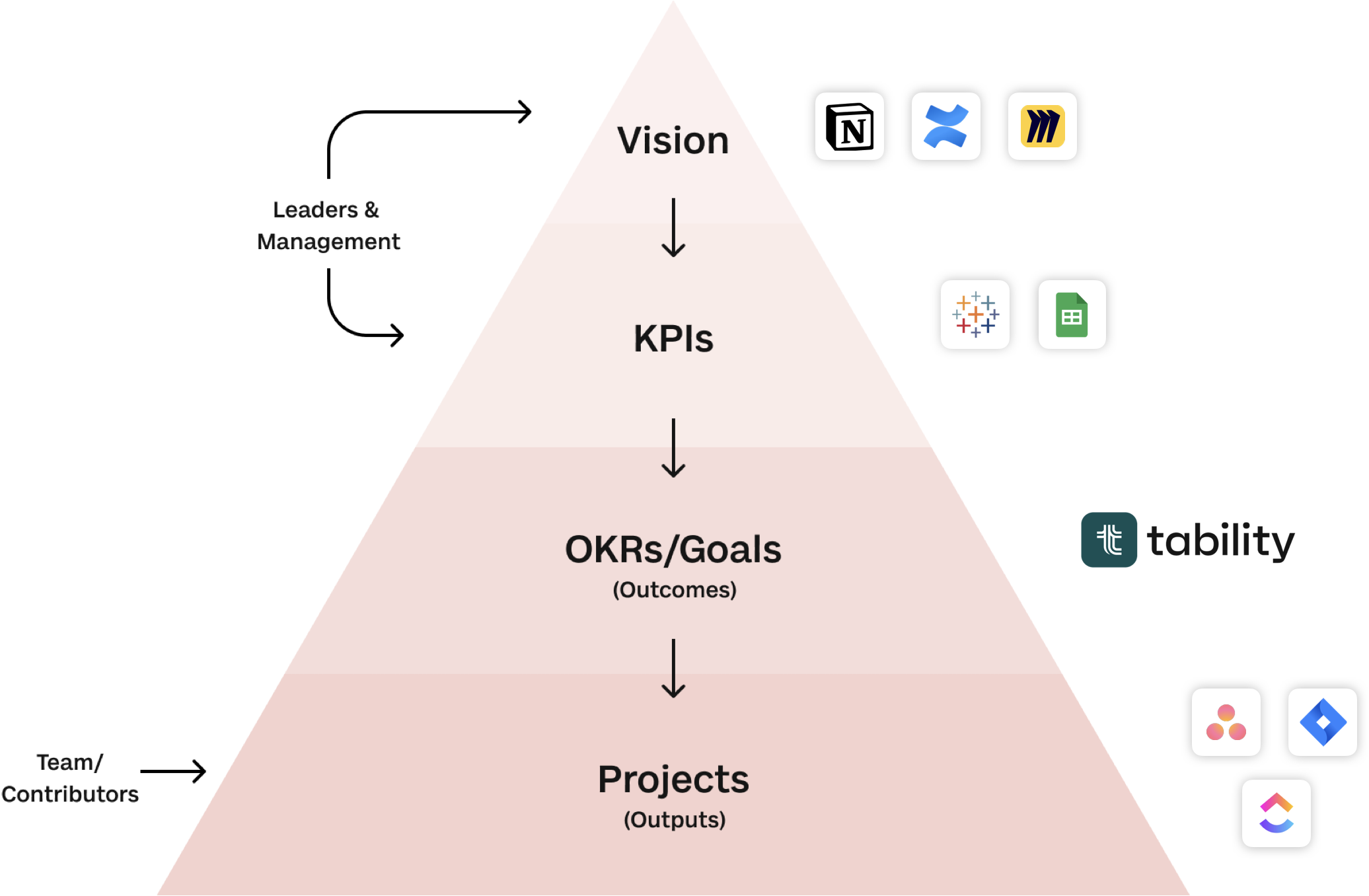
Tability is the missing link between your strategy documents and your projects.

It gives you a complete platform to set quarterly goals, see progress trends, and map outcomes to outputs.

<figure><img src="https://318707989-files.gitbook.io/~/files/v0/b/gitbook-x-prod.appspot.com/o/spaces%2FMULqjSmZyGczPy2I6FGH%2Fuploads%2FxMWGbakOBCKZNhjgbHl0%2Fimage.png?alt=media&amp;token=c2d69de8-89b8-4421-9fcf-01689920001a" alt=""><figcaption></figcaption></figure>

## How does Tability work?

Tability is a complete collaboration platform centered around outcomes and helps follow a simple goal setting process:

* **Set goals:** Use Tability's goal-setting AI and editor to set measurable goals for the quarter and save time.
* **Track goal progress:** Use weekly check-ins to update your goal metrics, confidence in completing them, and useful context to see trends and solve issues.
* **Align and cascade your goals:** Use the Strategy Map and the Cascading Map to align teams and see dependencies between goals.
* **Track strategic initiatives and projects:** Generate relevant initiatives for your strategy and provide regular status updates.
* **Explore your organization's progress:** Use filters to isolate the data that you care about.
* **Present and share your goal updates:** Share health digests with stakeholders and embed Tability views in your docs.

## Tability structure

### Workspaces

Your **workspace** is your org's home where you'll track goal, manage initiatives and collaborate with your team. All of your org's work will exist in inside of your Tability workspace

### Plans

The first thing you'll do after creating a workspace is to add your first plan.

A plan is a container for your goals and you will be able to organise your workspace with plans and sub-plans.

Generally, a plan will correspond to a specific team and quarter.

For instance, an org that has both company-level OKRs and OKRs for the Marketing team in Q4 will create 2 plans as shown below 👇

{% hint style="info" %}
📁 Company OKRs 2023 Q4

\|-- 📁 Marketing OKRs 2023 Q4
{% endhint %}

Each plan will have a specific timeline which will determine when check-ins should be active.

### Goals

After creating a plan, you'll be able to set your goals. The terminology that you use is up to you, but our defaults are:

* **Objectives:** What you're overall trying to achieve. Use objectives to group measurable outcomes together.
* **Outcomes:** Measurable goals that tell you if you've achieved your Objective. Use outcomes to set your targets and assign owners. If you're using OKRs, your outcomes will be your key results.
* **Initiatives:** The projects and tasks you're doing to push your outcomes forward. Use initiatives to capture the work that needs to be done to achieve your goals.

### Check-ins

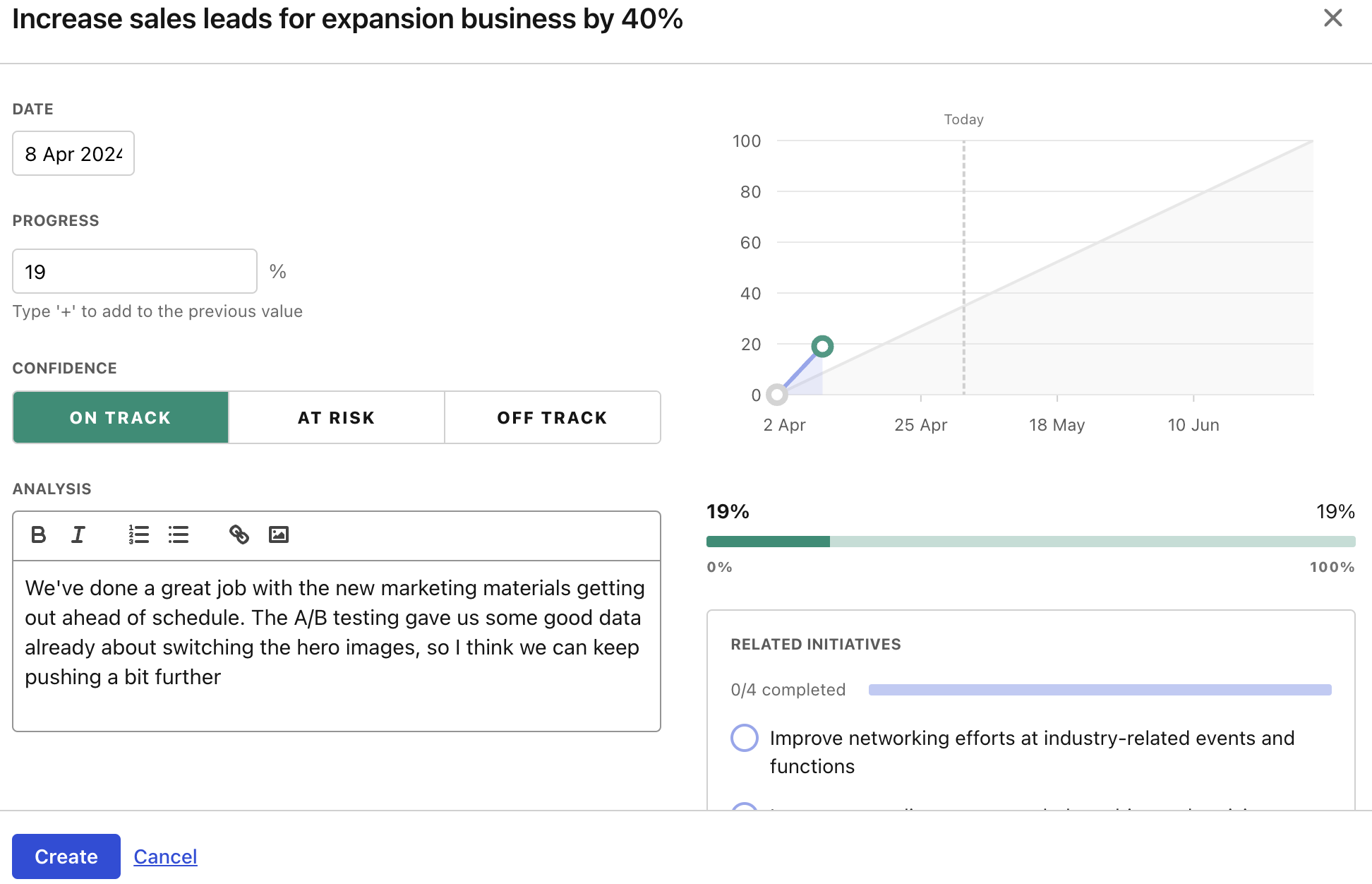
After you've published your plan with your goals, your team will be asked to update their outcomes or key results each week with their progress. Check-ins track three things:

* **Metrics:** How are you tracking towards your measurable goals?
* **Confidence:** How confident is your team on being able to complete this outcome?
* **Analysis:** Why do or don't they feel confident? What progress have they made and what blockers are they encountering?

After the check-ins have been completed, Tability will automatically chart their responses so you can see how things have changed overtime. Everyone in your workspace can see the check-in details, so nothing gets siloed!

###


# Navigating your Free Trial

After signing up for Tability, you'll have a 28 day free trial to explore the product or to start using Tability to track your goals. We've created a set of guides that explain what's included with the free trial and how to chose the right plan after it's over

<table data-view="cards"><thead><tr><th></th><th></th><th></th><th data-hidden data-card-target data-type="content-ref"></th><th data-hidden data-card-cover data-type="files"></th></tr></thead><tbody><tr><td><strong>Free trial FAQs</strong></td><td>Quick answers to common questions about the trial</td><td></td><td><a href="/docs/readme/navigating-your-free-trial/tability-free-trial-faqs">Tability Free Trial FAQs</a></td><td><a href="https://318707989-files.gitbook.io/~/files/v0/b/gitbook-x-prod.appspot.com/o/spaces%2FMULqjSmZyGczPy2I6FGH%2Fuploads%2FfXLieBpc61su4qf9raMd%2Ftabyfaq.png?alt=media&amp;token=edbd73f0-1410-491c-881e-3c5fb44709b6">tabyfaq.png</a></td></tr><tr><td><strong>Tability Buyer's Guide</strong></td><td>Need help choosing a subscription or talking about Tability with your leadership team?</td><td></td><td><a href="/docs/readme/navigating-your-free-trial/tability-buyers-guide">Tability Buyer's Guide</a></td><td><a href="https://318707989-files.gitbook.io/~/files/v0/b/gitbook-x-prod.appspot.com/o/spaces%2FMULqjSmZyGczPy2I6FGH%2Fuploads%2F0AneWj9z3VuVkVmv8b7f%2Fbuyersguide.png?alt=media&amp;token=f76eab59-27e5-4e00-b754-40885bafdce3">buyersguide.png</a></td></tr><tr><td><strong>Basic vs. Plus vs. Premium</strong></td><td>A quick breakdown of the features included in each subscription</td><td></td><td><a href="/docs/readme/navigating-your-free-trial/tability-basic-vs.-premium">Tability Basic vs. Premium</a></td><td><a href="https://318707989-files.gitbook.io/~/files/v0/b/gitbook-x-prod.appspot.com/o/spaces%2FMULqjSmZyGczPy2I6FGH%2Fuploads%2FNpuDI1q6zzLy3hePHS20%2Fplans.png?alt=media&amp;token=a7402aaf-efbb-44a6-a17a-713ec47a0cb0">plans.png</a></td></tr></tbody></table>


# Tability Free Trial FAQs

Common questions about Tability's free trial

## FAQs:

**Q: How long is the free trial?**

A: Tability's default free trial lasts for 14 days.

**Q: Can I extend my free trial?**

A: You can contact our team via support chat if you need more time.

**Q: How many people can I invite to my free trial?**

A: You can invite as many users as you would like during your free trial.

**Q: What features do I have access to during the trial?**

A: During the trial, you'll have the Premium version of Tability. This comes with access to all of the features in the product.

**Q: What plan should I choose after my trial?**

A: We've put together a buyer's guide to help you figure out what features and subscription level you need. Check it out [here](/docs/readme/navigating-your-free-trial/tability-buyers-guide).

**Q: Do you have a features list for the different subscriptions?**

A: We do! See just the difference in subscriptions [here](/docs/readme/navigating-your-free-trial/tability-basic-vs.-premium).

**Q: After my free trial, will I lose my data?**

A: No, we'll keep any plans, OKRs, teams, tags, and anything else that you add to Tability after your free trial is over. If you decide to buy, you can pick up right where you left off.

**Q: If I decide not to go with Tability, can I delete my data?**

A: You can. On the homepage, click on **Manage your workspace** on the bottom and you'll be brought to a screen where you can delete your workspace and all associated data.<br>

<figure><img src="https://318707989-files.gitbook.io/~/files/v0/b/gitbook-x-prod.appspot.com/o/spaces%2FMULqjSmZyGczPy2I6FGH%2Fuploads%2FDHL4gqZXl9Nm55KqxeXT%2Fimage.png?alt=media&amp;token=b4214a3e-b4d0-4268-ade0-ccc619f46405" alt=""><figcaption></figcaption></figure>


# Tability Buyer's Guide

Hello! This guide will answer common questions about Tability to help you understand how our platform can help.

## Why we made Tability

2 recent trends have changed the way high-performing teams are built:

* Orgs are breaking down large groups into many small teams that can move rapidly (see Amazon's [Two-Pizza Teams](https://docs.aws.amazon.com/whitepapers/latest/introduction-devops-aws/two-pizza-teams.html)).
* Async work is becoming the primary way to operate as teams are now remote or distributed. Even the companies returning to the office are hybrid in some form.

These 2 things put together have created a new world where alignment and focus matter more than ever. That is why we're seeing goal-setting frameworks like OKRs taking over: organisations are looking for a simple way to coordinate efforts at scale, and it's much easier to do so by talking about goals rather than reviewing the details of each project.

TL;DR: the future of work is goals-driven.

So, what's the issue?

Well. Teams have great tools for specs, design, code, projects, etc. But they're missing a place for goals.

<figure><img src="https://318707989-files.gitbook.io/~/files/v0/b/gitbook-x-prod.appspot.com/o/spaces%2FMULqjSmZyGczPy2I6FGH%2Fuploads%2FxMWGbakOBCKZNhjgbHl0%2Fimage.png?alt=media&amp;token=c2d69de8-89b8-4421-9fcf-01689920001a" alt=""><figcaption><p>Tability is the missing piece between the vision and the projects</p></figcaption></figure>

As a result, you end up in situations where teams want to put outcomes at the center of collaboration, yet they don't have the means to do it – this is the problem that Tability solves.

Domain-specific platforms like Figma, Github, or Jira have allowed people to increase productivity and iterate quickly on outputs. Tability will help you do the same for strategy and outcomes to deliver outstanding results faster.

## Who is Tability for?

While you can use Tability for yourself, we designed the platform with teams in mind. More specifically, Tability is designed to help distributed organisations increase accountability while drastically reducing the cost of reporting.

<figure><img src="https://318707989-files.gitbook.io/~/files/v0/b/gitbook-x-prod.appspot.com/o/spaces%2FMULqjSmZyGczPy2I6FGH%2Fuploads%2FhN5e17dG1iV1QhqITDnM%2Fimage.png?alt=media&amp;token=0e089c0c-80e1-4718-8cd6-0e22cdd63af8" alt=""><figcaption><p>Selected customers</p></figcaption></figure>

Whether you're a team of 20 people or an organisation with 100 teams of 20, Tability will give you all the tools required to align everyone, increase transparency, and reduce distractions to achieve your desired results.

**Key benefits for leadership:**

* Single source of truth for goals and strategic updates
* Establish standard practices across all teams
* Get automated health digests in your inbox
* Visualise progress trends and identify risks early
* See how goals and strategic initiatives align across your org

**Key benefits for team leads:**

* Save time with automated reminders, built-in dashboards, and data connectors
* Get actionable insights to set better goals and improve execution
* Easily share updates with stakeholders
* Sync tasks with your project management tools
* Get notified early when goals are going off-track

**Key benefits for individual contributors:**

* Visualise the impact you have on team goals
* Increase ownership of your work
* Significantly reduce the time spent on reporting
* Monitor progress on your company and team goals
* Simplify status updates

## Tability vs. other platforms

When choosing the right tool for goal tracking and OKR management, it's essential to consider how each option stacks up against the alternatives. In this section, we'll compare Tability with common tools like spreadsheets, docs, project management tools, and traditional OKR tools to help you understand why Tability could be the best choice for your needs.

### **Tability vs. spreadsheets (ex: Google Sheets, Airtable)**

* **Ease of use:** Unlike the often cumbersome and complex spreadsheets, Tability offers an intuitive interface, making goal tracking and OKR management accessible to everyone in your team.
* **Accurate status updates:** Spreadsheets can quickly become outdated. Tability, on the other hand, provides real-time updates and insights, ensuring everyone is always aligned with the latest objectives.
* **Collaboration:** Tability fosters seamless team collaboration. While spreadsheets can be challenging for multiple users to update simultaneously, Tability's collaborative features ensure that everyone stays on the same page.

### **Tability vs. docs (ex: Google Docs, Confluence, Notion)**

* **Structured format:** Tability offers a dedicated and structured format for managing goals, which general-purpose document tools lack. This structure ensures clarity and focus on objectives and key results.
* **Integration:** Tability integrates effortlessly with other business tools, creating a connected and efficient workflow, unlike isolated document-based systems.
* **Visualisations:** Tability will automatically generate progress charts and dashboards, allowing you to understand progress at a glance.

### **Tability vs. project management tools (ex: Jira, ClickUp, Asana)**

* **Focus on goals:** While project management tools offer a broad suite of features, Tability is tailored explicitly for goal management, ensuring a more focused and effective approach.
* **Simplicity and clarity:** Project management tools can be overwhelming with features. Tability provides a simpler, more direct way of tracking OKRs, making it easier for teams to adopt and use effectively.
* **Accountability workflows:** Unlike project management tools, Tability has built-in tools to nudge teams about weekly check-ins and ensure that everyone keeps in mind what matters the most.

### **Tability vs. Employee Performance Management Tools (15Five, Lattice)**

* **Strategic alignment with goals:** Tability is specifically designed for goal management. In contrast, employee performance management tools often focus more on evaluating past performance rather than aligning future objectives.
* **Real-time goal tracking:** Unlike many performance management tools that assess employee performance periodically (e.g., quarterly or annually), Tability allows for continuous tracking and updating of objectives. This approach keeps teams agile and responsive to changes.
* **Collaboration and engagement:** Tability encourages active collaboration and engagement among team members in setting and achieving goals. This contrasts with the more top-down approach of traditional performance management tools, where goals are often set and reviewed by managers alone.

### **Tability vs. traditional OKR tools (Quantive, Perdoo, Profit)**

* **Ease of use:** With a user-friendly interface, Tability makes setting up, tracking, and achieving OKRs a smoother experience compared to some traditional tools.
* **Mapping strategic initiatives:** Tability makes it easy to connect goals to strategic projects, allowing you to create a rapid feedback loop between outcomes and outputs.
* **Cost-effectiveness:** Tability offers competitive pricing, making it an affordable option without compromising on quality and functionality.

### Pricing comparison

Tability can save you up to 80% compared to other tools that have goal-tracking capabilities.

In the table below you'll find a comparison of the monthly cost of Tability vs. several other options to track goals.

For each platform, we've picked the starting price that offers goal-tracking/OKRs capabilities. You'll see that our pricing stays competitive as you grow – even if you pick our Premium offering.

Plus, pay for only as many users as you need. Need 10? Great! 23? No problem. 462? We've got you.

<table data-full-width="true"><thead><tr><th>Platform</th><th>Starting price</th><th>25 users</th><th width="149.5">50 users</th><th>100 users</th></tr></thead><tbody><tr><td><strong>Tability Basic</strong></td><td>$6/user/month</td><td>$150/month</td><td>$300/month</td><td>$600/month</td></tr><tr><td><strong>Tability Premium</strong></td><td>$10/user/month</td><td>$250/month</td><td>$500/month</td><td>$1,000/month</td></tr><tr><td>Profit</td><td>N/A</td><td>N/A</td><td>N/A</td><td>N/A</td></tr><tr><td>Lattice</td><td>$11/user/month</td><td>$275/month</td><td>$550/month</td><td>$1,100/month</td></tr><tr><td>Asana</td><td>$30/user/month</td><td>$750/month</td><td>$1,500/month</td><td>$3,000/month</td></tr></tbody></table>

## Core features of Tability

### Automated dashboards and reports

Tability has [10+ automated dashboards](https://www.tability.io/odt-articles/great-okr-dashboards-will-boost-execution) that will save your team hours at work. Each dashboard is designed for a specific persona and a specific use case. This approach allows every user to quickly find answers to their questions.

### Accountability tools

The name of Tability comes from accoun**t*****ability***. Tability has [a set of tools](https://www.tability.io/odt-articles/10-tools-to-keep-your-team-engaged-with-okrs) built to help high performing teams reach great levels of transparency and accountability.

### Goal-setting and goal-tracking AI

You can use [Tability's AI features](https://guides.tability.app/docs/ai-features) to improve your goals and generate a complete strategy that will match your objectives.

### Goals and initiatives tracking

Tability will give you a simple way to understand:

* The initiatives that are planned to achieve a specific goal
* The goal that a specific initiative contributes to

While goal-management is the primary use of Tability, you will be able to organise and plan the work that needs to happen to achieve your objectives.

## Integrations

<figure><img src="https://318707989-files.gitbook.io/~/files/v0/b/gitbook-x-prod.appspot.com/o/spaces%2FMULqjSmZyGczPy2I6FGH%2Fuploads%2FRpFBeBz6Um10pJkpJH00%2Fimage.png?alt=media&amp;token=ed7e1ae7-201a-489c-a778-2cb4ff1efa45" alt=""><figcaption></figcaption></figure>

Our integrations fall into 4 different categories:

* **Data connectors:** automatically pull metrics data from your tools for your weekly check-ins
* **Embedded views:** show Tability data inside of doc management platforms like Confluence or Notion
* **Project management sync:** sync Tability initiatives to tasks in your project management platform
* **Communication tools:** get check-ins reminders and health digest in your Slack channels

You can also leverage [our public API](https://guides.tability.app/api/getting-started/setup-guide) to build your own integration!

## Rolling out Tability

### Choosing the right subscription

There are 3 different subscriptions available for Tability. You can read about the differences in [Tability Basic vs. Premium](/docs/readme/navigating-your-free-trial/tability-basic-vs.-premium), and you'll find below a simple recommendation.

| To learn OKRs                                                                                                                                                                                     | For full scale transparency                                                                                                                                                                                                                                                               |
| ------------------------------------------------------------------------------------------------------------------------------------------------------------------------------------------------- | ----------------------------------------------------------------------------------------------------------------------------------------------------------------------------------------------------------------------------------------------------------------------------------------- |
| Tability Basic                                                                                                                                                                                    | Tability Premium                                                                                                                                                                                                                                                                          |
| $6/seat/month\*                                                                                                                                                                                   | $10/seat/month\*                                                                                                                                                                                                                                                                          |
| <p>Tability Basic includes core goal-setting and goal-tracking features to help you get started.<br><br>It's the perfect subscription to get started with OKRs with a simple set of features.</p> | <p>Tability Premium is for teams that need full transparency and visibility on progress.<br><br>It offers additional reports and insights to quickly identify risks, as well as additional automation and APIs to scale your processes.<br><br>Also includes 2:1 free read-only seats</p> |

\*Prices shown for annual contracts. For month-to-month subscriptions, check out our pricing page [here](https://www.tability.io/pricing).

### Planning your rollout

Tability is easy to adopt and use, but rolling out a goal-setting framework like OKRs to an entire org often needs to be done in phases.

Our team can help you plan your rollout, and we have a set of onboarding programs designed to make your organisation successful as well as measure ROI.

[Get in touch](https://calendly.com/tability/demo) to discuss the best approach for your org!


# Tability Basic vs. Premium

A quick look at the benefits of Tability's subscriptions

Tability has 2 different paid subscriptions that you can select for your workspace. For specifics on pricing and how to sign up, visit our [Pricing page](https://www.tability.io/pricing).

## Quick comparison

<table data-full-width="true"><thead><tr><th>Basic</th><th>Premium</th></tr></thead><tbody><tr><td>For teams that want simpler goal-tracking, and connect their work to goals</td><td>For teams that want a complete solution to put outcomes at the center of collaboration.</td></tr><tr><td>$7/seat/month (paid monthly)<br>$6/seat/month (paid annually)</td><td>$12/seat/month (paid monthly)<br>$10/seat/month (paid annually)</td></tr><tr><td>No free read-only users</td><td>Includes free read-only users (see <a href="https://www.tability.io/pricing">Pricing</a>)</td></tr><tr><td>Integrations limited to Slack and project management tools</td><td>All integrations, including the ability to automatically sync check-ins with data from your tools</td></tr><tr><td><p>✅ Goal-setting AI<br>✅ Goal-tracking<br>✅ Check-ins reminders<br>✅ Initiative management<br>✅ Filters &#x26; report<br>✅ Strategy Map<br>✅ Slack integration<br>✅ Project integrations<br>❌ No teams<br>❌ No standups<br>❌ No SAML SSO<br>❌ No check-ins API<br>❌ No data connectors<br>❌ No data sync<br>❌ No Cascading Map<br>❌ No workspace insights<br>❌ No retrospectives</p><p>❌ No advanced access controls<br>❌ No API</p><p>❌ No KPI module</p><p>❌ No read-only guests<br>❌ No org chart<br>❌ No direct reports map<br>❌ No dependencies maps</p></td><td><p>✅ Goal-setting AI<br>✅ Goal-tracking<br>✅ Check-ins reminders<br>✅ Initiative management<br>✅ Filters &#x26; report<br>✅ Strategy Map<br>✅ Slack integration<br>✅ Project integrations<br>✅ Teams<br>✅ Standups<br>✅ SAML SSO<br>✅ Check-ins API<br>✅ Data connectors<br>✅ Data sync<br>✅ Cascading Map</p><p>✅ Workspace insights<br>✅ Retrospectives</p><p>✅ Advanced access controls</p><p>✅ Public API<br>✅ KPI module<br>✅ Read-only guests<br>✅ Org chart<br>✅ Direct reports map<br>✅ Dependencies map</p></td></tr></tbody></table>

## General description

### Tability Basic

Tability Basic was built for teams that are getting started with outcome-driven frameworks like OKRs, NCTs, or Scaling Up.

It includes the essential features that you need to set and track goals with your team, as well as tools that can help you visualise alignment at scale.

It's recommended for your first OKR cycle, or if you're a team of fewer than 10 people.

### Tability Premium

Tability Premium is the full suite of features for orgs that are putting their outcomes at the center. A Premium subscription includes all the features in Basic and Plus, additional features:

* [Broken mention](broken://pages/1GkG5Fqy6Ffs0n8MhUQ1) - Visualise relationships and dependencies between Outcomes
* [Retrospectives](/docs/become-a-tability-power-user/features/reporting/retrospectives) - Share reflections with the rest of the org
* [Auto-sync for data sources](/docs/become-a-tability-power-user/integrations/auto-sync-for-data-sources) - Automatically update the progress of your Outcomes via external integrations
* [Workspace Insights](/docs/become-a-tability-power-user/features/reporting/workspace-insights) - Measure adoption and surface goal-setting risks
* [Tability API Guide](https://guides.tability.io/api/)


# Download the mobile app

Get Tability in your pocket

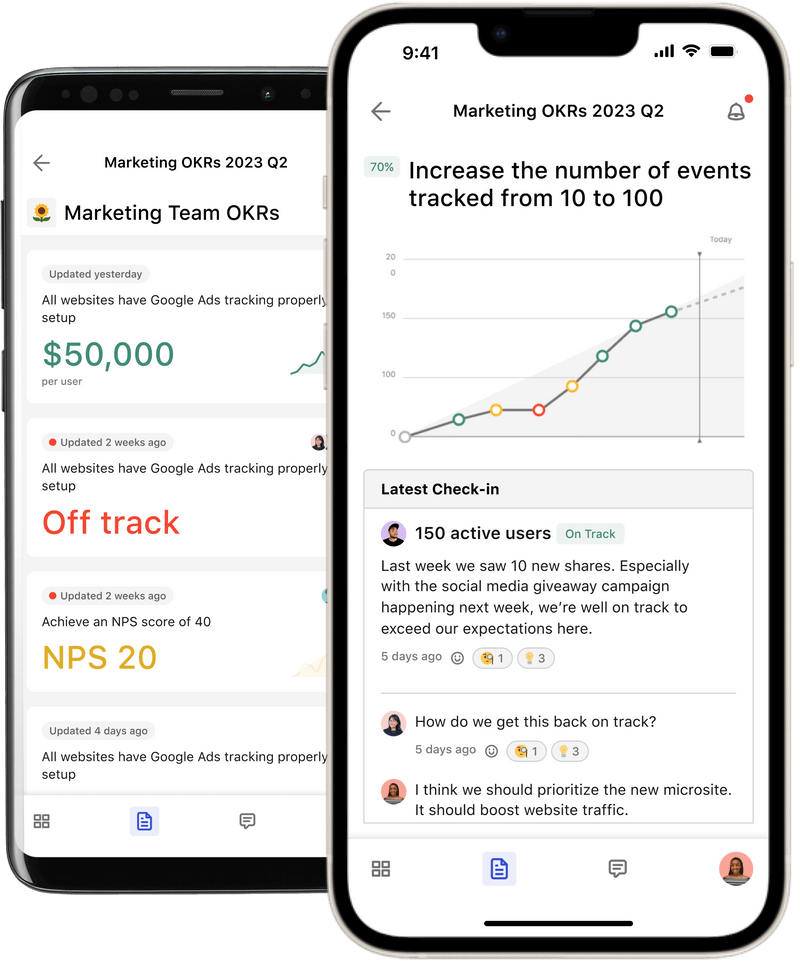
<figure><img src="https://318707989-files.gitbook.io/~/files/v0/b/gitbook-x-prod.appspot.com/o/spaces%2FMULqjSmZyGczPy2I6FGH%2Fuploads%2FJgqlpll4fFcY1BowE8vm%2F64f7a86552ef8b5f75a54f08_tability-android-ios-mobile-view-p-800.png?alt=media&amp;token=ca7dbad5-cac9-4394-a666-fab4b7661b9a" alt="" width="375"><figcaption></figcaption></figure>

Tability has a dedicated mobile app that is optimised for rapid feedback. You can use Tability Mobile to:

* Get a full view of your team's progress
* Do your check-ins during your commute
* Share your daily standup, and read updates from your team

## Download Tability Mobile

* **iOS:** [Download on the App Store](https://apps.apple.com/us/app/tability-mobile/id6444370904)
* **Android:** [Download on Google Play](https://play.google.com/store/apps/details?id=app.tability)


# Best practices

See how you can get the best out of Tability

## Pick the right structure for your workspace

Read [Recommended structure for your workspace](/docs/tutorials/recommended-structure-for-your-workspace) to see a simple model to organise goals and OKRs in your workspace.

## Limit the number of goals per plan

Focus starts by saying no to things. We recommend 3-4 objectives per plan, and 3-4 outcomes/key results per objective.

The more items you track, the harder it'll be to know what really matters.

## Use real targets

Tability allows you to add your exact metrics to simplify the check-in experience.

By default, every outcome is set to go from 0 to 100%. But you'll be able to set the target to "60 NPS" if your goal is to increase NPS from 0 to 60.

<figure><img src="https://318707989-files.gitbook.io/~/files/v0/b/gitbook-x-prod.appspot.com/o/spaces%2FMULqjSmZyGczPy2I6FGH%2Fuploads%2FGzcQg1HqMM6EP2mxNqeT%2FGroup%2065(5).png?alt=media&amp;token=4e8d987c-2a10-4fd3-9712-57ed693b638b" alt=""><figcaption></figcaption></figure>

## Share ownership

Sharing ownership of the goals in Tability will help you build an empowered team. It's a simple way to create a natural accountability, but also to keep people more engaged with the strategy.

<figure><img src="https://318707989-files.gitbook.io/~/files/v0/b/gitbook-x-prod.appspot.com/o/spaces%2FMULqjSmZyGczPy2I6FGH%2Fuploads%2FXl3PlwP4Q4cop8TUueeZ%2FGroup%2072(1).png?alt=media&amp;token=145b3210-6aaa-4c53-a3d7-45f002c70418" alt=""><figcaption></figcaption></figure>

This will also allow each individual to write better check-ins as they won't need to rush through 10 or 15 updates every week.

As a rule of thumb, we recommend that [users should not have more than 7 KRs to update per week](https://www.tability.io/odt-articles/tracking-okrs-how-many-okrs-per-owner?ref=blog.tability.io).

## Commit to weekly check-ins

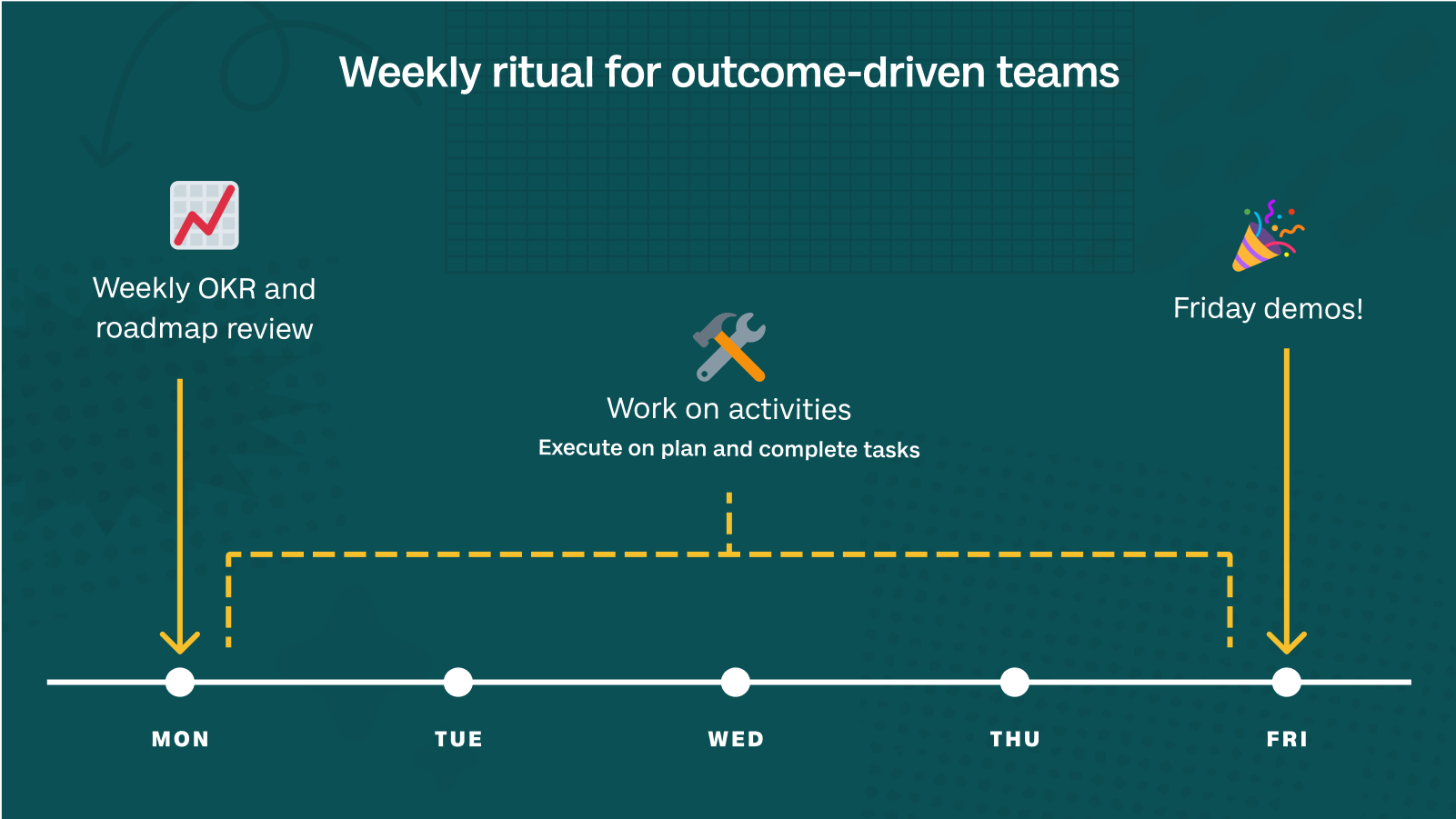
Tability is a bit like a hybrid habit tracker/focus coach. We can't force you to do weekly check-ins, but we highly recommend it to have optimal results.

<figure><img src="https://318707989-files.gitbook.io/~/files/v0/b/gitbook-x-prod.appspot.com/o/spaces%2FMULqjSmZyGczPy2I6FGH%2Fuploads%2FEFol6XntnbOO4G0isKZM%2FGroup%2071(1).png?alt=media&amp;token=4a5aa9e8-1f3b-4abf-b072-c9ca2d9c197d" alt=""><figcaption><p>Weekly check-ins will show trends and help you make better decisions.</p></figcaption></figure>

Not because we want to be annoying, no. But because fast feedback cycles on strategy will greatly improve your ability to execute:

* The team will always keep the top priorities in mind.
* You will get a true sense of progress.
* You will be able to rapidly adjust the roadmap before it's too late.

Weekly check-ins are at the core of Tability, and it's one of the key differentiator for a successful implementation.


# Getting Started with Tability

Just created your Tability workspace? Here is a collection of articles to get you up and running quickly

<table data-view="cards"><thead><tr><th></th><th></th><th></th><th data-hidden data-card-target data-type="content-ref"></th><th data-hidden data-card-cover data-type="files"></th></tr></thead><tbody><tr><td><strong>How to set up your Tability workspace</strong></td><td>An overview complete with video walkthroughs</td><td></td><td><a href="/docs/tability-university">Tability University</a></td><td><a href="https://318707989-files.gitbook.io/~/files/v0/b/gitbook-x-prod.appspot.com/o/spaces%2FMULqjSmZyGczPy2I6FGH%2Fuploads%2Flj3KYJm2jF29QrOzjM40%2FTabbyTeachGreen.png?alt=media&amp;token=cd1cbd8c-0630-4e4d-953c-7e5f70c867da">TabbyTeachGreen.png</a></td></tr><tr><td><strong>Watch a demo of Tability</strong></td><td>A complete demo of Tability on demand</td><td></td><td><a href="broken://pages/0xg83d7N68IyTg3Xrx04">Broken link</a></td><td><a href="https://318707989-files.gitbook.io/~/files/v0/b/gitbook-x-prod.appspot.com/o/spaces%2FMULqjSmZyGczPy2I6FGH%2Fuploads%2FtuMy70YHzqLcsNehoGsW%2FScreenshot%202024-05-02%20at%202.44.56%20PM.png?alt=media&amp;token=f1d48c14-90a2-4b8d-933d-54ff69557762">Screenshot 2024-05-02 at 2.44.56 PM.png</a></td></tr><tr><td><strong>Schedule an onboarding call</strong></td><td>Learn Tability from the experts</td><td></td><td><a href="https://calendly.com/tability/expert-onboarding">https://calendly.com/tability/expert-onboarding</a></td><td><a href="https://318707989-files.gitbook.io/~/files/v0/b/gitbook-x-prod.appspot.com/o/spaces%2FMULqjSmZyGczPy2I6FGH%2Fuploads%2F4YtEwBijYNokkI7dYi4w%2FScreenshot%202024-05-02%20at%202.51.43%20PM.png?alt=media&amp;token=8c437366-bc49-49e6-9b2a-d4e55832f88c">Screenshot 2024-05-02 at 2.51.43 PM.png</a></td></tr></tbody></table>


# Step-by-step on how to use your Tability trial

{% embed url="<https://www.loom.com/share/4e905f602e9940a8b17e462f56ec5875>" %}

Tability offers a free 14 day trial so that you can explore every feature before you decide to move forward with a new OKR tool. Our free trial includes unlimited access to all of our Premium features, and a workspace that will automatically transition into a paid account so that you don’t have to worry about redoing work that you’ve done. Below is a step-by-step guide for testing Tability (and any tool that offers a free trial) so that you can make the most of your 14 days. The best part? You could complete it all in 30 minutes and use the rest of your trial for a deeper look with your team.&#x20;

## Explore the sample data&#x20;

Your Tability workspace comes complete with 3 sample plans. We’ve structured our sample plans to include a top-level set of company OKRs and two supporting sets of departmental OKRs. The key results within the plans are also linked to relevant dependencies so that you can see how an interconnected OKR structure works.&#x20;

### Start with the company plan

Plans in Tability are where all OKRs are written. You can think of a plan as just one group of your OKRs that are set up in the way that you’ll likely meet and talk about them. Instead of all of your OKRs in one spot, each department or level can have their own dashboard. This doesn’t mean that OKRs are siloed, just that you don’t have to set up complex filters in order to track your performance for a group or team.&#x20;

Navigate to the Plans page on the left and click on the Company OKRs plan (the date for the plan will be adjusted to when you started your trial). <br>

<figure><img src="https://318707989-files.gitbook.io/~/files/v0/b/gitbook-x-prod.appspot.com/o/spaces%2FMULqjSmZyGczPy2I6FGH%2Fuploads%2FEQBsdrAytWjJmifOQOUB%2Fimage.png?alt=media&amp;token=f58b82fc-1139-4a3e-abf4-787bc1ede660" alt=""><figcaption></figcaption></figure>

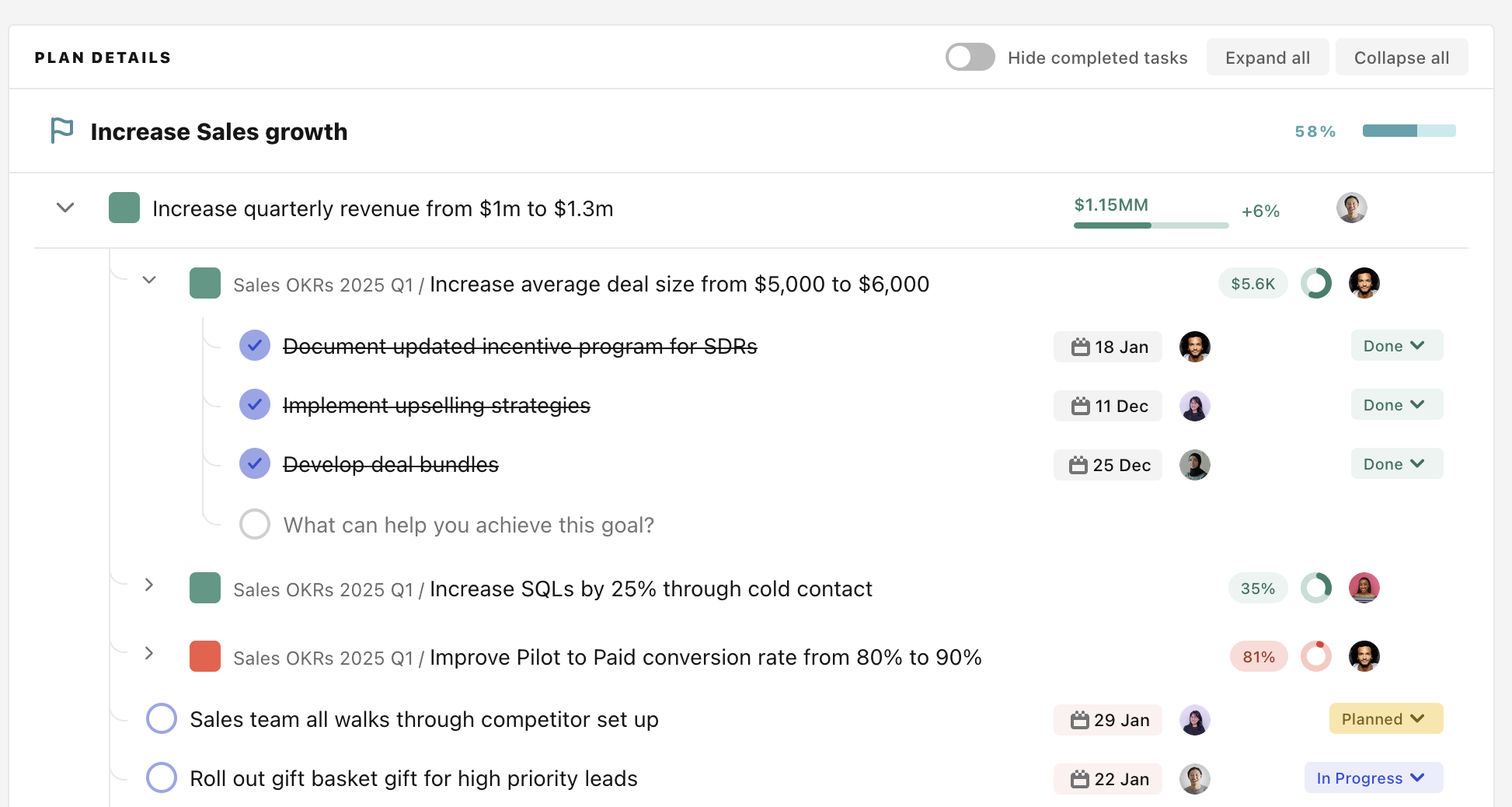
In the Company OKRs plan, you can explore all of the OKRs, alongside their check-ins. Click the arrows on the left to see all of the connected key results from other plans and all of the initiatives tied to each key result.&#x20;

<figure><img src="https://318707989-files.gitbook.io/~/files/v0/b/gitbook-x-prod.appspot.com/o/spaces%2FMULqjSmZyGczPy2I6FGH%2Fuploads%2FKifd67S4msKmm74RoqB7%2Fimage.png?alt=media&amp;token=f58bc10a-3df1-48ce-ab9f-a25cd71eaf55" alt=""><figcaption></figcaption></figure>

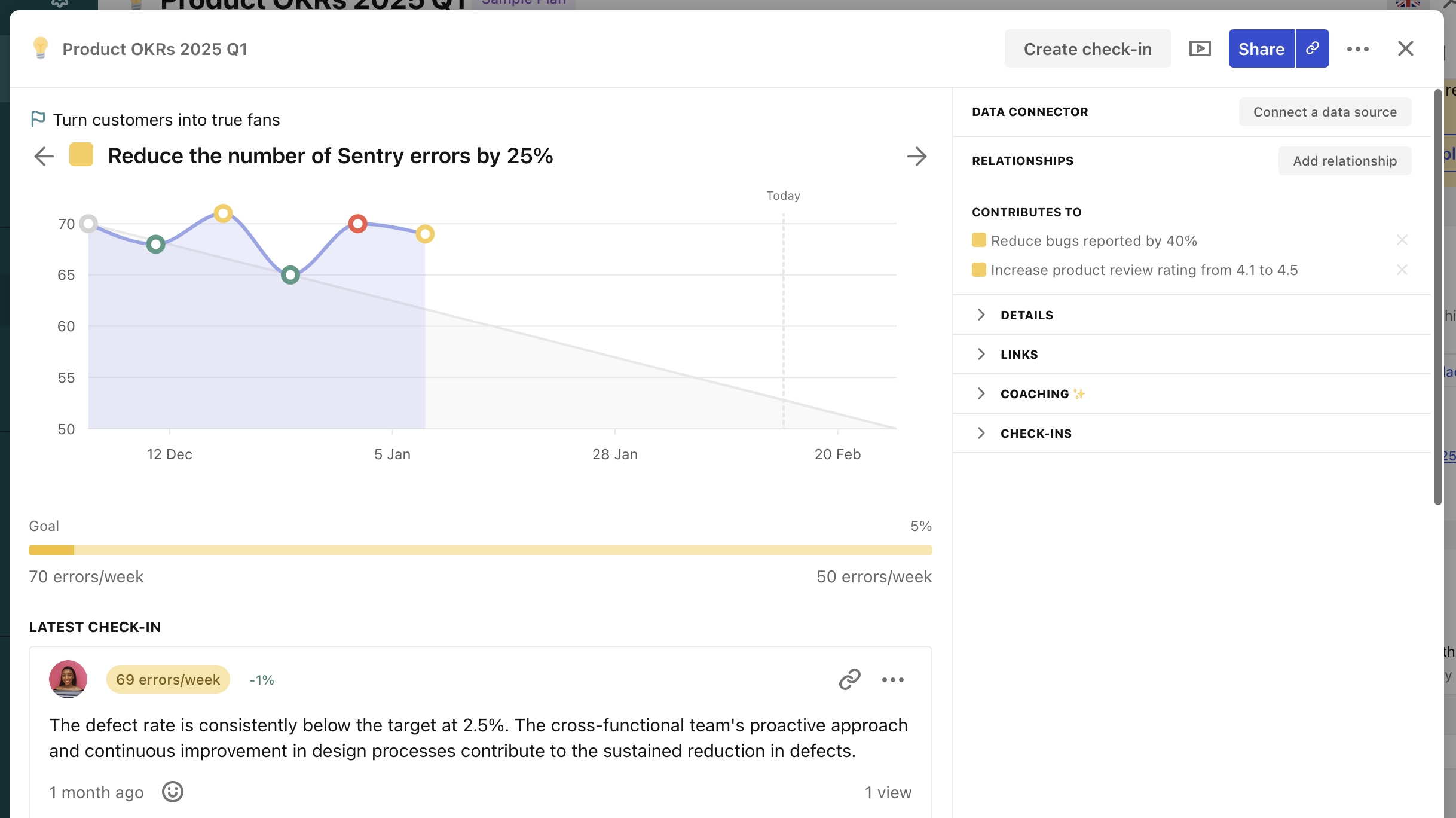
Click on a key result to explore the key result dashboard and see progress over time and the comments from the owner of the key result.&#x20;

<figure><img src="https://318707989-files.gitbook.io/~/files/v0/b/gitbook-x-prod.appspot.com/o/spaces%2FMULqjSmZyGczPy2I6FGH%2Fuploads%2Fx05c3GLpellMN5r9dic1%2Fimage.png?alt=media&amp;token=194d4bb6-642c-49ee-a046-4e8d6026d180" alt=""><figcaption></figcaption></figure>

Use this sample to help you think through what sort of goals you have or plan on writing.&#x20;

### Continue exploring the other plans

Back on the Plans page, you can find the sub-plans under the Company OKRs. A sub-plan is a group of OKRs that are owned by a lower team and support the higher plans. We have two layers of OKRs in your sample data, but you can have as many as you would like. (Orgs often will have Company>Line of Business>Region>Team as their hierarchy of OKR plans, depending on how far they’ve rolled out OKRs).&#x20;

The Sales and Product plans have their own OKRs, including the linked goals, so you can see how linking goals appears for those departments.&#x20;

### Assign yourself as an owner

These plans all have live OKRs. Which means you can make updates and perform check-ins on them to see how things change. Assign yourself as an owner of a key result by clicking on the avatar (the image) on a key result and selecting yourself from the drop down. We recommend doing this in at least two different plans. Here’s why:&#x20;

Navigate to the Home page on the left. On your home page, select My focus from the top. Here you will see all of the key results assigned to you as an owner. Notice that, regardless of plan, they all appear in one easy to navigate spot. Tability’s goal is to make sure that the user experience is as smooth as possible, and we’ve built multiple views to support the different workflows different members of your team will have, whether they’re responsible for running the entire OKR process or if they just need to update their key results.&#x20;

<figure><img src="https://318707989-files.gitbook.io/~/files/v0/b/gitbook-x-prod.appspot.com/o/spaces%2FMULqjSmZyGczPy2I6FGH%2Fuploads%2FHFrl91QrGCiBJOrl4yRe%2Fimage.png?alt=media&amp;token=b52d0780-71e9-4ceb-a06a-1bcbb561048f" alt=""><figcaption></figcaption></figure>

## Create your first plan&#x20;

We always encourage you to create a plan so you can see the process. To start, we’ll navigate to the Plans page again on the left.&#x20;

Here, we’ll click Create a new plan. If you don’t have OKRs that you want to test with, try these settings:&#x20;

**Name:** Example OKRs\
**Get check-in reminders:** Every week\
**This plan is for:** This quarter\
**Permissions:** Everyone can edit

The name is how you label your OKRs. Your check-in frequency controls when Tability sends your team email notifications for them to update their key results. The timeline is based on calendar quarters (Q1 is Jan-Mar, Q2 is Apr-June, etc.). If you don’t use calendar quarters, you can set the start and end of your quarter with a custom timeline. And permissions are focused on who can view these OKRs and who can make changes to them (like adding in new key results or changing metric targets). All of these settings can be changed later if you need.&#x20;

After we’ve created our new plan, we can add our OKRs in one of three ways: Writing them from scratch, using the magic import, or generating them with AI. If you already have goals written, try the Magic Import– you can import from CSV, an image, or text, no specific format required. Note: Magic Import works best when it’s clear what is an objective, key result, and task/initaitive. Complicated spreadsheets with many additional data points can cause upload errors.&#x20;

If you don’t have OKRs written, you can generate some with AI to test out the AI generator. Click Generate, then give the system a prompt on what you’d like to work on. You can chat back and forth with the AI until you’re happy with the suggestion, then tell it to add in the goal.&#x20;

You can manually write your OKRs as well. If you want a quick option to have, try this sample OKR (*you can also copy/paste this into the magic import!*):&#x20;

Objective: Provide our clients the best onboarding experience\
Key Result1: Reduce onboarding time from 15 hours to 5 hours\
Key Result2: Reduce the number of abandons from 15% to 7%\
Key Result3: Increase NPS from 60 to 70\
Initiative 1: Write new support materials\
Initiative 2: Update tool tips\
Initiative 3: Roll out new chat bot to offer faster support

To add a task/initiative when writing goals manually, click the + to the left of the key result the initiative supports. Or click enter under that key result, then Tab to change to tasks/initiatives.

Note: In this plan, if you write it manually, you’ll see your initials next to each key result. When creating a key result, we’ll automatically set you as the owner. You can change this to another member of your team (if you’ve invited them) by clicking on the avatar and selecting a new member from the drop down.&#x20;

Once your goals are created, hit publish.&#x20;

## Review reports&#x20;

The sample plans (and any plans that you create) are all treated as live data and you can look at how Tability creates reports as if it was your real OKR data. To start, you can press the Presentation Mode button on any plan to see an automatically generated report that can be shared to external stakeholders:&#x20;

<figure><img src="https://318707989-files.gitbook.io/~/files/v0/b/gitbook-x-prod.appspot.com/o/spaces%2FMULqjSmZyGczPy2I6FGH%2Fuploads%2FQEx3e4cSttoWa80f3V7S%2Fimage.png?alt=media&amp;token=ebd9d7ba-98c0-4108-ab8b-dedd9d347a41" alt=""><figcaption></figcaption></figure>

\
We recommend using a sample plan so that you can see everything available in the Presentation Mode.&#x20;

Next, we’ll navigate to the Filters page. Filters will show all of the objectives, key results, and initiatives/tasks in your workspace and allow you to filter by different criteria. Try adding a filter for Confidence: at risk and off track and Progress below: 50%. You can also save this as a segment, allowing you to return to this filter set with a single click.&#x20;

Now check out the Dashboards. Creating your own custom dashboard is a great way to explore all of the data available (see our suggestions for a custom dashboard [here](/docs/become-a-tability-power-user/how-tos/build-a-better-dashboard-keeping-your-team-accountable-and-on-track)), but you can also look at our prebuilt dashboards along the top. The People dashboard will only show you the real people in your workspace, but check out the Key Result dashboard and the Insights dashboard for real views into what they’ll look like when your team is using Tability.&#x20;

\
![](https://318707989-files.gitbook.io/~/files/v0/b/gitbook-x-prod.appspot.com/o/spaces%2FMULqjSmZyGczPy2I6FGH%2Fuploads%2FCW95jmkHBuka3vWcCfyB%2Fimage.png?alt=media\&token=f8e68d61-9682-4c5b-88d7-a544e65ba83c)

### Spend some time with AI Mode

Next, head to the AI Mode page. Here, you’ll see a live AI chat experience that will answer questions about the data in your Tability workspace. Some useful prompts to try out: <br>

* Write me an executive summary for this week
* What needs the most attention right now?
* Give me a list of things to celebrate with my team
* Which check-ins have the least information and I should follow up on?
* Write a retrospective for all of our OKRs and find trends in what went well and what didn’t

With the sample data already in place, you can prompt the AI the same way you would during your real OKR cycle. So think about which plans are still being worked on, which team members are performing well or not, which goals are hitting their targets, and what you can improve in the next quarter. AI mode is available to help with it all.&#x20;

## For deeper dives

Once you’ve explored the sample data and how it feels to use Tability, the best way to continue forward is with a second (or third or fourth) set of eyes. Your Tability trial can have as many users in it as you would like, so make sure the right decision makers get to take a look.&#x20;

Interested in what access controls and customisation options are available? Click on the gear icon in the upper left to access your workspace settings. Here, you’ll find everything from terminology customisation to adding your branding to your workspace to changing who is able to create plans.&#x20;

If you’d like to see how smooth using Tability can be, you can also set up integrations and use them as data sources. The easiest way to test the integrations is through a spreadsheet– we have Excel online and Google Sheets integrations available in your workspace settings under Integrations. Once you’ve connected, check out this guide on setting up and using data connectors. They’ll help you automatically pull information from another source or automate when a goal is updated.&#x20;

Want to get a hands on demo? Schedule some time with our team [here](https://calendly.com/tability/trial-demo).&#x20;


# Simple Tability Setup

For teams who are new to OKRs and want a foolproof setup for their first quarter

It’s no secret that we believe in the transformative power of OKRs, and you’ll find plenty of others that agree with us on their usefulness. And the more you research OKRs, the more you’ll see that having a purpose built tool can help your team be successful with OKRs. This is why many teams come to us before they’ve ever written an OKR– they want to make sure to do OKRs The Right Way.

And while having the right tool is important, what you do with that tool is just as critical. Who you have working on your OKRs, what your OKRs focus on, and how you run your process are just as critical to a successful rollout. We’ve put together this guide to help you develop your goals and processes so you can be successful, all in three simple steps:<br>

* Start with a single OKR built around top business metrics
* Have just your leadership team work on your OKRs
* Discuss your progress in front of the entire organization

## What are we working on?

Your OKRs are how you help your team focus on what’s most important for your business. If you’ve never written OKRs before, this can feel like an overwhelming amount of choice– what’s important? What should we focus on? If I don’t include something as an OKR, does it mean we aren’t working on it?<br>

Your OKRs are how you call out what's most important, not everything that’s important. So our first set of OKRs should be geared towards what’s most important for the company. And when we think about the top targets that we have at the company-level, they tend to address some fairly standard questions:<br>

* Are we making money?
* Do we have enough customers or clients?
* Do our customers or clients use our product or service?
* Do our customers or clients like to use our product or service?<br>

This is where we focus for developing our first OKR. We’ll need an Objective, which tells us what we’re trying to achieve, and key results that let us measure if we’re achieved our Objective. Try this for your first OKR:

<mark style="color:green;">Objective: Strengthen our business health while maintaining steady growth</mark>

<mark style="color:green;">Key Results:</mark>

1. <mark style="color:green;">Increase Monthly Recurring Revenue (MRR) from $A to $B</mark>
2. <mark style="color:green;">Grow total active paying customers from X to Y</mark>
3. <mark style="color:green;">Increase our Monthly Active Users (MAU) by Z%</mark>
4. <mark style="color:green;">Improve customer satisfaction (CSAT or NPS) by Q%</mark>

This is a good jumping off point because we’re focused on one of the most basic needs for all businesses (growth), while focusing on metrics that involve multiple areas of the business– Sales, product, support, marketing, etc.

Now, this is an OKR crafted around B2B SaaS businesses, but you can adapt the key results to your needs. Consider some alternatives like:

* Total new revenue compared to last quarter or last year
* Increasing repeat orders
* Decreasing operational costs as a percentage of revenue

But start with one single OKR for your organization.

Now let’s create a plan

### Adding your OKR in Tability

All OKRs in Tability exist within a plan. For our OKR, we’ll create a new plan:

<figure><img src="https://lh7-rt.googleusercontent.com/docsz/AD_4nXcYeDiELBdvhyW_1DQyWlzYdI2HPHSVLcXHK3yLRUHEfYHloYPCVX7x5zzLReo3OogS8i4J1pf65KO3sZxrApdaQdvtewRdnQrRhELzG4lRerGDNuNhdZuocF2bR2aEBUlzUd8QUg?key=29EZmfkkiELuXdC3cK4s4A" alt=""><figcaption></figcaption></figure>

<br>

Name your plan Company Q\* OKRs (with the correct quarter) so you can reference the plan in the future. Set the check-in reminders to every week– meaning that each week, everyone assigned to a key result will be asked to update their progress. Then choose when the plan is for. This quarter will be the current calendar quarter (so if you’re creating it in August, “this quarter” is July 1 through September 30, next quarter would start on October 1). If you don’t line up with calendar quarters, you can use the custom option to set your correct timeline. At this point, keep the permissions to everyone being able to edit the plan– you can change this later if needed.

<figure><img src="https://lh7-rt.googleusercontent.com/docsz/AD_4nXdL88WPgk73MQFYc0UYumKxnSGiRegyUkDfk0snQh_wbPAZ797_8CMPA0IQZ4JOKk9rFMTCGkzZt-mb9uE_XVfOHUiveVzhBbAAlgcC3Tk3p77Uu20xkElXXnUBGKARqmW0mJw1fg?key=29EZmfkkiELuXdC3cK4s4A" alt=""><figcaption></figcaption></figure>

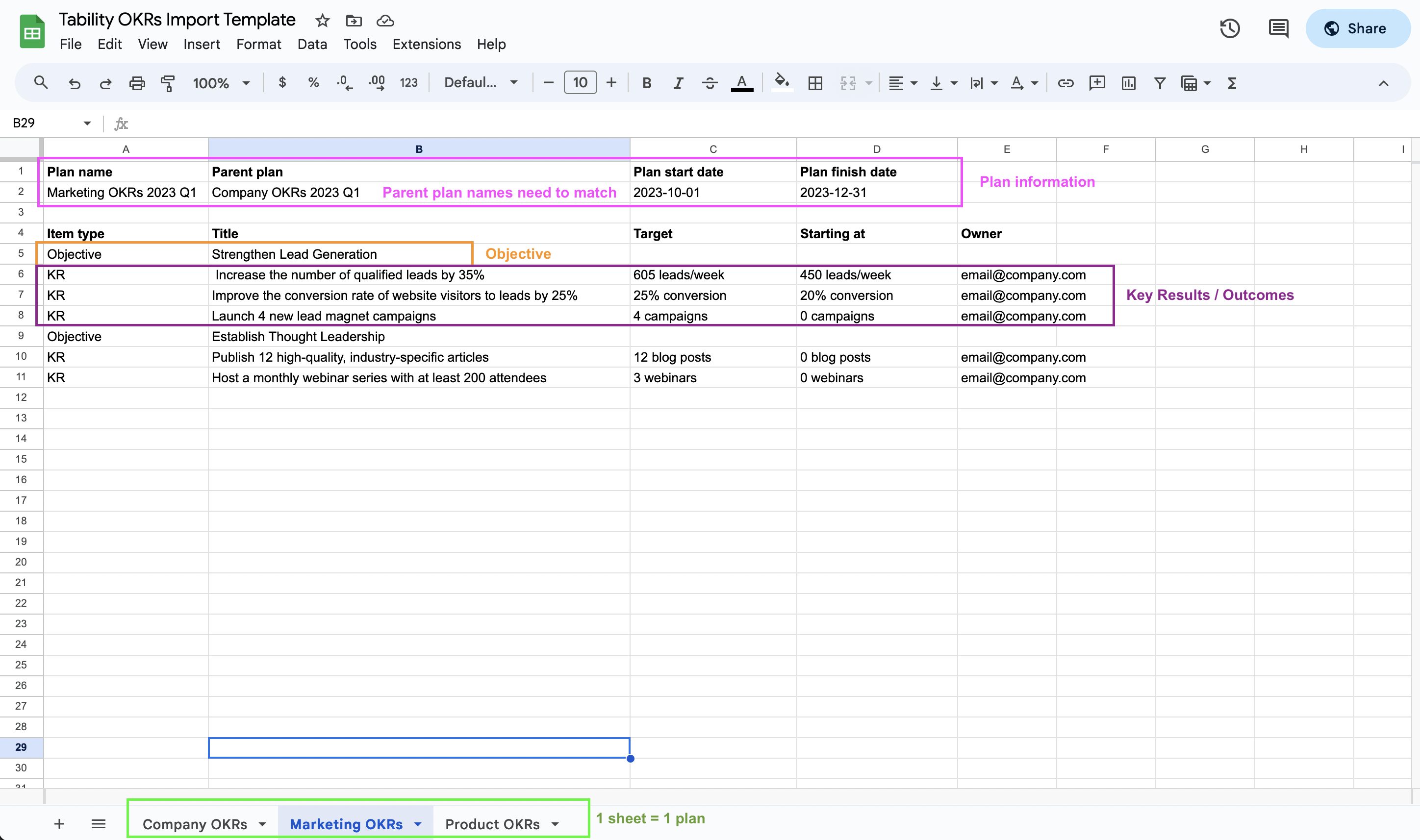
To add your OKR, you can write it directly in the Plan editor. If you already have several OKRs in an XLSX or CSV spreadsheet, use the [AI Importer](/docs/become-a-tability-power-user/features/plans/import-okrs-and-kpis-with-ai) to review and import them in bulk.<br>

Once you’ve added in the OKR, adjust the targets to your actual numbers like so:<br>

<figure><img src="https://lh7-rt.googleusercontent.com/docsz/AD_4nXfEZuS_Bq_jjPedkObydF4pSdzugw4XnqaCAv85PsB3ZN0v4Cw-4_4J3rsSJZquIEiz3tEmUuTWC3ppXyR5tJzGuLo8Hg2gj1D9AladHt2luiUCg_k3560mj5r1B0TCWSjGgyvH?key=29EZmfkkiELuXdC3cK4s4A" alt=""><figcaption></figcaption></figure>

From here, click on the purple AI metric button to the right of the metric to set your targets. This makes sure that you’re tracking the absolute number instead of the percentage progress (For the first key result, we’d want to track the actual dollar amount, not convert it into a percentage– so $45,000 would be better than 66%).

We can either publish this plan or keep it as a draft, but the next step is going to be to add the rest of our team to Tability.

## Who is working on this?

A strong OKR process can help improve your alignment in your organization. However, moving too fast and trying to force the entirety of your organization into a process they aren’t ready for can end up causing more confusion.

Let’s look at our OKR and think about the people who will be responsible for the success of it:<br>

Objective: Strengthen our business health while maintaining steady growth - <mark style="color:purple;">CEO</mark>

Key Results:

1. Increase Monthly Recurring Revenue (MRR) from $A to $B - <mark style="color:purple;">Head of Sales</mark>
2. Grow total active paying customers from X to Y - <mark style="color:purple;">Head of Sales/Head of Marketing</mark>
3. Increase our Monthly Active Users (MAU) by Z% - <mark style="color:purple;">Head of Product/Head of Customer Success</mark>
4. Improve customer satisfaction (CSAT or NPS) by Q% - <mark style="color:purple;">Head of Support/Head of Product</mark>

These are the people that you’ll include in your OKR process and will provide you weekly updates on your progress. Add them into Tability so you can assign them to their key results.<br>

### Adding your team in Tability

We’ll navigate to the People tab in Tability and click Invite your team:

<figure><img src="https://lh7-rt.googleusercontent.com/docsz/AD_4nXfyMmdi8V7qN5sDTPkNC6dDEiov2AUf74ifn_mSP5oW1v-FJ1NSooKSnaJcES5CDpyP90EOvhBrEwSkd6EaghiOM_w5rIUmm2u0s1Hf4DRxYcBm5mjPXKdNc2-rUQI9T5_K3FBYIg?key=29EZmfkkiELuXdC3cK4s4A" alt=""><figcaption></figcaption></figure>

From here, you’ll invite your team by adding their email addresses. By default, all of your users will come in with the User type. If they need to access your workspace settings, you can change them to Admins from your settings under users.

Once you’ve added your team in, go back to your plan and start assigning the right users to the right key results. Click on the avatar on the key result and select the correct user:<br>

<figure><img src="https://lh7-rt.googleusercontent.com/docsz/AD_4nXeQAkgPTsDJt6znc7Q4EBm07FD8ELG8mZnjeZCzpjQL4kldHeujdr_lZSyiQMxdx-7KeShyyIN3pZTy8-0UvZQ3zVviKppXx0uirzVBUbk2xBItOqWyZtotcTpL9DI2sSuq1CRK?key=29EZmfkkiELuXdC3cK4s4A" alt=""><figcaption></figcaption></figure>

Now, click Publish on your plan and your team can start providing updates.

## How do you talk about our OKRs?

Your leadership team will do their check-ins on their key results every week to tell you what’s going well, what needs to change, and what they need. As your team gets started, you can have them use this template to make sure they’re including all of the useful detail:

`Last week we [what projects or work did you do towards your goals?]. This moved our metrics from ____ to _____, which is [what we hoped for/just OK/not what we wanted]. Next week, we’re going to [projects or work that you plan on doing], which should [keep or accelerate our momentum/get us back on track]. I need ___________ in order to succeed this week.`

As a team, meet weekly or bi-weekly to talk about your OKR progress. Before you meet, however, ensure that everyone has not only written their updates, but also read the other updates. That allows you to spend the time you have together solutioning or strategizing instead of going in a circle reciting your updates again.

Beyond talking about them as a leadership team, show the rest of the organization your progress as well. Especially as you plan to roll out OKRs further throughout the organization, you’ll need to demonstrate to your team what they’ll need to do– how to write useful updates, what OKRs look like, and that this is something you’ve decided is important enough to spend time on. The quickest way to do this is by creating a public presentation of your plan. To do so, click on the presentation mode icon in the upper right corner of your plan:<br>

<figure><img src="https://lh7-rt.googleusercontent.com/docsz/AD_4nXfHX9njYpGT9qlx4S5holwPDnAvAr2pxPBDnfYCg3UV3LK2nVe5jEu8Xqtok-R0DxwuNdhM0t3rjt8tPNY2boBjGokXMsvEtOlIwNeq9bSc6YWB1AIXSNc2wQF1NCNKZ66W_TJroA?key=29EZmfkkiELuXdC3cK4s4A" alt=""><figcaption></figcaption></figure>

Here you’ll see a prebuilt presentation for how your OKRs are progressing. This can be used in team meetings, but you should also share this presentation with the rest of the team, regardless of if you’ve added them as users in Tability. First, hit share:

<figure><img src="https://lh7-rt.googleusercontent.com/docsz/AD_4nXfpwrToo_ne6ygQrPOA7VB7VZC6oMP0BezQhHK913wbUdjuBVzbHdS5u-e5g-ee6xp3OnNk0MdrELHbEvQx3PO7PGerPW069FCa9mRBktqR8tDhfTFfeD3AKhH4RcHutnLFr-5ztA?key=29EZmfkkiELuXdC3cK4s4A" alt=""><figcaption></figcaption></figure>

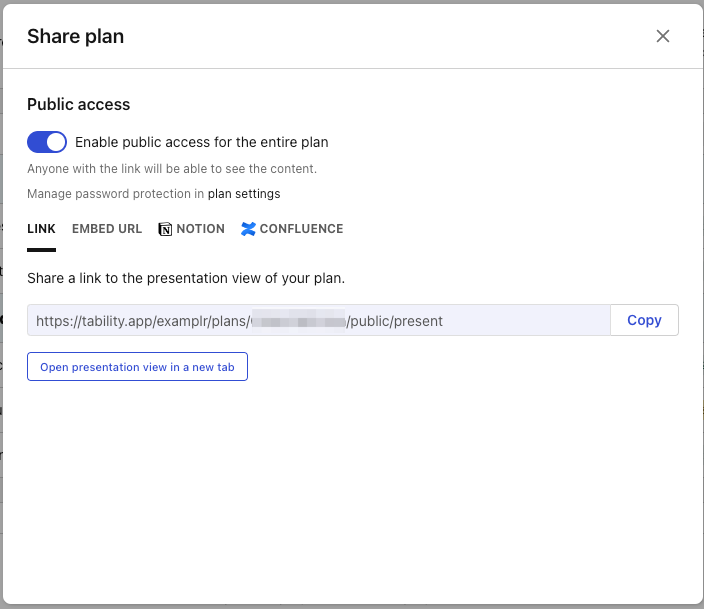
From here, you’ll enable “Public access” (don’t worry– this won’t be indexed and isn’t searchable, but you can also add a password from the link given). Now either give your team the URL, or embed the presentation in Notion or Confluence or anywhere else you can embed an iframe. The presentation will stay up-to-date automatically as new updates come in, so you don’t need to worry about regenerating the presentation.

### Discuss in your All Hands meeting

The more you discuss your OKRs, the more your team understands that they’re important. And if your team does monthly All Hands meetings, this is a great time to make sure you’re bringing up your progress. For a quick way to create slides about your OKRs, go to the three dots menu and click Export plan:

<figure><img src="https://lh7-rt.googleusercontent.com/docsz/AD_4nXccaMoTwkaj3iSmrKStJUyyvgqdkN0ipt_ehSVeeLjU8kijYqrTl25r6RgH2RqjoGkC0P4WjwY6inLmAM_3aDXsdGY-8u1aKeOuCY-SavyP-p2qQdf0snsyCtrVLDxBX6qdro3fPA?key=29EZmfkkiELuXdC3cK4s4A" alt=""><figcaption></figcaption></figure>

You’ll have the option to export your data to a CSV or to generate slides with the most recent update for each key result to add to your All Hands deck.

If you don’t currently do a company-wide All Hands meeting, you should still send out your presentation at regular intervals to highlight the work that’s being done and how the company is progressing towards your OKRs.

## Next steps

Once you’ve got the hang of doing OKRs with just the leadership team, you can continue building out your OKR process. Have each department or business unit create an OKR with at least one of their key results connected to a company goal (For example, if you have a revenue target, at least one of your sales team’s key results should be revenue focused).

Want someone to review your setup? Book a call with our team [here.](https://calendly.com/tability/implementation-planning)

\ <br>


# Tability Frequently Asked Questions

Have a question about Tability? We've got answers! Check out our most frequently asked questions below.

<details>

<summary>What is Tability? What do you do?</summary>

Tability is a tool to help your team stay accountable while tracking your goals. Tability works by having team members perform weekly check-ins in order track metric progress alongside their confidence in being able to achieve their goals and comments on why they do or don’t feel confident.

Set objectives (aspirational goals) and track progress towards them with a set of outcomes (measurable targets). Use check-ins to keep your goals updated and share automatically generated reports with other stakeholders.

</details>

<details>

<summary>What goals should I have?</summary>

Any goal you can break down into objectives and outcomes works with Tability, but we usually see teams tracking strategic quarterly goals. Typically these goals are the most important metrics that the organizations care about.

Some examples include:

* Revenue targets (new revenue, retention, expansions)
* Marketing goals (traffic, marketing qualified leads, rankings)
* Support metrics (response time, ticket volume, CSAT)
* HR/People goals (improved satisfaction surveys, headcount growth, reducing days to hire)
* Engineering goals (uptime, new feature launches, backlog reductions)

</details>

<details>

<summary>Who should I include in my Tability workspace?</summary>

Each outcome in Tability needs to have an owner. Owners are responsible not just for the strategy and execution of the outcome, but also for writing check-ins, the weekly reports that help your team track data on their goals.

Assigning owers who have the ability to set the strategy for the outcome and have access to the resources they need is critical. That said, as long as they have those tools, the owners of outcomes can be at any level of the company (an individual contributor from the support team can own an outcome assigned to that team).

We’ve found that having a more diverse set of users, mixing leadership and individual contributors, can drive success– ensuring voices are heard from those that set the company direction to those who are responsible for doing the day-to-day work.

</details>

<details>

<summary>Where do I keep the tasks related to my goals? Do you integrate with my project management system?</summary>

In Tability, we have three levels of your goals:

* Objectives (What are you trying to achieve?)
* Outcomes (How will you know if you are successful in your Objective?)
* Initiatives (What is the work that needs to be done to get your outcomes?)

Initiatives in Tability function similarly to tasks in project management tools. You can link an initiative to an outcome and update the initiative’s status to show your progress. When an initiative is marked as completed, we’ll mark it on your outcome dashboard so you can see how the work towards your goals affects the metric.

We currently integrate with Jira and Asana. Paste a link to your task into an initiative in Tability and we’ll pull the title, status, due date, and owner into Tability.

</details>

<details>

<summary>Does my team really need to do check-ins weekly? What about bi-weekly or monthly?</summary>

For quarterly goals, we recommend doing check-ins weekly. This gives your team ample time to make changes or ask for help if something goes wrong during the week, and keeps your critical goals at the top of your team’s mind.

Some teams, like engineering teams, are used to working on bi-weekly sprints and have built a habit of doing their reporting fortnightly. Those teams may be able to use bi-weekly check-ins effectively.

We only recommend using monthly or quarterly check-ins on annual goals. For an annual goal, weekly check-ins are likely too frequent and wouldn’t have much information to add to your strategy.

</details>

<details>

<summary>What is a retrospective? Do I need to do them?</summary>

Retrospectives are a deep dive into your goals that is done either monthly or at the end of the quarter. In your retrospectives, you’ll:

* Score your progress or completion of your Objectives (typically by looking at the overall completion of your outcomes as a percent)
* Write notes on what you’ve learned about the Objective or what you accomplished
* Explain the things you want to start, stop, or continue doing as part of your goal tracking process. For example:
  * We want to start using AI to help us brainstorm initiatives
  * We want to continue using Tability to track our goals
  * We want to stop missing our check-ins

Retrospectives are great for ensuring that your team is learning from your OKR process and not just checking a box.

</details>

<details>

<summary>How do I make sure my team uses this and keeps their goals up to date?</summary>

One of the best ways to make sure your team takes your goal tracking process seriously is to dedicate time to it. Every Monday or Friday, give them a block on their calendar to update their goals (likely no more than 30 minutes). With recurring, dedicated time, they’ll not have an excuse for missing their updates.

Separately, ensure that you use the information that is entered in. Talk about the updates in meetings, share goal progress publicly, comment on their check-ins with ideas, options, and questions.

Finally, celebrate success. Don’t save celebrations for the end of the quarter, either– call out victories large and small. An outcome was unblocked? Progress exceeded expectations? A team member hasn’t missed a check-in all quarter? All things to celebrate!

</details>

<details>

<summary>Do you connect to my other tools? Do you have an API?</summary>

We connect to a broad suite of tools. We have native integrations to pull metrics into check-ins from product, support, engineering, billing, and database tools, and connect to thousands more with Zapier. Check out our integrations [here](https://guides.tability.app/docs/features/integrations).

We have an API that is available for users on our Premium plan. See our API guides [here](https://guides.tability.app/api/tability-api/api-reference/users).

</details>

<details>

<summary>What reporting is available in Tability?</summary>

For tracking progress on goals, we have insights into outcome progress and confidence on the plan dashboard, as well as a workspace-wide insights dashboard available on our Premium subscription. Premium customers also have access to our custom dashboards which allow you to choose the information you’d like to see from any plan, or even just about specific outcomes.

For sharing reports externally, our presentation mode allows you to automatically generate a summary of your goals along with the most recent check-in and the metric chart. These reports are read only and can be password protected. You can also embed your presentations in Notion or Confluence.

Learn more about reporting [here](https://guides.tability.app/docs/features/reporting).

</details>

<details>

<summary>What are AI credits? How can I get more?</summary>

Each month, you’ll have a quota of credits based on your subscription and the number of seats you’ve purchased. Every time you use one of our AI features (Generating goals or tasks, using the goal metric AI, or using AI coaching), you’ll spend AI credits.

You can increase your number of AI credits by upgrading your subscription. Increasing your tier (from Basic to Plus or Plus to Premium) or adding additional seats will get you more credits. You can also get more credits by writing us a positive review on G2. For more information on increasing your support credits, click [here.](https://guides.tability.app/docs/other/how-to-get-more-ai-credits)

</details>

<details>

<summary>What service do you use for your AI tools? Can I use my own AI?</summary>

We use OpenAI and GPT-3 for AI. We selected OpenAI to make sure your data is protected. Data sent to OpenAI is not used to train their models and is deleted after 30 days. Please refer to [OpenAI’s API Data usage policy](https://openai.com/enterprise-privacy) for more information.

Customers on our Premium plan can use their own LLM instead of GPT-3. Reach out to our team for more information.

</details>

<details>

<summary>How much does Tability cost?</summary>

We have two different subscription plans at Tability that can be bought month-to-month or annually:

Basic:

* Month-to-month: **$7/user/month**
* Annual: **$6/user/month**

Premium:

* Month-to-month: **$12/user/month**
* Annual: **$10/user/month**

No minimum number of seats is required and you can purchase the eact number of seats you need. You can learn more about the different plans, including what features are included, [here](https://guides.tability.app/docs/about-tability/navigating-your-free-trial/tability-basic-vs.-plus-vs.-premium)

</details>

<details>

<summary>Do you offer read-only users?</summary>

We do! Read-only users are available on our Premium plans at no additional cost. We offer 2:1 read-only to paid seats (for every user included in your subscription, you’ll get 2 additional read-only seats). See our pricing calculator [here](https://www.tability.io/subscription) for more information.

</details>

<details>

<summary>Where can I get more information about security or compliance?</summary>

Check out our policies, terms, and security information in our guides [here](https://guides.tability.app/legals).

</details>


# How to set up your Tability workspace

Everything you need to know to set up your Tability workspace

## About this post

This post contains everything that you need to know to prepare your workspace and start tracking your OKRs.

### Supporting video

This video has quick tutorial for each of the topics covered in this post. Click on the link "Jump to video" to go to the right timestamp.

{% hint style="info" %}
The video's spreadsheet-import section shows Tability's previous import flow. Follow the current written instructions in section 4 instead.
{% endhint %}

{% embed url="<https://www.youtube.com/watch?v=sy6wtI82YE4>" %}

### Topics covered

1. Inviting your team and understanding the different types of users
2. How to organise your OKR plans with multiple layers of OKRs
3. How to organise your OKR plans with yearly and quarterly OKRs
4. Importing OKRs and KPIs from a spreadsheet with AI
5. Writing your OKRs from scratch
6. Adding stakeholders to the list of watchers
7. Linking OKRs across your workspace
8. Removing the sample data
9. Setting up your org chart
10. Reducing tool fatigue with integrations
    1. Setting up SSO and SCIM
    2. Connecting Tability to Slack
    3. Adding Tability to Microsoft Teams
    4. Connecting Tability to your project management tool
    5. Connecting OKRs to data sources

## 1. Inviting your team and understanding the different types of users

[Jump to video →](https://youtu.be/sy6wtI82YE4?t=145)

Once you add your OKRs to Tability, the very next thing you’ll want to do is to assign owners and contributors for each of the key results.

You can invite the people that will be in charge of the OKRs by doing the following:

1. Go to the **People** section
2. Click on **Invite your team**

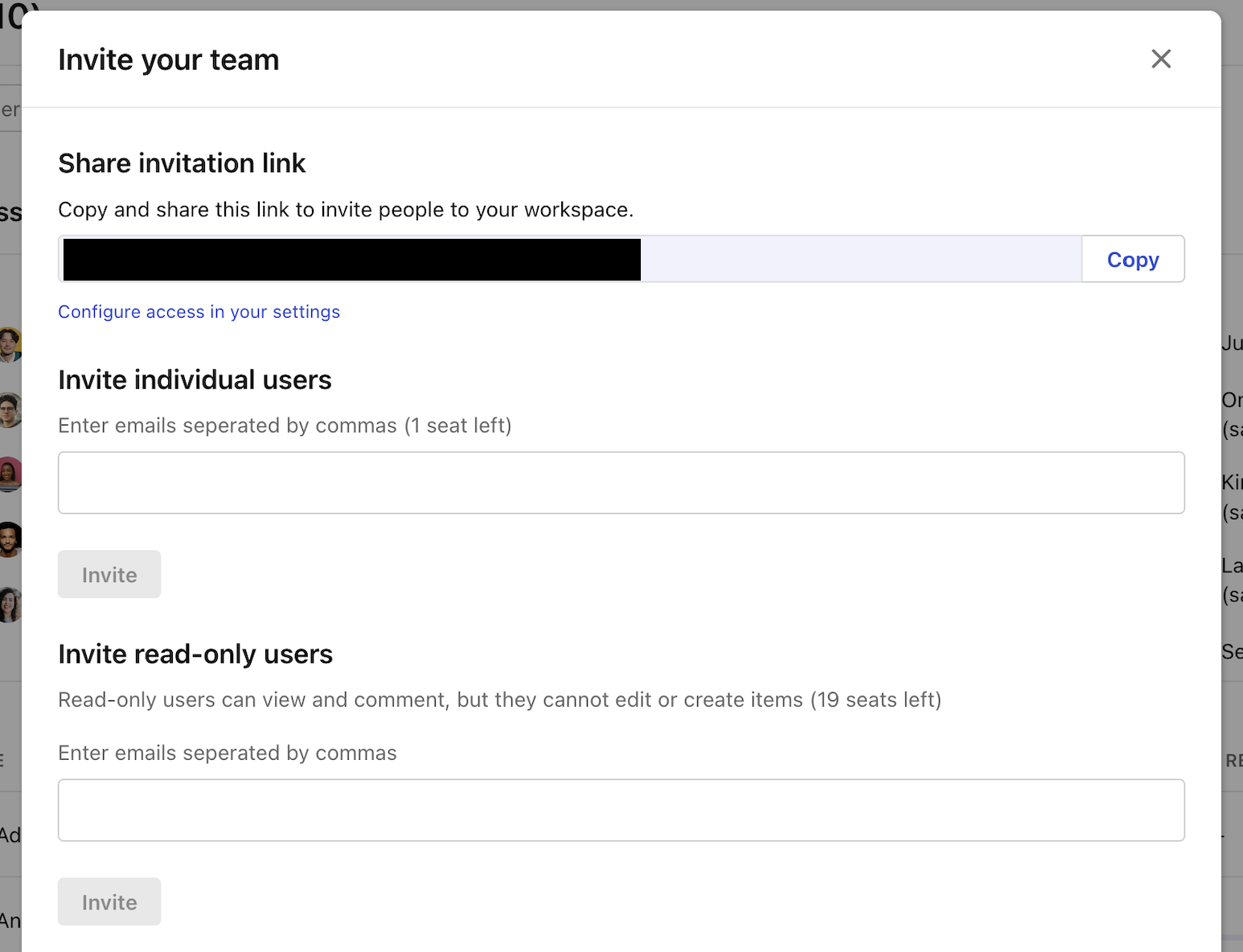
You will see a pop-up that allows you to invite fully licensed users or read-only users.

<figure><img src="https://318707989-files.gitbook.io/~/files/v0/b/gitbook-x-prod.appspot.com/o/spaces%2FMULqjSmZyGczPy2I6FGH%2Fuploads%2FS9NA9GiaG40O4LlxJaxD%2Fimage.png?alt=media&amp;token=b4d5d83d-bc69-44d1-8d21-9542b9d74dee" alt=""><figcaption></figcaption></figure>

Read-only users are only available on Tability Premium, and you will get 2 read-only users for every Premium user license purchased (ex: if you buy 25 Premium user licenses, you will get 50 read-only licenses for free).

A fully licensed user has access to all the features of Tability. They can create OKR plans, edit goals, share progress updates, and manage initiatives.

A read-only user can browse the content of the workspace, see the dashboards and reports, leave comments and reactions. But, they won’t be able to manage goals, initiatives, or create and edit OKR plans.

You should invite someone as a fully licensed user if they need to work on the OKRs or the initiatives attached to them.

You should invite someone as a read-only user if they simply need to read progress updates from other people and provide feedback via comments.

## 2. How to organise your OKRs by departments and teams with multiple layers of OKRs

[Jump to video →](https://youtu.be/sy6wtI82YE4?t=331)

If you want to learn about importing a specific set of OKRs, please jump to section 4.

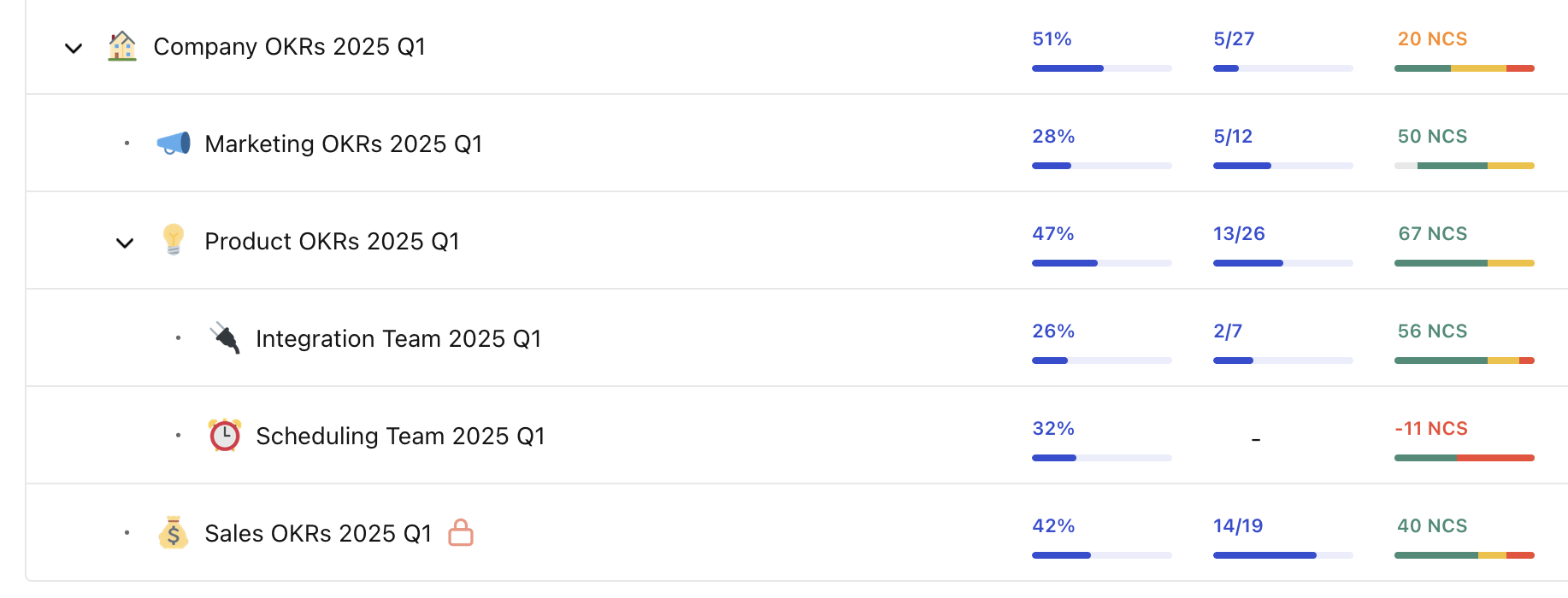
OKRs are organised in layers. You can have the top-level OKRs (L1) capturing the company goals for the quarter, then the department level OKRs underneath (L2), and then the team level OKRs on the third level (L3).

We recommend against doing individual OKRs as it often shifts the focus away from the business and customers. It’s not that personal goals are bad, it is more that they should be stored separately from the main OKR tree.

So, in Tability you can organise your OKRs by creating a plan for the company, and use sub-plans to create the layers underneath. We recommend using the following naming structure for your plans:

*<mark style="background-color:yellow;">\<Department or Team> OKRs \<Quarter> \<Year></mark>*

For instance, you could have Product Management OKRs Q2 2025 or Customer Support OKRs Q2 2025 as plan names.

Now here’s below what the workspace structure could look like if you need to have company, departments, and teams OKRs

<figure><img src="https://318707989-files.gitbook.io/~/files/v0/b/gitbook-x-prod.appspot.com/o/spaces%2FMULqjSmZyGczPy2I6FGH%2Fuploads%2FejIow2qSOy6sfyxruIXO%2Fimage.png?alt=media&amp;token=ea540e66-f242-4aa1-bea4-43160491fad4" alt=""><figcaption></figcaption></figure>

### How to create a top level plan

1. Go to the **Plans** section of your workspace
2. Click on **Create a new plan**
3. Select the **Goals and initiatives** option in the modal
4. Set your plan parameters
   1. **Name:** name of your plan
   2. **Check-in reminders frequency:** how often Tability should nudge key results owners for progress updates
   3. **Timeline:** select the timeframe for your OKRs. All OKRs inside of a plan will have the same timeline
5. Click **Create**

Tability will then redirect you to the plan editor where you can add your OKRs (see section 4 and 5)

### How to create a sub-plan

1. Go to the **Plans** section of your workspace
2. Hover over the parent plan
3. Click on the button **+ sub-plan** at the end of the row
4. Follow the steps to complete the plan creation form

Tability will then redirect you to the plan editor where you can add your OKRs (see section 4 and 5)

## 3. How to organise your workspace with yearly and quarterly OKRs

[Jump to video →](https://youtu.be/sy6wtI82YE4?t=645)

If you want to learn about importing a specific set of OKRs, please jump to section 4.

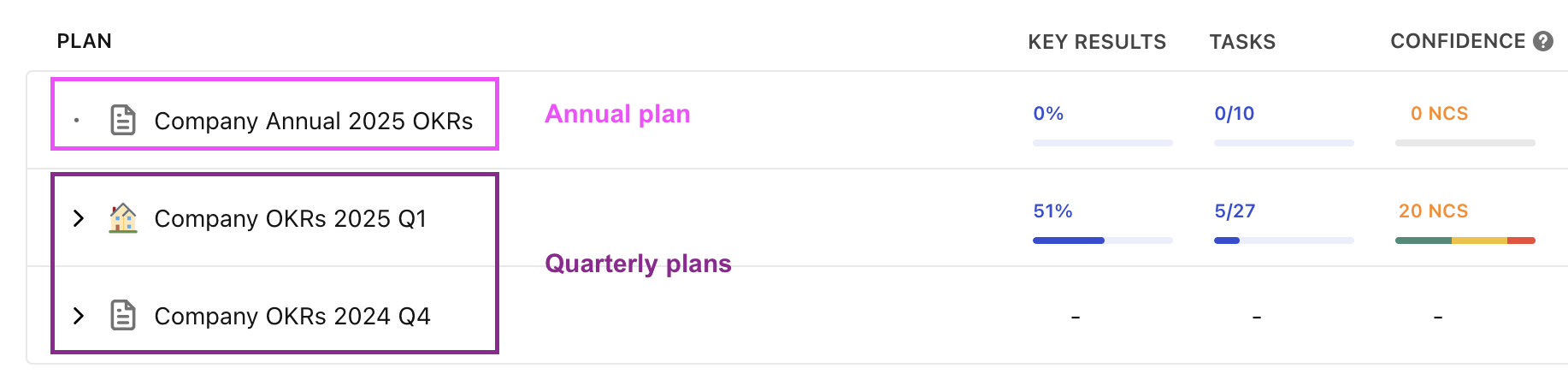
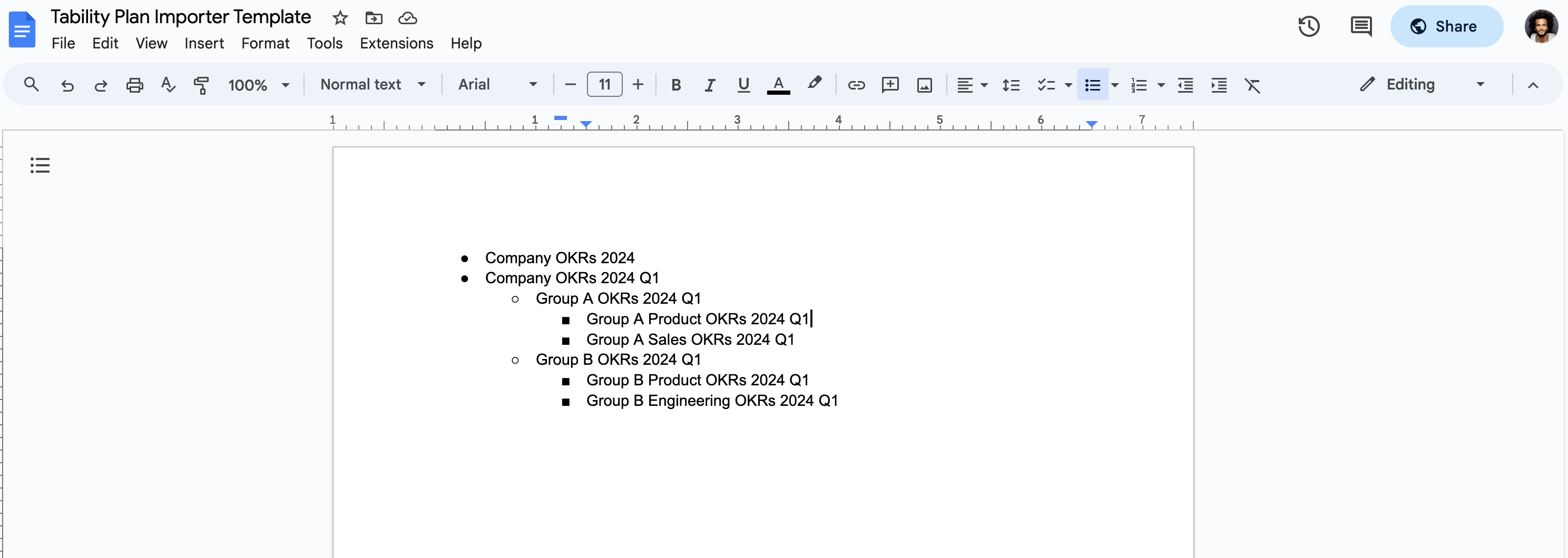
If you need to have yearly and quarterly OKRs, our suggestion is to have your yearly plan as a top-level OKR plan and then new OKR layers for each quarter listed underneath.

Ex:

<figure><img src="https://318707989-files.gitbook.io/~/files/v0/b/gitbook-x-prod.appspot.com/o/spaces%2FMULqjSmZyGczPy2I6FGH%2Fuploads%2FjAFV41di8Npt7pCZKD1Y%2FScreenshot%202025-02-10%20at%2011.08.22%E2%80%AFPM.png?alt=media&amp;token=977b0efc-e185-459c-b170-38cb2ad28c44" alt=""><figcaption></figcaption></figure>

### How to change the timeline of your plan

1. Go to the **Plans** section of your workspace
2. Click on **Create a new plan**
3. Select the **Goals and initiatives** option in the modal
4. Set your plan parameters
   1. **Name:** name of your plan
   2. **Check-in reminders frequency:** we recommend monthly check-ins for yearly OKRs
   3. **Timeline:** select Custom and adjust the dates
5. Click **Create**

## 4. Importing OKRs and KPIs from a spreadsheet with AI

So far we’ve seen how you can organise your workspace but we haven’t looked at how you can add goals to Tability.

If your goals or operational metrics already exist in a spreadsheet, use the **AI Importer** from the Plans section. Choose **Import OKRs** for Plans, Objectives, Key Results, and initiatives, or **Import KPIs** for KPI groups, starting values, dated targets, and actual values.

The importer accepts XLSX and CSV files, analyzes them in the background, and prepares a private proposal. You can review measurements, timelines, owners, teams, and hierarchy before confirming the import. Nothing is created during analysis.

See [Import OKRs and KPIs with AI](/docs/become-a-tability-power-user/features/plans/import-okrs-and-kpis-with-ai) for spreadsheet preparation, review, and troubleshooting instructions.

## 5. Writing your OKRs from scratch

[Jump to video →](https://youtu.be/sy6wtI82YE4?t=1081)

A department or team can easily have 15 to 20 objectives and key results in a plan. This would be a lot of fields to fill and submit if you had to submit each goal individually via a form.

Fortunately Tability takes a completely different approach. With our custom-built editor, you will be able to add your OKRs inline with a doc-like experience.

1. Go to the edit mode of your plan (click on Edit content from your plan dashboard)
2. Start typing your objective and press enter
3. Keep adding your objective, or press tab to add key results

Your content is saved automatically as you type it, and Tability’s AI will automatically detect the metrics attached to your key results to set the targets for you.

If things aren’t set up the way you want, or if you want to have access to the advanced options, then you can click on the target field to open up the form mode.

## 6. Adding stakeholders to the list of watchers

[Jump to video →](https://youtu.be/sy6wtI82YE4?t=1217)

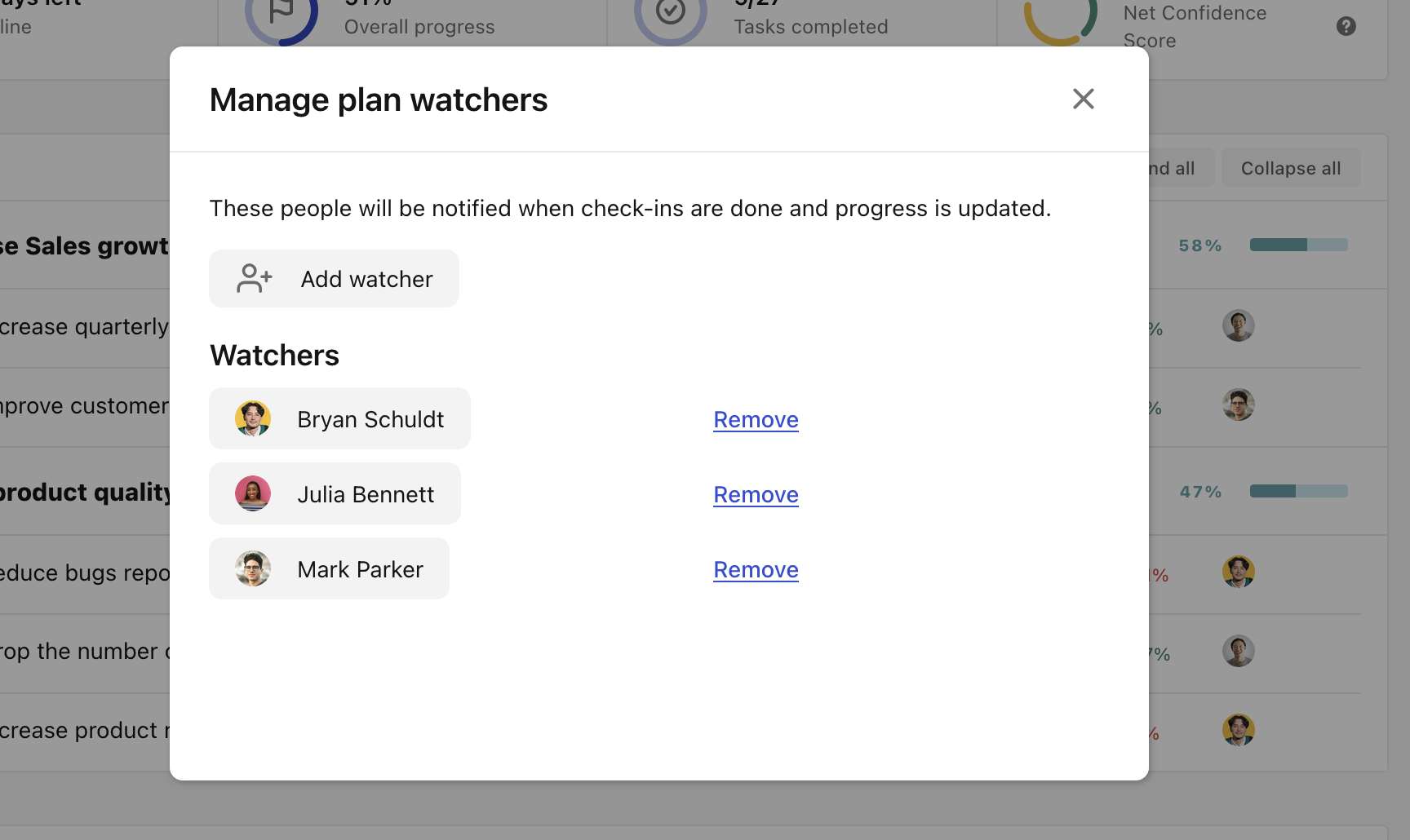
The easiest way to keep your stakeholders informed is to add them to the list of watchers in the plans that are relevant for them. Once added, they will get email and push notifications whenever progress is shared on the key results.

<figure><img src="https://318707989-files.gitbook.io/~/files/v0/b/gitbook-x-prod.appspot.com/o/spaces%2FMULqjSmZyGczPy2I6FGH%2Fuploads%2F5i5JNOdKDmn9dyveYL47%2FScreenshot%202025-02-10%20at%2011.30.24%E2%80%AFPM.png?alt=media&amp;token=d0c325dd-3e4c-432e-87d1-943a5f3c3369" alt=""><figcaption></figcaption></figure>

How to add someone as a watcher:

1. Go to your plan dashboard
2. Click on **Manage** in the watchers widget in the right sidebar of your plan
3. Click **Add watcher** and select the right person to add.

## 7. Linking OKRs across your workspace

[Jump to video →](https://youtu.be/sy6wtI82YE4?t=1297)

Once your OKRs are added, you might have a situation where you’ll want to link them to a parent.

Ex: The KR “Increase weekly leads from 2,500/week to 4,000/week” contributes to the top-level key result of “Increase quarterly revenue from $2.5m to $2.8m”.

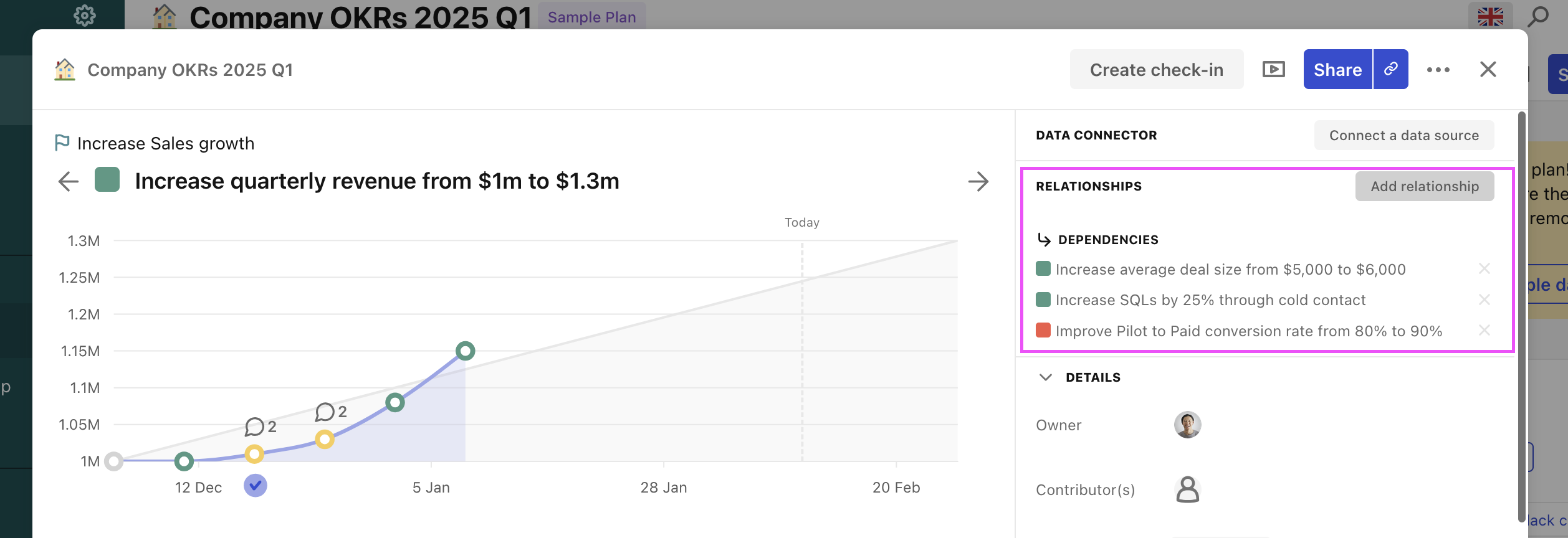
You can do this easily by using relationships.

<figure><img src="https://318707989-files.gitbook.io/~/files/v0/b/gitbook-x-prod.appspot.com/o/spaces%2FMULqjSmZyGczPy2I6FGH%2Fuploads%2FuEqUzWmRSDJWtOwDCzXp%2FScreenshot%202025-02-10%20at%2011.31.11%E2%80%AFPM.png?alt=media&amp;token=f6c786d2-5e38-47a5-8461-e784428ca011" alt=""><figcaption></figcaption></figure>

1. Click on the contributing KR
2. Click on **Add relationship**
3. Click on **Add parent key result**
4. Select the corresponding key result

You can also link a KR to an objective or use the same form to link the selected key result to a dependency.

The relationships are very flexible! You can select a parent KR from any plan, and you just have to use the selectors to find the right items.

## 8. Removing the sample data

[Jump to video →](https://youtu.be/sy6wtI82YE4?t=1595)

Every new workspace is created with sample data here to show you what Tability can do.

Make sure that you remove the sample data to clean up your workspace before you start rolling out OKRs with your team.

1. Go the **Plans** section of your workspace
2. Click on **Remove sample data**

## 9. Setting up your org chart

<figure><img src="https://318707989-files.gitbook.io/~/files/v0/b/gitbook-x-prod.appspot.com/o/spaces%2FMULqjSmZyGczPy2I6FGH%2Fuploads%2FNLipx3PUfeXsd7DDGQzr%2FScreenshot%202025-02-10%20at%2011.32.57%E2%80%AFPM.png?alt=media&amp;token=579888c6-6cea-4f61-850c-a7635c9f48e2" alt=""><figcaption></figcaption></figure>

[Jump to video →](https://youtu.be/sy6wtI82YE4?t=1642)

Tability makes it super easy to see how your direct reports are doing. You can quickly update your network graph from your Focus page to indicate who your direct reports (and manager) are. Once configured, you will be able to use the network minimap to see your closest teammates and their goals.

How to configure your org network:

1. Go to your **My Focus** page
2. Scroll to the **Org network** section
3. Click on **Update your network**
4. Select your direct reports and manager

Once everything is configured you will see your direct reports and manager in your personal network graph.

## 10. Reducing tool fatigue with integrations

[Jump to video →](https://youtu.be/sy6wtI82YE4?t=1824)

We strongly believe in blending with existing applications. The more Tability can talk to or exist within your existing tools, the easier it will be for people to adopt Tability.

There are several things that you can do listed below.

### Setting SSO and SCIM

You can simplify user management by configuring SAML SSO for authentication and using SCIM for user provisioning.

This combination means that you can centralise user management in your identity provider and quickly adjust access and permissions as needed.

### Connecting Tability to Slack

You can connect Tability to Slack to bring reminders and reports digest directly in Slack DMs and Slack channels.

Check our documentation to see how you can [add Tability to Slack](https://guides.tability.app/docs/integrations/slack)

### Adding Tability to Microsoft Teams

If you’re using Microsoft Teams, then you will be delighted with our Tability integration. Our MS Teams app will seamlessly work with Teams:

* Users will be automatically signed in when they load the app.
* You will get access to all the features of Tability.

Check our documentation to see how you can [add Tability to Microsoft Teams](https://guides.tability.app/docs/integrations/microsoft-teams)

### Connecting Tability to your project management tool

Knowing goals is one thing, knowing what people are doing to achieve said goals is another.

Tability makes it really easy to connect outcomes to outputs thanks to its initiative-tracking module. You can go one step further and connect your preferred project management tool to sync tasks instead of using Tability’s initiatives.

Check out the respective docs to see how you can connect your current project management platform to Tability.

* [Tability for Jira](https://guides.tability.app/docs/integrations/jira)
* [Tability for ClickUp](https://guides.tability.app/docs/integrations/asana)
* [Tability for Linear](https://guides.tability.app/docs/integrations/linear)
* [Tability for Asana](https://guides.tability.app/docs/integrations/asana)

### Connecting OKRs to data sources

Many key results will require you to pull data from external sources (Salesforce, HubSpot, PowerBI, etc…). Instead of having to switch context all the time you can use the data connectors to add data source to each key result.

1. Go to the **Integrations** admin page of your workspace
2. Connect the tools that are relevant for you
3. Now click on a key result that you want to connect to a data source
4. Click on **Connect a data source** in the top right corner
5. Select the relevant data source
6. Follow the steps to complete your connection

## What’s next

That’s it! This guide should have covered most of the features that you’ll need to get started.

Now the next step is to start doing your check-ins!Other articles

* [What are OKRs? The complete 2023 guide for beginners](https://www.tability.io/okrs/what-are-okrs-definition)
* [15 simple rules and 4 OKR principles to drive success](https://www.tability.io/okrs/introduction-to-flowing-okrs-a-pragmatic-implementation-of-okrs)
* [How to write great OKRs in under 30 minutes](https://www.tability.io/odt-articles/3-steps-to-write-good-okrs-in-under-30-minutes)
* [OKRs vs. KPIs](https://www.tability.io/odt-articles/okrs-vs-kpis-whats-the-difference)
* [Cascading vs. aligning OKRs](https://www.tability.io/okrs/cascading-vs-aligning-okrs)
* [50 tips for outcome-driven teams](https://www.tability.io/outcome-driven)

## Templates and examples

* [100+ searchable OKRs templates](https://www.tability.io/templates)
* [40+ OKRs examples organised by department](https://www.tability.io/okrs-examples)
* [90 success metrics organised by function](https://www.tability.io/success-metrics)
* [Top 20 KPIs for every team and business](https://www.tability.io/odt-articles/100-examples-of-kpis-and-success-metrics-for-every-business-and-function)


# Tracking OKRs and tasks with Tability

Just signed up? Here's what you need to know

## About this post

This post will tell you everything that you need to know to start tracking OKRs and tasks with Tability.

### Supporting video

This video has quick tutorial for each of the topics covered in this post. Click on the link "Jump to video" to go to the right timestamp.

{% embed url="<https://www.youtube.com/watch?v=V19Q_wEoN4k>" %}

### Topics covered

1. Achieving ruthless prioritisation with OKRs and Tability
2. A simple way to create effective OKRs
3. Adding your OKRs and tasks to Tability
4. Writing check-ins in Tability
5. Monitoring OKRs for a specific department or team
6. Getting an overview of your entire org
7. Seeing dependencies between key results
8. Tracking the progress of your direct reports and teammates
9. Using tasks with OKRs
10. How to create custom views

## 1. Achieving ruthless prioritisation with OKRs, Tability, and weekly check-ins <a href="#docs-internal-guid-203d8c55-7fff-609a-a838-af951009db1f" id="docs-internal-guid-203d8c55-7fff-609a-a838-af951009db1f"></a>

[Jump to video →](https://youtu.be/V19Q_wEoN4k?t=125)

The job of Tability is simple:

* To make OKRs extremely easy to manage, and
* To help you and your team achieve ruthless prioritisation

### What’s ruthless prioritisation?

<figure><img src="https://318707989-files.gitbook.io/~/files/v0/b/gitbook-x-prod.appspot.com/o/spaces%2FMULqjSmZyGczPy2I6FGH%2Fuploads%2FzBuu6AB0EZawex34brNZ%2Fimage.png?alt=media&amp;token=1d39c93c-019d-487d-a6f8-f84dffcfca4c" alt=""><figcaption></figcaption></figure>

Teams cannot stay focused on their objectives unless you force them.

Not because people aren’t serious about their work, but because work produces distractions as a by-product.

Here’s a simple example:

* You’ve just finished the beta of your product and decide that you can now start charging people
* You set an objective to get 100 paying customers in 90 days
* But you haven’t implemented billing yet
* Your team looks at options and decides on using Stripe
* But wait, we haven’t talked about the billing cycles… Do we offer monthly payments? Annual payments?
* We decide we’ll do both, but wait… What’s the cancellation process? Do we cancel immediately, or after the billing cycle?
* And what if annual customers want to reduce the number of seats?
* And what if we want to apply discounts?
* Oh, we also need to offer trials, how do we handle that?
* Etc, etc, etc. Those are all legit questions that will lead to legit meetings that will lead to legit specs that will lead to… You see the picture
* And days go by while you’re solving these issues
* And the number of paying customers stays at zero
* Work makes you busy, busy takes you away from your goal

The better way is to start the week by looking at the number of paying customers and reporting it on a chart. Don’t make the mistake of just replacing the latest update with a new one. It is imperative that you keep the history of the updates, and even better if you can show trends on a graph.

<figure><img src="https://318707989-files.gitbook.io/~/files/v0/b/gitbook-x-prod.appspot.com/o/spaces%2FMULqjSmZyGczPy2I6FGH%2Fuploads%2Fx8gbIYzXs2x1JWMi9EHq%2Fimage.png?alt=media&amp;token=29f8a0a9-32f0-488b-ba7d-ccb67e56c348" alt=""><figcaption></figcaption></figure>

In this case, it’d be obvious that we’re flatlining at zero customers. And everyone should feel the pain of not moving the needle on the core goal.

That’s how you keep the right urgency, and that’s when you can start making effective trade-offs.

* Do we need to build all the cancellation features or can we ask people to contact us for now?
* Do we need to let people upgrade to an annual subscription or can we ask them to contact support?
* Do we even need to wait for the Stripe integration to start charging customers?

When done right, OKRs push teams to make the right critical decisions every week.

### Weekly routine for OKRs

<figure><img src="https://318707989-files.gitbook.io/~/files/v0/b/gitbook-x-prod.appspot.com/o/spaces%2FMULqjSmZyGczPy2I6FGH%2Fuploads%2F6CZVz1qpV1MzBWx6XmSI%2Fimage.png?alt=media&amp;token=37c2eb69-cf9a-430c-baba-8ce21cd7a8ad" alt=""><figcaption></figcaption></figure>

Before we start exploring Tability, we need to talk about the weekly routine that you’ll need to support your OKR process.

As mentioned in the previous section, you will need a forcing function to bring the core objectives back to the center of conversations. Do not underestimate how quickly meetings, calls, emails, projects, etc can make goals disappear.

Here’s what you need to do for every department and team that has a set of quarterly OKRs:

* For each department or team having a set of quarterly OKRs:
  * Add an OKR review meeting to your calendar, preferably on Monday or Tuesday (the latest)
  * Call that meeting “\<Department/team> OKR review”
  * Invite all key results owners
  * You can add other stakeholders, but keep the meeting to 10 people max
* Before the meeting:
  * Progress on the KRs should have been updated prior to the meeting (see section)
* During the meeting
  * Have each KR owner talking through their updates
  * Keep it light and quick when things are green
  * Dive into challenges when KRs are yellow or red
  * Don’t forget to capture and discuss the strategic tasks attached to the OKRs

These meetings can absolutely fit into 30 minutes if you run them weekly. The more often you talk about something, the faster you can get to the important points. You will quickly notice the quality of the discussions increase after 3-4 weeks.

By contrast, if you only discuss OKRs once a month you will observe that 30% of your meeting will be spent on bringing people up to speed.

### Review meetings vs. MBRs and QBRs

The OKR review meetings are not a replacement for Monthly Business Review meetings (MBRs) and Quarterly Business Review Meetings (QBRs).

During the OKR review meetings, we mostly focus on the key results and tasks, and the meeting is limited to the core team working on that set of OKRs.

MBRs and QBRs will focus more on the objectives and include a larger set of stakeholders. It’s a time to communicate outside of the team about the progress made.

{% hint style="success" %}
**Quick summary**

* Tability will only be valuable **if you track progress on OKRs every week**.
* **You must commit to the check-ins process**. People must do it seriously, or not at all.
* Every department and team that owns quarterly OKRs should **have a weekly review meeting**.
  {% endhint %}

## 2. A simple way to create effective OKRs

Don't have your OKRs yet? Check out [our guide on writing OKRs](https://www.tability.io/okrs/how-to-create-your-first-okrs-plan) to find a step-by-step approach for defining your quarterly goals.

## 3. Adding your OKRs and tasks to Tability <a href="#docs-internal-guid-25b43721-7fff-9ad4-e6a8-51548d9fcbff" id="docs-internal-guid-25b43721-7fff-9ad4-e6a8-51548d9fcbff"></a>

[Jump to video →](https://youtu.be/V19Q_wEoN4k?t=377)

You will most likely have to add your strategy to Tability at some point.

Check the following guides to understand how to organise your OKRs in Tability, import data from a spreadsheet, and write your OKRs and tasks from scratch:

* [Organising your OKRs by departments and teams](https://guides.tability.io/docs/getting-started-with-tability/pages/R80Oq5Yl7DFlNOmHfscp#id-2.-how-to-organise-your-okrs-by-departments-and-teams-with-multiple-layers-of-okrs)
* [Setting up quarterly vs. yearly OKRs](https://guides.tability.io/docs/getting-started-with-tability/pages/R80Oq5Yl7DFlNOmHfscp#id-3.-how-to-organise-your-workspace-with-yearly-and-quarterly-okrs)
* [Importing OKRs and KPIs from a spreadsheet](/docs/become-a-tability-power-user/features/plans/import-okrs-and-kpis-with-ai)
* [Writing OKRs from scratch using the editor](https://guides.tability.io/docs/getting-started-with-tability/pages/R80Oq5Yl7DFlNOmHfscp#id-5.-writing-your-okrs-from-scratch)

## 4. Writing check-ins in Tability

[Jump to video →](https://youtu.be/V19Q_wEoN4k?t=851)

Each week, your team will be asked to do a check-in for the outcomes that they own. Check-ins look for three things: Progress, Confidence, and Analysis.

<figure><img src="https://lh7-rt.googleusercontent.com/docsz/AD_4nXf1fo4eZdfpiNOB42SWcdPIEnOSZ4-lfV0Rcz3XrBXSR0og18Kl4GBMcJtCxSrWqC2P94tQ6gzDgmamCSfDNKwL3YNAdOuodBUU2Dsr3KN3YwC6y2zN3ivuI8PtitaDftkfJ6DETQ?key=qFdd80_ao6E9MY24cbtIZQfa" alt=""><figcaption></figcaption></figure>

**Progress** is for your metrics– it’s wherever you are currently. If you’re going from $1 million in ARR to $1.3 million, you’d include your current revenue number in the progress section.

**Confidence** is how confident your team is on being able to hit this goal by the end of the quarter (or whatever period you’re using for your goals). This is a qualitative assessment based on not just the metric progress, but any other information they might have. If, for your revenue goal, your team hasn’t made much progress, but they know they have an extremely large deal that’s almost certain to close, they might mark a goal as On track, despite the numbers looking low.

**Analysis** is where your team will give context for their rating. Using the same example, if they’ve marked their goal as On track despite low progress, they’ll want to include those details about the pending deals in the analysis section. If they’re blocked on the deal because of a security review, this would also be the right place to add that information, and to possible tag someone who can help or ask for someone to help them find the right person to reach out to.

### Best Practices

When filling out a check-in, the progress rating is fairly straightforward. But there are a few things to note for the rest of the check-in.

**How to choose confidence**

Confidence is not only a way to show the likelihood of success, it’s also a way to help the team prioritize goals. Goals that have lower confidence, ones that are marked At risk or Off track, likely need more resources than ones that are On track. You can think of confidence levels as:

* Green/On track - You’ll likely achieve your goal
* Yellow/At risk - There are issues that are impacting your progress and could cause you to miss your target.
* Red/Off track - There are issues blocking your ability to achieve your key result.

These confidence levels aren’t permanent and shouldn’t be seen as a final grade on your work or your progress towards your key results. This is just to let the team know how goals are tracking and help you signal if you need help on your key results.

{% hint style="warning" %}
Avoid marking a goal yellow/At risk for three weeks in a row. After three weeks, chances are that the goal is improved, but the owner is feeling nervous about maintaining momentum or that the goal has gone off track, but the owner doesn’t want to be seen as “failing” at their key result. Keeping goals marked as at risk for long periods of time prevents your team from having the proper sense of urgency.
{% endhint %}

<figure><img src="https://lh7-rt.googleusercontent.com/docsz/AD_4nXcQMbgMjnfQqLn3A0xoe0G7nwQ0hNnOEdFMY9lD-8nlf0-ah1touu4gnD2I06a1ST6irLv2BX3JmcbtUvGnY4qR8_Qf9_IzAqBBVpZ3K9OhK_AWl2Js6Np280ep9TAO9j_xNi97fA?key=qFdd80_ao6E9MY24cbtIZQfa" alt=""><figcaption></figcaption></figure>

Marking a goal as red is one of the most important things that an outcome owner can do. When goals become off track, signaling that to the rest of the team can both create that sense of urgency and allow for an updated set of priorities that lets the outcome get unblocked and back on track.

### **Analysis**

Metrics and Confidence can only tell the team so much, especially if they don’t seem aligned (the metric is low but confidence is high, for example). This is where a comment in the analysis section will help shorten the time it takes for other teams to get context on your goal. A good comment contains the following:

* What got you to where you’re at?
  * What projects or tasks have you done to make progress?
  * What external factors have played a role in your progress?
  * What blockers have you dealt with and gotten around?
* What do you have planned moving forward?
  * What are the next steps that you’re taking?
  * What is the timeline for your in-progress tasks?
  * What is your expected outcome from your tasks?
* What should the team be aware of?
  * What blockers do you currently have?
  * What help do you need from other team members or teams?
  * Is there anything you or the team need to do differently to stay/get on track?

### **Template**

If you’d like a template for writing your check-ins, try this:

{% hint style="info" %}
Last week we \[what projects or work did you do towards your goals?].

This moved our metrics from \_\_\_\_ to \_\_\_\_\_, which is \[what we hoped for/just OK/not what we wanted].

Next week, we’re going to \[projects or work that you plan on doing], which should \[keep or accelerate our momentum/get us back on track].

I need \_\_\_\_\_\_\_\_\_\_\_ in order to succeed this week.
{% endhint %}

## 5. Monitoring OKRs for a specific team <a href="#docs-internal-guid-bc255445-7fff-e4c4-697e-8a19d5aba771" id="docs-internal-guid-bc255445-7fff-e4c4-697e-8a19d5aba771"></a>

[Jump to video →](https://youtu.be/V19Q_wEoN4k?t=1216)

<figure><img src="https://318707989-files.gitbook.io/~/files/v0/b/gitbook-x-prod.appspot.com/o/spaces%2FMULqjSmZyGczPy2I6FGH%2Fuploads%2F2m0obuPNwCTh1yuwqQ3E%2Fimage.png?alt=media&amp;token=0f082281-a4be-4705-8528-b0a8cb496bf3" alt=""><figcaption></figcaption></figure>

In Tability, OKRs are contained in plans. A plan will usually map to a department or a team, and we recommend naming them using the following format:

*<mark style="background-color:yellow;">\<Department or Team> OKRs \<Quarter> \<Year></mark>*

Each plan has a built-in dashboard that will show you:

* Summary of progress and confidence
* The OKRs data (title, confidence, metrics…)
* Progress charts
* Alignment map

Here’s how you can find the OKR dashboard for a specific team:

1. Go to the **Plans** section
2. Expand the items to find the plan that you’re looking for (or use the name filter)
3. Click on the plan

You will be redirected to the plan dashboard where you will be able to see all the corresponding OKR data.

### Getting more context by expanding a key result

<figure><img src="https://318707989-files.gitbook.io/~/files/v0/b/gitbook-x-prod.appspot.com/o/spaces%2FMULqjSmZyGczPy2I6FGH%2Fuploads%2FotHeozYIrB4VBIYZGg1Q%2Fimage.png?alt=media&amp;token=ad4b4f65-8da5-4cc2-95c1-eccf085329de" alt=""><figcaption></figcaption></figure>

You can click on the expand icon next to each key result to see dependent OKRs as well as the tasks attached to the key result.

### Getting more context by clicking on the key result

<figure><img src="https://318707989-files.gitbook.io/~/files/v0/b/gitbook-x-prod.appspot.com/o/spaces%2FMULqjSmZyGczPy2I6FGH%2Fuploads%2FLRqqCSIuGkN637v0kdk4%2Fimage.png?alt=media&amp;token=b85f9cb7-ef22-451a-9e53-2f62d842cda7" alt=""><figcaption></figcaption></figure>

You can also click on any key result to open up a detail panel that will show you:

* Progress chart for the key result
* Latest check-in
* List of attached tasks
* Cascading map for that specific key result

## 6. Seeing dependencies between key results <a href="#docs-internal-guid-b0de9d1e-7fff-0169-ea99-a97bc6c9692d" id="docs-internal-guid-b0de9d1e-7fff-0169-ea99-a97bc6c9692d"></a>

[Jump to video →](https://youtu.be/V19Q_wEoN4k?t=1581)

OKRs are all about alignment and it is crucial for leaders to be able to quickly understand how the different departments and teams contribute to the upper level goals. This is something that can be done easily by using relationships in Tability.

For instance, you could have a top-level KR about aggressive revenue growth. With Tability, the Sales team will be able to link the relevant KRs back to that revenue goal, and make it easy to have a complete picture of the progress made during the quarter.

### How to create relationships

Check out [this guide](https://guides.tability.app/docs/getting-started/how-to-set-up-your-tability-workspace#id-7.-linking-okrs-across-your-workspace) to see how you can link a key result to a parent

### Expanding dependencies in a plan dashboard

<figure><img src="https://318707989-files.gitbook.io/~/files/v0/b/gitbook-x-prod.appspot.com/o/spaces%2FMULqjSmZyGczPy2I6FGH%2Fuploads%2FJVbaEodOep9vAvhhfWrS%2Fimage.png?alt=media&amp;token=8c05f70e-379b-4f51-9748-aba9fab52dee" alt=""><figcaption></figcaption></figure>

If you’re in a OKR dashboard for a specific team or department, you can simply click on the expand button at the beginning of a line to show the dependent key results and tasks.

There’s no limit to the number of levels that you can have. You can keep on expanding dependencies as long as they exist.

### Seeing dependencies with the key result cascading map

<figure><img src="https://318707989-files.gitbook.io/~/files/v0/b/gitbook-x-prod.appspot.com/o/spaces%2FMULqjSmZyGczPy2I6FGH%2Fuploads%2FyinAWzi4opZP1wjl0RIP%2Fimage.png?alt=media&amp;token=fac82179-a770-4047-9766-a927d50a817a" alt=""><figcaption></figcaption></figure>

You can also visualise dependencies in a map by clicking on a specific key result. Once the detail panel is open, you can scroll to the bottom to see all the surrounding key results.

## 7. Getting an overview of your entire org <a href="#docs-internal-guid-98ad4c0b-7fff-1dac-1f6e-bda57f930d32" id="docs-internal-guid-98ad4c0b-7fff-1dac-1f6e-bda57f930d32"></a>

[Jump to video →](https://youtu.be/V19Q_wEoN4k?t=1785)

If you need to zoom out, you can go to the [Strategy Map](https://guides.tability.app/docs/features/plans/strategy-map) to see all the OKRs that are currently active, grouped by departments and teams.

The Strategy Map replicates the hierarchy of plans that has been established in the Plans section of your workspace.

From the Strategy Map you can click on any KR to open up its detail panel.

## 8. Tracking the progress of your direct reports and teammates <a href="#docs-internal-guid-20887dab-7fff-d006-c0cc-487fe2ea90a8" id="docs-internal-guid-20887dab-7fff-d006-c0cc-487fe2ea90a8"></a>

[Jump to video →](https://youtu.be/V19Q_wEoN4k?t=1858)

<figure><img src="https://318707989-files.gitbook.io/~/files/v0/b/gitbook-x-prod.appspot.com/o/spaces%2FMULqjSmZyGczPy2I6FGH%2Fuploads%2FqAjgDSW7nCvHbfK2kQig%2Fimage.png?alt=media&amp;token=dc4263a0-58de-488a-a0aa-c49d33be5947" alt=""><figcaption></figcaption></figure>

So far we’ve looked at OKRs from the perspective of an entire department or a team. But if you’re a manager you’ll often want to see how your direct reports are doing – and they can have key results and tasks spread across multiple plans.

You can set up your direct reports in your Focus page and Tability will then show you a map of your reports (as well as your manager). From there you will have the ability to show the KRs and tasks attached to each person

How to set up your direct reports:

1. Go to your **My Focus** page
2. Scroll to the **Org network** section
3. Click on **Update your network**
4. Select your direct reports and manager

If you want to see the goals attached to a teammate that isn’t directly linked to you, you can open up their Tability profile to see all their active key results and tasks.

1. Go to the **People** section of your workspace
2. Use the filters to find your teammate
3. Click on their name

## 9. Using tasks with OKRs <a href="#docs-internal-guid-02c43da6-7fff-ad81-6c71-d5097594a544" id="docs-internal-guid-02c43da6-7fff-ad81-6c71-d5097594a544"></a>

[Jump to video →](https://youtu.be/V19Q_wEoN4k?t=1968)

<figure><img src="https://318707989-files.gitbook.io/~/files/v0/b/gitbook-x-prod.appspot.com/o/spaces%2FMULqjSmZyGczPy2I6FGH%2Fuploads%2F92ihMhzWEQp7lhQeVtLP%2FScreenshot%202025-02-14%20at%205.06.49%E2%80%AFPM.png?alt=media&amp;token=f7ecd7c7-a83e-4cea-adf8-2a15847a8a57" alt=""><figcaption></figcaption></figure>

The task module in Tability will allow you to track the work that teams are doing to achieve the OKRs. Tability also syncs with platforms like Jira, ClickUp, and Linear to allow the team to use their preferred project management tools while also increasing transparency and alignment.

How to connect your project management tool to Tability

* [Jira](/docs/become-a-tability-power-user/integrations/jira)
* [ClickUp](/docs/become-a-tability-power-user/integrations/clickup)
* [Linear](/docs/become-a-tability-power-user/integrations/linear)

{% hint style="warning" %}
Tability can also connect to [Asana](/docs/become-a-tability-power-user/integrations/asana), but unfortunately we are not able to sync statuses across the platforms.
{% endhint %}

Each plan in Tability also has task-centric views designed that will help you see at glance the tasks that are currently in progress, the list of blockers, and the things that are ready to be released.

How to go the task view of your plan:

1. Go to your plan dashboard
2. Click on the **Tasks** tab

## 10. How to create custom views <a href="#docs-internal-guid-aeffc593-7fff-4ce8-bf21-ba759976a481" id="docs-internal-guid-aeffc593-7fff-4ce8-bf21-ba759976a481"></a>

[Jump to video →](https://youtu.be/V19Q_wEoN4k?t=2111)

Tability comes with a lot of pre-built dashboards, views and filters. The goal is to minimise as much as possible the amount of configuration and setup steps, and to provide answers to 80% of your questions within 2 or 3 clicks.

For the remaining 20%, you will be able to use the filters and custom dashboards to create your own views.

How to use the filters:

1. Go to the **Filters** section of your workspace
2. Select the tab that you’re interested in (objectives, key results, or tasks)
3. Use the filters to find the relevant items
4. Optional: save your combination of filters as a segment to be able to load it quickly the next time

How to use custom dashboards:

1. Go to the **Dashboards** section of your workspace
2. Click on **Create a dashboard**
3. Add the widgets that you need to make your own dashboard
4. Save your dashboard

## 11. Sharing the presentation mode with stakeholders <a href="#docs-internal-guid-230d3d4b-7fff-93fe-c876-6d16af3ff4f2" id="docs-internal-guid-230d3d4b-7fff-93fe-c876-6d16af3ff4f2"></a>

[Jump to video →](https://youtu.be/V19Q_wEoN4k?t=2287)

<figure><img src="https://318707989-files.gitbook.io/~/files/v0/b/gitbook-x-prod.appspot.com/o/spaces%2FMULqjSmZyGczPy2I6FGH%2Fuploads%2Ftqv1tKxKv6no2Y4eE6YX%2Fimage.png?alt=media&amp;token=9d058802-d112-4163-8297-79c6046030be" alt=""><figcaption></figcaption></figure>

Tability can turn any OKR plan into a beautiful presentation that is easy to digest by anyone who’s not familiar with the tool.

You can also enable public access for the presentation mode to allow non-users to see the content.

How to share the presentation mode publicly:

1. Go to your plan dashboard
2. Click on the button to open the presentation mode
3. Click on **Share**
4. Toggle the option Enable public access
5. Copy the URL
6. Share that URL with the audience

## What’s next

That’s it! This guide should have covered most of the features that you’ll need to get started.

Now the next step is to start doing your check-ins!Other articles

* [What are OKRs? The complete 2023 guide for beginners](https://www.tability.io/okrs/what-are-okrs-definition)
* [15 simple rules and 4 OKR principles to drive success](https://www.tability.io/okrs/introduction-to-flowing-okrs-a-pragmatic-implementation-of-okrs)
* [How to write great OKRs in under 30 minutes](https://www.tability.io/odt-articles/3-steps-to-write-good-okrs-in-under-30-minutes)
* [OKRs vs. KPIs](https://www.tability.io/odt-articles/okrs-vs-kpis-whats-the-difference)
* [Cascading vs. aligning OKRs](https://www.tability.io/okrs/cascading-vs-aligning-okrs)
* [50 tips for outcome-driven teams](https://www.tability.io/outcome-driven)

## Templates and examples

* [100+ searchable OKRs templates](https://www.tability.io/templates)
* [40+ OKRs examples organised by department](https://www.tability.io/okrs-examples)
* [90 success metrics organised by function](https://www.tability.io/success-metrics)
* [Top 20 KPIs for every team and business](https://www.tability.io/odt-articles/100-examples-of-kpis-and-success-metrics-for-every-business-and-function)


# The Tability Practitioner Series: Become a Power User of Tability

A four-part series that turn you our your team into Tability experts

We’re launching a brand-new 4-part series designed to turn anyone into a Tability power user:

* New cohorts start every 4 weeks
* Sessions cycle continuously so you can jump in whenever you're ready and still get all of the information you need.

This is the fastest path to becoming an **OKR expert and a Tability power user 🔥**.

Each session is live, practical, and packed with hands-on examples.

Check out what each session has to offer and sign up below.

{% hint style="success" %}
Can't make the live sessions? Check out the recordings below the registration links.
{% endhint %}

## The 4-Part Series

### Session 1 — OKR Fundamentals

<a href="https://us06web.zoom.us/webinar/register/WN_H2G9WYkaSKG0oVtvIWSC3w#/registration" class="button primary">Register for session 1</a>

If you’re new to OKRs—or your team is still figuring out how to do them well—this is where to start.

We’ll cover:

* What OKRs are and why they matter
* Where OKRs fit into your strategy + day-to-day work
* How to choose and write strong Objectives and measurable Key Results
* A live OKR workshop + real-time feedback

You’ll leave with an understanding of how OKRs should work—and your first polished OKR.

{% hint style="success" %}
**Watch the recording** [**here**](https://us06web.zoom.us/rec/share/JT3f3ab3H8WACH0Tg05PHk8j7PQZK4BkHVYmMxfp4fprWN9Me9yPqn1DWE7ZV-C-.q2TWprn8bOA8lCFm)
{% endhint %}

### Session 2 — Setting Up Your Goals in Tability

<a href="https://us06web.zoom.us/webinar/register/WN_r4IdHFt5SR2BcATWtf7YBQ#/registration" class="button primary">Register for session 2</a>

Now that you know how to write great OKRs, we’ll help you bring them to life inside Tability.

We’ll walk through:

* Creating plans and adding goals
* Writing from scratch vs. importing existing OKRs vs. generating OKRs with AI
* Linking goals across the workspace
* Automating your OKRs with integrations, data connectors, auto-sync, AI analysis

By the end, your workspace will be structured for visibility, accountability, and clarity.

{% hint style="success" %}
**Watch the recording** [**here**](https://us06web.zoom.us/rec/share/kaVG_YZGzZEWhavPEMKt7DVTQYSrKAxd5fWGgWqMkHwQa4M7BLnDQM-aUYJCSiP6.vB9kf0lC6vXnQHGG)
{% endhint %}

### Session 3 — Reports & Dashboards That Tell the Story

<a href="https://us06web.zoom.us/webinar/register/WN_0wzDUZWyTOGkvHS-lkUrwg#/registration" class="button primary">Register for session 3</a>

This session is all about turning data into insight—and insight into action.

We’ll explore:

* Presentation mode for sharing progress publicly
* The filters everyone should be using
* Creating custom dashboards
* Q\&A to give you a chance to build your perfect dashboard

You’ll learn how to create dashboards people actually use, and how to simplify reporting dramatically.

{% hint style="success" %}
**Watch the recording** [**here**](https://us06web.zoom.us/rec/share/EoPvmPTClsuaScCeDX-ELajFF6JItw9wN6txESuQkX3Xk_9I0Isf-P2OTj8ogi9n.AJuEB4Ca4KVqYftN)
{% endhint %}

### Session 4 — Running Effective Retrospectives

<a href="https://us06web.zoom.us/webinar/register/WN_rVcfPpdATiWrt5MEpxVWCg" class="button primary">Register for session 4</a>

Great execution ends with great reflection.

This session covers:

* What retrospectives are and when to run them
* Reviewing performance with quantitative vs. qualitative signals
* Using AI retros to speed up prep
* Sharing retros externally

You’ll walk away with a repeatable, high-quality template for fast, meaningful retros.

{% hint style="success" %}
**Watch the recording** [**here**](https://us06web.zoom.us/rec/share/b99Khb_4Tj8ZqQu8YVKY22K6YUJtXpHFk8d8xd14hHq5rF7-cAvmzJz9k8NMWR2r.Gp46-Y4uOcz7A2ft)
{% endhint %}

## Join Anytime — Master Tability at Your Own Pace

Because the series is cyclical, you can:

* Start at any point
* Attend only the sessions you need
* Repeat sessions any time they come around
* Invite teammates to specific sessions based on their role<br>

Whether you want to understand OKRs, master dashboards, automate half your workflow, or be the point person for all things OKRs at your organization, this series will make you more confident and more effective inside Tability.

\ <br>


# Getting started on your free trial

#### Check out our overview of best practices for getting the most from your free trial

{% embed url="<https://www.loom.com/share/d1a4ccf2e6014c3d8c19ff116cab45ea?sid=5ab6727f-76a7-4560-8b96-117bbee229ef>" %}

### For more, download our free trial checklist [here](https://docs.google.com/spreadsheets/d/1R8pcKKeKTNE3oLCBE1urnyLAm_ghlYUESdiqPrJi8y8/edit?usp=sharing)

<figure><img src="https://318707989-files.gitbook.io/~/files/v0/b/gitbook-x-prod.appspot.com/o/spaces%2FMULqjSmZyGczPy2I6FGH%2Fuploads%2F1qpVWp9N5R9ImuX5nFC6%2Fimage.png?alt=media&amp;token=00a9e3d5-30de-4af5-99d8-7950e8f9397c" alt=""><figcaption><p>The free trial checklist</p></figcaption></figure>


# Enterprise

Enterprise strategy execution for thousands of users, with the security, governance and support large organisations expect.

Tability connects company strategy to team goals, KPIs, initiatives and recurring progress reporting—giving leaders a clear view of execution without creating another heavyweight system for employees to maintain.

{% hint style="success" %}
**Perfect for enterprises scaling strategy execution to thousands of users.** Tability is lightweight enough for broad adoption, powerful enough for executive leadership and controlled enough for IT.
{% endhint %}

[**Book an Enterprise demo →**](https://calendly.com/tability/demo)

## One operating system from strategy to execution

Strategy should not disappear into slide decks between planning cycles. Tability creates a living connection between what the organisation wants to achieve and the work happening every week.

* Build connected company, department and team plans for annual, quarterly or custom cycles.
* Bring objectives, key results, KPIs and initiatives into one shared architecture.
* Assign owners, contributors and teams, then map dependencies across the organisation.
* Use strategy, cascading and focus maps to show how every level contributes.
* Import goals in bulk, reuse templates and manage the complete plan lifecycle.

Leaders can set direction at the top while every team retains a clear, measurable view of its contribution.

## Make execution a habit—not a quarterly event

Tability turns strategy into a practical operating rhythm. Weekly, fortnightly or monthly check-ins capture metric progress, confidence and context without forcing teams into lengthy status meetings.

Automated reminders and overdue tracking keep updates moving. Progress and confidence trends expose risk early. Initiatives, team stand-ups, comments and retrospectives keep goals connected to delivery and learning.

AI-assisted check-ins, analysis and retrospectives reduce the reporting burden further, so teams can spend their time acting on the information rather than assembling it.

## Give executives answers in real time

Move from an organisation-wide health view to the exact goal, update or initiative that needs attention.

* Real-time plan dashboards and organisation-wide Workspace Insights
* At-risk, off-track, overdue and unmeasured goal detection
* Advanced filters and reusable reporting segments
* Custom executive dashboards and widgets
* Presentation mode for leadership meetings and QBRs
* Public, password-protected and embeddable reports
* CSV, PDF, PowerPoint and Google Slides exports
* AI-generated summaries, risk detection and weekly progress digests

[Explore executive reporting →](/docs/become-a-tability-power-user/features/reporting)

## Easy for everyone. Governed by you.

Enterprise adoption fails when a platform only works for the strategy office. Tability gives active goal owners a focused weekly experience, while read-only access keeps thousands of employees and stakeholders aligned without asking everyone to become an editor.

Behind that simple experience is precise organisational control:

* Owners, Admins, IT Admins, Users and Read-only users
* Central people directory, teams and organisational hierarchy
* Team-based ownership and bulk user administration
* Plan-, team-, KPI- and dashboard-level permissions
* Default permission policies and workspace-discovery controls
* External sharing for boards, customers and partners

Strategy teams can manage visibility locally while IT maintains control centrally.

## Enterprise identity, security and data control

Tability is built to pass enterprise security reviews and support regional deployment requirements.

| What your teams need             | What Tability provides                                                                                            |
| -------------------------------- | ----------------------------------------------------------------------------------------------------------------- |
| **Compliance**                   | SOC 2-certified security and GDPR compliance                                                                      |
| **Identity management**          | SAML and OIDC SSO, SCIM provisioning and identity-provider group-to-role mapping                                  |
| **Access governance**            | Role-based access, granular content permissions, email-domain restrictions and invite controls                    |
| **Network and session controls** | IP allowlisting, configurable session timeouts and two-factor authentication                                      |
| **Data protection**              | Modern encryption, secure backups and strict platform-wide data-handling policies                                 |
| **Regional hosting**             | Data hosting in the US, EU or Australia                                                                           |
| **Administrative oversight**     | Per-user API access and a searchable administrative audit trail                                                   |
| **Data ownership**               | Self-service exports, full workspace exports on request and permanent deletion on request                         |
| **AI governance**                | Workspace-level controls, processing through OpenAI's Enterprise API and no customer data used to train AI models |

Our team also supports security assessment and procurement reviews. For implementation detail, see the [Security and Admin guides](/docs/become-a-tability-power-user/features/security-and-admin) and [Workspace settings](/docs/become-a-tability-power-user/features/workspace-settings).

## Connect strategy to the systems where work happens

Tability fits into your existing technology landscape, automatically connecting operational activity and business metrics to strategic outcomes.

* **Communication:** Slack and Microsoft Teams
* **Project and work management:** Jira, Linear, Asana, ClickUp, Shortcut, Monday.com and Trello
* **Documents and knowledge:** Confluence, Notion and Miro
* **Data and business intelligence:** Google Sheets, Excel, Power BI, Tableau, Airtable, Amplitude, Salesforce, HubSpot and SQL databases
* **Engineering and operations:** GitHub, GitLab, Sentry, PagerDuty, Zendesk and Help Scout
* **Extensibility:** public REST API, Check-ins API, webhooks, Zapier-compatible workflows and automatic data-source synchronisation
* **AI tools and agents:** the Tability MCP Server for ChatGPT, Claude, Microsoft Copilot and other MCP-ready assistants

[Browse Tability integrations →](/docs/become-a-tability-power-user/integrations)

## AI that reduces the cost of coordination

Tability uses AI to reduce the effort required to collect, consolidate and interpret status information across a large organisation.

Teams can create stronger goals, detect metrics and targets, improve check-ins and identify next steps. Leaders can generate summaries, surface blockers, analyse performance conversationally and schedule recurring reporting prompts.

Workspace administrators decide how optional AI features are used. Customer data is not used to train AI models.

## A supported path to enterprise rollout

You do not have to design the rollout alone. A typical enterprise implementation takes **60–90 days**, covering framework design, initial training and a complete cycle of check-ins and reviews.

Enterprise support can include:

* Tailored workspace setup and regional deployment planning
* OKR framework and cadence design
* Sponsor, administrator and end-user training
* A dedicated Customer Success Manager
* Quarterly Business Reviews and priority support
* Additional workshops, enablement and access to certified OKR coaches
* Security, procurement and commercial support
* Custom pricing and multi-year agreements

## Your enterprise buyer checklist

* [x] **Can it scale to thousands of users?** Yes—combine active contributors, read-only visibility, bulk administration and automated provisioning.
* [x] **Can leaders connect strategy to delivery?** Yes—link plans, goals, KPIs, initiatives, owners and dependencies across every organisational level.
* [x] **Will teams actually keep it updated?** Yes—lightweight check-ins, reminders, integrations and AI make participation part of the weekly workflow.
* [x] **Can executives see risk without chasing status?** Yes—real-time insights, dashboards, reporting segments, presentations and AI summaries surface what needs attention.
* [x] **Will it meet IT and security requirements?** Yes—SOC 2, GDPR, SSO, SCIM, granular access, auditability and regional hosting are built in.
* [x] **Can it work with our existing stack?** Yes—use native integrations, APIs, webhooks, automatic data sync, Zapier workflows and MCP.
* [x] **Will we have help rolling it out?** Yes—Tability provides onboarding, training, customer success, QBRs and procurement support.

## Ready for the next era of execution

Tability is developing an agentic execution layer where AI agents can participate in the organisation, own goals and initiatives, complete scheduled work, share check-ins and collaborate under human supervision.

These broader agentic capabilities are emerging and are not included as a standard Enterprise commitment today—but Tability's strategy-execution architecture is being built for a future where people and agents deliver outcomes together.

## Bring your strategy to life at enterprise scale

Give every team clarity, every leader visibility and every administrator control—all in one strategy-execution platform designed to scale.

[**Book an Enterprise demo →**](https://calendly.com/tability/demo)


# Getting started with OKRs

<table data-view="cards"><thead><tr><th></th><th data-hidden data-card-cover data-type="image">Cover image</th><th data-hidden data-card-target data-type="content-ref"></th></tr></thead><tbody><tr><td><strong>The OKR Starter Kit</strong><br><br>Everything you need to get started with OKRs</td><td><a href="https://318707989-files.gitbook.io/~/files/v0/b/gitbook-x-prod.appspot.com/o/spaces%2FMULqjSmZyGczPy2I6FGH%2Fuploads%2F3mNGl7A8rIylAN5kWeiC%2Ftability-okrs-weekly-ritual-for-outcome-driven-teams-web.png?alt=media&amp;token=58cc629e-b0cb-4425-b48b-781ebab47f17">tability-okrs-weekly-ritual-for-outcome-driven-teams-web.png</a></td><td><a href="/docs/getting-started-with-okrs/the-okr-starter-kit">The OKR Starter Kit</a></td></tr><tr><td><strong>OKR implementation planning</strong><br><br>Plan your OKR rollout to improve adoption</td><td><a href="https://318707989-files.gitbook.io/~/files/v0/b/gitbook-x-prod.appspot.com/o/spaces%2FMULqjSmZyGczPy2I6FGH%2Fuploads%2FzxzEBXOFAantLAthrxty%2FScreenshot%202026-01-29%20at%204.51.38%20PM.png?alt=media&amp;token=04b0678a-fb44-48c1-b5aa-cbd58901e3bf">Screenshot 2026-01-29 at 4.51.38 PM.png</a></td><td><a href="/docs/getting-started-with-okrs/okr-implementation-planning">OKR implementation planning</a></td></tr><tr><td><strong>Complete OKR Guide</strong><br><br>Everything you need to know about OKRs in one place</td><td><a href="https://318707989-files.gitbook.io/~/files/v0/b/gitbook-x-prod.appspot.com/o/spaces%2FMULqjSmZyGczPy2I6FGH%2Fuploads%2FBzIXLrinGdHnNX4SIlTa%2Fokrguide.png?alt=media&amp;token=18e60252-7caa-4b44-b665-89ee50d79e4c">okrguide.png</a></td><td><a href="/docs/getting-started-with-okrs/the-complete-tability-guide-to-okrs">The complete Tability guide to OKRs</a></td></tr></tbody></table>


# The OKR Starter Kit

Pre-built OKRs to help your team get started today

## About

The OKR Starter Kit helps new Tability teams run their first OKR cycle with confidence.

If you’re unsure what your goals *should* be, this kit gives you ready-to-use OKRs you can start with immediately.

They won’t be perfect but that’s intentional.

The goal is to **build the habit**, **learn what matters**, and **improve next cycle**.

❌ Success is not hitting every key result.\
✅ Success is running a full cycle with honest check-ins and clear learning.

**What you'll need:**

* A [Tability](https://tability.app/) trial or subscription (you can sign up for a 14-day trial)
* That's it! You'll find templates that you can import in this guide

**Supporting video:**

Watch the video below to see how you can use the starter kit.

{% embed url="<https://www.youtube.com/watch?v=Eg0SC2YVi0k>" %}

***

## How the weekly OKR cycle should run

OKRs only work if they’re part of a simple, repeatable rhythm.

<figure><img src="https://318707989-files.gitbook.io/~/files/v0/b/gitbook-x-prod.appspot.com/o/spaces%2FMULqjSmZyGczPy2I6FGH%2Fuploads%2F3mNGl7A8rIylAN5kWeiC%2Ftability-okrs-weekly-ritual-for-outcome-driven-teams-web.png?alt=media&amp;token=58cc629e-b0cb-4425-b48b-781ebab47f17" alt=""><figcaption></figcaption></figure>

#### Weekly cadence

* **Monday — OKR Review (30 min, 10:00am)**\
  Review progress, surface risks, and decide what matters this week.
* **Friday — Demo & Wrap-up (30 min, 3:00pm)**\
  Demo what shipped, share learnings, and close the loop.

Start by adding the meetings to your calendar with the links below.

**Google Calendar**

[\[Add Monday OKR Review\]](https://calendar.google.com/calendar/render?action=TEMPLATE\&text=OKR%20Review\&details=Weekly%20OKR%20review%3A%20update%20Key%20Results%2C%20surface%20risks%2C%20agree%20priorities.\&dates=20260105T100000/20260105T103000\&recur=RRULE:FREQ=WEEKLY;BYDAY=MO) [\[Add Friday demos\]](https://calendar.google.com/calendar/render?action=TEMPLATE\&text=Friday%20Demo\&details=Weekly%20demo%3A%20show%20progress%2C%20share%20learnings%2C%20capture%20next%20week%20priorities.\&dates=20260109T150000/20260109T154500\&recur=RRULE:FREQ=WEEKLY;BYDAY=FR)

**Outlook**

[\[Add Monday OKR Review\]](https://calendar.google.com/calendar/render?action=TEMPLATE\&text=OKR%20Review\&details=Weekly%20OKR%20review%3A%20update%20Key%20Results%2C%20surface%20risks%2C%20agree%20priorities.\&dates=20260105T100000/20260105T103000\&recur=RRULE:FREQ=WEEKLY;BYDAY=MO) [\[Add Friday demos\]](https://calendar.google.com/calendar/render?action=TEMPLATE\&text=Friday%20Demo\&details=Weekly%20demo%3A%20show%20progress%2C%20share%20learnings%2C%20capture%20next%20week%20priorities.\&dates=20260109T150000/20260109T154500\&recur=RRULE:FREQ=WEEKLY;BYDAY=FR)

**ICS file**

{% file src="/files/2P9r2ODl7dSaJ2mxkPMl" %}

***

## How to run the OKR Review meeting (non-negotiable)

#### Monday OKR Review — 30 minutes

**Agenda**

* 20 min — Review KR status (green / amber / red)
* 10 min — Decide 1–2 concrete actions for the week

**Rules**

* Skim over green KRs (but don't ignore them)
* Don't try to solve everything on the spot, plan initiatives in separate meetings
* If everything is green, end early

***

#### Friday Demo — 30 minutes

**Agenda**

* 20 min — Demo what shipped or progressed
* 10 min — Share learnings, surprises, and blockers

**Rules**

* Show real work, not slides
* Learning beats polish

***

## How to use your Starter Kit with Tability

#### 1. Pick a Starter Kit

Choose the kit that best matches where your team is today.\
Each kit contains pre-built OKRs you can import and run as-is.

* **Product-Market Fit**\
  For teams still figuring out what to build and for whom. Focused on customer discovery, early engagement, and validation signals.\
  [→ *Link to Google Sheet*](https://docs.google.com/spreadsheets/d/1UTkCYesBFNdEGiexApvF_vcDCXEr0f-RUlHxHy-2Ksg/edit?gid=0#gid=0)
* **Revenue Growth & Customer Happiness**\
  For mature teams with customers, focused on growing revenue while improving retention and satisfaction.\
  [→ *Link to Google Sheet*](https://docs.google.com/spreadsheets/d/1j-p3xCAx-wQi9YNLH53VQ-nBgJnJDfOJm8v7Bt6WjTo/edit?gid=0#gid=0)
* **Fundraising Milestone (e.g. Seed Round)**\
  For teams working toward a clear traction milestone to unlock their next fundraise. Focused on revenue momentum, repeatability, and investor readiness.\
  [→ *Link to Google Sheet*](https://docs.google.com/spreadsheets/d/182uJ5fdaZ5AN4dMf4V30Iq42gw_S_oDW2kQiIGD01Uw/edit?gid=0#gid=0)

**Default path**\
If you’re unsure: pick **Product-Market Fit**, import it as-is, and run it for one cycle.

#### 2. Import the OKRs into Tability

Duplicate the Google Sheet, update the numbers where necessary, and then use the AI Importer to add your OKRs to Tability.

**How to use the AI Importer**

1. Download the spreadsheet from Google Sheets as an XLSX or CSV file.
2. Open **Plans** in Tability.
3. Open **AI Importer** and choose **Import OKRs**.
4. Select the file and click **Analyze spreadsheet**.
5. Return from Import history or the ready-to-review email.
6. Review the proposed Plans and OKRs, then confirm the import.

Nothing is created until you confirm the proposal. See [Import OKRs and KPIs with AI](/docs/become-a-tability-power-user/features/plans/import-okrs-and-kpis-with-ai) for the complete workflow.

**Rules**

* Don’t rewrite everything
* Rename only if something is clearly wrong
* Do not aim for perfect OKRs

Momentum beats accuracy.

#### 3. Assign owners

For each key result:

* Assign **one owner** (not a team, not “shared”)

#### 4. During the quarter: track progress weekly check-ins (this is the work)

OKRs are only as useful as the check-ins you write.

**Bad check-in**

> “Still working on this. No major updates.”

**Good check-in**

> “Activation increased from 22% → 26% after onboarding copy change. Still below target. Main blocker is drop-off on step 2. This week we're planning to \_\_\_\_\_\_\_”

#### 5. End of the quarter: learn and reset (end of cycle, 60 minutes)

At the end of the cycle:

* Run a retrospective
* Identify what was unclear, wrong, or missing
* Adjust or replace OKRs for the next cycle

Your second cycle will be significantly better than your first.

***

## What will make this process successful

Read this once. It will save you weeks.

* **Commit to the weekly check-ins**\
  If you skip weekly updates or write vague check-ins, this process will not work.
* **Embrace a lean approach**\
  Weekly 30-minute reviews will help you refine execution faster than long monthly workshops.
* **Only track what matters**\
  Resist the temptation to add more OKRs for your first cycle. Business-as-usual work, KPIs and detailed plans live elsewhere.

***

## If this happens, you’re doing it wrong

* Your OKRs look like a series of tasks to execute
* There's only one person that is updating all the OKRs for everyone
* Using OKRs to evaluate individual performance
* Skipping check-ins because “nothing changed”
* Often skipping OKR review meetings because "we don't have time this week"

Fix these first before changing your OKRs.

***

## Time investment

* Initial setup: \~30 minutes
* Weekly cadence: 60 minutes total
* End-of-cycle review: 60 minutes

If OKRs take more time than this, simplify.

***

## What to do now

1. Add the weekly meetings to your calendar
2. Pick a Starter Kit
3. Import it into Tability
4. Run one full cycle before changing anything

That’s it. You’re officially running OKRs.


# OKR implementation planning

## Watch our Implementation planning video

{% embed url="<https://www.loom.com/share/6401e3802fe6433199ed60ad589ea981?sid=2bcf1eae-7fbd-42e6-9c53-c250b9b08c61>" %}

## Implementation planning

We've built this [OKR implementation checklist](https://docs.google.com/spreadsheets/d/1PvEVZ6zJ8wG2LESk_zbxGovn3ULtb33FRUaMLnJA5m0/edit?usp=sharing) as a resource for you.

There are 4 main considerations for planning your OKR implementation:

* Who is leading your OKR process?
* Who will be working on your OKRs?
* How, exactly, does your team do OKRs?
* What are your OKRs?

### Who is leading your OKR process?

There are three leadership roles for your OKR process that need to be filled in order to have a successful implementation:

* Executive sponsor - This should be a leader who is both passionate about having OKRs and has the power to enforce compliance. Ideally, the CEO or COO, but the Chief of Staff can also take this role as long as they are seen as a leader in the organization.
* Program owner - This person will monitor adoption of OKRs and help the team navigate the OKR process. They will become an OKR expert and will be the main point of contact for all OKR questions. The OKR program owner and the Executive sponsor will work together to develop the OKR playbook and ensure teams are following it.
* OKR champions - These people will act as liasons for all teams that are working on the OKRs. They will become highly knowledgeable about OKRs, particularly on writing and tracking OKRs. OKR champions can be anyone in the organization who is interested in the process and will work with teams to answer questions or bring tough questions to the OKR program owner.

### Who will be working on your OKRs?

Not every team member should be part of your OKR process, especially to start. We recommend starting your OKR process with just the executive or leadership team in order to firm up your process and show the rest of the organisation that leadership is committed to this as a process, not just as make-work for employees.

Even as you roll out OKRs beyond the executive team, not every team should be included right away. There are teams that are going to be more task-driven than outcome-driven. Those teams (generally, Engineering, security, and IT teams) will be more resistant to the new process when there are still issues being worked out, and the shift from thinking in terms or projects and tasks to outcomes is a difficult one that should be done slowly.

You'll also want to be careful around scaling your OKR process too quickly. One quarter of success with an executive team doesn't automatically translate to success with a full org roll out. It takes time to understand the process of OKRs, and the more ill-formed OKRs you have, the harder it is to right the ship.

### How does your team do OKRs?

Your OKR process should be thoroughly documented so that any team member who is new to OKRs can pick the process up quickly. This also helps manage distrust in the process by having clearly defined expectations and instructions on how to suceed. Many employees who are new to OKRs feel that OKRs are a way of micromanaging work and running additional task lists, so clear expectations can make sure that those fears are managed.

To document your process, create an OKR playbook. Your OKR playbook should include:

* One paragraph about why your organization does OKRs (ex. "To improve transparency and give our teams more autonomy, we use OKRs to set a clear direction without getting lost in the details of the day-to-day work the teams are doing")
* Your company mission and vision. OKRs should act as the bridge from your daily tasks to your mission-- the mission of the company informs the goals you set, which informs how work needs to be done.
* How to write OKRs. We suggest using the [goal setting masterclass](https://www.loom.com/share/237ad04ff46a45de84d41866cd21a160?sid=a3918034-dcfd-4a47-b880-95bbec63499f) as a guide, but you'll want to include:
  * What is an Objective? What are key results What is the different between tasks and key results?
  * How many objective and key results each team should have
  * The process for writing OKRs at your organization (for example: Top level goals will be published first, all teams are expected to have at least one aligned objective, how to manage tasks)
* A list of your OKR contacts (who is the executive sponsor? Who is the OKR program owner? Who are the champions?)

### What are your OKRs?

Before your teams can write their own OKRs, they'll need to know what the priorities for the business are. Top-level/company OKRs should be written first and published so that teams can see what the organization has committed to in order to write goals that are aligned with those committments.

Your top-level OKRs need to be announced, and the Executive sponsor is responsible for that announcement. This is best done live at an all hands with a follow up email detailing the process and linking to your OKR playbook.

In the announcement, the executive sponsor should explain why the organization will be doing OKRs, what the top expectations are (who is working on OKRs this quarter, how will we report progress, where will OKRs live), and then detail the top-level OKRs. Commit, during the annoucement, that progress will be shared during future all hands meetings.


# The complete Tability guide to OKRs

From understanding OKRs to learning how to use Tability, here's everything you need in one easy resource

<figure><img src="https://318707989-files.gitbook.io/~/files/v0/b/gitbook-x-prod.appspot.com/o/spaces%2FMULqjSmZyGczPy2I6FGH%2Fuploads%2F2RRHDwTc5wNw3lDAHNon%2Ftability-complete-okr-guide.jpg?alt=media&amp;token=5cfb004d-d6cd-4030-9214-99c10b0a82b1" alt=""><figcaption></figcaption></figure>

Whether you’re looking to align your team or were given the task to roll out a goal-setting framework that you just learned about, we at Tability want you to feel confident in the work that you’re doing.

### About this guide

In this guide, we’ll cover everything you need to know about OKRs with practical implementation tips and tutorials.

Collectively, we have over a decade of OKR experience. We've built this guide to help you follow best practices that have been successful for many organisations. Below is a mix of videos, articles, and checklists from our blog, onboarding content, and guides to help you throughout the OKR cycle.

### Before you start

Check out these resources to make sure that you understand how OKRs work and what Tability is about. Then, we'll help you start crafting your own OKRs.

* [What are OKRs?](https://www.tability.io/okrs/what-are-okrs-definition)
  * A deep dive into what OKRs are and how they should be used in an organisation. Includes the benefits of OKRs and how to explain them to your team.
* [OKRs vs. KPIs](https://www.tability.io/odt/articles/okrs-vs-kpis-whats-the-difference)
  * Answering one of the most common questions about OKRs– how is this different from the other metrics that we track?
* [Watch a Demo of Tability](broken://pages/0xg83d7N68IyTg3Xrx04)
  * A full demo of the Tability product.
* [50 tips for outcome-driven teams](https://www.tability.io/outcome-driven)
  * OKRs require your team to think in terms of outcomes, not outputs. We’ve compiled a list of tips on why you should be an outcome-driven team, what outcome-driven teams look like, how to become outcome-driven, and things not to do.

### Planning your OKR implementation

As you get started, make a copy of this [implementation checklist](https://docs.google.com/spreadsheets/d/1PvEVZ6zJ8wG2LESk_zbxGovn3ULtb33FRUaMLnJA5m0/edit?gid=0#gid=0) and follow along with the rest of the series. The checklist includes an expected timeline for a full implementation

* [Implementation planning guide](/docs/getting-started-with-okrs/okr-implementation-planning)
  * In this video and article, we’ll cover how to choose your OKR leadership, the teams that you’ll roll out OKRs to, how to develop an OKR playbook, and when to develop top-level vs. team-level OKRs.
* Need more information on why you should develop your top-level goals first? Thinking about bottom up goal setting? Check out our guide on [top down vs. bottom up goal setting](/docs/getting-started-with-okrs/the-complete-tability-guide-to-okrs/top-down-vs.-bottom-up-okrs).

### Writing OKRs

Writing good OKRs is key to a successful OKR implementation. There is a ton of general advice about OKRs on the web, but not many posts that are focused on writing great OKRs. We’ve created a series of tutorials and other resources to help you create the perfect quarterly plan.

* Watch our [Goal Setting Masterclass](https://www.loom.com/share/237ad04ff46a45de84d41866cd21a160?sid=a3918034-dcfd-4a47-b880-95bbec63499f) before developing your top-level OKRs.
* Check out our guide on setting [Aspirational vs. Committed goals](/docs/getting-started-with-okrs/the-complete-tability-guide-to-okrs/aspirational-vs.-committed-goals). We’ll cover balancing roofshots and moonshots to make sure your team feels successful without sacrificing their ambition.
* Want some real-world examples of OKRs straight from the experts? [We published our real OKRs](https://www.tability.io/odt/articles/open-sourcing-our-top-level-okrs) with details about why we chose them and set them up like we did.
* Sometimes, the hardest part of getting started is just picking a metric that makes sense. Check out our list of [top KPIs and success metrics](https://www.tability.io/kpis) for different functions.
* Want some help turning a big idea into an OKR? Try our the [goal-setting AI](/docs/become-a-tability-power-user/features/plans/goal-setting-ai) in Tability. Wrote your goals manually? We have AI feedback as well!<br>

### Adding OKRs into Tability

Now comes the software part. Having a plan won't be helpful if you don't have a simple way to monitor progress on your goals and connect them back to your roadmap. Tability is going to be the easiest way to solve that problem.

In Tability, all of your OKRs will go into Plans. Before we can start adding our OKRs into Tability, we’ll need to understand Plans and their relationships to one another. Check out this guide on [how plans work](/docs/tability-university/tability-101-getting-started/plans-what-are-they-and-how-do-you-create-them).

* Check out our guide on [adding goals to Tability](/docs/tutorials/adding-goals-to-tability) when you want to write or generate goals inside a Plan.
* Already have OKRs or KPIs in a spreadsheet? Use the [AI Importer](/docs/become-a-tability-power-user/features/plans/import-okrs-and-kpis-with-ai) to analyze an XLSX or CSV file and review the proposed content before it is created.
* Want to include the tasks or projects that you’re doing to work on your OKRs? We’ve got you covered. See our guide on [managing tasks and syncing Tability with your project management tool.](/docs/tability-university/tability-201-setting-goals/how-do-i-manage-tasks-in-tability)
* Tasks aren’t the only thing that can be connected to your other tools. You can [automatically keep your key results up to date with data connectors](/docs/tability-university/tability-201-setting-goals/how-do-i-connect-tability-to-my-other-tools). Teams love the time savings.

### Keeping your goals up to date

Without regular progress updates, your team is likely to forget your OKRs or deprioritise them. You need a process in place to make sure that people stay focused on the things that matter.

How do you develop a process that keeps OKRs top of mind? Check out our resources below:

* Start with our [Goal execution masterclass](https://www.loom.com/share/e6303a0eae664364ac478c515756151c). We cover choosing the right team member to own the key results, why goal updates are important, how to motivate your team, and how to use their updates to make strategic decisions.
* Our guide on [running a weekly routine](/docs/getting-started-with-okrs/the-complete-tability-guide-to-okrs/running-a-weekly-routine) gives you a day-by-day breakdown of what you should expect from your team in order to keep your OKRs on track.
* More than just updates, you want to make sure you’re getting good, useful updates from your team. Our guide on [getting good updates from your team](/docs/getting-started-with-okrs/the-complete-tability-guide-to-okrs/getting-good-goal-updates-from-your-team) talks about how to balance leading and trailing indicators and developing a culture of transparency.
* Want to give your team a cheat sheet for writing good updates? We’ve got a [guide on writing check-ins](/docs/tability-accelerator/goal-execution/writing-check-ins-in-tability) for your team as well, complete with a check-in template they can use.
* We make it easy to get all of your stakeholders the information they need. So check out [how to share your goals](/docs/tability-accelerator/goal-execution/sharing-your-goals-with-stakeholders) with anyone who needs updates.
* Want an overview of the reporting options available to you? Check out our [reporting guide](/docs/tability-university/tability-301-tracking-goals/how-do-i-create-and-share-reports-with-tability) with how to use our out of the box reporting or build your own custom reports.

### Ending your goal cycle

OKRs only work if you learn something from them. There are multiple schools of thought on how to grade your OKRs, but may we present the Tability way:

* Our [retrospective masterclass](/docs/tability-accelerator/goal-scoring/retrospectives-masterclass) is the best place to start when it comes to learning from your OKRs. We cover both monthly and quarterly retrospectives and how to use both to push your team forward.
* Heard that 70% should mean success? That might work for Google, but tends to confuse other orgs, especially those just getting started. Check out our blog post on [scoring your OKRs](/docs/tability-accelerator/goal-scoring).
* Want to make the most of your Retrospective meeting? Check out our guide to [5 different styles of retrospective meeting](https://www.tability.io/odt/articles/5-innovative-retrospective-meeting-ideas-to-energise-your-team).


# Top down vs. Bottom up OKRs

Addressing the myth of pure bottom up goals

{% embed url="<https://www.loom.com/share/d5997e6a8260413485d1a055952e0bfe?sid=ac1ad65d-4163-44b3-8138-431008d1eb25>" %}

Bottom up OKRs is a half-understood concept that was meant to be a way to give teams more ownership of their OKRs, but ended up causing more chaos.

In the earlier days of OKRs, some organizations would perfectly cascade their goals through their organizations. The top-level key results became the objectives for the next level down, each layer linking perfectly to the one before it.

But this cascade caused problems-- it was too slow to implement, needing to write all of the OKRs before a quarter could kick off, and left executives settings goals for teams that wouldn't fit in with the work they did or weren't realistic for those teams. Worse, teams felt like they had no ownership of those goals, which hurt their motivation to own them.

### Enter bottom-up

Bottom up was seen as the solution for the time and lack of engagement from cascaded goals. A north star would be set (the company's mission, for instance), and teams could set their goals however they wanted to, as long as they based them off of that north star.

But this was a swing too far in the opposite direction.

Teams weren't given enough guidance for the types of goals they should set, which means that they would set goals that pulled each team in a different direction. Sometimes, OKRs wouldn't end up as useful goals, since they weren't focused on the most meaningful targets for the organization and were instead primarily focused on process improvements or maintaining the status quo.

### How bottom-up should work

Teams need a north star. This means publishing the top-level company goals first. This shouldn't be the start of the grand cascade, however. This should just be the beginning of the OKR process-- a clear layout of what is most important and what we would ideally *like* teams to be focused on.

Once the company goals have been published, teams should write their own goals to align with that goal. This means picking one of the objectives that has been set, and asking themselves "How could we help with this objective?"

### Exercise for writing bottom-up goals

Teams interested in doing bottom-up goals well can use this exercise to figure out how to write good team goals that are aligned with the company goal:

* Start by copying verbatim a company objective that is related to your team's function (If there's a revenue objective, that would be a good one for Sales and Customer Success, but might not be great for Engineering)
* Have teams list the KPIs that they track that are related to that objective
* Pick 3-5 of those KPIs that could be improved and set realistic targets for improving them this quarter
* Refine the Objective so that it's more relevant to those metrics.

Using our AI goal generator can help accelerate this process as well!


# Aspirational vs. Committed goals

{% embed url="<https://www.loom.com/share/ebf39aaa4a9c4b829995cdc299df518a?sid=c83629c5-7387-4717-9776-5d9de2ef08ec>" %}

### Four categories of metrics

When setting targets, there are 4 general categories to consider:

* Aspirational
* Committed
* Roofshot
* Moonshot

Regardless of the type of target you choose, labeling them can be useful. Using the [tags feature](https://guides.tability.app/docs/features/plans/editing-outcomes-key-results#advanced-outcome-settings) in Tability can help make it clear which goals are which category.

### Aspirational

Aspirational goals are goals that it's OK to not hit. There can be multiple reasons why a goal would be considered aspirational-- it's a lower priority or it's a harder to hit target. Aspirational goals are worth setting to give your team some big targets and show that you're reaching high, not just focused on business as usual. But too many aspirational goals can set your team up for failure if there's not a chance they'll be able to see a lot of success.

### Committed

Committed goals are the opposite of aspirational-- these are goals that you have decided **must** be achieved, or must be given the most effort. Theses might be outcomes that have been promised to the board or are critical to your business's continued success. You should have some committed goals, but having too many runs the risk of stretching your team thin and/or not letting them prioritize their work.

### Roofshot

Apart from whether your team **must** hit a goal, you'll also want to choose the difficulty of the targets you're setting. Some targets are going to be attainable, even if they require slightly more effort from the team. These are roofshot goals. Roofshot goals set their sights higher than what is currently happening, but are shooting for a relatively easy target. Roofshot goals are good places to start with OKRs and is likely where a bulk of your goals will be-- teams need targets that they can hit in order to buy into a new process.

### Moonshot

Conversely, moonshot goals are highly aspirational by design, or would require a significant amount of additional resources in order to hit. Moonshot goals can be transformational for a business, but will require a majority of your teams' focus to hit. Moonshots should be used sparingly.

### Combinations

Generally, goals fall into one of two combinations:

* A committed roofshot (achieveable and must be achieved)
* An aspirational moonshot (Ambitious and OK to miss)

Other combinations come with challengs:

* Committed moonshots will require a ton of focus and will need fewer other goals to ensure teams have time and resources to put towards this goal.
* Aspirational roofshots tend to be space fillers-- goals that can be hit relatively easy, but don't need to be prioritized. Not focusing on those goals tends to get results that are fairly close anyway, so including them in your plans can just add overhead (teams checking in on the goals) without adding much value to the process.


# Getting good goal updates from your team

{% embed url="<https://www.loom.com/share/4f0ca813e11f41f89fa3bd670356c96a?sid=2fa419f5-fc77-4c85-aca0-a9a705afcb4e>" %}

Good goal updates provide you with the tools you need to make strategic decisions about your OKRs. When teams are giving you a mix of trailing and leading indicators and clearly communicating what they need to be successful, you can make the right choices about where to spend your time.

### Leading vs. trailing indicators

The information your team can give you about your goal will either tell you what has already happened (trailing indicators of success) or what will happen in the future (leading indicators of success).

### Leading indicators

Leading indicators are what will cause success or failure for this goals. Leading indicators include:

* Sentiment or confidence in hitting the goal (this is usually a synthesis of many factors)
* Projects that are being worked on or are recently completed
* Information that isn't yet public (A customer mentioned they plan on churning, for example)
* Other work that is taking focus away from a goal.

### Trailing indicators

Trailing indicators will only tell you part of the story. These include:

* Current metrics for a key result
* Other, related metrics (When tracking revenue, looking at the number of deals in a given stage, for example)

### What should be included in an update?

Good goal updates will include both leading and trailing indicators-- where are we at currently and what is the most likely outcome moving forward? They'll also include additional plans for how to approach the key result based on those factors. In all, your teams' goal updates should include:

* Current metric
* Confidence on achieving the metric (red/yellow/green)
* An analysis of the key result
  * What has been done already for this key result?
  * What needs to be done differently or what additional efforts need to be made?
  * What help or other resources are needed
* What tasks or projects are planned for this key result?

### Creating a culture of transparency

Transparent teams write the best goal updates, but creating a transparent team isn't as simple as saying you have one. Transparent teams ACT:

* Accountability
* Celebration
* Think of what's next

### Accountability

Accountability starts with managers (and executives) that engage with your OKR process. That means managers are accountable to make sure their teams are writing their goal updates, reading each other's goal updates, and talking about the goal updates.

The easiest way to ensure this happens is to carve out time each week in a weekly meeting to discuss the goals. This will give you dedicated time to look at all of the updates from the team to ensure they're done and discuss them openly to help plan how to get or keep them on track.

### Celebration

OKRs are, at a minimum, 12 weeks of work on goals that may or may not be hit. This means that giving your team some time to celebrate progress can help keep your team moving forward. But that doesn't just mean celebrating success- we don't want to save celebration for hitting the KRs or being over a certain percentage; we want to celebrate times where your team is living up to your values, especially the value of transparency.

This can mean celebrating things like:

* A team member not missing any check-ins on their key results
* Someone marking a goal as red and articulating what is needed to be successful
* Someone commenting on their teammates check-in to ask a question or celebrate work that's been done
* Someone not having any overdue tasks

The key is ensuring that your team feels comfortable participating in the OKR process, including feeling comfortable sharing bad news.

### Think of what's next

The goal updates aren't the end of the OKR process. We want to make sure that we are actively helping our teams. If a team is saying that they don't feel they can hit a goal and need assistance, we need to give them assistance or help them prioritize. Otherwise, team members will quickly realize that it doesn't really matter what they put in their updates since it makes no impact on the resources they have to work on their goals.

That doesn't mean every team member is going to get exactly what they want. And there will be times that your team members will need things that you don't think are right or will want to approach things in a way you disagree with. The important part of the process, however, is to **disagree and commit**. Especially when we've given ownership of a key result to a team member, we want to give them a chance to have that ownership and get results. We can step in when needed, but otherwise let them own their key result. Likewise, team members need to understand that, especially with committed goals, they may need to take directions they disagree with. That's OK-- we don't expect everyone to 100% agree on everything, but we should expect that once the discussion is done, that everyone plays their part on the chosen path.

### This doesn't work without documentation

Any conversations should be documented. Transparency is only transparency when those discussions are available for anyone who may have missed them. Notes can be taken in comments on key results so that you can refer back to them in the future, and team members know that their updates are not just a way to add metrics, but a living document that helps set the direction for the team.


# Running a weekly routine

{% embed url="<https://www.loom.com/share/a6134f8d4b3e45af861467290ec6a029?sid=d99918b9-726a-459c-8e59-a097f9f76d1f>" %}

Habit is a powerful tool when it comes to goal tracking. A strong weekly routine helps build habits and keeps your goals at the top of your team’s minds. Tability is built around habit– your team will get regular reminders about their goal. But this is just the beginning of your goal process. We’ve created a template for running a solid weekly goal routine.

### Monday

Your team completes their check-ins. They enter in changes in metrics, how confident they are about their ability to hit their goals, and leave a comment with context for their rating– what’s going well, what hurdles or blockers are they facing, and what resources do they need in order to succeed.

All goals must be updated by EoD. Outcome owners who know ahead of time that they won’t be available on Monday should fill their check-ins out on Friday. For unexpected absences, whenever possible, another team member or a manager with context on the goal should do the check-in.

<figure><img src="https://318707989-files.gitbook.io/~/files/v0/b/gitbook-x-prod.appspot.com/o/spaces%2FMULqjSmZyGczPy2I6FGH%2Fuploads%2FnUxLCmqF9rKrmar8c1Vk%2Fimage.png?alt=media&amp;token=86b504c8-17e7-4282-b6b6-9b3399dd5451" alt=""><figcaption></figcaption></figure>

### Tuesday

Your team spends time reading each other’s updates and leaving comments on them. This shortens the time spent in a live meeting catching up on the progress others have made. This also gives time to offer help, ask questions about the direction a goal is going in, and to celebrate wins.

After the team has had time to read the check-ins, discuss them as a team. What common themes came up when reading check-ins? Are there any overlaps in issues or opportunities to collaborate further. Is there anything that would benefit from a broader discussion?

Managers in this meeting can drive the discussion, focusing especially on goals that need extra attention (goals with low confidence or low attainment, for instance).

After the meeting, team members should prioritize their work for the rest of the week to ensure they’re using what was discussed to hit their goals.

<figure><img src="https://318707989-files.gitbook.io/~/files/v0/b/gitbook-x-prod.appspot.com/o/spaces%2FMULqjSmZyGczPy2I6FGH%2Fuploads%2FwYBAwhMBoT45hrE0sjBH%2Fimage.png?alt=media&amp;token=51ee9225-b070-4765-9b29-2bdaa216452e" alt=""><figcaption></figcaption></figure>

### Wednesday through Friday

Team members track their progress on their goals. Mark tasks that have been completed or add initiatives to their goals as they get new ideas. This is the time for the work towards goals to be done.

<figure><img src="https://318707989-files.gitbook.io/~/files/v0/b/gitbook-x-prod.appspot.com/o/spaces%2FMULqjSmZyGczPy2I6FGH%2Fuploads%2F4RzpP5dvSozcZEzhkODb%2Fimage.png?alt=media&amp;token=51a9c60c-fa31-4420-99ab-a52c2a7b46fa" alt=""><figcaption></figcaption></figure>

### Friday

Outcome owners should spend 15 minutes reviewing their outcome and the initiatives for those outcomes. Was anything missed or forgotten? Was more progress made than was added to Tability? A quick refresh can make sure nothing slips through the cracks.

Maintaining a weekly routine gets easier with time and reinforces the idea that your goals are critical to your team’s success.

<br>


# Become a Tability Power User


# Tability Courses

Short videos outlining everything you need to know about Tability


# Course 1: Understanding OKRs

{% embed url="<https://drive.google.com/file/d/1FJfqs-eJijkFjEpGlV6EJ_9H3-18koKy/view?usp=sharing>" %}

OKRs are a consistent way to set and track goals in two piece: Objective and Key Results.

Objectives are big goals— not business as usual or maintaining our numbers. This is what we're trying to do. Objectives shouldn't have numbers— they're big ideas that would have a few different metrics go into it.

**Objectives** should be actionable and time-bound. Actionable means it's something that we could do or accomplish. It should fit into the sentence "We will \[objective]."

Time-bound means that it's a goal that's able to be accomplished within a certain timeframe. If we're working with quarterly goals, this means that we are able to accomplish the objective by the end of the quarter (not just make progress towards it)

**Key Results** are how we measure whether we've accomplished our Objective. This means each key result should be a metric that is tracked. All of these metrics **must** measure whether we've accomplished the objective, so they need to be directly related. This should fit into the sentence "We will \[objective] as measured by \[key results]."

Underneath your Key Results, you may have **Tasks**. Tasks are the tactical work that you do to help specific metrics. Tasks are not key results themselves— they don't measure whether we've accomplished the objective (we can do tasks that end up not being useful at all, so we don't want to use them as a metric).


# Course 2: Creating an OKR cycle

{% embed url="<https://drive.google.com/file/d/1kP45VoPUn1LeKt2vug4uNxAd5Wzcy3bJ/view?usp=sharing>" %}

There are two different goal cycles to understand:

* Annual OKRs
* Quarterly OKRs

Annual OKRs are useful for metrics where you know you'll track it throughout the course of a year. These are long-term goals that are always top of mind— revenue, numbers of users, other operational efficiency goals that will take more than a quarter to accomplish.

Quarterly OKRs are good for when you need to make an impact quickly. If things need to improve immediately or if one of your annual OKRs is significantly lagging, your quarterly OKRs offer a chance for a focused improvement.

In both of your OKR cycles, you'll do three main steps:

* Writing - this takes a few weeks at the end of the previous quarter or the beginning of the current one.
* Tracking - This is where you'll spend the entire quarter
* Scoring - This happens at the very end of the quarter

During the tracking step, you'll do different tasks at different cadences.

Weekly, your team will update each key result with the change in metric, the likelihood of success (in Tability, we call this confidence), and any relevent details about how you are maintaining momentum or getting back on track. (Check out our guide [here](https://guides.tability.io/docs/tability-accelerator/goal-execution/writing-check-ins-in-tability))

Bi-weekly (at least), you'll want to talk about your OKRs as a team. Since you're giving asynchronous updates, you can have your team read each other's updates ahead of a meeting, and spend your time together solutioning instead of catching up.

Monthly, each team should deep dive into their progress: What, about the goals or the process, needs to change? What can stay the same? And Executive leadership should report to the broader company about the key OKRs. If these are important goals, leadership should be talking about them.

And quarterly, you should score and write a retrospective on your OKRs. What went well? What didn't? Did you hit your goals? What are you going to do differently next quarter? (See our retrospective masterclass [here](https://guides.tability.io/docs/tability-accelerator/goal-scoring/retrospectives-masterclass).)


# Course 3: A quick demo of Tability

{% embed url="<https://drive.google.com/file/d/1GArjCecpfe3XWNArmtB9xSjeIUbWWKPd/view?usp=sharing>" %}

Start with the **My focus** page— where all of the OKRs that you and your team own will display alongside any tasks that are assigned to you.

See more goals in the **Plans** section to see where all of the OKRs are written.

If you need to see details from multiple plans at once, you can use the **Filters** to find specific sub-sets of goals.

Leverage the filters that you've saved to create customized dashboards in the **Dashboards** section.

Need more? Check out our **Standups** for daily updates or our **Agents** page to assign your AI agents to key results to measure their performance.


# Course 4: Setting OKRs in Tability

{% embed url="<https://drive.google.com/file/d/1JH0KXm861_0cSwEXdv8o1w6U4DTmECnL/view?usp=sharing>" %}

{% hint style="info" %}
This course video shows Tability's previous spreadsheet-import interface. Use the current AI Importer instructions linked below.
{% endhint %}

Setting up OKRs in Tability goes through Plans. Plans are how you group your OKRs for easy reporting.

Create a new plan, give it a name, set your timeline to a calendar quarter or a custom timeline and start writing.

Writing OKRs from scratch starts with your Objective, then hit **Enter** then **Tab** to write your key results. By default you have AI metric detection enabled, which will set the metric for you based on the text of your key results.

If your OKRs already exist in an XLSX or CSV spreadsheet, use the [AI Importer](/docs/become-a-tability-power-user/features/plans/import-okrs-and-kpis-with-ai). Tability will prepare a private proposal so you can review the Plans, Objectives, Key Results, initiatives, measurements, and owners before creating anything.

Need to update a metric to something different? Click on the metric to set it to whatever you'd like or remove the target altogether.

Finally, you can use AI to automatically generate an OKR. We'll also provide some questions to answer to refine your OKR by chatting back and forth with the AI.

After you've added your OKRs, you'll see a plan score on the right side. Anything that's not green will be described lower on the page in the **Tips** section. Click on what needs improving and you'll see your goals highlighted in Purple with details on what to change and how to change it.

When building your plans, the best bet is to have no more than 2-3 objective with no more than 3-5 key results per objective. Too many goals will burn out your team, and too few key results will make it difficult to say you accomplished your objectives. Also beware of not using metrics— too many goals without metrics is a task list, not an OKR. Absolute numbers are also easier for tracking. Instead of increasing weekly active users by 20%, for instance, set your metric to be the way your team will track it (i.e. 1200 weekly active users up from 1000).


# Course 5: Easily see what your team needs with filters and dashboards

{% embed url="<https://drive.google.com/file/d/1Dy7RA3IPaaVhCCSacTCYDenFrjkolZry/view?usp=sharing>" %}

Track data across multiple plans and see what's most critical with the **Filters** page.

Put together segments using filters like red or yellow confidence and progress below 50%. Filter by teams, tags, or any other criteria you need.

You can also use the segments in your custom dashboards. Dashboards are created using point-and-click widgets, so putting them together is easy. But we also have pre-made dashboards for you that can be used to track your team's progress.


# Course 6: Quickly get updates from your team

{% embed url="<https://drive.google.com/file/d/1OhaNBdCDdR5TbFapIWy42EFg9lF02z-4/view?usp=sharing>" %}

We can show relationships between key results through linking them. Click on a key result and select the relationship you'd like to have with other key results or objective. Choose the plan and the objective or key result. Then see the relationship on the right side or in the key result mini-map so that you can understand how your work connects to the rest of the organization or what might be impacting your work from downstream.

You can also make sure the right people are notified about updates on the key results. The owner of a key result will be prompted for updates, but you can also set contributors who will be notified when those updates happen. Contributors are great for cross-functional goals or anyone who may want to leave comments on those updates.

You can also get notifications without being a contributor. Set yourself (or others) as a watcher for a key result to get the same notifications, but without declaring that you are also working on the key result.

You can also assign teams to individual key results. Create a team in the **Teams** page and then add the team to your key results or to a plan. You can then filter by team in the **Filters** page.

You can also create or add tags to your key results. These tags can also be used to filter your goals.

Finally, you can add tasks to your key results. When these tasks are marked as complete, you'll see when the task was completed on your key result dashboard.


# Course 7: Automate your updates

{% embed url="<https://drive.google.com/file/d/1UBKuG_Tmodk6pe7eSMTVyrVuZSKr2Klw/view?usp=sharing>" %}

Tability works best with team members giving update that include the details that haven't shown up in the data yet. We want to unlock what the team knows and see hurdles and blockers before they stop our progress, all by getting confidence and analysis from them.

But that doesn't mean we can't automate the process to make it easier and add additional data.

We can add data connectors in the upper right corner of a key result to set up integrations. Select the tool you'd like to connect to, then tell us where the data is located, and when the team goes to create a check-in, their metric will be updated for them automatically.

We can also set up the automation to sync progress at a regular interval. Either daily or weekly, we can automatically update the metric for your key result.

And as long as your team is doing their own check-ins with details, we can add some deep analysis with Tabby AI. Tabby AI will look at the previous check-ins, along with if we're accelerating or decelerating in progress, plus how much time is left in the quarter (or year). Tabby AI will then write a full update with confidence and a summary of progress, alongside ideas for how to maintain momentum or get back on track.


# How-tos

For practical prompts and workflows inside Tability, explore [AI Mode how-tos](/docs/become-a-tability-power-user/ai-mode-how-tos). For workflows in Claude, ChatGPT, Grok, or another MCP-connected assistant, use [Playbooks for connected AI assistants](/docs/playbooks).


# How to increase adoption of Tability

Three steps to getting your team invested in your OKR process

OKRs work best when they’re top of mind for your team. Tability can help ensure that your team is reminded to update their key results and presents data to you in an easy to consume format. But before you can craft the perfect dashboard, send an automated report to your stakeholders, or leverage AI to quickly jump to what’s most important, you need to get your team engaged and committed.

Here, we’ll walk through three simple steps to show your team that you’re committed to your OKR process and encourage thoughtful updates along the way.

## Step 1. Consider what, and how, you communicate

Whether your team is new to OKRs in general or just new to Tability, you’ll need to make it clear why you’re having them adopt a new tool and/or process. You’ve kicked the tires, looked at the guides, gotten a demo, and considered your needs and workflow, but your team is coming in without that context. There are four things you’ll need to communicate to them:

* (If applicable) What are OKRs and how will they benefit the team?
* Why did you choose Tability over what you were doing previously?
* What are the expectations you have for how they’ll use Tability?
* How will you keep everyone accountable?

### What are OKRs?

If your team is new to OKRs in general, you’ll want to first introduce the concept. OKRs at an organizational level are easy to understand– we need to keep the business moving in a certain direction and have to measure our progress. But as you get down to the department and team levels, it can feel like another ask or a way to micromanage work instead of a tool for alignment.

As you introduce OKRs to your team, you’ll want to highlight the benefits that will be felt at the team level, not just the benefits to the organization or to leadership. Need some help putting it into words? Check out this example:

> OKRs (Objectives and Key Results) help us focus on what matters most by not only clearly defining our goals and how we’ll measure success, but by also focusing on the outcomes, not just the day-to-day work being done. We’ll be able to look at a smaller number of priorities and give ownership to our teams to figure out how to attain them. By using OKRs, we can stay focused, track progress more effectively, and better align our efforts by seeing what other teams are working towards.

By letting your team know that this is going to be more focused on allowing them to set their priorities and have a direct impact, it makes moving to the OKR framework easier.

{% hint style="info" %}
Need more details on running an effective OKR process? Check out our guide [here](https://guides.tability.io/docs/getting-started-with-okrs/the-complete-tability-guide-to-okrs).
{% endhint %}

### Why did you choose Tability?

Introducing a new tool should always elicit a “Why?” from your team. After all, they use countless other tools, so why should they add another to the stack? In other words, what is the job that you’re hiring Tability to do? And is that job the same for you as it is for the rest of the team?

We built Tability to be incredibly user friendly and allow teams to benefit as much from engaging as leaders do. But introducing the idea first helps handle any objections that might come up before your team has a chance to get eyes on Tability.

Once you’ve decided to move forward with Tability, consider an email like this template:

> **Subject: Introducing our team to Tability**\
> \
> Hi team,\
> \
> I wanted to take a moment to introduce you to a tool we’ll be using called Tability.\
> \
> Tability is designed to help teams set, track, and achieve goals more effectively using the OKR (Objectives and Key Results) framework. It provides a simple way to align our priorities, measure progress, and stay focused on what matters most.\
> \
> With Tability, you’ll be able to:
>
> * Clearly define your goals and key results
> * Track progress through regular check-ins
> * Get visibility into what everyone is working on
> * Stay aligned across the team without unnecessary meetings
>
> Over the coming days, we’ll begin onboarding and sharing more details on how we’ll use it in our workflows. If you have any questions or run into any issues, don’t hesitate to reach out.<br>
>
> Looking forward to seeing how this helps us stay more aligned and effective as a team.<br>
>
> Best,\
> \[Your Name]

### What are your expectations?

Defining your OKR process (especially your update process) is key. We recommend putting together an OKR playbook for your organization with details about who are the main drivers of your OKR process, how to write OKRs, and what the expectations are around updates. You can find more details about an OKR playbook [here](https://guides.tability.io/docs/getting-started-with-okrs/okr-implementation-planning).

Generally, we recommend telling your team that you expect them to:

* Update OKRs weekly (for quarterly OKRs). This should take around 15 minutes per week.
* Read their teammates’ check-ins.
* Talk about their OKRs in a team meeting (weekly is best, but bi-weekly is fine)

These are not overly burdensome expectations to set, but you do want to be explicit in the fact that these are expectations. Let your team know that Tability will automatically track whether check-ins have been completed and whether they’ve been read as well– not as a way to instill fear or punish those who haven’t completed them, but as a way to ensure that the team is holding themselves and each other accountable to communicating their progress.

### How will you keep your team accountable?

Speaking of– Tability includes pre-built dashboards and customizable filters to let you see who has and has not completed their updates. For the pre-built dashboard, navigate to Dashboards>People and look at the section of People with overdue check-ins

<img src="https://318707989-files.gitbook.io/~/files/v0/b/gitbook-x-prod.appspot.com/o/spaces%2FMULqjSmZyGczPy2I6FGH%2Fuploads%2FH92v3eB17JoyDTVAmS7U%2Funknown.png?alt=media&amp;token=1aa4da6d-2200-4ef4-9ac7-afb4057a4a31" alt="" height="260" width="624">

For a customizable filter, head to Filters>Filter + > Insights>Pending check-ins (or overdue check-ins). Feel free to add additional filters around key result owners, teams, or anything else:

<img src="https://318707989-files.gitbook.io/~/files/v0/b/gitbook-x-prod.appspot.com/o/spaces%2FMULqjSmZyGczPy2I6FGH%2Fuploads%2FwslB02kViHcN8ByLvxLE%2Funknown.png?alt=media&amp;token=f6e30b38-5833-41ff-bc67-dfbd8240106a" alt="" height="167" width="624">

Setting this dashboard up should be public knowledge– your team should understand that you’re serious about updates and want to be able to find who hasn’t done them yet.

That said, in the prebuilt dashboard, we’ll show you who has done the most check-ins in a row. This is perfect for celebrating your team members who are meeting your expectations. A simple message like “Congratulations to \[name] for having not missed their check-ins for X consecutive weeks! We appreciate your commitment to keeping our goals on track” can encourage others to remember to get their check-ins in.

## Step 2: Cut out the guess work

Limiting the amount of decisions your team needs to make can help make any additional task easier for them. Consider the check-in: Your team updates their metric, then chooses a confidence, and then writes a comment to give you data around how the key result is performing. All things that should be fairly simple, right?

But when teams don’t have clear expectations set or are trying to figure out what leaders want instead of just giving data, it can lead to overcomplication and feelings of anxiety. They have to go find the data, then they need to analyze it enough to set expectations about the future. They worry that marking something as red reflects poorly on them, so they try to find a way to make things look better than they are. Then they panic when it’s time to write an update since they don’t want to give away the fact they’re inflating their confidence, so they write just “Metric changed from X to Y” and hit submit.

It’s human, but how do we fix it?

### Celebrate low confidence

It seems counterintuitive, but highlighting the first user to mark a goal red can do a ton for encouraging honesty from your team on the state of your OKRs. If a team member says they need help, and you can get them the help or resources they need, they’ll be far more likely to call out issues early in the future. If a team member doesn’t ask for help, and then the goal is too far gone to be saved, you’ve wasted weeks thinking things were going better than they were.

A simple message like *“Thanks to \[name] for flagging the issues with \[key result]. We were able to get \[resources granted], and now it looks like we’ll be able to get back on track!”* is perfect to highlight why the process is important.

In the product, we can also limit the ability to repeatedly mark a goal as yellow to prevent team members from hiding their key results that should be red. In a plan, go to the three dots in the upper right corner>plan settings and at the bottom, enable the At risk limit to set a maximum number of times that a user can mark a goal as yellow in a row:

<img src="https://318707989-files.gitbook.io/~/files/v0/b/gitbook-x-prod.appspot.com/o/spaces%2FMULqjSmZyGczPy2I6FGH%2Fuploads%2FeFWmbzs2FirC9d5ABvoo%2Funknown.png?alt=media&amp;token=cedf005b-cbf5-4643-8be3-f61fe39bbe30" alt="" height="175" width="624">

This forces team members to consider if they’re being overly cautious or overly optimistic, and makes sure you don’t end up with a full quarter of yellow goals only to end the quarter with a sea of red.

### Outline your team’s check-ins

A blank form field can be intimidating, to say nothing of leaving you with a mix of good and bad updates. Where one team member will give you a detailed rundown of everything they’re doing to accomplish a goal, another might simply say “it’s good” and move on.

Some organizations use a specific model for goal updates that ensures consistency and a good amount of information:

* What?
* So what?
* Now what?

Brief and to the point, this format asks teams to talk about what has happened, why it matters, and what they’re going to do about it. It can be simple:

> We rolled out the new AI qualification bot last week. It has already improved conversions by 20%, with all of the new conversions coming from the bot. We plan on decreasing the time on page rules to see if we can capture more leads.

This update has a clear structure and makes it so that anyone reading the update understands where this key result is headed.

In Tability, you can set up a custom prompt for all of your check-ins to remind your team of what you want to see in their check-ins. Admins and workspace owners can go to the admin settings>customise>custom checkin prompt. Here, you can add whatever information or text you’d like to. This will show up in the check-in field when your team updates their key results:

<img src="https://318707989-files.gitbook.io/~/files/v0/b/gitbook-x-prod.appspot.com/o/spaces%2FMULqjSmZyGczPy2I6FGH%2Fuploads%2FGDOe4D7kbGjc7liooa8m%2Funknown.png?alt=media&amp;token=4728ac42-07ee-426b-8d3d-c459c1ee1888" alt="" height="175" width="624">

&#x20;

<img src="https://318707989-files.gitbook.io/~/files/v0/b/gitbook-x-prod.appspot.com/o/spaces%2FMULqjSmZyGczPy2I6FGH%2Fuploads%2FoANuS5exfIsYJdtxshvY%2Funknown.png?alt=media&amp;token=e2ef1fd2-9c77-4fb7-8f25-69c3a139dcea" alt="" height="434" width="590">

**Some suggested prompts:**

* Summary/Wins/Misses
* What we did this week/What we’ll do next week/Blockers
* What I did/Who I worked with/Who else needs to know
* Why did the metric move/what will make the metric move/what if the metric doesn’t move

## Step 3: Make your progress visible

Once expectations are clear and your team knows how to update their OKRs, the next step is making sure those updates don’t disappear into a dashboard that no one looks at. OKRs only drive alignment when they’re actively discussed and visible to everyone.

Bring OKRs into your regular team rhythm. This can be as simple as reviewing key results in your weekly meeting, calling out progress (or lack of it), and asking a few quick questions: What’s moving? What’s stuck? Where do we need help? When OKRs are consistently part of the conversation, they stay top of mind and feel relevant to day-to-day work.

Equally important is sharing progress publicly. When updates are visible across the team, it creates accountability and encourages collaboration. Team members can see where others are making progress, where goals are at risk, and where they might be able to contribute. It also reinforces that OKRs aren’t just for managers—they’re a shared tool for alignment.

### Share top-level OKRs during all-hands (or in company wide emails)

Leaders set the tone for OKRs. And it’s important to show that any process you’re asking your team to engage in isn’t something that leaders wouldn’t do themselves. So any time you can talk to the whole organization about the organization’s OKRs, you should do so. Company all-hands should have a slide highlighting the progress your team is making. If you don’t have all-hands meetings, you can share progress via email.

Tability makes this easy with the option to use Presentation mode to create a shareable report. Prefer slides? Export your OKRs to Powerpoint or Google Slides:

<img src="https://318707989-files.gitbook.io/~/files/v0/b/gitbook-x-prod.appspot.com/o/spaces%2FMULqjSmZyGczPy2I6FGH%2Fuploads%2FviipalLlWGMI8xqJaM8O%2Funknown.png?alt=media&amp;token=1018eea8-377e-420c-9811-56f154124a63" alt="" height="299" width="624">

Use this visibility to celebrate wins and highlight transparency. Call out strong progress, recognize consistent updates, and just as importantly, acknowledge when someone flags a risk early. This helps build a culture where honest reporting is valued over “looking good.”

Adoption of Tability comes down to a few basics: clear expectations, simple updates, and making sure progress stays visible.

Make sure your team understands why you’re using OKRs, what you expect from them, and how often they should be updating. Keep the update process straightforward, and bring OKRs into your regular team conversations so they don’t get ignored.

If engagement drops off, it’s usually a sign that something in those areas isn’t clear or consistent—so that’s the first place to look.

<br>


# How to write OKRs when you already have long-term goals

A practical guide to layering OKRs on top of long-term plans, KPIs, and milestones — without duplicating a single goal.

Your long-term targets say **where you're going**. OKRs decide **what you'll change this quarter to get there**. That's a different job — not a smaller copy of the same one.

If you already run against a three-year plan with clear targets, OKRs can feel like extra paperwork — like someone asked you to rewrite your goals in a new notation and call it strategy. That reaction is fair. Done badly, OKRs are exactly that.

Done well, they answer a question your long-term plan doesn't: *of everything you could do this quarter, what will you actually push on?* This guide shows how to put OKRs on top of the targets you already have — without duplicating a single one.

### 1. The one idea that fixes the confusion

The "this feels duplicative" feeling comes from treating an OKR as a smaller slice of your plan. It isn't a slice. It's a *choice*.

Your plan and your KPIs describe the destination and the dials you always watch. An OKR is the one or two **bets** you're making right now to move a dial that won't move on its own. Same business, two different jobs.

{% hint style="success" %}
**The distinction to hold onto:** You **run** the business with KPIs and your long-term plan. You **change** the business with OKRs. \
\
Most of what matters stays in the first bucket. OKRs are only for the handful of things you're actively trying to move this cycle.&#x20;
{% endhint %}

### 2. Two things, side by side

Seen together, it's clear these aren't the same document written twice. They do opposite things.

|                      | The plan you already have                            | OKRs                                              |
| -------------------- | ---------------------------------------------------- | ------------------------------------------------- |
| **Its job**          | Where you're going, and the health metrics you watch | What you'll change this cycle to get there faster |
| **Time horizon**     | One to three-plus years, rolling                     | A quarter, sometimes a year                       |
| **What it measures** | Destination targets and steady-state KPIs            | The specific movement you're trying to create now |
| **How many**         | Everything that matters to the business              | A short list — only what needs an active push     |
| **Changes**          | Rarely                                               | Every cycle                                       |
| **When you hit it**  | You're where you planned to be                       | You moved the needle you set out to move          |

{% hint style="info" %}
**The unlock:** not every target becomes an OKR. Most of your KPIs should stay KPIs. If everything on your plan turned into an OKR, you'd have rebuilt your plan in new notation — which is exactly the busywork you were right to be suspicious of.&#x20;
{% endhint %}

### 3. What actually deserves an OKR

A target earns an OKR only when all three of these are true *this cycle*:

* It won't improve on its own or on the current trajectory.
* You're willing to put real focus and resources behind moving it now.
* You can meaningfully influence it in the next quarter to a year.

Everything else stays where it is — a KPI you monitor, or a milestone you track on the plan. There's no prize for coverage.

{% hint style="info" %}
**A quick test:** if the honest answer to *"what would we do differently because this is an OKR?"* is "nothing," then it isn't one. It's a metric you're already watching, and it should stay that way.&#x20;
{% endhint %}

### 4. From long-term target to OKR, without copying

The trick is to never start from the target itself. Start from the gap.

#### 1. Look at the gap, not the goal

Put the destination target next to where you are today. The interesting part isn't the number — it's the gap, and the reason it's there. That reason is where an OKR lives.

#### 2. Name the bet

What single shift, this cycle, would close the most gap? Say it in plain language, with no metrics attached. That sentence is your **Objective**.

#### 3. Decide how you'll know it's working

Pick two to four **Key Results** — outcomes, not tasks — that would prove the bet is paying off. Your destination number never appears here. It stays on the plan. The OKR is the wedge you drive to reach it.

**Worked example — Head of Sales**

*A three-year revenue target becomes one quarter's bet.*

* **On the plan (stays put):** Grow ARR from $10M to $30M over three years. *This is the destination — never written as an OKR.*
* **This year's anchor:** Reach $16M ARR.
* **Q3 Objective:** Establish mid-market as a real revenue channel.
* **Key Results:**
  1. Close 12 mid-market logos over $50k ACV, up from 2.
  2. Grow qualified mid-market pipeline from $1.5M to $5M.
  3. Cut the mid-market sales cycle from 90 to 60 days.

> **Notice:** $30M ARR is nowhere in the OKR. The gap was "mid-market is untouched," so the bet is mid-market. The OKR moves you toward the destination faster than you'd get there by default — it doesn't restate it.

### 5. When your goals are milestones, not numbers

Plenty of long-term plans are milestone-based: launch in three regions, earn a certification, ship a platform. These convert differently, and the fix is simple.

Leave the milestone on the plan as a milestone. Then let the OKR capture the *outcome* you actually care about — so you don't just "ship on time," you "ship something that works."

**Milestone-based example — "Launch in Germany by Q4"**

*From "done" to "worth doing."*

* **Objective:** Make the Germany launch land, not just go live.
* **Key Results:**
  1. 200 activated accounts in the first 30 days.
  2. Localization defect rate under 2%.
  3. Three reference customers signed post-launch.

> **The move** is turning "did we do it?" (binary) into "did it work?" (measurable). If a milestone is genuinely just done-or-not and carries little risk, leave it as a milestone. Don't force an OKR onto it.

### 6. Write Key Results that measure movement, not motion

The most common mistake, by far, is Key Results that are really task lists: "hire two reps," "run three campaigns." Those are the *plan* for hitting a Key Result — not the Key Result itself. A good KR states the result you'd see if the work succeeded.

* **Task (avoid):** Launch a partner program.
* **Outcome (aim for):** 15% of new pipeline sourced through partners.

{% hint style="info" %}
**One test settles it:** could you complete every task on the list and still not move the business? If yes, you've written tasks. Rewrite them as the change you're trying to see.&#x20;
{% endhint %}

### 7. Let a tool do the heavy lifting

The hard part usually isn't the concept — it's the blank page, and the nagging "am I even writing these right?" A good AI assistant removes both. You bring the judgment about which bet matters; it handles the drafting and the format.

Hand it three things: your long-term target, where you are now, and the one bet you want to make. Then ask for a draft.

**A prompt you can paste into any AI assistant:**

```
I'm the [VP of Sales]. Our three-year target is to [grow ARR from $10M
to $30M]. We're at [$12M] today and behind because [we haven't touched
mid-market]. This quarter I want to make one bet: [break into mid-market].

Draft one Objective and 3 Key Results. Key Results must be measurable
outcomes, not tasks. Suggest a baseline and target for each, and flag
anything that reads like a to-do list rather than a result.
```

#### Doing it where your plan already lives

An assistant in a blank chat is great for a first draft. **Tability's AI mode** goes a step further: it works inside the tool where your plan and targets already sit. It can read your existing goals, draft OKRs from them, suggest measurable Key Results, and — the part that matters most here — keep the long-term plan and the quarterly OKRs linked, so you're never maintaining two copies of anything.

That link is the whole point. When the tool holds the connection between destination and bet, updating one doesn't mean rewriting the other. The duplication you were worried about stops being possible.

{% hint style="warning" %}
**One caveat:** whatever you use, you still decide which bet is worth making. The tool drafts. You choose.&#x20;
{% endhint %}

### 8. Traps that make OKRs feel like busywork

Nearly every "OKRs are a waste of time" story traces back to one of these. Avoiding them is most of the battle.

**Turning the whole plan into OKRs**

If every target becomes an OKR, you've rebuilt your plan in a new format. Pick the few things that need a push now; leave the rest as KPIs and milestones.

**Too many of them**

Three Objectives with three Key Results each is plenty for most teams. Past that, nothing gets real focus — which defeats the purpose of choosing at all.

**Key Results that are secretly tasks**

If you can finish them all and nothing about the business changed, they're a to-do list. Rewrite them as outcomes.

**Set and forget**

OKRs earn their keep in the weekly or fortnightly check-in, not the kickoff doc. If you'll write them and never look again, don't bother writing them.

**Grading theater**

The score exists to start a conversation — "why did this stall?" — not to judge people. The moment it feeds performance reviews, everyone sandbags their targets and the honesty is gone.

### 9. Quick start

If you do nothing else, do this.

1. Keep your plan and your KPIs exactly as they are. Nothing here replaces them.
2. Find the one or two targets that are behind, or that need a real push this cycle.
3. For each, name the single bet that closes the most gap — that's your Objective, in plain words.
4. Write two to four Key Results that would prove the bet is working. Outcomes, not tasks.
5. Draft with an AI assistant or Tability's AI mode, then edit down to what's actually real.
6. Check in every week or two. Adjust the work when it's not landing — not the target.

{% hint style="success" %}
**You already did the hard part.**\
\
You have the targets. You know the business. You know where you're behind and why. OKRs don't ask you to redo any of that — they ask a smaller, more useful question: *what are we changing right now to get there?*\
\
Pick a couple of bets, write them plainly, and check in. That's the entire practice. Done right, it should make your quarter clearer — not busier.&#x20;
{% endhint %}


# How to control which users can perform certain actions

Limit who can access settings, create plans, and invite other team members

Tability gives workspace owners and admins control over who can see, edit, and manage goals across the organization. These controls aim to set clear boundaries between Admins and account Owners (who can manage global settings and subscription levels) and users, who are primarily focused on updating their goals and viewing team progress. And while a transparent and accessible OKR process is best, your OKRs can match the privacy and control that are natural at your organization.

## Roles in Tability

Your organization can set users with the following roles in Tability:

* **Owner** - Has access to everything in Tability. Owners can view all plans, regardless of privacy settings at the plan level, as well as access the billing settings to change or cancel subscriptions. Any setting that restricts access to Admins only will also apply to Owners. This should be limited to only those who need absolute access– OKR program managers, executives, etc.
* **Admin** - Can access workspace settings. Many features can be restricted to Admins only (Invitiations, plan creation, and more- see below). Admins should be limited to those who will be significantly involved in running your OKR process– not just team managers.
* **IT Admin** - Will only have access to select admin settings and **won’t** have access to goals or the rest of the workspace. IT Admins will be able to set up SSO and manage security settings. This should be your IT team.
* **User** - Anyone who will be updating a goal or creating dashboards. Users do not have access to any global settings and can have features restricted from them. This will be the bulk of your users.
* **Read-only** - Read-only users can view plans and dashboards and leave comments on check-ins, but cannot update a goal or write OKRs or create dashboards. This works for anyone who wants to see the progress of your OKRs, but is not actively participating in the process.

You can change a user's role from the admin settings under **Users**. Click on a user, then select their role from the drop down.

{% hint style="info" %}
Plan admin is a separate role covered [below.](https://app.gitbook.com/o/68TfkDtiSemdEHxHIC0M/s/MULqjSmZyGczPy2I6FGH/~/edit/~/changes/195/become-a-tability-power-user/how-tos/page-1#plan-creation-deletion)
{% endhint %}

## Available global restrictions

The following features are able to be limited to Admins:

### Invites

By default, all users in Tability can invite other users to the platform. If you’d like to limit the option to invite others to only your admins, you can do so in the admin settings under **Access & Security** under **Restrict invites to admins only**.

<figure><img src="https://318707989-files.gitbook.io/~/files/v0/b/gitbook-x-prod.appspot.com/o/spaces%2FMULqjSmZyGczPy2I6FGH%2Fuploads%2FTqmYCoHNrNY3gE4mvcME%2Fimage.png?alt=media&amp;token=c2f95564-14ff-49da-bd06-bb02f1408611" alt=""><figcaption></figcaption></figure>

### Plan creation/deletion

By default, all users in Tability can create plans (where your team will write their OKRs). If you’d like to restrict the ability to create (or delete) plans to only a select group of people, you can from the admin settings under **Access & Security** under **Plan permissions.**

<figure><img src="https://318707989-files.gitbook.io/~/files/v0/b/gitbook-x-prod.appspot.com/o/spaces%2FMULqjSmZyGczPy2I6FGH%2Fuploads%2FFh213quFSjfkdCimyWCK%2Fimage.png?alt=media&amp;token=a26c8a58-8ed4-494e-a58a-eea551bd8804" alt=""><figcaption></figcaption></figure>

Note: Setting Plan permissions to True will restrict the ability to create plans to Admins/Owners and **Plan admins**. A Plan admin is a permission level that’s able to be granted to individual users. To enable a user as a plan admin, you can go to the admin settings under **People**, select the user you’d like to enable, and change their Plan admin status to **Yes**.

<figure><img src="https://318707989-files.gitbook.io/~/files/v0/b/gitbook-x-prod.appspot.com/o/spaces%2FMULqjSmZyGczPy2I6FGH%2Fuploads%2FjCTtntfrNpZvNovrGnPs%2Fimage.png?alt=media&amp;token=9edbf26b-4a1b-41bf-b3bc-433088a43bb1" alt="" width="375"><figcaption></figcaption></figure>

## Plan-level restrictions

Outside of global restrictions, each plan can have its own level of control. The plan creator can choose who can view or edit a plan. Restricting editors to a plan prevents other users from making changes to the content of a plan– which goals are included, what each outcome’s target is, and restricts who can enable data sources on outcomes.

Plan editors can also adjust plan specific settings as well, such as:

* Plan title
* Timeline
* Check-in frequency
* How many times in a row an outcome can be marked as “At risk”/Yellow
* The custom check-in prompt for outcomes within that plan

Restrict who can edit a plan by clicking on the lock icon at the top of the plan and choosing if the rest of the organization can view or edit the plan.

<figure><img src="https://318707989-files.gitbook.io/~/files/v0/b/gitbook-x-prod.appspot.com/o/spaces%2FMULqjSmZyGczPy2I6FGH%2Fuploads%2F3UxM7TmYtSZs9qiTDxuL%2Fimage.png?alt=media&amp;token=ccdcd56a-bb30-4ec2-a0b4-817dd70f59cc" alt=""><figcaption></figcaption></figure>


# How to use Tability’s AI for your complete OKR cycle

You start by writing your OKRs. Then you edit them. Then your team gives you regular updates on your progress. Once a month (or at least at the end of the quarter) you do a retrospective. And all the while, you’re running reports and analyzing the data to keep your team on track.

Tability has a suite of AI tools to make the entire process easier for you and your team. Whether you’re just getting started with OKRs or want to run all of your business intelligence through AI, we’ve got you covered.
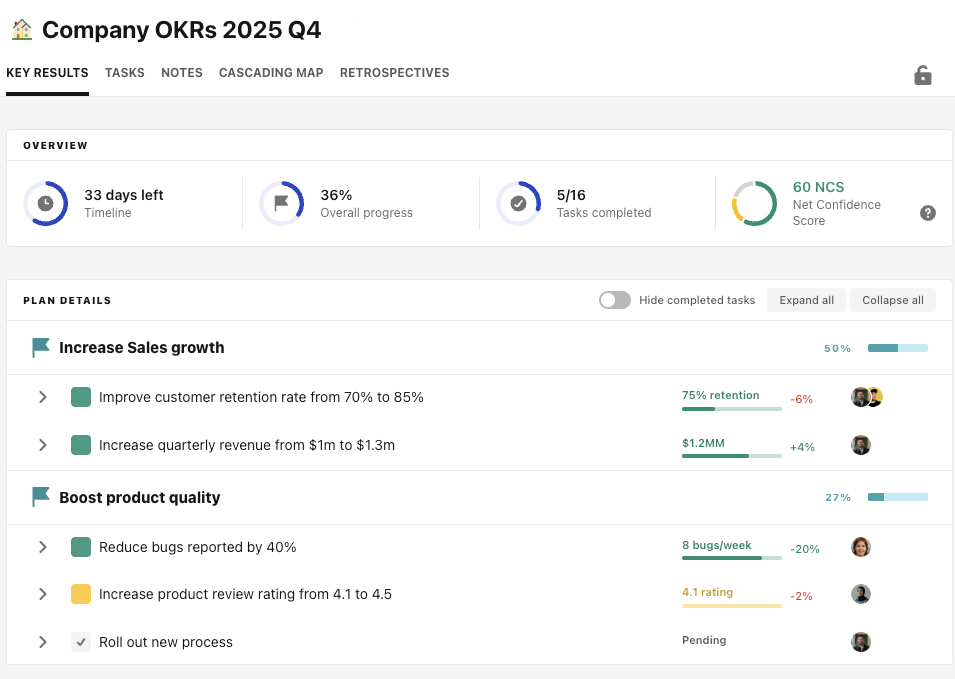
\
Topics covered:

* [Setting OKRs with AI](#setting-okrs-with-ai)
* [Getting AI feedback on your OKRs](#getting-ai-feedback-on-your-okrs)
* [Generating actionable initiatives with AI](#generating-actionable-initiatives-with-ai)
* [Update your OKRs with AI analysis](#update-your-okrs-with-ai-analysis)
* [Ask your data questions with AI Mode](#ask-your-data-questions-with-ai-mode)
* [Plug your data into your LLM](#plug-your-data-into-your-llm)
* [Generate retrospectives with AI](#generate-retrospectives-with-ai)

## Setting OKRs with AI

Some teams that are new to the concept of OKRs struggle off the bat with figuring out how to write their OKRs. Often they end up focused on output or set a metric driven objective with tasks for their key results. And as often as you can coach a team about how to write OKRs (and we have resources [here](https://guides.tability.io/docs/getting-started-with-okrs/the-complete-tability-guide-to-okrs)), an example can work wonders to help them craft a great set of goals.

The Tability goal setting AI lets your team do just that. They can tell the AI what they are trying to achieve plus any relevant context (what your industry is, how big their team is, what sort of metrics they look at), and Tability will generate a fully formed OKR for them.

<figure><img src="https://318707989-files.gitbook.io/~/files/v0/b/gitbook-x-prod.appspot.com/o/spaces%2FMULqjSmZyGczPy2I6FGH%2Fuploads%2Fjud1P4nrygaKn4HWmnFe%2Funknown.png?alt=media&amp;token=631e0aa2-88c8-4b95-9d77-9a66d5a00156" alt=""><figcaption></figcaption></figure>

OKRs aren’t one-size-fits-all, and we want to make sure the OKR your team generates is as specific as possible. Once the OKR has been generated, Tability will also give your team some additional questions to answer to help refine their OKR– they can chat with the AI to answer those questions or give any additional context they need to refine their OKR.

<figure><img src="https://318707989-files.gitbook.io/~/files/v0/b/gitbook-x-prod.appspot.com/o/spaces%2FMULqjSmZyGczPy2I6FGH%2Fuploads%2FNba7FTnljnTrCbWZG5vZ%2Funknown.png?alt=media&amp;token=4a8bf1fe-3750-46ee-b5fb-668f313aaa0d" alt=""><figcaption></figcaption></figure>

Once the team is happy with their OKR, they can press Use this suggestion to automatically add it to their plan.

## Getting AI feedback on your OKRs

If your team has already written their OKRs, Tability’s AI can still help ensure that they’re in the best shape possible. Once you’ve added your OKRs, press the Generate analysis button to get AI feedback on the goals you’ve written. The Feedback will cover everything from making sure that a key result is measurable to if it’s aligned with the Objective.

Click on the feedback to see what part of the plan it’s for, plus a suggestion for how to re-write the objective or key result to be aligned with best practices. If you like the suggestion, click Update Key Result to automatically change the highlighted goal.<br>

<figure><img src="https://318707989-files.gitbook.io/~/files/v0/b/gitbook-x-prod.appspot.com/o/spaces%2FMULqjSmZyGczPy2I6FGH%2Fuploads%2Fk5dnM4wSo3wGowmA2FAg%2Funknown.png?alt=media&amp;token=3f3a7b3a-18a6-4bd5-a89a-9f4c78302a55" alt=""><figcaption></figcaption></figure>

## Generating Actionable Initiatives with AI

Not only can Tability’s AI help create your OKRs or give you feedback on how to write them, but it can also help you figure out how to approach the day-to-day work so you can achieve them. As you add your key results to your plan, you can hit enter>tab to add initiatives (or tasks or projects– however your team has named them) to your plan. Click on the Generate initiatives button to be taken to the AI generator.

<figure><img src="https://318707989-files.gitbook.io/~/files/v0/b/gitbook-x-prod.appspot.com/o/spaces%2FMULqjSmZyGczPy2I6FGH%2Fuploads%2FW2zAl5NhRHrRdIVZwKAM%2Funknown.png?alt=media&amp;token=5de5dc10-617d-493a-8de2-192bd1d7c754" alt=""><figcaption></figcaption></figure>

In the generator, you can add any additional context you need (for example: “we want to focus on 1-to-many projects” or “Suggest ways to automate this”) or put constraints on how many initiatives to suggest.

{% hint style="info" %}
You’ll need to put something in the message, even if it’s just “results please”
{% endhint %}

<figure><img src="https://318707989-files.gitbook.io/~/files/v0/b/gitbook-x-prod.appspot.com/o/spaces%2FMULqjSmZyGczPy2I6FGH%2Fuploads%2F715swkEmDFR3jwNsdbhz%2Funknown.png?alt=media&amp;token=6deee072-6906-4c22-b3f7-58456be74baf" alt=""><figcaption></figcaption></figure>

As with generating OKRs, you can continue to refine the suggestions by chatting back and forth with the AI. Once you’re happy, hit Use this suggestion to add them to your plan (you can always remove any you don’t want or need later).

<figure><img src="https://318707989-files.gitbook.io/~/files/v0/b/gitbook-x-prod.appspot.com/o/spaces%2FMULqjSmZyGczPy2I6FGH%2Fuploads%2FFRBY69EJ1HAHgD764h0u%2Funknown.png?alt=media&amp;token=5f252b02-112f-449c-8249-774cedec5418" alt=""><figcaption></figcaption></figure>

## Update your OKRs with AI analysis

After you’ve set your OKRs, you can automate your progress using our auto-sync plus AI analysis. This lets you connect your key result directly to a data source and pull progress programmatically, syncing the data every day or every week.

Enabling AI analysis will give you not only the metric update, but also a suggested confidence based on the metric progress, how much time is left, if you’re accelerating or decelerating in progress, and any human check-ins that have been made previously. To set it up, click on your key result and select [Connect a Data Source](https://guides.tability.io/docs/become-a-tability-power-user/features/outcomes-key-results/data-sources). When setting up your data source, you can choose to auto-sync and if you do, you can choose to add Deep Analysis:

<figure><img src="https://318707989-files.gitbook.io/~/files/v0/b/gitbook-x-prod.appspot.com/o/spaces%2FMULqjSmZyGczPy2I6FGH%2Fuploads%2FdKXtQ2734mrZIpW0OpdY%2Funknown.png?alt=media&amp;token=9d244f6e-8634-42c0-b97a-689788553d90" alt=""><figcaption></figcaption></figure>

Don’t need the AI analysis every week? You can manually generate the AI analysis by clicking the Generate check-in button on the key result dashboard.<br>

<figure><img src="https://318707989-files.gitbook.io/~/files/v0/b/gitbook-x-prod.appspot.com/o/spaces%2FMULqjSmZyGczPy2I6FGH%2Fuploads%2FpfDjDe7Ec8QQced4sOam%2Funknown.png?alt=media&amp;token=0cee497c-7fde-426d-a6b6-c4ba2fa365cd" alt=""><figcaption></figcaption></figure>

## Ask your data questions with AI Mode

After you’ve gotten updates on all of your key results across all of your plans, you’ll need to monitor your team’s progress to ensure everyone has what they need to be successful. You can build [dashboards](https://guides.tability.io/docs/become-a-tability-power-user/features/reporting/custom-dashboards) (and we have some great [customizable dashboards](https://guides.tability.io/docs/become-a-tability-power-user/how-tos/build-a-better-dashboard-keeping-your-team-accountable-and-on-track) that you can create). But you can also skip directly to the answers you’re looking for using AI Mode.

AI Mode works just like your favorite LLM. You can ask your data a question and it will respond with a clear answer, including links to any of the goals it’s talking about. You can continue to ask questions to dig in further to your data.

<figure><img src="https://318707989-files.gitbook.io/~/files/v0/b/gitbook-x-prod.appspot.com/o/spaces%2FMULqjSmZyGczPy2I6FGH%2Fuploads%2Fv0wS7stKNLmGjpvoOgie%2Funknown.png?alt=media&amp;token=d7ea0102-f1f3-4fcf-88cf-74a55f2fe0c5" alt=""><figcaption></figcaption></figure>

But AI mode can do more than just give you answers. Want a dashboard created? Ask AI mode. Need to generate an entire plan with suggested OKRs? Ask AI mode. Need to draft an executive summary to send to leadership? Ask AI mode.

## Plug your data into your LLM

As more of your company’s data is plugged into your preferred LLM, the easier it can be to synthesize tons of information into actionable insights. [Tability’s MCP server](https://guides.tability.io/docs/become-a-tability-power-user/integrations/tability-mcp-server) gives you the ability to add your OKR data to that growing dataset.

With the MCP integration, you can view your workspace, plans, and objectives, check progress on key results, list initiatives and their statues, and even create check-ins with progress updates, all from inside of where you’re already working.

<figure><img src="https://318707989-files.gitbook.io/~/files/v0/b/gitbook-x-prod.appspot.com/o/spaces%2FMULqjSmZyGczPy2I6FGH%2Fuploads%2FHaR0h6IPBlFWXWIUCwnP%2Funknown.png?alt=media&amp;token=8d72a9fd-a4aa-4c8c-9ac0-7c60aecc6a19" alt=""><figcaption></figcaption></figure>

## Generate Retrospectives with AI

You can use Tability’s AI to generate retrospectives. These retrospectives will automatically:

* Give a summary of your progress from the beginning of the quarter to the current date
* List out wins and fails from your team
* Score your objectives
* Summarize your key results and the work your team did towards them

Each retrospective can be edited– you can add details, remove content, change scores, or include new sections. To get started, go to the Retrospectives tab of your plan. Create a new retrospective and choose Populate with AI. Click into any section to make changes as needed.<br>

<figure><img src="https://318707989-files.gitbook.io/~/files/v0/b/gitbook-x-prod.appspot.com/o/spaces%2FMULqjSmZyGczPy2I6FGH%2Fuploads%2FSpilPgZrwEPsVRqJc6vZ%2Funknown.png?alt=media&amp;token=9e65dfb9-d32b-4af6-94d9-893da9b8ccca" alt=""><figcaption></figcaption></figure>

## And more…

Agent Workforce Manager puts your agents to work so they can manage goals and initiatives end to end. The feature is in open beta for eligible Premium users. Follow the [Agent Workforce Manager guide](/docs/become-a-tability-power-user/features/ai-features/agent-workforce-manager) to connect your AI host and deploy your first workforce.

<br>


# How to use tags for strategic pillars and MOALs

Use this guide to map company-wide strategic pillars or MOALs to your existing Objectives, KRs, and initiatives in Tability.

Tability is intentionally designed to stay simple: we prefer a small set of flexible concepts over many specialised fields.

Instead of adding separate fields for strategic pillars, MOALs, and other planning frameworks, we use tags to cover these needs in a lightweight way.

This keeps the product easier to learn, faster to adopt across teams, and still powerful enough for strategic reporting.

### Why this works

Many teams want to:

* Link org-level strategy (pillars/MOALs) to execution (Objectives/KRs)
* Filter all work tied to a specific MOAL or pillar
* Build dashboards grouped by strategic focus area

Tags solve this cleanly without introducing extra custom fields.

***

### Before you start

* Decide your official naming pattern (recommended below)
* Ask admins to manage/approve the official tag list
* Keep detailed MOAL/Pillar definitions in your knowledge base (Notion, Confluence, Google Docs, etc.)

***

### Step 1: Create official MOAL/Pillar tags

Create tags that represent your strategic references.

**Recommended naming format:**

* MOAL-1: \<short description>
* PILLAR-1: \<short description>

**Examples:**

* MOAL-1: Expand enterprise footprint
* PILLAR-2: Product reliability

{% hint style="info" %}
Best practice: restrict tag creation to admins so teams use one consistent set of strategic tags.
{% endhint %}

#### How to create your tags

<figure><img src="https://318707989-files.gitbook.io/~/files/v0/b/gitbook-x-prod.appspot.com/o/spaces%2FMULqjSmZyGczPy2I6FGH%2Fuploads%2Ff5PRD9BcMEYtQG82Xh8Y%2Fimage.png?alt=media&amp;token=a066df18-f1ef-49ce-8dea-f6ca6ca2de33" alt=""><figcaption></figcaption></figure>

1. Go to **Workspace settings > Manage Tags**
2. Toggle the tag restriction (if you want control over tag creation)
3. Click on **Create tag**
4. Create your pillars and MOAL tags

***

### Step 2: Tag the relevant Objectives and KRs

<figure><img src="https://318707989-files.gitbook.io/~/files/v0/b/gitbook-x-prod.appspot.com/o/spaces%2FMULqjSmZyGczPy2I6FGH%2Fuploads%2FQXg1CxGmDDnCg691naOb%2Fimage.png?alt=media&amp;token=cc03a606-0a1b-47f7-b615-0cc979a2e388" alt=""><figcaption></figcaption></figure>

Apply these tags to all related work items.

1. Open an Objective or KR.
2. In the details panel, find **Tags**.
3. Select the matching MOAL/Pillar tag.

Repeat for all Objectives, KRs, and initiatives you want included in strategic reporting.

***

### Step 3: Filter by MOAL/Pillar and save as a segment

<figure><img src="https://318707989-files.gitbook.io/~/files/v0/b/gitbook-x-prod.appspot.com/o/spaces%2FMULqjSmZyGczPy2I6FGH%2Fuploads%2Fb23Nd5oVYzQX2eHwYhhP%2FScreenshot%202026-03-04%20at%205.21.31%E2%80%AFPM.png?alt=media&amp;token=f64d75ef-d903-4dbd-a429-91a878b6cbdf" alt=""><figcaption></figcaption></figure>

Once items are tagged, create reusable filtered views.

1. Go to **Filters**.
2. Select the objectives or key results tab
3. Click **Filter +**.
4. Select **Tags**.
5. Choose the MOAL/Pillar tag.
6. Adjust the sorting option according to your preference
7. Click **Save segment**.

Use one saved segment per MOAL or pillar for fast reporting.

***

### Step 4: Build a strategy dashboard

<figure><img src="https://318707989-files.gitbook.io/~/files/v0/b/gitbook-x-prod.appspot.com/o/spaces%2FMULqjSmZyGczPy2I6FGH%2Fuploads%2FvxTCy2ntA3OxFqinxDpD%2Fimage.png?alt=media&amp;token=b963dbb1-acfb-4866-8716-9f6a08b7db79" alt=""><figcaption></figcaption></figure>

Create a dashboard that shows each MOAL/Pillar with its linked work.

1. Go to **Dashboard**.
2. Click **Create dashboard**.
3. Name it (example: MOALs and Pillars).
4. Add a **Header** block for each MOAL/Pillar.\
   ![](https://318707989-files.gitbook.io/~/files/v0/b/gitbook-x-prod.appspot.com/o/spaces%2FMULqjSmZyGczPy2I6FGH%2Fuploads%2FF984Se5zsgfabC3XaX3m%2Fimage.png?alt=media\&token=e185d309-d6a6-4a9a-889c-30e6184f8af6)
5. Under each header, add:

* **Objective list** widget and/or
* **Key Result list** widget\
  filtered to the corresponding tag.\
  ![](https://318707989-files.gitbook.io/~/files/v0/b/gitbook-x-prod.appspot.com/o/spaces%2FMULqjSmZyGczPy2I6FGH%2Fuploads%2FrEEz23aMluDRapyFl4HU%2Fimage.png?alt=media\&token=b45a23fe-abaa-4382-8f4b-abb97e46d0fe) ![](https://318707989-files.gitbook.io/~/files/v0/b/gitbook-x-prod.appspot.com/o/spaces%2FMULqjSmZyGczPy2I6FGH%2Fuploads%2F8jxhlx2o4OHh9GSoTXxc%2Fimage.png?alt=media\&token=34e848df-f06d-43c5-8682-8a4ae032d3fd)

***

### Best practices

* Keep tag names short, structured, and searchable.
* Use one primary MOAL/Pillar tag per item when possible.
* Review tags periodically to avoid duplicates.
* Keep full strategic definitions outside Tability – use tags as references.

\ <br>


# How to use Tability (for team members)

Joining a team already using Tability?

Welcome to Tability! If you've been invited to join a team that's already set up their workspace, this guide is to help you understand and use Tability as quickly and as well as possible.

### Understanding Tability

Tability is a goal tracking software that allows you to give critical context to how you’re performing towards your goals. Beyond the metric, Tability gives you space to talk about your confidence in achieving the goal, the work that you’re doing towards it, and any other details about what you need or what you’ve accomplished through a process we call Check-ins. You’ll be notified via email when it’s time to check-in on your goals, and you can find the goals you need to check-in on in your My focus page.

Your My focus page is where you’ll only see goals and initiatives (think tasks or projects) that are assigned to you. You can also find a newsfeed of your team’s check-ins or view your org chart.

If you’d like to see all of the goals for your team, you can go to your team’s Plan. A plan is where your team will set a group of goals (typically following OKR format). In the plan, you’ll be able to see your team’s progress, as well as leave comments on their check-ins to celebrate their wins, offer assistance, or ask questions.

{% embed url="<https://screen.studio/share/FVrEiMVO>" %}

### **Doing check-ins**

Check-ins are your opportunity to give a 360° view into the progress you’ve made towards your goals. In your check-in, you’ll update your progress (check out our guide for automating your metric updates), set your confidence in being able to achieve your goal, and add a comment with relevant details.

{% embed url="<https://screen.studio/share/OeuTfOmd>" %}

### **Responding to your team**

Check-ins give you a great way to asynchronously have goal conversations. Why wait until the next meeting to offer help or ask questions? You can do it all directly from your team’s check-ins. Give quick reactions, bring other people into the conversation, and even set your next initiatives right from inside Tability

{% embed url="<https://screen.studio/share/cvByfgn5>" %}


# Put your OKRs on autopilot with Tability’s AI automation

Keeping your goals up to date is key to being successful with your OKRs. But getting a perfect streak of updates on every single goal isn’t always feasible– your team might take holidays or get pulled away for other immediate needs. So why not ensure that your goals will always have an update with our Tabby AI OKR agent.

Follow these simple steps to automate your OKR process to never miss an update.

### 1. Connect your key results to your data

You can automatically pull in your metric data in Tability with [data connectors](/docs/become-a-tability-power-user/features/outcomes-key-results/data-sources). To set up a data connector, click on a key result and select Connect to a data source:<br>

<figure><img src="https://lh7-rt.googleusercontent.com/docsz/AD_4nXfSY_fwmGvFFA2ofBpeuFq8EuNDxmy9e4SvU3LTMt__pjPHlws0r6jr_PLtmi4t0g8GUfogFX45nA_cMqaanwPUq6Tbon1PhWG_uc0FTc29KyN_gzUMdwIDnNG3Pc1ITg9tpxGZuw?key=fzf1p_AgTlvCOi_hF6NZng" alt=""><figcaption></figcaption></figure>

Choose the tool you’d like to connect to and select the data you’d like to sync. In this example, we’ll get the number of opportunities from Salesforce. Finally, enable auto-sync so that your data will sync to Tability every 24 hours, ensuring that your metric is always current.

<figure><img src="https://lh7-rt.googleusercontent.com/docsz/AD_4nXd0--HKhwcu4V5RYde1g6t8VMAa4CLrii4GCAQ3vg0BQ6PmoXAe4ioCrk6t1Z6endn5zB4RPSUjwFs1nU9VYLJbJCz_MvWSeBxOnF-9lPoCt5MbEHGGWjsXiIoeIKy7xw_kN5MMjQ?key=fzf1p_AgTlvCOi_hF6NZng" alt="" width="563"><figcaption></figcaption></figure>

With auto-sync, we’ll include an update from Tabby about the progress that you’ve made each day:

<figure><img src="https://lh7-rt.googleusercontent.com/docsz/AD_4nXexwHFUx_0Te8ZxEyCq7qgkBYWbWN0GQzhU0xEzH10McpvsGUQv1P5uv4doa3hbdDdDKQAfdjmZE0ZpAjXkShghcPCQeijxR4IdKF3LvrvPd6fGAks6knD_Tzg3QDaPiZs_mD6rAw?key=fzf1p_AgTlvCOi_hF6NZng" alt=""><figcaption></figcaption></figure>

<br>

### 2. Connect your project management software to automatically get updates on tasks

Don’t just sync your metrics– you can connect Tability to project management tools like Jira to sync your progress on your tasks. [Connect to your Jira instance](/docs/become-a-tability-power-user/integrations/jira) from Settings>Integrations>Connect to Jira:

<figure><img src="https://lh7-rt.googleusercontent.com/docsz/AD_4nXceVS55eAEVvRyyyLtZ4FHv7stVft3zmvPt25L5sbIdfw_x4TITmKfU6G3GHK0rYcUxtFJ-veyf3qr6BtXmWv_5DKw64EjunXLtqjydrmDeppCTfAIkE1m5nY0Bsb5nmmixvGxB?key=fzf1p_AgTlvCOi_hF6NZng" alt=""><figcaption></figcaption></figure>

Once connected, you can paste your Jira tickets into the task space in Tability and we’ll automatically pull in the title of the task, status, due date, and owner:

<figure><img src="https://lh7-rt.googleusercontent.com/docsz/AD_4nXeDTErUk5FNI1mwVwRiBrc5s1muGP7IcbkLWuFc-sP0iaNIBnH-Xvu26rTjGi-q4FYZMkIkQ6ONEqgv3AqZKJU-_XKWZCekztJOcbK1sO7nclY0MDM4CpRxYtWBzDOoiv1AJBaN6g?key=fzf1p_AgTlvCOi_hF6NZng" alt="" width="563"><figcaption></figcaption></figure>

When you mark tasks as complete in Jira, they’ll automatically be marked as complete in Tability as well.

### 3. Monitor your team’s engagement

As Tability gets metric and task updates automatically, your team will still have an opportunity to add in their critical context through check-ins. [Good goal updates](/docs/getting-started-with-okrs/the-complete-tability-guide-to-okrs/getting-good-goal-updates-from-your-team) give you the details you need to make the best strategic decisions.

To make sure your team is giving you those updates, you can set up a [filter](/docs/become-a-tability-power-user/features/reporting/filters) for updates that haven’t been done when they were supposed to. To create this filter, go to Filter + > Insights > Pending check-ins.<br>

<figure><img src="https://lh7-rt.googleusercontent.com/docsz/AD_4nXeQLcfkZad1B4XwBIkZycaicoUjMlkTRh1Ll_DdXupb1OPZ_05KGMDHPtVYtpNYggiW0XyxIdWeFQQcdcIEUAjZhqFzeH-wK8_e8LfDJoRFCViLwmZbOwI_kxxO3LNPT1saAeLnrg?key=fzf1p_AgTlvCOi_hF6NZng" alt="" width="563"><figcaption></figcaption></figure>

You can then save this as a segment to return to it whenever you need.<br>

<figure><img src="https://lh7-rt.googleusercontent.com/docsz/AD_4nXe-rBglrqggwfNf6qNJBxJGZKadbNLcKgd5wskSZKhjePkR8LYCcrpkZ4XgJLvQ3U2VHyr1jWSWBIQ12Qg80QANutCM4Cgi9kVKA-eTR4jsJx6_7dOBICp-4g5bCzZNteDcI6ZfgA?key=fzf1p_AgTlvCOi_hF6NZng" alt=""><figcaption></figcaption></figure>

### 4. Ensure you’re getting qualitative insights<br>

If your team misses a check-in you won’t have to miss a qualitative update about your goal.

You can automatically generate a check-in that will look at completed tasks, the most recent metric progress and previous check-ins to still give you a sense of what’s happening and how likely you are to hit your goal. Tabby AI will suggest a confidence color (red, amber, green) as well to feel just like your team is still there.

We recommend generating a check-in if your team has a check-in that’s more than 2 days overdue.\
\
On the key result, use the Ask Tabby section to generate your check-in:

<figure><img src="https://lh7-rt.googleusercontent.com/docsz/AD_4nXcNEuNE5X8xnK5nCdw5oNIRyvBmI9lWon-mO_5xtEnXS0eOslb3Mlly858N-grFNgBi41Fpm1Dv1QxFA4B6cEi-zOQxzS8Fqun-4ObZM9yMmY3X8GxkdRuMVAV3oOTQMNJjCjBGjg?key=fzf1p_AgTlvCOi_hF6NZng" alt="" width="375"><figcaption></figcaption></figure>

After clicking Generate check-in, you’ll see Tabby’s update in the timeline of your key result:<br>

<figure><img src="https://lh7-rt.googleusercontent.com/docsz/AD_4nXdtDFbaV-pbSClsqJpiut493yQ_lBMg3V1iXjXlrOMJBQFlHu_rSaq-cQFYi92Y8dmxM-t7Q7Hz82n3IKSQJxrNNF7x9v1OsGmT8l8W393fjauh8-AjdEPaWlFEDoz34J1cXd2Oug?key=fzf1p_AgTlvCOi_hF6NZng" alt="" width="563"><figcaption></figcaption></figure>

\
Still want to get your team’s feedback on their key result? Use the comments to @ mention the team member and see if they have more to add.<br>

<figure><img src="https://lh7-rt.googleusercontent.com/docsz/AD_4nXd7QNLC-vHcmojTH5fiXehcJ7CIvxXAtxxfPn16kt5Q61lNt63mpXKd6ZjUZGRHFmSQU0ZRRTmmNaLZ9rEneGHz0ad1Zf6PpzLnKpWx5XBn4wBsKOUi1na0hdwCO5PYRpZViZ-i?key=fzf1p_AgTlvCOi_hF6NZng" alt="" width="563"><figcaption></figcaption></figure>

### 5. Summarize your progress every month with one-click reports

When you’re creating monthly or quarterly overviews of your progress across all of your OKRs, you’ll tend to summarize the updates that your team gave you. Instead of reading through all of your goal updates to find the wins, the blockers, and the next steps for your OKRs, you can automatically generate a monthly [retrospective](/docs/become-a-tability-power-user/features/reporting/retrospectives) with our AI OKR agent.

Go to the retrospective tab at the top of the plan and then click Create new<br>

<figure><img src="https://lh7-rt.googleusercontent.com/docsz/AD_4nXdWALdWgMiv3nIke6bw0BN7K_PGyWjfopGGbIae4j-EjE7E3czmt48i7JZyg75LGM6eBvi3G-9dLcYCFvSYW3VLK8r1jVkaJGo_GqBK1tGptp-zvSwUYMF96p01fRXRkyNIqihrtg?key=fzf1p_AgTlvCOi_hF6NZng" alt="" width="563"><figcaption></figcaption></figure>

Populate a new retrospective with AI and you’ll automatically get a summary of your progress. You’ll be able to make changes and edits, so that you have the perfect summary for your team:<br>

<figure><img src="https://lh7-rt.googleusercontent.com/docsz/AD_4nXfEV4uKMv_XbvtfkuuteOi2ZxN1NkvdG8IHq_NEEKxWLIt2yeLISjF_EhMyzfUvpLYIJULmLLP2-2MqQXgE9_7NFdfiEZmiEyioAg-DS4zYgtnITceEwkQN6-d-95tb9-GWn9qzRg?key=fzf1p_AgTlvCOi_hF6NZng" alt="" width="563"><figcaption></figcaption></figure>

<br>

Getting good updates from your team is still what will take your process to the next level, but automating what you can let them focus on what’s important instead of how to move data from one place to another.

<br>


# Build a better dashboard: keeping your team accountable and on-track

## Introduction

{% embed url="<https://www.loom.com/share/6799a8afb8fc4ceaaa73fc6b5967ccbd>" %}

Tability's custom dashboards give you the power to create the reports that you need to keep your team on track towards success and have helped teams see a 33% increase in team activity. Today, we'll go through a formula for developing a quick dashboard focused on the goals that are in most need of attention.

*Note: custom dashboards are currently available on Premium plans only*

### 1. Where is your team asking for help?

Before we create our dashboard, we'll want to build a segment in the filters section. We'll be able to add this segment to the dashboard later. In filters (under the Key results section), we'll add in a filter for confidence, choosing At risk and Off track. This will pull the red and yellow goals from every plan in your workspace. Save this as a segment:

<figure><img src="https://downloads.intercomcdn.com/i/o/y3v8st92/1547659828/98566665c955d139039d3ba2b947/image.png?expires=1754577000&#x26;signature=d317dee28dfe330b570fba1e4265fd4c53c14c8e79d39665f2febbd0f7759a5b&#x26;req=dSUjEc97lIldUfMW1HO4zY8zKZ6rRVzW%2FuWDH7UK8KHaCGejyKvy0QPD2VW1%0AOk%2Bd%0A" alt=""><figcaption></figcaption></figure>

Goals that have been marked red or yellow should get extra attention-- offer advice, discuss strategies, or move resources to these goals to get them back on track.

### 2. Create your dashboard

Now that we've got a segment of our critical goals, we can start to create our dashboard. From the dashboards menu on the left, create a new dashboard.

*Note: all dashboards in Tability are currently visible to all team members.*

In your new dashboard, you can add widgets. Each widget can be dragged and dropped to your preferred positions and resized as needed.

<figure><img src="https://downloads.intercomcdn.com/i/o/y3v8st92/1547664959/c561a59a30e41d3a4383187fa1da/image.png?expires=1754577000&#x26;signature=5f4e19e12516abebd387b34c511bc6154c26d5dcefde1b0612ea8e52fa8cc53f&#x26;req=dSUjEc94mYhaUPMW1HO4zQuO%2FAjtpwOpiTJEm2HyrVWGCfkqG88%2FrbbzMsd0%0AYPvO%0A" alt=""><figcaption></figcaption></figure>

### 3. Add widgets

Each widget you add to your dashboard will have different data and with many of them you can choose which plan you want to highlight. We'll start with a high-level summary of our top level plans by using the Plan summary widget:

<figure><img src="https://downloads.intercomcdn.com/i/o/y3v8st92/1547675559/81ac6f3838fa473c1b7f1a7f89c1/image.png?expires=1754577000&#x26;signature=a28d2a5058b6f9de8fd067062137bd09712a7aa42c7b74fe5d442e07bc35cfb2&#x26;req=dSUjEc95mIRaUPMW1HO4zbeFB76FV2bUgih8UAaKduMaVTXfHei6zpasvMoV%0AUjd7%0A" alt=""><figcaption></figcaption></figure>

When viewing the dashboard, if we see one that has a high amount of red key results or low key result progress, we can quickly access that plan by clicking on the plan title in the widget.

Next, we'll add the segment we created earlier by using the Key result list widget (this may be called the Outcome list or something else if you've changed the terminology you use):

<figure><img src="https://downloads.intercomcdn.com/i/o/y3v8st92/1547679884/89d287a6b7023bbceabf6bf04b7b/image.png?expires=1754577000&#x26;signature=7955d3831e3acea66c69a4250da280666041334a1bb3fd2b55bebe4b5db3d6b0&#x26;req=dSUjEc95lIlXXfMW1HO4zZp9h%2BRGZs6ygA%2BGFScF9DVudiZUGQMiVIV%2FQgWc%0AzaiX%0A" alt=""><figcaption></figcaption></figure>

We also want to make sure that all of our key results have been updated-- we don't want to assume that a goal is on track if it was marked green 6 weeks ago and not updated again. We'll add in the Overdue check-ins widget to see goals that missed their last update:

<figure><img src="https://downloads.intercomcdn.com/i/o/y3v8st92/1547694677/f47a6b0206350ac9669838920e97/image.png?expires=1754577000&#x26;signature=19f306bb984d55e5a41e54a9be24bbec9a858dfc15f5e9cbd1532bb799e3686b&#x26;req=dSUjEc93mYdYXvMW1HO4zaPb908D%2BXsij0PW0WRBxsAO14DNXa2THSP1CaBQ%0A105z%0A" alt=""><figcaption></figcaption></figure>

Finally, we'll give ourselves a quick way to celebrate wins and give coaching where needed by adding in the Key result progress leaderboard twice-- once for the highest progress and again for the lowest. This will show us the percentage completion for key results sorted by user so we can give public praise to those who are performing well and reach out to those who aren't to see how we can help:

<figure><img src="https://downloads.intercomcdn.com/i/o/y3v8st92/1547697089/a89c8c9dc4f2f5ac414a1aaa7464/image.png?expires=1754577000&#x26;signature=c27470d73831d7af07aedd828ab49cd1b59238da10bd51d3a4dcd2088686e448&#x26;req=dSUjEc93moFXUPMW1HO4zf3Va0DHAVihPhMcEUq1y8hhSeXdUiiKRK7zb9lz%0AF034%0A" alt=""><figcaption></figcaption></figure>

### 4. Arrange your widgets

You can move your widgets to other places on the dashboard by dragging them with the 6 dots in the upper left corner and resize the widgets with the arrow in the bottom right. Arrange the widgets so that the information you care about most is at the top. Remember, you can click into any of these widgets to get more information on things like which goals have overdue check-ins or which goals are assigned to your top performers:

<figure><img src="https://downloads.intercomcdn.com/i/o/y3v8st92/1547704362/2f3858203887276cb702e1a47e71/image.png?expires=1754577000&#x26;signature=c4391aa34b4d1f71ba07f12d1a1d42350dbc493c0d85d69e752a6156a73878a9&#x26;req=dSUjEc5%2BmYJZW%2FMW1HO4zYsTrEkZdysqYq1m409MJPbP95IHro8kFo6pPQ24%0A8LCs%0A" alt=""><figcaption></figcaption></figure>

Click save, and now you're done!


# Adding more teams to your OKR process

Starting your OKR journey with a single team or department is a great way to build your process and find what works best for you. But with only one team working in a formal tool, it risks creating a silo with slower execution as other teams await reports to know what your team’s priorities are so they can help out. A full adoption of OKRs, and ensuring that everyone who needs to be in the know has access to the same data, can help unlock real alignment and transparency, and help your organization execute faster on your top priorities. But how do you approach rolling OKRs and tools like Tability throughout your organization? We’ve got you covered.

### Why expand beyond leadership?

We suggest that teams that are brand new to OKRs just start with their leadership. Not only does this make a simpler initial rollout, but it also helps set an example for teams to follow later. But beyond “the execs do it,” explaining why your team should care is critical to ensuring they stay engaged with the process. So before giving the directive to start writing goals, talk to your team about the top-level OKRs in your organization and make sure they understand that their work will directly impact those goals, and that their team OKRs just help make sure they’re working in the same direction. This makes sure that everyone has the “why” behind their work.

This also gives teams a place to work collaboratively towards common goals. By having multiple teams in your workspace, it’s clear what the top priorities are, and what kind of bandwidth everyone has. No only will teams be able to understand what each others’ priorities are, but they’ll also be able to make decisions faster with less time waiting to hear back from others on what they can make happen.

### What is different with multiple teams?

It may be tempting to see a broader rollout and think that you can force all of your teams into alignment with a top-down approach to your OKRs– the company key results become the departmental objectives, whose key results become the team objectives, and so on. But this often creates a clunky, slow process that spends up to a ⅓ of the quarter just on planning.

Instead, focus on a bottom up or mult-directional approach to goal setting. Publish your top-level company goals and allow teams to set their own, aligned OKRs. After they’ve been published, have teams look at other teams’ goals and find overlap where they can work together, duplicate goals that can be deduplicated, or misaligned goals where teams would be going in opposite directions. Let them connect their goals as dependencies or related key results or go back to their OKR draft to make adjustments as needed (for instance, if the product team is launching a major new product as is tracking how many users try it out, the Sales team should have some goal around getting new customers on the new product, the Customer Success team should be included in the goal (and focused on getting existing customers to try the new product), and the marketing team can focus on using the new product in their campaign).

What stays the same, however, is the reporting process. Teams will still give the same updates that your organization has been doing already, keeping their goals up to date, but they’ll likely use more @ mentions and comments than you had been using with a single set of OKRs. These conversations are what drives better alignment, so leadership should both encourage and interact with them. Even a simple thumbs up to a question that is asked and answered can help foster those interactions.

### Reporting at scale

With more OKRs comes more data and knowing where to spend your time to keep your strategy moving forward is important. As you roll out OKRs to more of your team, you’ll want to make sure you have someone who is dedicated to monitoring the process to ensure that goals are updated and that anything that needs attention gets the resources it needs or gets deprioritized.

Tability has rich filters you can use to monitor all of your key results across the entire workspace. We’ve put together a guide to help you build the best dashboard for keeping a broader team engaged. Check it out [here](https://guides.tability.io/docs/getting-started/build-a-better-dashboard-keeping-your-team-accountable-and-on-track).

Connecting your goals and monitoring for issues lets you see if there’s anything downstream that might cause your top-level OKRs to be missed and to make changes or move resources as needed so that the entire organization stays on track.

### Not ready to roll out to the entire organization?

If you’ve only just gotten started, moving to a T-shaped implementation can be a good next step. Here, you’ll include your leadership team (which gives you representation across the entire organization), and then a full department (a deep rollout in just one function). This still gives you more visibility into what’s connected to your goals and allows you to build out processes when there are more layers of OKRs.

If you’re ready to move forward, before your roll out, you’ll want to find a handful of OKR champions. There are team members from across the organization who become knowledgeable about the OKR process so that they can be a go-to resources for others in the organization about how to approach OKRs. This ensures that your team doesn’t feel blocked because they can’t ask questions– there are more people who can help answer anything from how many goals to create to what comes next in the process.

Regardless of which way you go, keep your goals simple and measurable at the team level. A single, well crafted OKR with just 3 key results is better than a bloated plan filled with key results that are more output focused (A key result focused on increasing active users is better than a key result about putting together a new dashboard to track how many active users you have).

### Take the next step

Rolling out OKRs across your entire organization isn’t just a process upgrade—it’s a growth strategy. When every team is aligned to the same objectives, you reduce silos, accelerate decision-making, and ensure that all efforts contribute to the bigger picture. The result? More focus, better execution, and faster progress toward your goals.

If you’re ready to take the next step and expand OKRs beyond a single team, [book a strategy session with our team today](https://calendly.com/tability/expert-onboarding)—we’ll help you plan a smooth rollout that drives alignment and results.

Want to do some more reading about rolling out your OKR process? Check out our [implementation guide](/docs/getting-started-with-okrs/okr-implementation-planning).

<br>


# Negotiate a raise using OKRs and Tability

If your leaders don’t do a good job explaining why they’re rolling out OKRs, it can be hard to see them as a useful tool. Instead of communicating how they can help everyone in the organisation do better, OKRs end up feeling like an additional metric or a new way to be micromanaged.

But doing OKRs well can give you one of the most useful tools to not only getting your manager to give you some breathing room, but also to negotiating a better raise come review time– a paper trail on the outcomes you achieved and the work that you’ve done.

Salary reviews need data. According to [Harvard Business Review](https://professional.dce.harvard.edu/blog/how-to-successfully-negotiate-a-salary-increase/#Effective-Salary-Negotiation-Practices), some top tips for preparing for a salary negotiation is to document success and come with a “brag sheet,” a summary that shows how valuable you are.

Instead of scrambling during your performance review for examples of a time you went above and beyond, take some time each week to show your boss what you’ve achieved.

## Focus on what’s most important

Your team sets OKRs based on what’s most critical that quarter. Each key result metric represents an area where big change or committed focus is important. Which means that when you own one of those key results, you can explicitly state that it’s your efforts that helped drive success towards key business goals.

You don’t need to guess what your manager or leaders will find important– they’ve already shown you what it is and given you the reins. Coming back to these key results to talk about your work on them is a no-brainer at your performance reviews, and ensuring that you’ve put effort into them will go a long way toward building your case for a raise.<br>

<figure><img src="https://318707989-files.gitbook.io/~/files/v0/b/gitbook-x-prod.appspot.com/o/spaces%2FMULqjSmZyGczPy2I6FGH%2Fuploads%2F09nPPosSOUeIKfuHt7lw%2Fimage.png?alt=media&amp;token=46bf9bb5-65e3-4177-93fd-c192006c8e1f" alt=""><figcaption></figcaption></figure>

## Keep notes as you go

In Tability, you update your key results through check-ins, a regular update of your progress and your confidence in being able to meet your goal.

Every time you do your check-in, you have an opportunity to highlight your successes and also any blockers that are holding you back. This is a perfect place to document your wins and ensure that you are asking for the things that you need to be successful. Need something from your manager? Put it in your check-in to make sure you’re documenting that you’ve asked for it on a certain date (make sure to @ mention them so they see it!). Saw great results from something you did? Put it in your check-in alongside how you expect to continue to see success.

Interested in a quick template for capturing this in a check-in? Try using this:

> Last week we \[what projects or work did you do towards your goals?].
>
> This moved our metrics from \_\_\_\_ to \_\_\_\_\_, which is \[what we hoped for/just OK/not what we wanted].
>
> Next week, we’re going to \[projects or work that you plan on doing], which should \[keep or accelerate our momentum/get us back on track].
>
> I need \_\_\_\_\_\_\_\_\_\_\_ in order to succeed this week.

<figure><img src="https://318707989-files.gitbook.io/~/files/v0/b/gitbook-x-prod.appspot.com/o/spaces%2FMULqjSmZyGczPy2I6FGH%2Fuploads%2F6PCAutYH8hVT1EBX7kGU%2Fimage.png?alt=media&amp;token=9912cea4-aa4f-4c31-bd69-5eae6a07b88a" alt=""><figcaption></figcaption></figure>

Beyond check-ins, end of quarter retrospectives also give you the opportunity to highlight your accomplishments. Retrospectives give you more of an opportunity to craft a narrative around your work and highlight not just your successes, but what you overcame as well.

> This quarter, we went from \_\_\_\_\_ to \_\_\_\_\_, which was XX% of our goal. While working on this key result, we \[list accomplishments like projects completed, milestones achieved, and metric advancements]. In order to see that success, we had to overcome \[list hurdles and blockers that slowed or prevented momentum]. In order to do so, we \[list the actions that were taken].
>
> In the future, we plan to \[what will you start doing to improve your work on your key results]. We’ll no longer \[what didn’t work well? What will you avoid next quarter]. And we’ll build on our progress by continuing to \[what went well that you’ll keep doing?].

This highlights your wins, shows how you can use the tools at your disposal (and work with other teams), and that you’re continuing to see areas to improve– but lets you phrase them in a way that is growth focused as opposed to fixing poor performance.

## Create your brag sheet:

In the OKR cycle, it can be easy to finish one quarter and quickly move on to the next. But if you want to use your OKR data to land that raise, you’ll want to come up with some collateral to present at your meeting. You’ve given yourself plenty of data, but presenting that data in a concise way is just as important. It’s time to create your brag sheet:

Create a document you can track the following on between each review cycle:

* **2-3 key results you owned or directly influenced for each quarter.** Don’t include everything you’ve worked on (you don’t want to overwhelm your manager), just the highest impact goals where you’ve had the most success.
* **Note those key results’ business impact.** For some key results (like with revenue), the impact is obvious. For others, look at what those key results were linked to. If you were working on a product backlog, for example, don’t just say that the backlog is smaller– point to the new products that launched or the improved product performance. Look at your company’s top-level OKRs for guidance and figure out how the key results you’re talking about impacted those critical targets.
* **Highlight patterns in your OKR performance.** Where did you work with other teams for each key result? How did you show leadership? When did you escalate issues? The goal is to show that you aren’t getting lucky with your OKRs– you’re consistently doing the best work.
* **Connect your impact to your ask.** If your OKR impact is directly improving company metrics, ask for your compensation to reflect the impact of your contribution. If the way you worked on your key results demonstrated proficiencies for a higher role, outline what you did and connect it to the competencies for that other position (i.e. “Given I project managed X people across Y teams and reported my progress directly to leadership, I would like to discuss moving into a role where those skills can be utilized.”)

## Start with your OKRs

OKRs aren’t just a planning tool– they’re one of the best ways to make your work visible and defensible. Publicly tracking your progress through your check-ins, reflecting honestly at the end of the quarter, and connecting your work with your company’s goals are the core pillars of Tability, and you can use these pillars to showcase your work and have a successful negotiation.

So next time performance reviews roll around, don’t scramble to remember what you accomplished. Look at your OKRs, pull out the story you’ve already been writing all quarter, and use that to advocate for the compensation you deserve.

<br>


# Creating a plan with public and private goals

At Tability, we value cooperation and communication. We believe that public goals get better results and promote collaboration and accountability. That said, we also understand that not all goals are meant to be public, and have included plan-level permission settings to control who has access to your sensitive goals.

Sometimes, however, you’ll want to have a mix of public and private goals within the same plan. Imagine: You’ve set up your top-level company goals– these should be public for the organization. However, the CEO is working on sensitive goals that will directly impact the rest of the company goals and wants to see these private goals alongside the rest of the company plan, but doesn’t want anyone else to see them yet.\
\
You can’t control the visibility of individual goals within a plan, we can still achieve this result through some careful planning and linking of goals.

We’ll go through creating this type of plan so that everyone sees only what they need to.

## Understand how Tability works

Before we can create our plan, let’s review how Tability works.

### What are plans for?

Plans are just where a group of goals live inside of Tability. A plan allows you to set a specific timeline for your goals and control who has access to edit or even view your goals. Many teams create their plans based on their goal meetings– when a group of people at your organization look at their goal progress, what goals do they look at? If your organization works by function (sales, marketing, engineering, etc.), plans will often mimic this structure. If your organization is more cross-functional and you create pillar-focused teams, you’ll likely set up plans by those pillars instead of by function.

### Can I show a goal in multiple plans?

We can link your goals to goals in other plans. Doing this allows you to see the goal in multiple places without duplicating it. You’ll update a single goal, and that update will show in the other plans where the goal is linked. This is great for dependencies and for cross-functional work where part of a goal is owned by a different team. Even when linking goals, however, the goals will honor the privacy settings in their original plan. A private goal will only be visible to people who can see the private plan– anyone else won’t know it’s there.

### Does having multiple plans make my users’ experience worse?

Your users have a single place to update all of their goals, regardless of what plan they’re in. So no matter how many plans you create, your team will use their My Focus page to update all of their goals. And when we link goals to other plans, even reviewing their goals will be the same as if you only had a single plan.

## Building your plans

### Start with the public plan

First, create a new plan and leave your permissions to Everyone can edit (or Restrict editing to only yourself). Either way, this will allow anyone in the organization to see this plan. Add your public goals the way you would with any other plan and hit Publish.

### Create your private plan

Create another new plan and this time change the permissions to Keep this plan private. Add in your goals again, but before we hit publish, click on the lock icon at the top of the plan and add in editors and viewers by clicking the Add editor button and selecting who you want to be able to see these goals.

<br>

<figure><img src="https://318707989-files.gitbook.io/~/files/v0/b/gitbook-x-prod.appspot.com/o/spaces%2FMULqjSmZyGczPy2I6FGH%2Fuploads%2F1fCN3F6UqQlD4MbQyFEu%2Fimage.png?alt=media&amp;token=fce056f8-8b11-41d7-b572-6b9f6bfddcf4" alt=""><figcaption></figcaption></figure>

\
They’ll be able to see this entire plan, as well as any goals from within this plan if they are linked to other visible plans. Once you’ve chosen the people you want to be able to see the private goals, we can close the permission manager and publish this plan as well.

### Link your goals

The goals that you would like to make visible in the other plan need to be linked to goals within that plan. Check out our guide to linking goals [here](https://guides.tability.io/docs/getting-started/getting-started-with-tability-for-enterprise#linking-okrs-across-your-workspace).

If you want your private key results/outcomes to show the same as the public key results/outcomes in the public plan, link your key results/outcomes to an objective and we’ll display it like so:

<figure><img src="https://318707989-files.gitbook.io/~/files/v0/b/gitbook-x-prod.appspot.com/o/spaces%2FMULqjSmZyGczPy2I6FGH%2Fuploads%2FvFHZvfgoVJyZx4ImWF4k%2Fimage.png?alt=media&amp;token=de8557c2-d996-4ea9-be2a-08ff8b2ae384" alt=""><figcaption></figcaption></figure>

If you want to have the objective and all of its key results visible, you can just link an objective to another objective or key result/outcome. This will make everything connected to the objective visible:

<figure><img src="https://318707989-files.gitbook.io/~/files/v0/b/gitbook-x-prod.appspot.com/o/spaces%2FMULqjSmZyGczPy2I6FGH%2Fuploads%2FhpBbDIJL3xpgyX34ooHz%2Fimage.png?alt=media&amp;token=b688c2b0-60a5-48c7-972f-bd4de2828cb4" alt=""><figcaption></figcaption></figure>

### That’s it!

Check out your public plan and you should see any of the goals that you linked in that public plan. Have someone who doesn’t have access show you the public plan– you’ll see that even though they’re linked to the public plan, they won’t be able to see the private goals since they weren’t given access to them.

Questions about how to set up other types of plans? Want to see more permissions? Reach out to us at <support@tability.io> or use the messenger in the bottom right of Tability to let us know!

<br>


# How Many Plans Do You Need?

Once teams know[ how to create a plan](https://guides.tability.io/docs/become-a-tability-power-user/features/plans/creating-and-editing-plans-and-sub-plans), the next question is almost always: how many should we actually have? Do we need one for the whole company, one per department, one per team — or can everything just live in one place?

There's no single right number, but there is a right way to think about it: a plan should map to a group of people who would sit in a room together to talk about those goals. If a group meets to discuss a set of OKRs, that's a plan. If they wouldn't, it probably shouldn't be bundled into one.

### Structure plans around how your org actually works

Most teams land on one of a few common structures, and the right one depends on how your organization sets goals — not on a "correct" number of plans:

* Company + departments. A top-level company plan with departmental plans underneath (Sales, Marketing, Engineering, Finance, and so on). This works well when goal-setting flows top-down from company priorities.
* Business units. If your company operates as several distinct units rather than shared departments, each unit gets its own plan, sometimes with team-level plans nested below.
* Big rocks or initiatives. Some companies organize around a handful of cross-functional priorities for the period ("Launch Product X," "Expand into Region Y") rather than by department at all.

Whichever structure you pick,[ sub-plans](https://guides.tability.io/docs/become-a-tability-power-user/features/plans/creating-and-editing-plans-and-sub-plans) let you nest them — a company plan can contain department sub-plans, which can contain team sub-plans — so the hierarchy in Tability mirrors the hierarchy of how goals actually get discussed.

### Don't fight silos by merging plans — link goals instead

A common instinct is to avoid cross-team silos by cramming everything into one giant plan so nothing gets missed. That usually backfires: one plan with every team's goals in it becomes noisy and hard for any one team to focus on.

The better fix is[ linking goals](https://guides.tability.io/docs/become-a-tability-power-user/features/outcomes-key-results/outcome-relationships) across plans. A key result in a department plan can roll up into a company-level objective, or show a dependency on work happening in another team's plan. That gives you the visibility you were trying to protect against silos, without forcing every goal to live in the same place. Keep plans focused; use relationships to connect them.

### Need different timelines in the same plan? You can't — but you can fake it

Every plan runs on a single timeline, so you can't mix a quarterly goal and an annual goal in the same plan. If you need that, the goal needs its own plan with its own timeline, linked back to wherever it needs to show up.

This is the same trick used to handle[ public and private goals within what feels like one plan](https://guides.tability.io/docs/become-a-tability-power-user/how-tos/creating-a-plan-with-public-and-private-goals): create a separate plan for the goal that runs on a different cadence, then link it into the plan where people expect to see it. Users still have one place to check in on their own goals regardless of which plan holds them — the separation is structural, not something they have to think about day to day.

### A quick way to decide

If you're stuck on where a goal belongs, ask:

1. Who would discuss this goal in a meeting? That group's plan is where it belongs.
2. Does this run on the same timeline as everything else in that plan? If not, it needs its own plan, linked in.
3. Am I merging this into a bigger plan just to avoid a silo? Link it instead of merging it.
4. Is this plan still something one team would recognize as "theirs"? If a plan has stopped feeling ownable by any single group, it's grown too large.

<br>


# How to roll up progress from dependent key results

Calculate a parent key result from the progress of its dependent key results

Use **Rollup dependencies** when a higher-level key result should be calculated from the key results that contribute to it. For example, a company revenue target can roll up values from Sales and Customer Success targets.

The workflow has two parts:

1. Connect the contributing key results as dependencies.
2. Change the parent key result to the **Rollup dependencies** type.

{% hint style="info" %}
Adding relationships does not update the parent value by itself. The parent must also use the **Rollup dependencies** key result type.
{% endhint %}

## Connect the dependent key results

1. Open the parent key result to show its details panel.
2. Expand **Relationships** and select **Add relationship**.
3. Under **Add dependency**, select **Add dependent key result**.
4. Select the plan containing the contributing key result.
5. Select the key result, then select **Save**.
6. Repeat for every key result that should contribute to the roll-up.

The connected items now appear under **Dependencies** on the parent key result. See [Outcome relationships](/docs/become-a-tability-power-user/features/outcomes-key-results/outcome-relationships) for parent, dependency, related, and removal workflows.

## Configure the roll-up

1. Open the parent key result.
2. Select the `...` menu and **Edit**.
3. On the **Target** tab, choose **Rollup dependencies**.
4. Review the connected items under **Dependent key results**.
5. Choose a **Rollup type**:
   * **Rollup values** uses the current numeric values from the dependencies.
   * **Rollup percentages** uses their current completion percentages.
6. Choose the **Method**:
   * **Sum** adds current values and is available for **Rollup values**.
   * **Average** averages the values or percentages.
   * **Latest** uses the most recently published dependency value.
7. For **Rollup values**, enter the parent target and starting value.
8. Review the **Preview value**, then select **Save**.

If no items appear under **Dependent key results**, return to the details panel and add them with **Add dependency**.

## Enable automatic updates

On Premium workspaces, enable **Enable auto-sync** to sync progress from the dependencies without a manual value update.

1. Turn on **Sync progress with the data source**.
2. Set **Sync interval** to **Daily** or **Weekly**.
3. If available, enable **Tability AI** when you also want AI analysis included with the synced progress.
4. Select **Save**.

Without auto-sync, the roll-up value is still calculated from the connected dependencies when the key result is updated.

## Check the relationship chain

Open the [Dependencies Map](/docs/become-a-tability-power-user/features/dependencies-map) from the parent key result. Use **Dependencies** to trace contributors downstream or **Both** to include the parent's upstream context.

## Troubleshooting

### A team key result is missing from the roll-up

Confirm that it appears under **Dependencies** on the parent. A **Related** connection does not contribute to a roll-up.

### Sum is not available

Choose **Rollup values**. Percentage roll-ups support **Average** and **Latest**, not **Sum**.

### Auto-sync is disabled

Auto-sync requires Premium. You can still save the roll-up configuration and update it without the scheduled sync.


# How to set a key result with milestone targets

Not every key result is going to be a metric

When your key result is tied to completing work — not just hitting a number — it can be tricky to measure progress in a way that actually reflects momentum. In Tability, we turn task-based goals into trackable milestones and surface them as progress you can trust, without having to update every single to-do manually.

Follow these simple steps to make it easy for your team to track their milestones without losing the functionality that makes tracking your metrics great.

{% hint style="warning" %}
A Premium subscription is required to enable the milestones as a data source for the key result. Without a Premium subscription, you'll have to update the metric manually.
{% endhint %}

### Step 1: Create your OKR

With your milestone key result in mind, we'll create our OKR the regular way. Create an objective, and then for the key result, we'll name it somethine like "Complete Project X."

While creating the OKR, if you already know your milestones, press enter and tab to move from key results to tasks/initiatives.

<figure><img src="https://318707989-files.gitbook.io/~/files/v0/b/gitbook-x-prod.appspot.com/o/spaces%2FMULqjSmZyGczPy2I6FGH%2Fuploads%2FmuDmmPKYZyOiQvSK4tfZ%2Fimage.png?alt=media&amp;token=c61b822b-89cf-4268-ba58-1fd482f09ad9" alt=""><figcaption></figcaption></figure>

If you didn't do this step while creating the plan, click on the key result and scroll to the bottom of the key result dashboard to add them:

<figure><img src="https://318707989-files.gitbook.io/~/files/v0/b/gitbook-x-prod.appspot.com/o/spaces%2FMULqjSmZyGczPy2I6FGH%2Fuploads%2FvNRZGb3Hmh2N8nDsQ9vn%2Fimage.png?alt=media&amp;token=5f22d140-d130-4daf-a117-25c6fe0ce614" alt=""><figcaption></figcaption></figure>

### Step 2: Update the key result type

Once your milestones are set, you can update the key result type to automatically track the completion of initiatives.

Once you've published your plan, you can click on the key result and follow the steps below.

1. Open your key result panel
2. Click on the **option menu (...) > Edit**
3. Select **Milestone** as the key result type
4. Select the appropriate **Milestone type** (total count or percentage of progress)
5. Save

<div data-with-frame="true"><figure><img src="https://318707989-files.gitbook.io/~/files/v0/b/gitbook-x-prod.appspot.com/o/spaces%2FMULqjSmZyGczPy2I6FGH%2Fuploads%2FTRz5FiQRGH9LlvNU6aJW%2Fimage.png?alt=media&amp;token=70b327b8-9f05-464b-b385-0eef6622d63f" alt="" width="563"><figcaption></figcaption></figure></div>

You have the choice to also enable auto-sync. Enabling auto sync will have Tability update the percentage on the key result once a day or once a week without you or your team needing to do a check-in (though we still recommend doing it!).


# How to use tags, labels, and custom fields

Organize your OKR data to fit your reporting needs

In Tability, you have lots of ways to organization your data. Let's cover some of the most common options.

## Using tags

Tags are the most flexible option for adding another data point to your key result. Most often, we see organizations use tags for:

* Highlighting specific key result focus areas (i.e. Revenue, Product, Customers, etc.)
* Set priority levels (P0, P1, P2)
* Call out key result states (Deprioritized, Abandoned, Key Focus)
* Align goals to pillars (Pillar 1 - Innovation, Pillar 2 - Customer Focus)
* And more

Let's look at the pillar example:

If we want to show how our goals align to annual pillars that we set during annual planning, we can create a tag for each of the pillars. We can do this from the Admin settings under **Manage Tags**. I'll create a tag for each of my pillars:

<figure><img src="https://318707989-files.gitbook.io/~/files/v0/b/gitbook-x-prod.appspot.com/o/spaces%2FMULqjSmZyGczPy2I6FGH%2Fuploads%2F1zOEZ7zf1d3agP0FmlnK%2Fimage.png?alt=media&amp;token=949e8877-f758-4a7a-bcc5-4a10cf652a4a" alt=""><figcaption></figcaption></figure>

{% hint style="info" %}
If you don't have admin access, you can also create tags in the tags section of a key result as long as it hasn't been restricted.
{% endhint %}

In this section, we can also decide if we want to restrict the ability to create tags by non-admins. This can help ensure that you don't accidentally end up with mispelled duplicates of existing tags. You can also delete or edit tags on this page.

Once the tags have been created, we can assign our key results to those pillars. Click on your key result and choose the tag inside of the **Details** section:

<div data-full-width="true"><figure><img src="https://318707989-files.gitbook.io/~/files/v0/b/gitbook-x-prod.appspot.com/o/spaces%2FMULqjSmZyGczPy2I6FGH%2Fuploads%2FpgrrQ8CUIZbycFT7uHVS%2Fimage.png?alt=media&amp;token=663e3db2-cd27-433a-bc25-304424885305" alt="" width="375"><figcaption></figcaption></figure></div>

When your organization wants to view all of the key results connected to a pillar, they can do so in the filters page by filtering by tag:

<figure><img src="https://318707989-files.gitbook.io/~/files/v0/b/gitbook-x-prod.appspot.com/o/spaces%2FMULqjSmZyGczPy2I6FGH%2Fuploads%2Fl9hOD1hbzN65k6c8kmrL%2Fimage.png?alt=media&amp;token=1d5140bc-a897-4810-bb3a-4bc42743f1d7" alt=""><figcaption></figcaption></figure>

## Using (and customising) labels

Labels in Tability help your team show which of your key results are committed targets (you've committed to hitting at 100%) and which are aspirational targets (you might not get to 100% or might not pick up at all). You can find the labels in the Details section of the key result (see above). The default label for all key results is "Standard."

If you set a goal to Committed or Aspirational, you'll see the corresponding icon appear on the key result (a target for Committed and a rocket for Aspirational)

<figure><img src="https://318707989-files.gitbook.io/~/files/v0/b/gitbook-x-prod.appspot.com/o/spaces%2FMULqjSmZyGczPy2I6FGH%2Fuploads%2F9XoPJ1Ecoi5812zf0buU%2Fimage.png?alt=media&amp;token=03ea72b6-ed1b-4d04-8205-5a90893a009f" alt=""><figcaption></figcaption></figure>

You can also filter for these goals by label as well in the filters page (for instance, if you want to see all of the committed key results that are currently marked Off Track).

If your organization uses different terminology (like Roofshot and Moonshot), however, you can change each label in your workspace settings under **Customise**. You can also disable the other labels if you don't use them. Scroll to the labels section and update your labels:

<figure><img src="https://318707989-files.gitbook.io/~/files/v0/b/gitbook-x-prod.appspot.com/o/spaces%2FMULqjSmZyGczPy2I6FGH%2Fuploads%2FiBTxsD9svRSbHoEuMeM9%2Fimage.png?alt=media&amp;token=b88930c4-c269-431d-b18f-c5c80416bc0c" alt=""><figcaption></figcaption></figure>

## Using custom fields

Custom fields give you a custom text field on your key results. These text fields aren't able to be used in filters, however they can be used by your team to highlight important information about their key results and show that information in the **Details** section of the key result dashboard.

Some useful custom fields include:

* Budget
* Spend
* Story points/T-shirt size

These can be written and re-written as you need, so this is a great place to have a data point that can easily change. You can access the custom fields (or disable them) from the same Customise settings as above.


# How to Pick Metrics for Key Results (Instead of Tasks)

One of the most common OKR mistakes is writing Key Results that are really just tasks in disguise. If your KR starts with a verb — "Launch X," "Create Y," "Implement Z" — it's probably a task, not a measure of success.

#### Tasks vs. Metrics: What's the Difference?

A task describes something you'll do. A metric describes a change you'll create.

| Task KR ❌                       | Metric KR ✅                                       |
| ------------------------------- | ------------------------------------------------- |
| Launch new onboarding flow      | Increase trial-to-paid conversion from 20% to 35% |
| Run monthly customer interviews | Achieve NPS of 45+                                |
| Implement weekly team check-ins | Increase goal update rate from 40% to 80%         |

Tasks belong in your project management tool. Key Results belong in Tability — and they should tell you whether your work actually moved the needle.

#### How to Pick the Right Metric

1\. Ask "so that what?" Take your task and finish the sentence: "We will launch the new onboarding flow\... so that what?" The answer is usually your real KR. ("So that more trials convert to paid.")

2\. Find what changes in the real world Good metrics reflect a real-world outcome — revenue, retention, engagement, speed, or quality. If nothing measurable changes when you complete the task, dig deeper.

3\. Pick something you can track regularly A KR you can only measure once at the end of a quarter isn't useful for check-ins. Aim for metrics you can update weekly or bi-weekly in Tability so your team can course-correct early.

4\. Don't overcomplicate it You don't need a perfect metric. A reasonable proxy is better than a beautifully worded task. "Weekly active users" beats "Complete the feature roadmap" every time.

#### Quick Checklist

Before saving a KR in Tability, ask yourself:

* Does it include a number or measurable change?
* Could it go up or down depending on how well we execute?
* Would hitting this number tell us we actually succeeded?

If you answered yes to all three, you've got a metric KR worth tracking.

***

Need help structuring your OKRs? Check out our OKR starter kit [here](https://guides.tability.io/docs/getting-started-with-okrs/the-okr-starter-kit).

<br>


# How to Choose an Owner for Your Goals

Don't give your senior leaders all of your OKRs and still expect good updates

Every key result and initiative in Tability needs an[ owner](https://guides.tability.io/docs/become-a-tability-power-user/features/plans/owners-and-contributors) — the person responsible for keeping it updated. That part's usually clear. What trips teams up is deciding who that person should be, especially on cross-functional goals, or goals where the person best positioned to report on progress isn't the most senior person tied to the outcome.

### The core idea: ownership is about updates, not org charts

The most common mistake is treating "owner" like a title on an org chart — the most senior or most ultimately-responsible person for the outcome. That's not what the role is for.

In Tability, the owner is the person who is closest to the work and best positioned to say, week to week, "here's where this actually stands." Being an owner isn't a statement about who's in charge. It's a statement about who has the clearest, most current view of progress.

So the question to ask isn't "who is responsible for this outcome at the highest level?" It's:

* Who has the day-to-day visibility into this metric or project?
* Who would know first if something changed?
* Who can write an honest, specific check-in without having to go ask someone else?

### Example: Jane Smith vs. the CFO

Say your company has a key result like "Reduce days sales outstanding (DSO) to 35 days." It's ultimately the CFO's responsibility in the sense that finance performance rolls up to them. But should the CFO be the owner in Tability?

Probably not — and here's why:

* Jane Smith in Accounting is the one actually running collections, tracking invoices, and watching the DSO number move week to week.
* The CFO cares about the outcome, but relies on Jane's team to know why the number moved and what to do about it.
* If the CFO is the owner, check-in reminders land on someone who doesn't have the granular update — which means the update either doesn't happen, or gets forwarded to Jane anyway to write.

Making Jane the owner doesn't change who is ultimately accountable to the business for financial performance. It just puts the check-in responsibility on the person who can actually write it accurately. The CFO can still be added as a contributor to stay visible on the goal, get notified of updates, and step in on strategy — without being the one holding the pen.

A useful reframe: ownership answers "who reports on this?" Accountability up the chain is a separate question that your org chart already answers. Tability doesn't need to re-answer it.

### Handling cross-functional goals

Cross-functional goals feel harder because multiple people are genuinely doing the work. But the same rule still applies: pick one owner, and add everyone else as contributors.

A few ways to decide who that one owner should be when several people are involved:

* Pick the person who touches the metric most often. If three teams contribute to a goal but one team's work directly moves the number, their representative is usually the right owner.
* Pick the person coordinating the work, not just doing a slice of it. On an initiative that spans teams, the project lead or coordinator often has the clearest end-to-end view, even if they're not the one executing every task.
* When it's genuinely a coin flip, pick the person who's most consistent about updates. A goal with an owner who reliably checks in is more useful than one with a "correct" owner who never does.

Remember that ownership can move. If Jane goes on leave, or the work shifts to a different team next quarter, reassign the owner. It's not a permanent title — it's a current point of contact.

Need to hear both voices in equal measure? Since contributors are notified of updates, the other users can come and add comments onto the check-in to add context or give their own update. The metric only has one person making a change (no accidental double counting), and there’s one main person who will get the notification (no bystander syndrome where everyone expects someone else to do the update).&#x20;

### A quick checklist

Before assigning an owner, ask:

1. Does this person have first-hand visibility into the work or metric?
2. Could they write this week's check-in without needing to ask someone else first?
3. Are they still the right point of contact, or has the work shifted to someone else since the goal was set?
4. Is anyone else meaningfully involved who should be added as a contributor instead of left off entirely?

If you can answer those, you've got your owner — regardless of where they sit on the org chart.

### Common mistakes to avoid

* Defaulting to the most senior person tied to the goal. Seniority isn't the same as day-to-day visibility.
* Leaving a goal without an owner because "it's a team effort." Every goal needs exactly one owner. Shared effort is what contributors are for.
* Assigning ownership once and never revisiting it. Teams and responsibilities shift — so should ownership.
* Confusing "owner" with "the person who benefits most from success." Plenty of stakeholders care about a goal's outcome without being the right person to report on it.

<br>


# How to Use Tability Data to Predict Performance

You ask your team for weekly updates. But what do you do with the data they provide?

Most teams only find out they missed a goal after the quarter ends. Tability is designed to help you see it coming so you can do something about it while there's still time.

Here's how to use the data in Tability to predict how your quarter is going to go, before it's too late to change course.

### The Basic Idea: Progress + Time = Prediction

Tability tracks two things that together tell a powerful story: how far along your goals are and how much time is left in the quarter. When these two numbers are out of sync, that's your early warning signal.

For example, if you're 70% through the quarter but only 30% of the way to your Key Result, you're at risk — even if everything feels fine day-to-day. Tability makes this visible automatically so you don't have to do the math yourself.

Each plan in Tability will show you how much time is left in the quarter and how much progress you’ve made in each plan at the top. This uses the average completion of all of your key results, so you can focus on teams or groups of OKRs that need the most attention.

<figure><img src="https://318707989-files.gitbook.io/~/files/v0/b/gitbook-x-prod.appspot.com/o/spaces%2FMULqjSmZyGczPy2I6FGH%2Fuploads%2F5Kt3652lAMzr95fwobke%2Fimage.png?alt=media&amp;token=b3274f74-1619-486e-8da1-6c0daebab9ef" alt=""><figcaption></figcaption></figure>

Want to see only key results that are below a certain percentage complete? You can use the Key Result dashboard (Dashboards>Key Results) to see your distribution of progress (click on a bar to be taken to those key results), or you can use the filters to only pull up key results below a certain percentage.

<figure><img src="https://318707989-files.gitbook.io/~/files/v0/b/gitbook-x-prod.appspot.com/o/spaces%2FMULqjSmZyGczPy2I6FGH%2Fuploads%2FIOGIdxq9Y5uGESxKCyUc%2Fimage.png?alt=media&amp;token=2ce74f51-47f5-41ee-b111-54f9e90cedcc" alt=""><figcaption></figcaption></figure>

{% hint style="info" %}
Some of your key results will be linear, others won’t be. Make sure to look at progress, but also account for expected progress. Want to show your expectations on the goal? Edit your key results and set Milestones from the bottom of the target section
{% endhint %}

### Will We Hit Our KRs by End of Quarter?

For each Key Result in Tability, your team will give you a confidence color that reflects not just current progress, but whether you're on track to hit your target on time. You can think of your metric as telling you what has already happened whereas your confidence tells you what will happen if you maintain your current trajectory.

Here's how to read it:

* 🟢 On track — Your team has what they need to be successful. Everything is moving in the right direction
* 🟡 At risk — You’re behind where you should be or there are hurdles that need to be avoided. Monitor these key results carefully to avoid major issues.
* 🔴 Off track — This needs attention now. There are major issues that your team needs help to solve or that will be significant blockers.

Your team should feel empowered to give their most honest assessment of their confidence. That said, they should avoid using the yellow At Risk status more than 3 times in a row– usually this is a signal that they are trying to avoid the scrutiny of a red/off track status. (You can prevent this in each plan by going to the three dots in the upper right corner and going to Plan settings).

The key habit is to look at these indicators regularly. A yellow status in week 6 is fixable. A red status in week 12 isn't. It’s also fair to question your team on why they left a status. You don’t want to see a sea of Green goals that turn red right before the quarter ends.

{% hint style="info" %}
Start your OKR check-in meetings by looking at your red and yellow key results. Have your team include what they’ve done so far, what the hurdles or blockers are, and what they need to get the goal back green in their updates.
{% endhint %}

### Where are you missing data?

The biggest blocker to success in your OKRs isn’t a red target or even poorly defined OKRs– it’s a lack of updates. You won’t know if you should give more resources to a project or if you’re likely to succeed if your team doesn’t give you updates.

What to look for:

* Any key result with a pending check-in that should have been completed
* Users with overdue check-ins (they’ve missed at least two consecutive check-ins on a single key result)
* Goals with no or ambiguous targets (either unmeasurable key results or key results with targets of going from 0% to 100%)

You can use the Filters for all of these. The Insights filter has options for all of the above.

<figure><img src="https://318707989-files.gitbook.io/~/files/v0/b/gitbook-x-prod.appspot.com/o/spaces%2FMULqjSmZyGczPy2I6FGH%2Fuploads%2FnRTbsy7ed9xFp07D2TLI%2Fimage.png?alt=media&amp;token=21d11773-08e3-4d5b-a426-2cc745a801f8" alt=""><figcaption></figcaption></figure>

Key Results that are missing updates have a 75% lower rate of completion than those that get updates weekly.

{% hint style="info" %}
Talk about your OKRs out loud. For any key results that haven’t been updated, make sure to ask the key result owner to not only give you the most recent information in the meeting, but to also fill out the missing check-in in Tability anyway to make sure you can see a full running record of performance.
{% endhint %}

### When the Forecast Looks Bad, That's Still Useful

A prediction of "we're not going to hit this" isn't a failure — it's information. It gives you the chance to make a conscious decision: push harder, adjust the target, or deprioritize in favor of something more impactful. All of those are better than being surprised at the end of the quarter.

Tability's job isn't to make every goal go green. It's to make sure nothing sneaks up on you.

Our recommendation is to give public praise to the first member of your team to mark a goal red. This means they’re doing what they need to do to achieve their key results. Celebrate them with a Slack or Teams message or out loud in your OKR meeting. Do the same for anyone who hasn’t missed any updates. The more you celebrate the behaviors that will make your team successful, the more likely they are to want to engage in those behaviors.

***

Want to go deeper? Check out [how to build a dashboard](https://guides.tability.io/docs/become-a-tability-power-user/how-tos/build-a-better-dashboard-keeping-your-team-accountable-and-on-track) to keep your team accountable, or explore [how AI mode can help you find data fast](https://guides.tability.io/docs/become-a-tability-power-user/features/ai-features/ai-mode).

<br>


# How to have key results with different due-dates in a plan

When you need certain key results to finish first, try this method

In Tability, each plan has a timeline. This sets the start and end dates for all of the OKRs within that plan. But occasionally, teams want to have an earlier due-date for certain key results within a plan. And while we always suggest keeping all of your OKRs with the same due-date for simplicity’s sake (even if you expect to hit your target early, think of stretch targets), you can still set this up if you need to.

{% hint style="info" %}
use this sparingly. Having more than one or two key results with a different due date not only increases complexity, but likely means that you should reassess your OKRs.
{% endhint %}

### Create your plan

First, create the plan for the quarter/year. These should be the OKRs that will last the whole time. Publish your plan and then we’ll create a second plan.

For your second plan, set the timeline for when you want the key result to be due. Reminder: when you set your timeline, it’ll apply to all of the key results within that plan.

When setting your objective(s), set the same objective as with the other plan. Your team won’t spend much time in this plan, instead focusing on their My focus page to keep the key result(s) updated, but it’ll be nice to see what the objective is at a glance.

For your key result, for clarity, we recommend including your due date in the title of the key result. For example “Hire 15 new SDRs by February 15.”

After publishing this second plan, we’ll be ready to move on to the next step.

### Link your key result to your another objective

Click on your key result with the different due date. Then click on the + next to Relationships.

<figure><img src="https://318707989-files.gitbook.io/~/files/v0/b/gitbook-x-prod.appspot.com/o/spaces%2FMULqjSmZyGczPy2I6FGH%2Fuploads%2FY57cXRIYcoCOoQPNWut3%2Funknown.png?alt=media&amp;token=9b3bab91-cc6a-45cd-a731-64517c540a78" alt=""><figcaption></figcaption></figure>

Next, add a parent objective from your other plan:

<figure><img src="https://318707989-files.gitbook.io/~/files/v0/b/gitbook-x-prod.appspot.com/o/spaces%2FMULqjSmZyGczPy2I6FGH%2Fuploads%2Fpy6JPtDp7yj40GKTNDx1%2Funknown.png?alt=media&amp;token=343390b1-bb18-45be-84bf-a55e75432f64" alt=""><figcaption></figcaption></figure>

Hit save, and you’ll notice that on this plan (with the different due-date), you’ll see no difference. However, if we go to the plan with the regular due-dates, we’ll see the additional key result displayed:<br>

<figure><img src="https://318707989-files.gitbook.io/~/files/v0/b/gitbook-x-prod.appspot.com/o/spaces%2FMULqjSmZyGczPy2I6FGH%2Fuploads%2FnQLRMOLKLkRsETgl5uh7%2Funknown.png?alt=media&amp;token=d369c4e4-e559-4e37-b49b-29e23ae6eb80" alt=""><figcaption></figcaption></figure>

### What happens next?

Your team will update their key results as they usually do– typically from the My focus page. The only difference is that we’ll stop asking for updates on the key results with the shorter due-dates before we stop asking for updates for the other key results.

<br>


# How to restrict plan access to selected teams or users

Use plan permissions when a plan should only be visible or editable by specific teams or people.

This is useful for leadership plans, sensitive initiatives, private team plans, or work that should not be visible to the whole workspace.

### Before you start

You need edit access to the plan to manage its permissions.

Workspace owners and admins can still access plans, even when plan access is restricted.

### Restrict a plan

1. Open the plan you want to restrict.
2. Click the **lock icon** in the plan toolbar.

   This opens the **Manage plan permissions** modal.
3. Under **Everyone in this workspace**, change the permission to **none**.

   This removes default access for workspace members.
4. In the **Teams** section, click **Add team**.
5. Select the team that should have access.
6. Choose the team’s permission level:

   | Permission | Meaning                                           |
   | ---------- | ------------------------------------------------- |
   | **edit**   | Team members can view and edit the plan           |
   | **view**   | Team members can view the plan but cannot edit it |
7. In the **People** section, click **Add person** if specific individuals also need access.
8. Set each person’s permission to **edit** or **view**.
9. Close the modal when you’re done.

### Example setup

If only the Product and Leadership teams should access a plan:

| Section                    | Permission |
| -------------------------- | ---------- |
| Everyone in this workspace | none       |
| Product team               | edit       |
| Leadership team            | view       |

This means:

* People in Product can edit the plan.
* People in Leadership can view the plan.
* Other workspace members cannot access the plan unless they are added directly.
* Workspace owners and admins can still access it.

### Important notes

Team permissions apply to all current and future members of that team.

If someone is removed from a team, they lose the access they had through that team unless they also have direct access or belong to another team with access.

Team permissions are separate from linking a team to a plan. Adding a team in plan permissions grants access. Linking a team elsewhere only associates that team with the work.

### Avoiding lockouts

When you set **Everyone in this workspace** to **none**, make sure at least one team or person has **edit** access.

Tability will warn you if a change could remove the last explicit editor or lock you out of the plan.

### Troubleshooting

If someone cannot access the plan, check that:

* They belong to a team with **view** or **edit** access, or
* They have been added directly in the **People** section, and
* The permission is not set to **none** for everyone without another grant.

If someone can still access the plan, check whether:

* **Everyone in this workspace** is set to **view** or **edit**.
* They belong to another team with access.
* They have a direct person permission.
* They are a workspace owner or admin.


# How to bulk add or remove users from teams

Team admins can manage team membership in bulk from the **Members** tab of a team.

This is useful when onboarding a department, updating a large team, or cleaning up membership after an org change.

### Before you start

You need to be a **Team admin** for the team.

Workspace owners and admins can manage any team, even if they are not Team admins.

Only existing workspace members can be added to a team. If someone is not in the workspace yet, invite them to the workspace first.

### Bulk add users to a team

1. Open the team.
2. Go to the **Members** tab.
3. Click **Add members**.
4. In the bulk add section, paste one email address per line.

   Example:

   ```
   alex@company.com
   jordan@company.com
   priya@company.com
   ```
5. Review the summary.

   Tability will show how many emails are ready to add and whether any emails are invalid.
6. Click **Add members**.

Newly added users are added as **Team members** by default.

### Bulk remove users from a team

1. Open the team.
2. Go to the **Members** tab.
3. Use the checkboxes to select the members you want to remove.
4. Click **Remove selected** in the bulk actions toolbar.
5. Confirm the removal.

Selected users will be removed from the team.

### Bulk change team roles

You can also update roles for multiple people at once.

1. Open the team.
2. Go to the **Members** tab.
3. Select the members you want to update.
4. Use the bulk role action to change them to:

   | Role            | Meaning                                      |
   | --------------- | -------------------------------------------- |
   | **Team admin**  | Can add/remove members and change team roles |
   | **Team member** | Can view the team but cannot manage members  |
5. Confirm the change.

### Last admin protection

Every team must keep at least one **Team admin**.

Tability prevents bulk actions that would remove or demote the last Team admin.

If your own account is included in a bulk removal or role change, Tability may ask you to confirm because you could lose Team admin controls.

### What happens to plan access?

Removing someone from a team may also remove any plan access they had through that team.

For example, if the Product team has **view** access to a restricted plan, removing someone from Product removes their team-based access to that plan.

They may still have access if:

* They have a direct person permission on the plan
* They belong to another team with access
* The plan is visible to everyone in the workspace
* They are a workspace owner or admin


# How to bounce back from a bad quarter

Don't let one bad cycle throw off your whole system

In a perfect world, you’d set OKRs, work on your OKRs, then achieve all of your OKRs with perfect focus and execution from your team. Unfortunately, we live in an imperfect world where anything can disrupt your OKR process– an necessary strategic pivot, market changes, or even just process mismanagement.&#x20;

We’ve all been there: an end-of-quarter retrospective session that feels disheartening as you go through the misses and struggle to find the silver lining. At best, you forget about it and move on. At worst, it sours your team on OKRs entirely.&#x20;

So what can we do to mitigate the damage?&#x20;

## Don’t make retros a eulogy

As the old saying goes, “an ounce of prevention is worth a pound of cure.” While a bad quarter in your OKR cycle can feel like a huge blow, there’s always something good to be found. Even with a quarter that never quite gets going, there are still lessons to be learned from how things were approached. Did we finish the goal writing process? Did we finalize our targets? Did we rely too heavily on dependencies and not on things we could control? Look for the lessons in the retro, not just the scores.

Beyond that, find something good. Even minor positives can do a lot to make it feel like your OKR process wasn’t a complete failure. Did every team write something that looked like an OKR? Great– that’s the first step! In reviewing the OKRs, did the team realize anything that could be better? Never take learning for granted. Did one single person make a single update? That’s a great start and brave thing to do– let’s celebrate any wins.&#x20;

OKRs can feel like micromanagement or a terrifying new layer of performance management, but they’re not supposed to be either. The easiest way to counter those feelings is by finding something to celebrate, no matter how miniscule.&#x20;

But none of this works if your teams don’t commit to doing the retrospective. Don’t just move on and forget what happened– take the time to think about how the process went and encourage sharing with other teams, regardless of if you’re sharing the good, the bad, or the ugly.&#x20;

{% hint style="danger" %}
Don’t redesign your OKR system without diagnosing the program.&#x20;
{% endhint %}

## Keep It Simple, Smartypants

Often, what happens to throw teams off of their OKR process is by not understanding OKRs and trying to do too much. The feeling is that leadership is judging the work being done, so teams try to capture everything they’re working on in their OKRs. This leads to unruly OKRs with unreasonable amounts of key results or hundreds of tasks that overwhelm the teams when it comes time to update them.&#x20;

If your teams are running into issues with overcommitting to OKRs or drafting too many goals, implement this new strategy :&#x20;

> **One objective, three key results.**&#x20;

The goal of OKRs is to focus on what is most important, so narrow that focus to the absolutely most important thing.&#x20;

One key point to remind your team of: you’re not trying to capture everything that you’re working on in your OKRs, nor are you saying that your OKRs are the only thing that you’re going to work on. OKRs are a list of priorities for what you need to accomplish in addition to the business as usual things your team is working on. If your customer success team sets an OKR wholly focused on retention, it doesn’t mean that they aren’t also chasing expansions and activity from their accounts, it just means that when there’s space to take additional projects or an opportunity to shift priority, it ends up there.&#x20;

## Set priorities, not wishlists

On a related note, teams can often fall into the trap of including everything they’d like to get to in a quarter in their OKRs. Not just what is possible, but what could help. This is particularly evident in initiatives under a key result.&#x20;

OKRs (and their initiatives!) should be time-bound and actionable, meaning that they should be able to be accomplished in the timeline set (for instance, we should be able to make this amount of revenue in this quarter) and able to be worked on (we can’t sell a product that hasn’t been built). If your team is outlining projects where they don’t have the time to accomplish all of them, they’re wasting time and space with nice-to-haves. If they’re adding in projects that won’t be possible, what’s the point?&#x20;

A core way to help teams refine their priorities is to look at them. Having teams set their goals, and then having someone from that team explain what’s possible to get done, what resources they have, and what would be most impactful is a great exercise to help them narrow down the list of what they need to do and allow them to better focus on the biggest drivers.&#x20;

## Momentum over ambition

After a rough quarter, momentum matters more than ambition. It’s why we narrow the scope of the goals a team is working on, but also why we need to find ways to get teams to feel like there’s something good coming out of the process.&#x20;

You celebrated wins in your retrospective, but if you’re only waiting until the end of the quarter to call out what’s working, you’re missing out on an opportunity to keep your team’s morale high and to help them not lose steam. You should be doing at least the following:&#x20;

* **Weekly:** Call out one (or a few) individuals who are getting good results or accomplishing their initiatives. They don’t need to necessarily be ahead of target on their key results– even someone saying they need help on a key result can be something worth celebrating.&#x20;
  * Things to call out:&#x20;
    * Well written check-ins&#x20;
    * Good collaboration&#x20;
    * Key result progress
    * Initiatives accomplished&#x20;
    * Requesting help (no ego)&#x20;
    * Consistency&#x20;
* **Monthly**: Highlight a team that’s working well. This will likely mean a team that has made good progress on their goals, but will be more than that. We’re looking for teams that are committed to the process and are actively engaged with their goals more than just the outcomes they’re getting. Those are important too, but we want to highlight that the commitment is what we’re after (the results are sure to follow).&#x20;
  * Things to call out:&#x20;
    * No missing goal updates
    * Good collaboration
    * Key result progress
    * Initiatives accomplished
    * Cross-functional communication
* **Quarterly:** At the end of your OKR cycle, you have a lot you can look at to judge how a team performed. The goal here should be to primarily look at the process, but we can put more of an emphasis on goal completion at this point.&#x20;
  * Things to call out:&#x20;
    * Goal completion
    * Goal turn around (a key result marked red that ends the quarter green)
    * Stretch targets achieved
    * Team communication and collaboration
    * Consistent updates

## Give your team the tools they need

The tools that your team has are critically important towards how they’ll be able to approach their OKRs. That includes all of the resources they had when you first launched OKRs. What training did they go through on writing OKRs? When did they learn how to use Tability? Where are your OKR expectations written down? Did you [create a playbook](/docs/getting-started-with-okrs/okr-implementation-planning) for your OKRs?&#x20;

These tools get rolled out in the beginning of an OKR cycle and then are left in a folder to be accessed by new hires (sometimes), but they should be front and center every quarter when your team gets ready to write their next set of OKRs. It’s easy to forget the intricacies of how to put together goals, buttons move, and if your team had a rough quarter, how much of it is because they needed a refresher?&#x20;

Additional trainings spark buy-in from your team. Renewed conversations help team members connect with the idea of working on the OKRs. And regular updates build the right muscles for your team to not let things fall through the cracks.&#x20;

It’s never a bad idea to bring back the things that were important when you first rolled out your OKRs.&#x20;

Falling short in a quarter isn’t a final judgment on your people or your framework—it is merely a valuable data point. The most resilient organizations aren’t those that sidestep every hurdle; they are the ones that view setbacks as essential feedback for growth. Use this information to identify what deserves celebration, where you can strip away complexity, and which resources need a refresh before your next cycle begins. By committing to the retrospective, uncovering hidden wins, narrowing your focus, and keeping your progress front and center, you empower your team to reset. When you provide the right support, a difficult quarter shifts from a failure to a lesson—ensuring your OKR system continues to thrive rather than fall apart.

<br>


# AI Mode how-tos

Practical AI Mode how-tos for execs, managers, and individual contributors, with prompts and clear next steps.

Get useful work done inside Tability: build a presentation, visualise progress, prepare a spreadsheet, create OKRs, or set up a recurring brief. Pick a task below, open **AI Mode** from the left sidebar, and paste the prompt with your own context.

## Choose where to work

| Guide collection                                         | Where you use it                                                                  | How to start                                                                       |
| -------------------------------------------------------- | --------------------------------------------------------------------------------- | ---------------------------------------------------------------------------------- |
| **AI Mode how-tos**                                      | Inside Tability, using the workspace data you can access and context you provide. | Open AI Mode and paste the how-to's prompt. No MCP setup is needed.                |
| [Playbooks for connected AI assistants](/docs/playbooks) | In Claude, ChatGPT, Grok, or another assistant connected to Tability through MCP. | Share the playbook page with your connected assistant and say “Run this playbook.” |

Each how-to explains what to prepare, gives you a prompt to start with, and shows how to refine, save, or download the result. The roles are starting points—use any guide that fits your work.

## Before you start

Choose the correct workspace and have the relevant plan, goal, or KPI links ready. Replace bracketed placeholders in the prompt with your context. AI Mode uses your available workspace data; add information it cannot see rather than assuming it has access to another app.

Check the allowance shown beside the prompt box. Access to records and permission to save changes still apply, and KPIs require Premium. Review the linked evidence, then approve any proposed workspace changes you want saved. See [AI Mode](/docs/become-a-tability-power-user/features/ai-features/ai-mode) for setup and usage details.

## For execs

| How-to                                                                                                                             | What you get                                                                         |
| ---------------------------------------------------------------------------------------------------------------------------------- | ------------------------------------------------------------------------------------ |
| [Prepare and download a presentation for Keynote](/docs/become-a-tability-power-user/ai-mode-how-tos/prepare-keynote-presentation) | Slides with evidence and charts, downloaded as PowerPoint for Keynote or PowerPoint. |
| [Build an executive dashboard](/docs/become-a-tability-power-user/ai-mode-how-tos/build-executive-dashboard)                       | A saved Custom Dashboard with the plans, goals, and KPIs leaders need.               |
| [Create a KPI View and leadership scorecard](/docs/become-a-tability-power-user/ai-mode-how-tos/create-kpi-scorecard)              | A reusable target-and-actual timeline for your most useful measures.                 |
| [Create a scheduled leadership brief](/docs/become-a-tability-power-user/ai-mode-how-tos/schedule-leadership-brief)                | A recurring report for selected workspace members before the meeting.                |

## For managers

| How-to                                                                                                            | What you get                                                                 |
| ----------------------------------------------------------------------------------------------------------------- | ---------------------------------------------------------------------------- |
| [Create a new team OKR plan](/docs/become-a-tability-power-user/ai-mode-how-tos/create-team-okrs)                 | Measurable objectives and key results, reviewed and saved in Tability.       |
| [Prepare and download a chart](/docs/become-a-tability-power-user/ai-mode-how-tos/prepare-download-chart)         | A clear visual plus source data, ready for a report or presentation.         |
| [Prepare a team review spreadsheet](/docs/become-a-tability-power-user/ai-mode-how-tos/export-review-spreadsheet) | A detailed CSV you can sort, filter, and annotate in Excel or Google Sheets. |
| [Prepare a team review deck](/docs/become-a-tability-power-user/ai-mode-how-tos/prepare-team-review-deck)         | One slide per direct report or team, with a companion evidence spreadsheet.  |

## For individual contributors

| How-to                                                                                                           | What you get                                                            |
| ---------------------------------------------------------------------------------------------------------------- | ----------------------------------------------------------------------- |
| [Decide what to prioritise this week](/docs/become-a-tability-power-user/ai-mode-how-tos/prioritise-your-week)   | A realistic focus list connected to your goals and current constraints. |
| [Write and post a useful check-in](/docs/become-a-tability-power-user/ai-mode-how-tos/write-useful-checkin)      | An accurate progress update with a clear explanation and next step.     |
| [Turn a goal into an action plan](/docs/become-a-tability-power-user/ai-mode-how-tos/turn-goal-into-action-plan) | Practical initiatives under the key result they support.                |
| [Prepare for your 1:1](/docs/become-a-tability-power-user/ai-mode-how-tos/prepare-for-your-one-to-one)           | A focused agenda, optional downloadable brief, and specific asks.       |

## Use your results outside Tability

Presentations and charts appear in the artifact panel, where the download menu offers **Image (.png)** and **Editable PowerPoint (.pptx)**. Data tables offer **CSV (.csv)** for spreadsheet work. Select the final version before downloading and check it in the app where you will use it. Downloaded files are snapshots; saved KPI Views and dashboards read from their underlying Tability records.

For a useful recurring report, [create a scheduled brief](/docs/become-a-tability-power-user/ai-mode-how-tos/schedule-leadership-brief). For a reusable prompt you launch yourself, see [Scheduled prompts](/docs/become-a-tability-power-user/features/ai-features/scheduled-prompts) and choose **Manual**.


# Prepare and download a presentation for Keynote

Turn your Tability results into a presentation, download it, and finish it in Keynote or PowerPoint.

Turn a company plan into a clear story for an all-hands or leadership meeting. AI Mode can prepare slides with charts and source references, then let you download a PowerPoint file to finish in your presentation app.

**For:** Execs · **Where:** AI Mode inside Tability

## 1. Give the presentation a purpose

Open **AI Mode** in the left sidebar. Have the plan link, reporting period, audience, and main message ready. Replace the brackets and paste:

```
Prepare a five-slide presentation for our all-hands using [company plan link] for [period]. The audience is [audience], and the main question is [question].

Create the slides in the artifact panel: 1) the headline result, 2) progress against our commitments, 3) wins and lessons, 4) risks and support needed, 5) next priorities. Use one takeaway per slide and charts where the data supports them. Include dates, units, and source references. Clearly mark missing evidence and proposed priorities.

Also give me a short talk track for each slide in the chat. Use Tability data and the context I provide; ask for anything else you need.
```

For a broader keynote, add your audience, central argument, and any approved customer examples in the prompt. AI Mode can use what you provide alongside your workspace evidence.

## 2. Refine the story

Review the slides in the artifact panel. Check that the headline follows from the evidence and that completed tasks are not presented as proven business impact. Open the linked records to verify the main figures.

Try a specific revision:

```
Make slide 4 focus on the decision we need from leadership. Keep the five-slide structure, show the two options and their tradeoffs, and make the labels readable from the back of a room.
```

## 3. Download and finish the deck

1. Select the final presentation in the artifact panel. If you have several versions, check the title and version first.
2. Click the download icon beside its title.
3. Choose **Editable PowerPoint (.pptx)**.
4. Open the downloaded file in PowerPoint, or open it in Keynote using **File → Open**. Keynote supports PowerPoint files; see [Apple's opening instructions](https://support.apple.com/guide/keynote/open-or-close-a-presentation-tan72232b56/mac).
5. Review every slide in the presentation app, adjust branding and fonts, and add the talk track to presenter notes.

Tability downloads a `.pptx` file. Text and layout elements can be edited, while generated chart graphics may be images rather than native chart objects. The talk track stays in the chat unless you add it to the deck. Use **Image (.png)** when you want an image of the artifact instead of a presentation file.

**Done when:** the downloaded deck opens correctly, its figures match the sources, and the slides are ready for your audience.

Explore the other [AI Mode how-tos](/docs/become-a-tability-power-user/ai-mode-how-tos).


# Build an executive dashboard

Use AI Mode to design and create a Custom Dashboard with the goals and KPIs your leadership team needs.

Bring the most useful goals and metrics into a saved Custom Dashboard. AI Mode helps you choose the content, previews the layout, and creates the dashboard after you approve it.

**For:** Execs · **Where:** AI Mode inside Tability

## 1. Describe the decisions it should support

Open **AI Mode**. Identify the plans and existing KPIs you want leaders to review. KPI widgets require Premium and access to the underlying KPIs; creating the dashboard also requires edit access.

```
Help me build a Custom Dashboard for [leadership audience] covering [plan links or team]. We need to understand [two or three questions]. Include these existing KPIs: [names or links].

Find the relevant records and propose a compact layout with plan progress, key results needing attention, and the selected KPIs. Show the exact records, scope, layout, and sharing settings before creating it. Ask one question at a time if anything is unclear.
```

## 2. Review the proposed widgets

Check that each widget answers one of your questions. Useful combinations include plan summaries, filtered key-result lists, goal progress charts, and headline KPI values.

KPI widgets display the latest value and current status. Dashboard date and people filters do not change those KPI values into period-specific figures. For a target-and-actual timeline, use [a KPI View scorecard](/docs/become-a-tability-power-user/ai-mode-how-tos/create-kpi-scorecard).

Try this refinement:

```
Put the selected KPI values at the top. Under them, show the plan summary and the key results needing attention. Name every selected record and explain the scope of each widget. Use view-only workspace sharing.
```

## 3. Create and inspect the dashboard

Once the preview is right, reply:

```
Create the dashboard exactly as proposed. Return its link and tell me if any widgets could not be created.
```

Open the returned dashboard. Check its records, filters, arrangement, and access. Dashboard sharing does not grant access to otherwise restricted KPIs or plans. You can refine the saved layout using the [Custom Dashboard editor](/docs/become-a-tability-power-user/features/reporting/custom-dashboards).

**Done when:** the saved dashboard answers your leadership questions and contains the approved widgets. A layout shown in chat is only a preview until the dashboard has been saved.

Explore the other [AI Mode how-tos](/docs/become-a-tability-power-user/ai-mode-how-tos).


# Create a KPI View and leadership scorecard

Create a reusable KPI scorecard with targets, actuals, owners, and a reporting cadence in Tability.

Use a KPI View to keep your leadership scorecard in one place. Choose the few measures that drive decisions, arrange them in a useful order, and review their actuals against targets over time.

**For:** Execs · **Where:** AI Mode inside Tability

## 1. Choose the measures and cadence

Open **AI Mode** with access to your KPIs. KPIs and KPI Views require Premium; saving changes requires edit access. Bring existing KPI links or the business questions your scorecard should answer.

```
Help me create a leadership scorecard for [business scope]. We need to decide [decisions]. Start with these existing KPIs: [names or links].

Propose a small set of measures and a monthly KPI View covering 12 months. Show the selected KPIs in order, their owners, definitions, agreed targets, and data freshness. Identify duplicates and missing information. Preview the View name, settings, access, and any proposed record changes before saving.
```

Use weekly or daily periods if those better fit your review. Display cadence controls how observations are grouped; it does not schedule updates to the source data.

## 2. Agree the scorecard

Review the KPI selection, units, target direction, ownership, and sources. If a measure is missing, ask AI Mode to draft its definition and setup before creating it. Record baselines as dated observations; the default target is a separate choice. Keep measures without agreed targets targetless.

New Views created in AI Mode default to **Everyone can edit**, subject to workspace roles. To use restricted access, create the View with your preferred permissions in Tability first and give AI Mode its link. Existing KPI permissions still determine which rows each viewer can see. See [KPI View access](/docs/become-a-tability-power-user/features/kpis/kpi-views).

## 3. Save and run the first review

```
Create the KPI View with the approved records, order, and settings. Make only the record changes we agreed. Read it back and give me the saved View link.
```

Then ask:

```
Review this scorecard for the last completed month. Compare actuals with the targets active in that period and the previous comparable month. Flag missing or stale data and identify the three decisions that deserve attention. Link the evidence and leave the records unchanged.
```

A View uses the latest actual recorded within each period; it does not calculate monthly totals or averages. Check that the underlying observations match the measure you intend to report. Review notes stay in the conversation, while the saved View contains the metric timeline.

**Done when:** the View has the agreed KPIs and order, and the first review uses comparable periods and verified observations.

Explore the other [AI Mode how-tos](/docs/become-a-tability-power-user/ai-mode-how-tos).


# Create a scheduled leadership brief

Prepare a useful leadership summary and schedule it for the right people in your workspace timezone.

Have a concise brief ready before your leadership meeting. Start with a report you find useful, then use AI Mode to schedule the same analysis for selected workspace members.

**For:** Execs · **Where:** AI Mode inside Tability

## 1. Get the brief right first

Open **AI Mode** and replace the scope in this prompt:

```
Prepare a leadership brief for [plan links or team] covering the previous complete Monday-to-Sunday week in our workspace timezone.

Keep it under 400 words. Cover the headline, important changes, goals at risk, stale check-ins, and decisions needed. Separate recorded facts from proposed next steps. Link the relevant Tability records and say when evidence is missing. Prepare the brief now without creating a schedule.
```

Review the first result. Narrow the scope or change the emphasis until it is useful for your meeting. Keep rolling periods such as “previous complete week” so future runs do not keep reporting the same fixed dates.

## 2. Ask for a recurring schedule

Once the prompt works, ask:

```
Schedule that brief every Monday at 08:00 in our workspace timezone for [workspace member names]. Show me the full report prompt, recipients, timezone, schedule, and next run before creating it.
```

AI Mode should resolve the recipients and show a concrete preview. Check that everyone listed should receive the report and that the displayed timezone matches your meeting schedule. Scheduled prompts support daily, weekly, monthly, and quarterly runs. Creating one requires the appropriate workspace access.

## 3. Confirm and verify

Approve the preview when it is correct:

```
Create this scheduled brief with the prompt, recipients, and schedule shown above.
```

Open the returned **Scheduled prompts** link and check the saved prompt, recipients, and next run. The schedule controls delivery; the report prompt describes the analysis. This routine prepares a brief from the available data—it does not refresh source connectors or post check-ins for your team.

To maintain the routine, open **AI Mode → Scheduled prompts**. You can also [save a prompt for manual reuse](/docs/become-a-tability-power-user/features/ai-features/scheduled-prompts) when you do not need automatic runs.

**Done when:** the saved schedule has the right audience and next-run time, and the first generated brief is useful for the meeting.

Explore the other [AI Mode how-tos](/docs/become-a-tability-power-user/ai-mode-how-tos).


# Create a new team OKR plan

Work with AI Mode to turn team priorities into measurable OKRs and save the approved plan in Tability.

Build a plan around what your team needs to improve. AI Mode can help clarify outcomes, connect them to existing priorities, draft measurable key results, and create the plan once you approve it.

**For:** Managers · **Where:** AI Mode inside Tability

## 1. Explain the outcomes you want

Open **AI Mode**. Bring your team priorities, planning dates, any known baselines, and the company plan this work supports. You will need permission to create the plan.

```
Help me create a new OKR plan for [team] from [start date] to [end date]. We need to improve [outcomes], and our main constraint is [constraint]. Use [company plan link] for alignment. Known baselines are [values and sources, or unknown].

Ask focused questions one at a time, then propose a concise plan with objectives, measurable key results, and real workspace owners. Explain how it supports our company priorities. Mark suggested targets and unknown baselines clearly. Show the full proposal before saving anything.
```

## 2. Improve the draft

Look for results the team can influence, clear metric definitions, and realistic ownership. A list of projects is not yet a set of measurable outcomes.

For example, if the draft says “Launch onboarding emails,” ask:

```
What customer result should those emails improve? Suggest a measurable key result and show which baseline or target we still need to agree. Keep the email launch as a possible initiative under that key result.
```

Resolve missing targets and owners. Review the title, dates, visibility, objectives, key results, and any initiatives together. Explain whether the plan should stand alone or support another plan; conceptual alignment does not automatically create a structural parent or dependency link.

## 3. Create and check the plan

```
Create the plan using the complete proposal above, including the agreed dates, visibility, owners, and targets. Read back the saved plan and give me its link.
```

Open the plan and confirm the structure: objectives contain key results, and agreed initiatives sit under the key result they support. Check the metric units, starting values, targets, and owners before sharing it with the team.

If you already have a plan, provide its link and ask to add the approved OKRs to that plan instead of creating another one.

**Done when:** the saved plan matches the proposal and every key result has a clear measure of success. Next, [turn a goal into an action plan](/docs/become-a-tability-power-user/ai-mode-how-tos/turn-goal-into-action-plan).

Explore the other [AI Mode how-tos](/docs/become-a-tability-power-user/ai-mode-how-tos).


# Prepare and download a chart

Turn KPI history or goal progress into a clear chart and download it for a report or presentation.

Use a chart to make one important comparison easy to understand. AI Mode can create a visual from dated KPI values or key-result check-ins, show it in the artifact panel, and let you download it.

**For:** Managers · **Where:** AI Mode inside Tability

## 1. Start with a question and a source

Open **AI Mode** and choose a KPI or key result with enough recorded history. Replace the brackets:

```
Create a chart showing how [KPI or key-result link] changed between [start date] and [end date]. Use the recorded observations and label the dates, units, and exact values. Show an agreed target only where it applies to the period. Keep missing data visible rather than treating it as zero.

Create a downloadable chart in the artifact panel, with a takeaway title and source reference. Also prepare the underlying dated values as a CSV table so I can check the numbers.
```

Ask for a line chart to show change over time, bars to compare like-for-like values, or actual-versus-target bars to review commitments. For metrics with different units, ask for separate charts with clearly labelled scales.

## 2. Refine and check the visual

Check the time window, source observations, units, and target dates. A chart of confidence tells a different story from a chart of the measured business result. For monthly KPI results, confirm whether each observation is a monthly total, average, or snapshot before aggregating anything.

Try:

```
Keep one chart on the canvas. Increase the label sizes, show the unit on the axis, and put the reporting period in the subtitle. Keep the data unchanged and use a zero baseline for a quantitative bar chart.
```

## 3. Download the chart and data

1. Select the final chart in the artifact panel.
2. Click its download icon and choose **Image (.png)** to insert it into a report or presentation.
3. Choose **Editable PowerPoint (.pptx)** if you want the chart on a slide with editable surrounding text and layout. The chart graphic itself may be an image rather than a native editable chart.
4. Select the companion data table and choose **CSV (.csv)** from its download menu.

Open the downloaded image or slide and check labels and source notes at the size your audience will see. These files capture the data used when you generated the chart; ask AI Mode to regenerate it when the source changes.

**Done when:** the visual answers the original question and its displayed values match the downloaded data.

Explore the other [AI Mode how-tos](/docs/become-a-tability-power-user/ai-mode-how-tos).


# Prepare a team review spreadsheet

Build a detailed review table from Tability data and download a CSV for Excel or Google Sheets.

Bring the detail behind a team review into a spreadsheet you can sort, filter, and annotate. AI Mode can gather the relevant records and create a downloadable CSV with source links.

**For:** Managers · **Where:** AI Mode inside Tability

## 1. Define the rows and columns

Open **AI Mode** and identify the team or plans to review. For a goal review, use one row per key result:

```
Create a downloadable CSV for the active key results in [team or plan links]. Use one row per key result with these columns: Plan, Key result, Owner, Current value, Target, Unit, Latest check-in date, Confidence, Evidence of blockers, Proposed next action, and Source URL.

Use exact record titles and verified values. Keep missing numbers empty and describe missing evidence in text columns. Distinguish proposed actions from existing commitments. Include all accessible records in scope and tell me if coverage is incomplete. Show the CSV in the artifact panel with a short summary in chat.
```

Add a reporting cutoff if the review covers a past period, and ask for historical observations rather than today's values. If the dataset is large, narrow it to named plans or split it into clearly labelled exports.

## 2. Inspect the table

Check the preview's row and column counts. Spot-check a few source links, dates, owners, and values, including records with missing check-ins. Use follow-ups to change the export:

```
Keep the same scope and add a column showing whether the latest check-in is more than seven days old. Put the stale records first. Preserve all source rows and URLs.
```

## 3. Download and use it in a spreadsheet

1. Select the final table in the artifact panel.
2. Click the download icon and choose **CSV (.csv)**. The download includes all rows in that artifact, including rows on other preview pages.
3. Import the file into Excel or Google Sheets. Preserve identifier columns as text and check how dates and decimal values were interpreted.
4. Add your own filters, formulas, annotations, or pivot tables in your spreadsheet app.

The export contains values, not formulas or a live connection to Tability. The preview is read-only, and changes in your spreadsheet do not update Tability. Request a fresh export for the next review. Keep different metric units separate when calculating totals or averages.

**Done when:** the file opens with the expected rows and columns, and reviewers can trace each row back to its source.

Explore the other [AI Mode how-tos](/docs/become-a-tability-power-user/ai-mode-how-tos).


# Prepare a team review deck

Create a consistent slide for each direct report or team and download the deck for your review meeting.

Prepare a review that gives every person or team clear coverage. AI Mode can use ownership, goals, check-ins, and initiatives to create one slide per person or team, with richer detail in a companion spreadsheet.

**For:** Managers · **Where:** AI Mode inside Tability

## 1. Choose the people and period

Open **AI Mode**. Use this prompt for a direct-report review:

```
Prepare a review of my direct reports for [period]. Resolve the reporting relationships in Tability first and confirm the people included. If those relationships are missing, ask me for the names.

Create exactly one slide per person in the artifact panel, with their exact name, progress against goals, recent wins, risks or blockers, and support needed. Include a small progress chart where the evidence supports it. Keep people with missing goals or updates in the deck and label the gaps. Do not add a cover or closing slide. Put detailed evidence and source links in a separate downloadable CSV.
```

For a cross-team review, replace “my direct reports” with the named teams and request one slide per team. Confirm who belongs in scope before relying on the result.

## 2. Prepare the discussion

Check that all expected people or teams appear once. Review the evidence behind each risk and use the deck to decide where help is needed. Missing updates are a reason to ask for context, not a performance rating.

```
Make the support-needed section more specific. For each person, propose one question I should ask and one decision I may need to make. Keep proposed explanations clearly separate from recorded facts.
```

## 3. Download the meeting materials

Select the final presentation in the artifact panel, click its download icon, and choose **Editable PowerPoint (.pptx)**. Select the companion table and download **CSV (.csv)** for the detailed review sheet.

Open the deck in your presentation app and check its slide count, names, readability, and source references. Add private meeting notes in the place your team normally keeps them. Downloaded materials are snapshots; rerun the prompt for the next reporting period.

**Done when:** every person or team in scope has a supported review and a clear discussion about help or decisions. For individual preparation, see [Prepare for your 1:1](/docs/become-a-tability-power-user/ai-mode-how-tos/prepare-for-your-one-to-one).

Explore the other [AI Mode how-tos](/docs/become-a-tability-power-user/ai-mode-how-tos).


# Decide what to prioritise this week

Use your goals, tasks, and recent check-ins to choose three useful priorities for the week.

Start the week with a short list of work that matters. AI Mode can connect your assigned work to the goals it supports and help you choose where to focus.

**For:** Individual contributors · **Where:** AI Mode inside Tability

## 1. Give AI Mode your constraints

Open **AI Mode**. It can identify your workspace profile; add any deadlines, meetings, or commitments that are not recorded in Tability.

```
Help me choose my top three priorities for this week. Review my active key results, assigned initiatives, and recent check-ins. Also account for these commitments: [context].

For each priority, explain the outcome it supports, why it matters now, a practical next step, and what progress would look like by Friday. Link the source records. Flag stale information and ask about missing deadlines or capacity instead of guessing. Keep this as a proposal without changing my records.
```

## 2. Make the list realistic

Check that the right work is included and that the priorities fit your actual capacity. Tability does not know the contents of your calendar or other tools unless that context is available in the conversation.

```
I have two days available for focused work. Reduce this to the two most useful priorities, explain what I would defer, and draft the question I should ask my manager if there is a tradeoff.
```

## 3. Turn the priorities into a routine

Use the result to plan your week. If a priority needs new tracked work, use [Turn a goal into an action plan](/docs/become-a-tability-power-user/ai-mode-how-tos/turn-goal-into-action-plan) to propose and save the initiatives you agree on.

At the end of the week, return to the chat with what happened:

```
Compare this week's priorities with my latest check-ins and these notes: [notes]. Summarise what moved, what is still blocked, and what I should carry into next week. Separate completed activities from measurable progress.
```

**Done when:** you have a realistic focus list, a clear next step for each priority, and any tradeoffs ready to discuss with your manager.

Explore the other [AI Mode how-tos](/docs/become-a-tability-power-user/ai-mode-how-tos).


# Write and post a useful check-in

Turn your progress notes into a clear check-in with a real value, confidence, and next step.

A useful check-in explains the number and what happens next. AI Mode can read the existing goal, help you draft the analysis, and post the update after you approve the exact content.

**For:** Individual contributors · **Where:** AI Mode inside Tability

## 1. Bring the latest evidence

Open **AI Mode** with the key-result link, the current metric value, the date it applies to, and your notes. You need permission to update the outcome to post a check-in.

```
Help me draft a check-in for [key-result link]. The current value is [value and unit] as of [date]. My confidence is [on track / at risk / off track]. Here is what happened: [notes].

Read the goal and its recent check-ins first. Draft a concise update explaining what changed, why, the next action, and any help needed. Preserve my actual metric value and confidence. Ask for any missing facts. Show the exact date, value, confidence, and analysis before posting anything.
```

For a numerical goal, use the measured value in its defined unit—for example, 42 activated accounts—not an invented completion percentage. Confidence is your assessment of achieving the goal, not a replacement for the metric.

## 2. Refine the analysis

Check the draft against your notes. If the result has not moved, explain what you learned or what is blocking progress rather than inventing a positive update.

```
Make the blocker and the help I need more concrete. Keep the analysis to three short paragraphs: progress, explanation, and next step. Do not add causes that are not in my notes.
```

## 3. Approve and verify the saved check-in

Once the preview is right:

```
Post this exact check-in to the key result shown above, then verify the saved date, value, confidence, and analysis.
```

Open the outcome and check the saved update. Posting creates a real workspace check-in and uses Tability's normal notification behavior. If you lack edit access or AI Mode cannot post it, keep the draft and use the [Create check-in workflow](/docs/become-a-tability-power-user/features/check-ins/how-to-create-check-ins) when you have access.

**Done when:** the saved update matches your evidence and makes the next step clear to your team.

Explore the other [AI Mode how-tos](/docs/become-a-tability-power-user/ai-mode-how-tos).


# Turn a goal into an action plan

Use AI Mode to propose practical initiatives for a key result and save the ones you approve.

Move from a goal you own to a small set of actions you can take. AI Mode can inspect the key result and existing initiatives, help you find the next useful steps, and add approved work to Tability.

**For:** Individual contributors · **Where:** AI Mode inside Tability

## 1. Start from the key result

Open **AI Mode** with the key-result link and your constraints. Include any existing work that has not been recorded in Tability.

```
Help me plan the work needed to improve [key-result link]. My constraints are [time, dependencies, or resources]. Work already underway includes [context].

Read the target, current progress, recent check-ins, and existing initiatives. Propose up to three practical initiatives, explain how each could improve the result, and show the first step, proposed owner, and proposed due date. Reuse existing work where possible. Label assumptions and show the full proposal before saving anything.
```

## 2. Choose actions with a clear connection to the goal

Check that each initiative addresses a real gap or tests a useful hypothesis. A completed task does not automatically prove the goal improved.

```
For each initiative, tell me what evidence would show it is helping the key result. Reduce the proposal to what I can start this week, and leave uncertain owners or dates as questions for me.
```

Agree the exact titles, owners, dates, and descriptions. Confirm whether any proposed work already exists so you do not create duplicate tasks.

## 3. Save the approved initiatives

```
Create the approved new initiatives under this key result using the agreed owners, dates, and descriptions. Leave existing initiatives unchanged. Return the saved links and confirm what was created.
```

Creating initiatives requires the appropriate edit access. Check the returned records, then use the key result's next check-in to report whether the work is moving the measure. If a save fails partway through, verify the existing records before retrying the missing work.

**Done when:** the approved initiatives sit under the correct key result and you know what evidence to watch as you work.

Explore the other [AI Mode how-tos](/docs/become-a-tability-power-user/ai-mode-how-tos).


# Prepare for your 1:1

Turn your recent work into a focused conversation about progress, blockers, and support.

Use your 1:1 to get useful feedback and decisions. AI Mode can gather the evidence behind your recent progress and help you arrive with a short agenda and specific asks.

**For:** Individual contributors · **Where:** AI Mode inside Tability

## 1. Set the conversation's scope

Open **AI Mode**. Add the period you want to discuss and any context that is not in Tability.

```
Help me prepare for my 1:1 with [manager] covering [period]. Review my active key results, initiatives, and recent check-ins. Include this extra context: [notes].

Draft a short agenda with one or two wins, progress against my goals, blockers, decisions or support I need, and a proposed focus for the next period. Link the evidence. Suggest three questions for my manager. Keep missing information explicit and prepare the agenda without posting or sending it.
```

## 2. Make the asks useful

Read the result as a conversation starter. Add workload, learning, or career topics yourself; the goal records provide only part of the context for your 1:1.

```
Turn the main blocker into a clear ask: the decision needed, two possible options, the tradeoff, and when I need an answer. Separate what the records show from my interpretation.
```

If you want a visual aid, ask:

```
Create a one-page meeting brief in the artifact panel with my progress, two discussion points, and the main ask. Keep the source links and dates readable.
```

You can download that brief from the icon beside its title as **Image (.png)** or **Editable PowerPoint (.pptx)**. Check the final artifact before choosing what to share with your manager.

## 3. Follow through after the meeting

Return with the decisions and notes:

```
Here are the decisions from our meeting: [notes]. Summarise the agreed actions, owners, and dates. Identify anything still unresolved. Show any proposed Tability updates before saving them.
```

Use [a check-in](/docs/become-a-tability-power-user/ai-mode-how-tos/write-useful-checkin) for progress on a key result or [initiatives](/docs/become-a-tability-power-user/ai-mode-how-tos/turn-goal-into-action-plan) for new agreed work.

**Done when:** you have a focused agenda before the meeting and clear, agreed next steps afterward.

Explore the other [AI Mode how-tos](/docs/become-a-tability-power-user/ai-mode-how-tos).


# Features


# Plans


# Creating and editing Plans and sub-plans

How plans and sub-plans work in Tability

Plans are the main organisational component in Tability. Each plan contains your objectives, key results, initiatives, notes, and reporting for a goal cycle.

Use a top-level plan for a company or shared goal cycle, then add sub-plans for departments, teams, or other groups that contribute to it. This hierarchy also powers the [Strategy Map](broken://pages/ABynKFdAGCLPPudJM7c1).

## Creating a top-level plan

<figure><img src="https://318707989-files.gitbook.io/~/files/v0/b/gitbook-x-prod.appspot.com/o/spaces%2FMULqjSmZyGczPy2I6FGH%2Fuploads%2FOITgIxDTMtiCGr7IW10K%2Fgoal-setting-plans%20(1).png?alt=media&amp;token=6229f3ba-26af-44cb-ba39-f9eb116dc395" alt=""><figcaption><p>Plan Dashboard in Tability</p></figcaption></figure>

To create a top-level plan:

1. Open **Plans** from the workspace navigation.
2. Select **Create a new plan**.
3. Give the plan a name.
4. Choose the check-in reminder frequency, time period, and initial permissions.
5. Select **Create** to continue to the Plan Editor.

## Plan options

The creation form includes:

* **Plan name:** Use a name that identifies both the team and goal cycle, such as **Sales OKRs — Q4 2026**.
* **Get check-in reminders:** Choose weekly, fortnightly, monthly, or quarterly reminders. Weekly is a useful default for quarterly goals.
* **This plan is for:** Choose this quarter, next quarter, or a custom date range.
* **Permissions:** Start with everyone able to edit, restrict editing to yourself, or keep the plan private. You can add more collaborators later. See [Plan permissions](/docs/become-a-tability-power-user/features/plans/plan-permissions) for the complete access model.

## Creating a sub-plan

Sub-plans let you organise related goal cycles in a hierarchy. For example, a company plan can contain department sub-plans, which can contain team sub-plans. See [Recommended structure for your workspace](/docs/tutorials/recommended-structure-for-your-workspace) for examples.

You can create a sub-plan in either of these places:

* From **Plans**, locate the parent plan and select **+ sub-plan** on its row.
* From inside the parent plan, open the `...` menu and select **Create sub-plan**.

Complete the setup form, then add the sub-plan's objectives and key results in the Plan Editor.

## Plan states

Plans move through five states:

* **Draft:** The plan has been created but has not been published.
* **Published:** The plan is published but its start date has not arrived. Check-in reminders are not sent yet.
* **In Progress:** The plan is within its date range. Tability sends reminders using the plan's check-in schedule.
* **Done:** The plan is past its end date. Tability stops its check-in reminders.
* **Archived:** The plan is hidden from the active list without deleting its data.

## Moving your plans and sub-plans

On the **Plans** page, drag a plan row to change its position in the hierarchy. You can move a sub-plan to another parent or move it to the top level.

## Archiving plans

### How to archive a plan

Archive a plan when you want to remove it from active views but retain its goals, check-ins, and activity.

1. Open **Plans**.
2. Select the plan in the list.
3. Select **Archive** from the bulk-action bar.

### How to view your archived plan

To view or restore an archived plan:

1. Open **Plans**.
2. Open the `...` menu next to **Create a new plan**.
3. Select **Show archived plans**.
4. Choose the archived plan you want to inspect or restore.

Archiving is reversible. Deleting a plan is a separate action and should only be used when you no longer need its history.


# Plan permissions

Plan permissions control who can view or edit a plan and the items that belong to it, including objectives, outcomes, initiatives, check-ins, comments, and related activity.

To manage access:

1. Open the plan.
2. Select the lock or unlock icon beside the plan actions. Its tooltip summarises the current access level.
3. Use the **Manage plan permissions** modal to set the workspace default and add team or individual exceptions.

You need edit access to the plan to change its permissions. Team and individual plan permissions require a supported paid plan; Tability shows an upgrade message when the feature is unavailable.

### Permission levels

Plans have three permission levels:

| Permission | What it means                                         |
| ---------- | ----------------------------------------------------- |
| **Edit**   | Can view and make changes to the plan and its content |
| **View**   | Can view the plan and its content, but cannot edit    |
| **None**   | No access unless another permission grants access     |

Workspace owners and admins can access plans in the workspace regardless of plan-level permissions.

### How access is calculated

Plan access is additive. Tability checks all matching permissions and uses the strongest one.

Access can come from:

* **Everyone in the workspace**
* **Team permissions**
* **Individual person permissions**
* **Workspace owner/admin access**

The strongest permission wins:

* `Edit` beats `View`
* `View` beats `None`

For example:

* If Everyone has **View**, but a person has **Edit**, that person can edit.
* If Everyone has **None**, but a team has **View**, everyone in that team can view.
* If a person has **View**, but one of their teams has **Edit**, they can edit.
* Removing someone from a team removes the access they had through that team, unless they still have access another way.

### Everyone in this workspace

The **Everyone in this workspace** setting controls the default access for workspace members.

Use this when most people should have the same level of access.

The menu labels are:

* **can edit**: everyone in the workspace can edit the plan.
* **can view**: everyone in the workspace can view the plan.
* **has no access**: only explicitly added teams or people can access the plan.

### Team permissions

Team permissions let you give plan access to a whole team at once.

Under **Permissions**, use **Add team** to grant access to a team. When you add a team to a plan:

* All current team members get that permission.
* Future members added to the team also get that permission.
* Members removed from the team lose that team-based access.
* Team permissions are separate from simply linking a team to a plan for ownership or reporting.

This is the best option when access should follow an existing group, such as “Leadership”, “Marketing”, or “Product”.

### People permissions

Under **Permissions**, use **Add person** to grant access to an individual workspace member.

Use this when only a specific person needs access, or when someone needs stronger access than the rest of their team.

For example, you can give a team **View** access, then give one person on that team **Edit** access.

### Avoiding lockouts

When you restrict Everyone in the workspace to **View** or **No access**, Tability checks that there is still at least one explicit editor.

Explicit editors can come from:

* A person with **Edit** access
* A team with **Edit** access

If you are about to remove your own edit access, Tability asks you to confirm. Tability prevents you from restricting workspace-wide access when no explicit team or person editor remains.

### Missing permissions warning

Some plans include assigned owners, contributors, or reviewers. If **Everyone in this workspace** is set to **has no access** and one of those people does not have access, Tability shows a missing permissions warning. You can use **Add as viewer** to resolve an individual warning.

A person is considered covered if they have access through either:

* An individual permission
* A team permission from a team they belong to

### Recommended setup

For open plans:

1. Set **Everyone in this workspace** to **Can view** or **Can edit**.
2. Add individual or team **Edit** permissions only where needed.

For restricted plans:

1. Set **Everyone in this workspace** to **No access**.
2. Add the relevant teams with **View** or **Edit**.
3. Add individual people only for exceptions.
4. Make sure at least one team or person has **Edit** access.


# Goal-setting AI

## Overview

Tability comes equipped with the ability to generate a full set of OKRs from a prompt, using an integration with OpenAI. You can also use our goal-setting AI to get feedback on the OKRs that your team has written while creating your plan.

<figure><img src="https://318707989-files.gitbook.io/~/files/v0/b/gitbook-x-prod.appspot.com/o/spaces%2FMULqjSmZyGczPy2I6FGH%2Fuploads%2FPxuAAHX5N5N6w06dKgwb%2Fimage.png?alt=media&amp;token=819a3cd9-7149-49fb-89d0-b0894d4f676c" alt=""><figcaption></figcaption></figure>

### How to use the Goals Generator

To use the goal generator from an existing plan:

1. Go to your plan and click the **Edit Content** button.
2. Scroll to the bottom of your plan and click on the **Generate goals using AI** button.
3. The AI will suggest a goal automatically based on the other content in the plan. Feel free to ask it to give you a different suggestion.&#x20;
4. If you're happy with the results, tell the AI to add these goals to your plan. If not, you can chat with the AI to refine your suggestion:

<figure><img src="https://318707989-files.gitbook.io/~/files/v0/b/gitbook-x-prod.appspot.com/o/spaces%2FMULqjSmZyGczPy2I6FGH%2Fuploads%2FoSMszRUWms23X0gESGhE%2Fimage.png?alt=media&amp;token=4e3e39b8-d193-463a-9528-299a64599579" alt=""><figcaption></figcaption></figure>

To use the goal generator in a new plan:

1. Go to the **Plans** via the left-side navigation and click the blue **Create a New Plan** button.
2. Click on **Chat with our AI** on the right.&#x20;
3. Give the AI an overview of what you'd like to work on. The more context you give, the better the suggestion will be. If you're not sure, ask the AI for ideas on what to work on.&#x20;
4. If you're happy with the results, tell the AI to add these goals to your plan. If not, you can chat with the AI to refine your suggestion.

### Use AI feedback

To use AI feedback for an existing plan:

1. Go to your plan and click the **Edit Content** button.
2. Click on the purple **Generate analysis** button on the right side under **AI feedback.**
3. Click on each suggestion. If you're happy with the suggestion, click **Update Objective/Key Result.** If not, click **Dismiss.**

To use AI feedback in a new plan:

1. Go to the **Plans** via the left-side navigation and click the blue **Create a New Plan** button.
2. Add your OKRs through import, using the goal-setting AI, or by manually writing them
3. Click on the purple **Generate analysis** button on the right side under **AI feedback.**
4. Click on each suggestion. If you're happy with the suggestion, click **Update Objective/Key Result.** If not, click **Dismiss.**

<figure><img src="https://318707989-files.gitbook.io/~/files/v0/b/gitbook-x-prod.appspot.com/o/spaces%2FMULqjSmZyGczPy2I6FGH%2Fuploads%2F4XfRTmOc3j5tm7i8S4v9%2FGroup%2012.png?alt=media&amp;token=93421ec8-977d-4042-81d6-832c67df34e9" alt=""><figcaption></figcaption></figure>

{% hint style="info" %}
Integration and access to OpenAI is active by default. I f you would like to turn this feature off for security reasons see [OpenAI integration](/docs/become-a-tability-power-user/integrations/openai)
{% endhint %}


# Import OKRs and KPIs with AI

Upload an XLSX or CSV spreadsheet, review Tability's proposed Plans or KPIs, and choose what to create

Tability's AI Importer turns an XLSX or CSV spreadsheet into a proposal that you can review before anything is added to your workspace.

The importer has two separate options:

* **Import OKRs** finds Plans, Objectives, Key Results, and initiatives.
* **Import KPIs** finds KPI groups, KPIs, starting values, dated targets, and actual values.

{% hint style="info" %}
Tability sends your spreadsheet to AI for analysis. AI can make mistakes, so review the proposal carefully. Nothing is created until you confirm the import.
{% endhint %}

## Before you begin

* The AI Importer accepts **XLSX and CSV files up to 10 MB**.
* Each successful OKR or KPI analysis costs **250 Tability AI credits** when you use Tability's AI service. Credits are only charged when the proposal is ready.
* If your workspace uses its own AI key, the analysis does not use Tability AI credits.
* AI must be enabled for your workspace, and you need permission to create Plans.
* A spreadsheet that contains both OKRs and KPIs must be uploaded once through **Import OKRs** and once through **Import KPIs**. Each importer only creates its corresponding type of content.

## Prepare your spreadsheet

You do not need to use a fixed template. The AI Importer looks at the workbook as a whole and uses sheet names, headings, labels, indentation, units, and surrounding content to understand your data.

You will get better results when you:

* Give Plans, Objectives, Key Results, initiatives, KPI groups, and KPIs clear titles.
* Use separate columns or labels for owners, teams, dates, starting values, targets, and actuals where possible.
* Include an owner's email address when you have it. Email addresses provide the most reliable user matching.
* Include units such as `%`, `$`, `users`, or `days` with measurement values.
* Use `YYYY-MM-DD` dates for KPI targets and actual values. Ambiguous periods may be omitted rather than imported with an incorrect date.
* Use descriptive sheet names when a sheet represents a team, department, Plan, or KPI group.

{% hint style="success" %}
Need help preparing your spreadsheet? You can use ChatGPT or Claude to turn your goals and KPIs into a spreadsheet—or ask them to help you decide what those goals and KPIs should be if you're starting from scratch.
{% endhint %}

## Start an AI import

1. Open **Plans** in your workspace.
2. Open the import menu and select **AI Importer**.
3. Choose **Import OKRs** or **Import KPIs**.
4. Select your XLSX or CSV file.
5. Click **Analyze spreadsheet**.

Analysis happens in the background and can take a few minutes. You can safely leave the page while it runs. The draft remains available in **Import history**, and Tability emails you when the proposal is ready to review.

If your analysis fails, open the draft from Import history and select **Retry analysis**. Failed analyses are not charged.

## Import OKRs

Use **Import OKRs** when the spreadsheet contains Plans, Objectives, Key Results, or initiatives.

Tability will try to:

* Identify explicit Plans and their timelines.
* Infer a useful Plan grouping from sheet or workbook context when OKRs do not have an explicit Plan.
* Place Objectives, Key Results, and initiatives in the correct hierarchy.
* Detect measurement direction, starting values, target values, formats, owners, and teams when the evidence is clear.

If a measurement is incomplete or uncertain, Tability may keep the Key Result without the uncertain measurement. This avoids blocking the entire proposal or inventing a value.

Plans are **published by default** when imported. Open a Plan's details in the proposal and enable **Keep as draft** if you do not want that Plan published immediately.

## Import KPIs

Use **Import KPIs** when the spreadsheet contains operational metrics, starting values, targets, or actual values.

Tability will try to:

* Identify KPI groups and KPIs without requiring specific column headings.
* Detect KPI direction and preserve percentages, currencies, abbreviations, and negative values.
* Import starting values when they are clearly identified.
* Import targets and actual values that have a valid numeric value and an explicit date.

When no clear group exists, Tability places the KPIs in an **Imported KPIs** group. The KPI importer does not create Plans or OKRs.

Uncertain values, invalid dates, and unattached KPI data are omitted rather than turned into blockers. You can review any skipped-data summary before importing.

## Review the proposal

The proposal is a private, autosaved draft. No Plans, OKRs, initiatives, KPI groups, KPIs, targets, or actual values exist in your workspace yet.

Use the review filters to focus your work:

* **All** shows everything found in the spreadsheet.
* **Needs fixing** shows included items with an issue that blocks the import.
* **Needs attention** shows included items that Tability recommends reviewing, but that do not block the import.
* **Excluded** shows unchecked items that will not be created.

Select an item's title to open its details. From there you can edit common fields, open advanced settings, or choose whether the item is included in the import.

You can review and change:

* Plan titles, timelines, owners, teams, hierarchy, and draft status.
* Objective titles and descriptions.
* Key Result titles, owners, and measurements.
* Initiative titles and owners.
* KPI group names.
* KPI names, owners, starting values, direction, targets, and actual values.

The checkboxes in the outline control what will be imported. Excluding a parent also excludes its required children. Including a child automatically includes the ancestors that it needs.

### Owners and teams

Tability matches existing workspace members by exact email address first, then by a unique matching name. Unmatched or ambiguous people are listed separately and remain unassigned unless you select an existing member.

The importer never creates new users or teams.

### Duplicates and issues

Possible duplicates are excluded by default. The importer does not merge with or overwrite existing Plans or KPIs.

Only genuine structural or data problems block the import. Warnings, unmatched people, low-confidence interpretations, and omitted uncertain measurements can be reviewed without preventing you from continuing.

## Complete the import

1. Resolve any items shown under **Needs fixing**.
2. Confirm that the items you want are checked.
3. Review the Plan and KPI counts in the import summary.
4. Select **Import**, then confirm.

Tability creates the selected records together. If part of the import fails, none of the records are created and the proposal remains available so you can fix it and retry.

When the import finishes, the completion screen links to the Plans, KPI groups, and KPIs that were created. The completed import also remains in Import history until you delete it. Deleting its history does not delete the imported records.

## Troubleshooting

### A value or target was not detected

Make sure the spreadsheet clearly labels the starting value, target, unit, and measurement direction. For KPI targets and actuals, use an explicit `YYYY-MM-DD` date. Re-upload the spreadsheet to get a new interpretation.

### A person was not matched

Add the person to the workspace before importing and use their workspace email address in the spreadsheet. You can also leave the item unassigned and assign an owner later.

### Analyze spreadsheet is disabled

Your workspace may have AI disabled or may not have enough AI credits. Workspace owners and administrators can review AI and billing settings. Other members should contact a workspace administrator.

### The analysis failed

Open the draft from Import history and select **Retry analysis**. If the file repeatedly fails, check that it is a valid XLSX or CSV file, is no larger than 10 MB, and contains readable data.

### I need the template-based or DOCX importer

The older importer is still available as **Legacy importer** from the Plans import menu. It supports the fixed Tability spreadsheet template and creating empty Plan structures from DOCX files. See [Legacy bulk importer](/docs/become-a-tability-power-user/features/plans/bulk-importing-plans) for its required formats.


# Legacy bulk importer

Use Tability's legacy XLSX and DOCX templates to create Plans

{% hint style="warning" %}
This page describes Tability's template-based **Legacy importer**. For flexible, AI-powered spreadsheet analysis with a review step before anything is created, use the [AI Importer](/docs/become-a-tability-power-user/features/plans/import-okrs-and-kpis-with-ai).
{% endhint %}

## Overview

The Legacy importer can create multiple Plans at once using its fixed `.xlsx` or `.docx` templates.

Unlike the AI Importer, the Legacy importer requires the structures documented below and does not create a reviewable proposal first.

## Bulk importing plans with their data (via spreadsheet)

### About this option

The spreadsheet importer will allow you to import multiple plans with all their data (objectives, outcomes/KRs, initiatives, owners...) in a workspace.

Use this option if you want to collaborate on your plans in Google Docs, and then import them to Tability.

### How to bulk import plans

1. Copy the Google Spreadsheet template, and update the data to match your goals (see [#spreadsheet-format](#spreadsheet-format "mention"))
2. Export your spreadsheet to the .xlsx format
3. Go to your Tability workspace
4. Make sure that all the owner emails have a corresponding account in Tability (otherwise they won't be attached to the goals)
5. Go to the **Plans** listing of your workspace
6. Open the import menu and select **Legacy importer**
7. Use your .xlsx file in the option 1 and click **Import**

Tability will create one plan per sheet, and will attach the corresponding owners (if they're already added to your workspace).

### Spreadsheet format

You can copy the Google Spreadsheet linked below to get started 👇

[Spreadsheet template](https://docs.google.com/spreadsheets/d/15-OyWdYjGrxlCJu16es2bFjYQ-1r_-VZZMa_EcqUsb4/edit#gid=870239563)

#### General structure

<figure><img src="https://318707989-files.gitbook.io/~/files/v0/b/gitbook-x-prod.appspot.com/o/spaces%2FMULqjSmZyGczPy2I6FGH%2Fuploads%2FeUHQNrRdbIfEPfbYfFSm%2FScreen%20Shot%202023-11-14%20at%202.37.49%20pm.png?alt=media&amp;token=807d156e-5653-460f-a899-29cc077d011b" alt=""><figcaption></figcaption></figure>

* Each sheet of the spreadsheet corresponds to a different plan
* The first 2 lines of the spreadsheet contain the plan metadata
* The plan content (objectives and KRs/outcomes) starts at line 4

#### Plans and sub-plans

The plan data must include:

* Plan name in cell A2
* Plan start date and finish date in cell C2 and D2

You can indicate a parent plan by adding the name of the parent plan in cell B2.

{% hint style="warning" %}

* The parent plan sheet must be listed before the sub-plan sheet
* The parent plan name must be written exactly the same way as it is written in the parent plan sheet (in cell A2 of the parent plan).
  {% endhint %}

#### Plan content

You can add objectives, KRs/outcomes, and initiatives to your spreadsheet.

If you want to attach an owner to an outcome/KR, they must be added to the workspace prior to the import.

KR owners will only be attached if the user already exists in the workspace.

## Bulk creating empty plans (via doc)

### About this option

The doc importer will allow you to create a workspace structure in 1 click, using a simple .docx file.

Use this option if you want to organise the structure of your workspace for your team, and then let your team add their goals in Tability.

### How to bulk create plans

1. Copy the Google Doc template, and update the data to match your plans (see [#spreadsheet-format](#spreadsheet-format "mention"))
2. Export your doc to the .docx format
3. Go to your Tability workspace
4. Go to the **Plans** listing of your workspace
5. Open the import menu and select **Legacy importer**
6. Use your .docx file in the option 2 and click **Import**

Tability will create one plan per list item, and will try to automatically detect the timeline of your plan based on the title.

### Doc format

You can copy the Google Doc linked below to get started 👇

[Doc template](https://docs.google.com/document/d/1hEVr6l1Hdx3GxUCkXXJTD8BvuXynDFFDNmAdXkwepek/edit)

#### General structure

<figure><img src="https://318707989-files.gitbook.io/~/files/v0/b/gitbook-x-prod.appspot.com/o/spaces%2FMULqjSmZyGczPy2I6FGH%2Fuploads%2Fy9tJAv8EzuNNPtnuIog0%2Fimage.png?alt=media&amp;token=1bd97210-d234-4654-aa9f-9f6b07c164bb" alt=""><figcaption></figcaption></figure>

* Use a bullet point per plan – it will become the plan title
* Tability can auto-detect timelines if they're included in the title (ex: "2024 Q2", "2024 H1")
* Indent the bullet points to create sub-plans

#### Auto-detection of timeline

Tability will parse each line to extract the timeline if it exists. It will then create a plan that has the corresponding timeline.

Ex:

* "Marketing OKRs 2024 Q1" will create a plan called *Marketing OKRs 2024 Q1* starting on Jan 1st 2024, and finishing on March 31st, 2024.
* "Product OKRs 2024 H1" will create a plan called *Product OKRs 2024 Q1* starting on Jan 1st 2024, and finishing on June 30th, 2024.
* "Company OKRs 2024" will create a plan called *Product OKRs 2024 Q1* starting on Jan 1st 2024, and finishing on December 31st, 2024.

#### Plan content

{% hint style="warning" %}
You cannot add content to your plans using the doc importer. All plans will be empty.
{% endhint %}


# Plan Score

Use Plan Score and its tips to improve the quality of a plan

**Plan Score** is a live quality check for the goals you are writing. It helps you spot common planning problems before you publish a plan; it is not a measure of execution progress or business impact.

## Find the Plan Score

1. Open a plan.
2. Click **Edit content** to open the Plan Editor.
3. Review **Plan score** in the right-hand panel. The score updates as the plan changes.

The panel shows a total out of 100 and a separate bar for each of the five dimensions. The total is the average of those dimension scores.

## What the five dimensions check

* **Focus:** The plan has a timeline and a manageable number of objectives and key results. Tability recommends two or three objectives per plan and two to four key results per objective.
* **Descriptive:** Objective and key-result titles are long enough to be clear without becoming difficult to scan.
* **Measurable:** Objectives have enough key results, and measurable key results use explicit starting values, targets, and formats instead of an unchanged default percentage target.
* **Ownership:** Key results have owners and accountability is shared across the team instead of concentrated with one person.
* **Actionable:** The plan includes initiatives that describe how the team intends to affect its key results.

The score is a prompt for review, not a rigid OKR formula. A lower score can be reasonable when the plan intentionally uses a different structure; use the tips to decide whether the flagged issue applies.

## Use the Tips panel

The **Tips** section lists the specific issues affecting the score.

1. Select a tip to highlight the related plan row or setting in purple.
2. Read the expanded explanation beneath the tip.
3. Update the highlighted objective, key result, target, owner, initiative, or plan timeline.
4. Select the same tip again, or click **hide highlights**, to clear the highlight.

Common tips include setting a plan timeline, reducing competing objectives, adding measurable key results, replacing default targets, assigning owners, sharing ownership, and adding initiatives.

## Read the score colours

Dimension bars use three colour bands:

* **Red:** 40 or below
* **Yellow:** 41 to 75
* **Green:** above 75

Aim to resolve tips that expose genuine ambiguity or missing accountability. A perfect score is less important than a plan your team can understand, own, and act on.


# Owners and Contributors

Assign owners and contributors to key results and initiatives

Owners and contributors show who is responsible for a key result or initiative and who else is helping.

{% hint style="info" %}
You need permission to edit the plan before you can change assignments. If the people selectors or **Edit** action are unavailable, ask a plan owner or workspace admin for access. See [Plan permissions](/docs/become-a-tability-power-user/features/plans/plan-permissions).
{% endhint %}

## Owner or contributor?

### Owner

Assign one owner to the person who is primarily accountable for the item.

For a key result, the owner:

* receives its check-in reminders;
* sees it in their **My focus** view; and
* is the default person responsible for keeping progress current.

Other people with access can still publish a check-in on the owner's behalf.

### Contributor

Add contributors to show who else is actively involved. Contributors do not receive the owner's check-in reminders, but their involvement remains visible and can be used to find their work in Tability.

Use contributors when responsibility is shared, but keep one owner accountable for the next update.

## Assign people to a key result

### From the Plan Editor

1. Open the plan and select **Edit content**.
2. Select the avatar on the key result to assign or replace its owner.
3. To manage contributors, open the key result's drag-handle menu and select **Edit**.
4. In **Edit Key Result**, select the current owner or **Not assigned** to choose an owner.
5. Under **Contributors**, select **Add contributor**. Search for and select each person you want to add.
6. Select **Save**.

You can remove the owner with **Unassign**. Remove a contributor with the delete control beside that person's name.

### From a published plan

You can change the owner directly from the key result row. For the complete set of assignments:

1. Select the key result title.
2. Expand **Details** to review **Owner** and **Contributor(s)**, or open the `...` menu and select **Edit**.
3. Choose the owner and contributors, then save if you used the edit panel.

The **Details** section also lists assigned teams and agents separately. Team or agent assignments do not replace the human owner.

## Assign people to an initiative

1. Open the plan's **Initiatives** tab, or expand a key result and select the initiative.
2. In the initiative details panel, find **Owner** and **Contributors**.
3. Select the owner control to assign, replace, or unassign the owner.
4. Select the contributor control to add or remove contributors.

For changes to the title, due date, tags, or description, open the initiative's **Edit** action. The **Edit Initiative** panel also includes **Owner** and **Contributors**, followed by **Save** and **Cancel**.

{% hint style="info" %}
Workspaces can customise the words *key result* and *initiative*. If your labels differ, use the equivalent item in your workspace.
{% endhint %}


# Editing outcomes/key results

Create and edit objectives and key results in a Tability plan

Tability calls the measurable goals below an objective **outcomes**. Your workspace may use a custom term such as **key results**, but the workflow is the same.

{% hint style="info" %}
You need permission to edit the plan. If **Edit content** or **Edit** is not available, ask a plan owner or workspace admin for access. See [Plan permissions](/docs/become-a-tability-power-user/features/plans/plan-permissions).
{% endhint %}

## Add objectives and key results in the Plan Editor

1. Open **Plans** and select the plan.
2. Select **Edit content**. This opens the Plan Editor.
3. Write an objective in the objective row, then press `Tab` to add a key result below it.
4. Enter a measurable key result. Press `Tab` again to add an initiative, or press `Shift` + `Tab` to return to the objective level.
5. To insert something elsewhere, select the **+** button beside an existing item and choose the objective, key result, or initiative option.
6. Select **Back to plan dashboard** when you are finished. Changes to a published plan are saved as you work.

In the Plan Editor you can select a title to rewrite it, select the avatar to change the owner, or select the target value to open its settings. Select the item's drag handle to open a menu with **Edit**, move, comment, archive, and delete actions.

## Edit a key result from a published plan

There are two current entry points:

* Hover over the key result and select the settings button. Its tooltip is **Edit**.
* Select the key result title to open its details, then select the `...` menu and **Edit**.

The **Edit Key Result** panel contains the title, owner, contributors, and these tabs:

* **Target** — choose the key result type and configure its values.
* **Target milestones** — set intermediate targets for supported measurable types.
* **Advanced** — edit the description, tags, weight, and label.
* **Data source** — connect progress to another system.
* **Check-ins API** — configure remote progress updates when available.
* **Notifications** — manage supported notification settings.

Select **Save** to apply the changes or **Cancel** to leave them unchanged.

## Change the target and key result type

Open the **Target** tab and choose the type that matches how progress should be measured:

* **From X to Y** — move from a starting value to a target.
* **Stay above X** or **Stay below X** — maintain a threshold and record a baseline.
* **Non-measurable** — report confidence instead of a numeric score.
* **Rollup dependencies** — calculate progress from connected key results.
* **Initiatives or milestones completed** — calculate progress from completed work.
* **Measurable without target (legacy)** — track a KPI-style measure without a target.

The panel shows only the fields required for the selected type. Numeric formats can include units such as `$150/user`, `NPS 80`, or `40 demos`, and the example chart previews the result.

For a detailed comparison, see [Outcome types](/docs/become-a-tability-power-user/features/outcomes-key-results/outcome-types).

## Change advanced settings

Open **Advanced** to update:

* **Description** — add context, assumptions, or the definition of success.
* **Tags** — group related key results for filtering and reporting.
* **Weight** — control how much this key result contributes to its objective. A weight of `2x` counts twice as much as `1x`; `0x` excludes it from the objective score.
* **Label** — mark the key result as standard, committed, or aspirational when those labels are enabled for the workspace.

To change responsibility, see [Owners and contributors](/docs/become-a-tability-power-user/features/plans/owners-and-contributors).


# Outcomes/Key Results


# Finding your goals in Tability

Find your goals and other relevant info

It's easy to find all of your goals in Tability without having to navigate to multiple pages. Using the **Your focus** section allows you to see all of the outcomes and tasks assigned to you, as well as any [standups](/docs/become-a-tability-power-user/features/standups) or **check-ins** that need to be completed.

To find the outcomes or key results that are relevant to you, just click on **Your focus** (or the inbox icon) on the left side.

<figure><img src="https://318707989-files.gitbook.io/~/files/v0/b/gitbook-x-prod.appspot.com/o/spaces%2FMULqjSmZyGczPy2I6FGH%2Fuploads%2FAfhWYrECcAph1ZE2wG4Y%2Ftability-docs-my-focus%20(2).png?alt=media&amp;token=15089b77-ed05-4124-9e6f-5197f7d33ed6" alt=""><figcaption><p>Focus view in Tability</p></figcaption></figure>

In the top left, under your name and profile image, you'll see **My outcomes** or **My key results**. This section will show anything assigned to you that has a [check-in](/docs/become-a-tability-power-user/features/check-ins/how-to-create-check-ins) due.

These are the key results that you have been assigned to. You can switch between the goals that you are the owner of (the person responsible for updating progress) or the [contributor](/docs/become-a-tability-power-user/features/plans/owners-and-contributors) to (a person who is working towards completing the goal, but doesn't fully own the result):

<figure><img src="https://318707989-files.gitbook.io/~/files/v0/b/gitbook-x-prod.appspot.com/o/spaces%2FMULqjSmZyGczPy2I6FGH%2Fuploads%2FHwB9rTSFvp1V0wrH5Lnv%2Ftability-docs-my-focus-owned%20(1).png?alt=media&amp;token=2d6775f2-2916-4e44-ae0e-86826bad9227" alt=""><figcaption><p>Toggle between owned and contributed Key Results</p></figcaption></figure>

You can find any **tasks** or **initiatives** that you're assigned to (across any key result in any plan) underneath your key results in your Tasks section. You can update the status, due date, or mark tasks as completed from here.

Finally, on the right side of **Your focus**, we'll give you a quick overview of the progress you've made on your goals, including the **Net Confidence Score**-- your overall feeling across all of your key results-- as well as the total progress you've made on your key results and your remaining and completed tasks:

<figure><img src="https://318707989-files.gitbook.io/~/files/v0/b/gitbook-x-prod.appspot.com/o/spaces%2FMULqjSmZyGczPy2I6FGH%2Fuploads%2FJaYAwISgf423MJWvGLqu%2Ftability-docs-my-focus-ncs%20(1).png?alt=media&amp;token=df889926-fc7c-46d3-ac3c-fef4f132f788" alt=""><figcaption><p>Overview of progress</p></figcaption></figure>

If you want to see more about your company, check out each section on the left:

* **Plans:** all of the plans (where OKRs are kept for each team or organization)
* **Insights:** The progress that has been made on the plans across the organization
* **Strategy Map:** How each plan is related. You'll see how different key results support on another
* **Filters:** Narrow down the key results you're looking at based on certain criteria like confidence or owner
* **People:** See everyone that's using Tability in your organization
* **Teams:** See the teams of people that have been created so you know who is working on what
* **Standups:** Fill out your plan for the day or see what your teammates have planned


# Outcome/key result types

Learn about the different types of outcomes (or key results) in Tability

<div data-with-frame="true"><figure><img src="https://318707989-files.gitbook.io/~/files/v0/b/gitbook-x-prod.appspot.com/o/spaces%2FMULqjSmZyGczPy2I6FGH%2Fuploads%2FpHjcwndy3QFPO9u42jKN%2Fimage.png?alt=media&amp;token=55be78bb-afd6-496d-ac29-314cd03ff176" alt=""><figcaption></figcaption></figure></div>

## Overview

Outcomes (or key results) are how you and your team will measure your progress towards your objectives. These are almost always metric driven, meaning that you’re trying to improve or maintain a specific number.

In Tability, we have 7 different metric types to choose from to make sure that it’s as easy as possible for your team to track their progress:

* [#from-x-to-y](#from-x-to-y "mention") if you need to improve an existing metric
* [#stay-above-x](#stay-above-x "mention") if you need stay above a value
* [#stay-below-x](#stay-below-x "mention") if you need to stay below a value
* [#non-measurable](#non-measurable "mention") for non-measurable goals
* [#rollup](#rollup "mention") to rollup values from dependencies
* [#milestones](#milestones "mention") to track progress via initiatives
* [#measurable-without-a-target-legacy](#measurable-without-a-target-legacy "mention") for KPI-like metric (but this is getting retired)

{% hint style="info" %}
You can find and edit your Outcome Types by accessing the edit outcome modal. Learn more: [Editing outcomes/key results](/docs/become-a-tability-power-user/features/plans/editing-outcomes-key-results)
{% endhint %}

## From X to Y

The From X to Y outcome type is used when your goal involves progressing from a starting point to a specific target. For example: *Increase revenue by $200,000* or *Grow number of customers from 5k to 7.5k*.

<div data-with-frame="true"><figure><img src="https://318707989-files.gitbook.io/~/files/v0/b/gitbook-x-prod.appspot.com/o/spaces%2FMULqjSmZyGczPy2I6FGH%2Fuploads%2Ft21LgBYWk0QH8dPosZeu%2Fimage.png?alt=media&amp;token=af3ea5b5-a995-48ce-aa1f-c121d8550fd0" alt=""><figcaption></figcaption></figure></div>

**How to use the fields**

* **Target:** expected value at the end of the cycle. Use this field to specify the format.
* **Starting at:** value at the start of the cycle

**How to format your metrics**

The target field uses smart formatting to detect the type of goal that you're tracking. You can write the number and the format in the same field (ex: `$100,000 MRR` , `7500 customers`, `20 NPS`...)

## Stay Above X

The Stay Above X outcome type is suitable for goals where you need to track a metric and ensure it remains above a certain threshold. For example: *Stay above 99.9% uptime* or *Maintain 15 or more accounts.*

<div data-with-frame="true"><figure><img src="https://318707989-files.gitbook.io/~/files/v0/b/gitbook-x-prod.appspot.com/o/spaces%2FMULqjSmZyGczPy2I6FGH%2Fuploads%2Fe6PoqhNduO9sIB5paDv8%2Fimage.png?alt=media&amp;token=3e0fcbd5-95cb-4357-a779-a555ccdfb5d6" alt=""><figcaption></figcaption></figure></div>

**How to use the fields**

* **Stay above:** this is your target value
* **Baseline (optional)**: use the baseline to let Tability know when a metric is considering "off track". Baseline are required to estimate progress.

**How to use the baseline**

When setting this metric, you’ll have the option to include a baseline value.

The baseline value lets Tability calculate the amount of progress you’ve made towards your target should you fall below it.

For instance, lets assume that you're tracking CSAT and you want the following:

* Anything above CSAT 85% = great
* Anything below CSAT 50% = terrible

In this case you should set the `Stay above` value to be 85% and the `Baseline` to be 50%. Tability will then use this range to calculate the progress. For instance a CSAT at 70% would show as 57% progress on the goal.

{% hint style="info" %}
Without a baseline, Tability won’t include a percentage completion for goals with Stay above X metrics and they won’t be used to calculate your Objective’s completion percentage.
{% endhint %}

## Stay Below X

The "Stay Below" outcome type is ideal for goals that require tracking a metric and ensuring it remains below a specific threshold.

<div data-with-frame="true"><figure><img src="https://318707989-files.gitbook.io/~/files/v0/b/gitbook-x-prod.appspot.com/o/spaces%2FMULqjSmZyGczPy2I6FGH%2Fuploads%2FBP6EXvFQuhImTNATra9m%2Fimage.png?alt=media&amp;token=ca70e7eb-a185-4764-9309-547852d5766a" alt=""><figcaption></figcaption></figure></div>

The reverse of **Stay above X**, for when you want to maintain a metric below a certain level. For example: *Stay below 5% churn* or *Have 1 or fewer safety incidents in Q1*.\
\
As with the ***Stay above X*** metric, you’ll be able to set a baseline. For **Stay below X**, however, you’ll want to ensure that your baseline is **above** the target (so for Stay below 5% churn, you’d want your baseline to greater than 5%).

## Non-measurable

The **Non-measurable** outcome type is employed when you want to track a goal that doesn't have a clear metric attached to it. For instance: *Be on track for project X*, or *Make AI a priority for every team*.

<div data-with-frame="true"><figure><img src="https://318707989-files.gitbook.io/~/files/v0/b/gitbook-x-prod.appspot.com/o/spaces%2FMULqjSmZyGczPy2I6FGH%2Fuploads%2FDkTKuUyn3JJzABGHvSKb%2Fimage.png?alt=media&amp;token=7bdf498e-8a7b-4da3-9822-dcc90472432d" alt=""><figcaption></figcaption></figure></div>

Instead of tracking a specific score, the owner of the key result will simply report their confidence with an `on track`, `at risk`, or `off track` status.

<figure><img src="https://318707989-files.gitbook.io/~/files/v0/b/gitbook-x-prod.appspot.com/o/spaces%2FMULqjSmZyGczPy2I6FGH%2Fuploads%2FyRwG8U6rliZjAkAcnYYA%2Ftability-docs-editing-outcomes%203%20(1).png?alt=media&amp;token=57709535-3a7f-4b95-ba3e-95134ee1c819" alt=""><figcaption></figcaption></figure>

These key results should be used sparingly as they are often tasks in disguise. Setting your key result to Confidence will strip out the metric entirely and have your team give you goal updates that are only the confidence (On track, at risk, and off track) and the comment. Good for binary key results (it’s been done or it hasn’t been done), these won’t be used to calculate progress towards your objective (since there is no metric at all).

## Rollup dependencies

The **Rollup dependencies** type will roll up the progress of the dependencies of a specific key result.

<div data-with-frame="true"><figure><img src="https://318707989-files.gitbook.io/~/files/v0/b/gitbook-x-prod.appspot.com/o/spaces%2FMULqjSmZyGczPy2I6FGH%2Fuploads%2FXPHJpANduPPLhMRCDICY%2Fimage.png?alt=media&amp;token=7466c843-9176-429a-b62d-beae7850e3f0" alt=""><figcaption></figcaption></figure></div>

**How to use this KR type**

1. Use [Outcome relationships](/docs/become-a-tability-power-user/features/outcomes-key-results/outcome-relationships) to link dependent KRs to your current key result
2. Select the rollup type. It can either be a rollup of the values or percentages
3. Select the rollup method (average, sum, latest value published)

## Milestone

**Milestone** key results will track progress using the attached initiatives. This is the perfect KR type to use if you have a list of tasks/projects to complete.

<div data-with-frame="true"><figure><img src="https://318707989-files.gitbook.io/~/files/v0/b/gitbook-x-prod.appspot.com/o/spaces%2FMULqjSmZyGczPy2I6FGH%2Fuploads%2Fhsalw41hAh0iPXIe7hKb%2Fimage.png?alt=media&amp;token=5464461b-7dbd-4147-928d-0c0b9158dcf0" alt=""><figcaption></figcaption></figure></div>

**How to use this**

Milestone progress is entirely based on the initiatives under the key result. When a user creates a new check-in, the progress value is automatically calculated based on the type of milestone.

There are 2 possible milestone types:

* **Count:** this will report the number of initiatives completed. Use this if you have a big backlog, but you're just trying to complete a certain number of items (ex: *Ship 20 experiments out of the idea backlog*)
* **Percentage:** this will track the percentage of initiatives completed. Use this if you have a clear plan, and you want every single item completed.

## Measurable without a target (legacy)

{% hint style="warning" %}
This type of key result will be soon retired and replaced by a complete KPI module
{% endhint %}

The **Measurable witout a target** KR type is used for goals where you are monitoring a metric without a specific target in mind. For example: *Understand our website conversion.*

<div data-with-frame="true"><figure><img src="https://318707989-files.gitbook.io/~/files/v0/b/gitbook-x-prod.appspot.com/o/spaces%2FMULqjSmZyGczPy2I6FGH%2Fuploads%2Fyc8uxaKGW7M36Mj9LdV7%2Fimage.png?alt=media&amp;token=27a282c5-27f6-4f7d-b828-b14821ec7e87" alt=""><figcaption></figcaption></figure></div>

The **Measurable witout a target** metric doesn’t mean it won’t have a metric. This is useful when you want to measure what you’ve done, regardless of the overall outcome.

**Measurable witout a target** allows you to track the progression of the metric over time without having a specific goal in mind.

With **Measurable witout a target**, we also remove the confidence score, letting your team give updates on the goal that only include the metric and the comments. (Since there isn’t a set target, your team can’t be confident about whether they’ll achieve the goal.)

{% hint style="info" %}
Since your team can’t make a percentage progress towards a No Target metric, these key results won’t be used to calculate your Objective’s completion percentage.
{% endhint %}


# Outcome relationships

Connect key results and objectives with parent, dependency, and related relationships

Relationships show how a key result contributes to another goal, which work contributes to it, or which goals share useful context. Your workspace may call outcomes **key results** or use another custom label; the workflow is the same.

You can connect a key result to either another key result or an objective.

## Choose the right relationship

* **Add parent** — the current key result contributes to the selected objective or key result. The connection appears under **Contributes to** on the current item.
* **Add dependency** — the selected objective or key result contributes to the current key result. The connection appears under **Dependencies** on the current item.
* **Add related** — the two items are associated, but neither contributes to the other. The connection appears under **Related**.

Use parent and dependency relationships when progress has a direction. Use a related relationship for shared themes, risks, or context that should not imply a roll-up.

{% hint style="info" %}
Relationship editing requires plan edit permission and a Starter-or-higher workspace. If **Add relationship** is unavailable, check the plan permissions and subscription.
{% endhint %}

## Add a relationship

1. Open the key result to show its details panel.
2. Expand **Relationships**.
3. Select **Add relationship**.
4. Choose **Add parent**, **Add dependency**, or **Add related**, then choose whether to connect an objective or key result.
5. Select the plan that contains the other item.
6. Select the objective or key result, then select **Save**.

When you add a parent, Tability initially selects the current plan's parent plan when one exists. You can choose a different plan before selecting the item.

Repeat the workflow to add more connections. Tability groups them in the details panel under **Contributes to**, **Dependencies**, and **Related**.

## Remove a relationship

1. Open the key result and expand **Relationships**.
2. Find the connection under **Contributes to**, **Dependencies**, or **Related**.
3. Hover over the row and select the remove icon on the right.

Removing a relationship does not delete either objective or key result.

## Trace relationships in the Dependencies Map

Open the [Dependencies Map](/docs/become-a-tability-power-user/features/dependencies-map) when you need more context than the details panel provides. The map can start from a plan, objective, key result, or initiative and show both structural and custom relationships.

In the Dependencies Map:

* **Parent** shows what the focused item contributes to.
* **Dependencies** shows what contributes to the focused item.
* **Both** shows both directions.
* Dashed lines represent custom parent, dependency, or related connections.

## Roll up progress from dependencies

A parent key result can calculate progress from the key results listed under **Dependencies**.

1. Add each contributing key result with **Add dependency**.
2. Edit the parent key result.
3. On **Target**, choose **Rollup dependencies**.
4. Choose **Rollup values** or **Rollup percentages**, then choose the method.
5. Review the **Preview value**, configure optional auto-sync, and select **Save**.

For a complete example, see [How to roll up progress from dependent key results](/docs/become-a-tability-power-user/how-tos/how-to-roll-up-progress-from-dependent-key-results).

## Troubleshooting

### Add relationship is missing

You need edit permission for the current plan. The button is hidden when you cannot edit the key result.

### Tability says the plan is locked

Ask a plan owner or workspace admin to grant edit access. See [Plan permissions](/docs/become-a-tability-power-user/features/plans/plan-permissions).

### The relationship picker shows an upgrade message

Goal alignment is not available on the Free plan. Upgrade to Starter or higher to add relationships.

### A relationship does not update progress

Relationships describe alignment; they do not change a key result's value by themselves. Edit the parent key result and choose **Rollup dependencies** if you want its progress calculated from dependencies.


# Data sources

Pull progress data from the tools your team already uses

## Overview

Connect a data source to a key result (KR) when its current value already lives in another tool. Tability can retrieve that value while you are checking in, so you do not have to switch between applications or copy the number manually.

{% hint style="warning" %}
Data sources are available on **Plus** and **Premium** subscriptions, and during a trial. [Auto-sync](/docs/become-a-tability-power-user/integrations/auto-sync-for-data-sources) requires **Premium** or a trial.
{% endhint %}

You need permission to edit the KR. Workspace administrators can also restrict which connectors members are allowed to configure.

## Connect a data source

1. Open the KR.
2. In the **Data connector** section, click **Add data source**. You can also edit the KR and open the **Data source** tab.
3. Select a data source.
4. If prompted, connect the relevant workspace or personal account.
5. Configure the metric or query, then save it.

<figure><img src="https://318707989-files.gitbook.io/~/files/v0/b/gitbook-x-prod.appspot.com/o/spaces%2FMULqjSmZyGczPy2I6FGH%2Fuploads%2FlkQIo7Og2388usZD0bMb%2FGroup%2064(1)(1).png?alt=media&amp;token=c37f9c6d-b9ad-4089-a4dc-e5ef9173d7c4" alt="Data source settings for a key result"><figcaption></figcaption></figure>

The list you see depends on your workspace configuration and permissions. Tability supports connected services such as Google Sheets, Jira, HubSpot, Salesforce, Sentry, Power BI, Tableau and SQL databases, as well as work-management tools and other supported integrations.

If a connector is marked **not connected**, follow the prompt to connect the required account first. If its detailed configuration is hidden, ask a workspace owner, admin or IT admin to allow the connector or make the change for you.

## Use the connected value

### During a check-in

<figure><img src="https://318707989-files.gitbook.io/~/files/v0/b/gitbook-x-prod.appspot.com/o/spaces%2FMULqjSmZyGczPy2I6FGH%2Fuploads%2FhLmrM5WNqsiha64CeSgx%2FGroup%2069(1).png?alt=media&amp;token=4e5fde08-e3d3-4f5d-ad27-386c6555bb86" alt="A connected data source supplying the current value during a check-in"><figcaption></figcaption></figure>

When you create a check-in, Tability retrieves the current value from the connected source. Review the value, then add the context and confidence that the number alone cannot provide.

### Sync the value immediately

Open the KR and click the connected source in the **Data connector** section to retrieve the latest value without waiting for the next scheduled sync. Tability also shows when the source was last synced.

### Sync on a schedule

Premium workspaces can create automated progress updates on a daily or weekly schedule. See [Auto-sync for data sources](/docs/become-a-tability-power-user/integrations/auto-sync-for-data-sources).

## Link to supporting data

Choose **Link** when you only need to make a dashboard, report or source page easy to reach. Tability displays the URL during check-ins but does not retrieve a numeric value from it. Links do not support auto-sync.

## Rollups and initiative-based KRs

Do not use a data-source connector to calculate progress from dependent KRs or completed initiatives. These legacy connectors are read-only.

Instead, edit the KR and choose the appropriate **KR type**:

* **Roll up from dependent KRs** to calculate progress from connected KRs.
* **Initiatives or milestones completed** to calculate progress from attached work.

Data sources are not available for rollup or milestone KR types because their progress is calculated inside Tability.

## Change or remove a data source

1. Open the KR.
2. In the **Data connector** section, click the settings icon.
3. Use the **Data source** tab to change the configuration, enable auto-sync, or remove the current source.

Removing a data source stops future retrievals. Existing check-ins remain in the KR history.


# Initiatives

How to create, organise, and update projects, initiatives, or tasks in Tability

Initiatives capture the work you are doing to move a key result forward. Every initiative belongs to a key result, so your team can see how day-to-day execution connects to measurable progress.

{% hint style="info" %}
This guide uses the default term **initiative**. Workspace admins can rename objectives, outcomes, and initiatives under **Settings → Customise**. See [Customise terms](/docs/become-a-tability-power-user/features/workspace-settings/customise-terms).
{% endhint %}

## Create initiatives while editing a plan

Use the Plan Editor when you are drafting goals and initiatives together.

1. Open the plan and click **Edit content**.
2. Add or select the key result that the initiative will support.
3. Press `Tab` from the key-result row, or use the add control in that row, to start an initiative.
4. Enter the initiative title. Add an owner and due date when those details are known.
5. Continue adding initiatives, or click **Back to plan dashboard** when you are finished.

You can also use **Generate initiatives** when AI goal-setting is available in your workspace. Review generated suggestions before adding them to the plan.

## Create initiatives from a published plan

Open the plan and select the **Initiatives** tab. The exact label follows your workspace terminology.

Choose the view that fits the job:

* **Board** groups initiatives into your workspace's active status columns. Click **Create initiative** in the appropriate column. You can drag a Tability-managed initiative to another column to change its status.
* **Listing** groups initiatives under their objectives and key results. Use the plus button on a key-result row to add an initiative directly to it. Turn on **Hide completed initiatives** when you only want to review active work.
* **Timeline** places initiatives by due date. Click **Create initiative** in the week where the work is due. Tability uses the end of that week as the initial due date.

Board and Timeline require the plan to have a start and finish date. Some views also depend on your workspace subscription.

## Create or complete initiatives during a check-in

The check-in form includes the initiatives attached to the key result. From there, you can:

* mark an initiative as complete
* add a new initiative
* generate initiative suggestions when AI is available

Use the main initiative panel when you need to change other details or write a full status update.

## Edit an initiative

Click an initiative anywhere in Tability to open its details panel. If you have edit access, you can update:

* the title and description
* status
* owner and contributors
* due date and tags
* related links

The panel also shows the related key result and the initiative's status-update history. Integrated initiatives must be updated in their source tool when Tability marks those fields as read-only.

## Post a status update

Use a status update when a status change needs context—for example, when work is blocked, ready for review, or handed off.

1. Open the initiative.
2. Click **New status update**.
3. Select the new **Status**.
4. Add a concise comment explaining what changed, any blocker or decision, and the next step.
5. Click **Save**.

Changing the status from the initiative panel or Board is useful for a quick workflow move. **New status update** is better when teammates need the reason behind the change.

## Default initiative statuses

Workspace admins can rename or disable initiative statuses under **Settings → Customise**. New workspaces start with these statuses:

* **Backlog:** Captured but not scheduled.
* **Planned:** Scheduled, but work has not started.
* **Design:** Being explored, scoped, or designed.
* **In Progress:** Actively being worked on.
* **In Review:** Waiting for review, approval, or verification.
* **Ready:** Validated and ready for the final release or handoff step.
* **Blocked:** Cannot progress without help, a dependency, or a decision.
* **Done:** Completed successfully.
* **Abandoned:** Deliberately stopped without completion.

A common flow is **Backlog → Planned → Design → In Progress → In Review → Ready → Done**. Use **Blocked** as a temporary detour and **Abandoned** when the team has decided to stop.


# KPIs

Track important business metrics independently, then reuse them across plans and KPI Views.

KPIs in Tability are reusable workspace metrics. They let you keep an ongoing history of actual values, compare performance with targets, and show the same metric in multiple plans or KPI Views.

{% hint style="warning" %}
KPIs and KPI Views are available on **Tability Premium** and during a Tability trial.
{% endhint %}

## KPIs and Key Results serve different purposes

Use a **KPI** when you want to monitor an important metric continuously, independently of a particular goal cycle. A KPI can be reused in several plans and Views without duplicating its data.

Use a **Key Result** when the metric represents a time-bound outcome inside a plan and is part of your regular goal check-in process.

Attaching a KPI to a plan does not turn it into a Key Result. It remains one shared KPI with one value history.

## What you can do with KPIs

* Track actual values by day, week, or month.
* Compare actuals with targets, or track a metric without targets.
* Add historical targets and actuals from a CSV file.
* Connect a KPI to a supported data source.
* Give the whole workspace, selected people, or selected teams access.
* Add the same KPI to multiple plans.
* Group KPIs into ordered, read-only timelines called Views.

## Understand the status dot

The dot beside a KPI gives you a quick indication of its latest status:

* **Green:** the latest value meets the target, based on the KPI direction.
* **Red:** the latest value does not meet the target.
* **Blue:** the KPI has a value but is not being compared with a target.
* **Grey:** there is not yet a numeric value to assess.

For a KPI that should go up, the value is green when it is greater than or equal to the target. For a KPI that should go down, it is green when it is less than or equal to the target.

## Get started

1. Open **KPIs** in your workspace sidebar.
2. Select **Create KPI**.
3. Enter the metric, choose whether to track a target, and set its workspace access.
4. Open the KPI to add values, targets, an owner, a description, or a data source.
5. Add it to a [KPI View](/docs/become-a-tability-power-user/features/kpis/kpi-views) or [show it alongside a plan](/docs/become-a-tability-power-user/features/kpis/add-kpis-to-plans).

## KPI guides

* [Create and manage KPIs](/docs/become-a-tability-power-user/features/kpis/create-and-manage-kpis)
* [Update KPI values and targets](/docs/become-a-tability-power-user/features/kpis/update-values-and-targets)
* [Manage KPI access](/docs/become-a-tability-power-user/features/kpis/manage-kpi-access)
* [Create and use KPI Views](/docs/become-a-tability-power-user/features/kpis/kpi-views)
* [Add KPIs to plans](/docs/become-a-tability-power-user/features/kpis/add-kpis-to-plans)


# Create and manage KPIs

Create a workspace KPI, choose its format and cadence, and change its settings later.

A KPI belongs to your workspace rather than to one specific plan. Create it once, keep one value history, and reuse it anywhere the metric is relevant.

{% hint style="warning" %}
KPIs are available on **Tability Premium** and during a Tability trial.
{% endhint %}

## Create a KPI

1. Open **KPIs** in the workspace sidebar.
2. Select the **KPIs** tab.
3. Select **Create KPI**.
4. Complete the KPI settings.
5. Select **Save**.

The new KPI opens in its side panel, ready for you to add values or finish its setup.

## KPI settings

### Name

Use a short, recognisable metric name such as `Monthly recurring revenue`, `Support response time`, or `Weekly active users`.

### Initial value and format

Enter the starting number together with the way it should appear. Tability detects the number and preserves the surrounding text as the KPI format.

For example:

* `$1000` for revenue
* `$0.94/user/month` for unit cost
* `25 NPS` for Net Promoter Score
* `15% conversion` for a conversion rate
* `100 WAUs` for weekly active users

{% hint style="info" %}
Include the unit in this field. Entering only `100` will create a number without the context your team may need.
{% endhint %}

### Track against a target

Keep **Track against a target** enabled when you want Tability to compare actual performance with a target.

Turn it off for neutral monitoring—for example, when a metric is informative but higher or lower is not automatically better. A targetless KPI shows actual values and growth without target comparisons. Its value dot is blue when it has a numeric value.

You can turn target tracking on or off later. Tability keeps existing target history while it is off, so re-enabling it restores the target series.

### KPI direction

When target tracking is enabled, choose how Tability should interpret performance:

* **KPI should go up:** a value at or above the target is on track.
* **KPI should go down:** a value at or below the target is on track.

Examples of “go up” metrics include revenue and activation. Examples of “go down” metrics include incident count and response time.

### Default view

Choose whether the KPI panel opens with a **Day**, **Week**, or **Month** timeline. You can temporarily switch the timeline from the KPI panel whenever you need a different level of detail.

### Workspace access

Choose the KPI's starting global access:

* **Everyone can edit**
* **Everyone can view**
* **Only invited people and teams can access**

The creator always receives edit access. See [Manage KPI access](/docs/become-a-tability-power-user/features/kpis/manage-kpi-access) for direct people and team permissions.

## Edit a KPI

1. Open the KPI.
2. Open the **More** menu (`...`).
3. Select **Edit**.
4. Change the name, initial value and format, target settings, default view, owner, description, or data source.
5. Select **Save**.

Only people with effective edit access can change a KPI.

## Assign an owner

Open **Edit** and select a workspace member in the **Owner** field. Assigning an owner also gives that person edit access to the KPI.

{% hint style="info" %}
Changing or clearing the owner does not automatically remove an edit permission that was granted by an earlier owner assignment. Review **Manage access** if that person should no longer have access.
{% endhint %}

## Delete a KPI

1. Open the KPI.
2. Open the **More** menu (`...`).
3. Select **Delete**.
4. Confirm the deletion.

{% hint style="danger" %}
Deleting a KPI permanently deletes its values, targets, permissions, data-source configuration, and attachments. Removing a KPI from a plan or View does **not** delete the KPI.
{% endhint %}

## Next steps

* [Update KPI values and targets](/docs/become-a-tability-power-user/features/kpis/update-values-and-targets)
* [Manage KPI access](/docs/become-a-tability-power-user/features/kpis/manage-kpi-access)
* [Create a KPI View](/docs/become-a-tability-power-user/features/kpis/kpi-views)


# Update KPI values and targets

Add KPI values and targets manually, import historical data, or use a data connector.

You can maintain a KPI directly from its timeline, import historical data from a CSV file, or connect it to a supported data source.

## Understand the KPI timeline

Open a KPI and choose **Day**, **Week**, or **Month** from the view selector. The table shows:

* **Target:** the target active for each period.
* **Actual:** the value recorded for each period.
* **Target vs. actual:** the difference between the actual and target.
* **Growth vs. previous:** the change from the previous period's actual value.

The chart uses the same timeline and shows actual and target series together.

If several actual values fall within the same displayed period, Tability uses the latest value in that period.

## Add a value or target manually

1. Open the KPI.
2. Choose the timeline you want to work with: **Day**, **Week**, or **Month**.
3. Select the relevant cell in the **Actual** or **Target** row.
4. Enter the numeric value and save it.

Tability calculates **Target vs. actual** and **Growth vs. previous** automatically.

Only KPI editors can add or change values and targets. Viewers see the same history without editable cells.

## Track a KPI without targets

Targetless mode is useful when you want to observe a metric without declaring that higher or lower is better.

1. Open the KPI's **More** menu (`...`).
2. Select **Edit**.
3. Turn off **Track against a target**.
4. Select **Save**.

When target tracking is off:

* The target and target-vs-actual rows are hidden.
* The chart does not show a target line.
* Actual values are not coloured red or green.
* Growth remains visible.
* A numeric current value uses a neutral blue status dot; an empty KPI remains grey.

Turning target tracking off does not delete target history. If you re-enable it, the saved targets become active again.

## Import values and targets from CSV

Use a CSV import when you have historical data or many periods to add.

1. Open the KPI.
2. Open the **More** menu (`...`) and select **Edit**.
3. Select **Import**.
4. Download the CSV template, or prepare a file using the format below.
5. Choose the CSV file and select **Import**.

Example:

```csv
Revenue,2026-01-31,2026-02-28,2026-03-31
Target,95000,98000,100000
Value,92000,99000,101500
```

CSV rules:

* The first row contains the KPI name in the first cell, followed by dates.
* Use valid dates such as `YYYY-MM-DD`.
* Add a row labelled `Target`, a row labelled `Value`, or both.
* Leave a cell blank to skip that date.
* Importing the same date again updates the existing target or value for that date.

{% hint style="info" %}
You can import target data while target tracking is disabled. Tability stores it, but it does not affect status or appear in the KPI until target tracking is re-enabled.
{% endhint %}

## Connect a data source

A data source can retrieve the KPI value from a connected tool instead of requiring manual entry.

1. Open the KPI's **More** menu (`...`) and select **Edit**.
2. Find the **Data source** section.
3. Choose a supported source.
4. Connect the required workspace or personal account if prompted.
5. Configure the metric or query.
6. Preview the result, then save the data source.
7. Use **Sync value**, or enable automatic syncing when the selected connector supports it.

The exact setup depends on the connector. You must have permission to view and configure both the KPI and the connected source.

## How targets carry forward

A target stays active until a newer dated target replaces it. This lets you set a target once and change it only when expectations change.

For example, if you set a monthly revenue target in January and the next target in April, the January target remains active through February and March.

## Related guides

* [Create and manage KPIs](/docs/become-a-tability-power-user/features/kpis/create-and-manage-kpis)
* [Create and use KPI Views](/docs/become-a-tability-power-user/features/kpis/kpi-views)
* [Data sources for Outcomes and Key Results](/docs/become-a-tability-power-user/features/outcomes-key-results/data-sources)


# Manage KPI access

Control who can view or edit a KPI with workspace, person, and team permissions.

Each KPI has its own access settings. Global workspace access, direct person grants, and team grants combine to determine what someone can do.

{% hint style="info" %}
KPI permissions are independent from plan and KPI View permissions. Access to a plan or View does not automatically provide access to the KPIs inside it.
{% endhint %}

## Global workspace access

Every KPI has one global access mode:

| Workspace access                             | What it means                                                                                                  |
| -------------------------------------------- | -------------------------------------------------------------------------------------------------------------- |
| **Everyone can edit**                        | Workspace members can view and edit the KPI.                                                                   |
| **Everyone can view**                        | Workspace members can view the KPI. Editing requires a direct or team edit grant.                              |
| **Only invited people and teams can access** | Only people with a direct grant, members of a granted team, and workspace owners or admins can access the KPI. |

The lock beside a KPI name represents this global setting:

* No lock means everyone can edit.
* A standard lock means everyone can view, but editing is restricted.
* A red lock means workspace-wide access is disabled.

The lock describes global access, not your personal permission. Someone with a direct or team grant may still be able to edit a locked KPI.

## Give a person or team access

1. Open the KPI.
2. Open the **More** menu (`...`).
3. Select **Manage access**.
4. Set access for **Everyone in this workspace**.
5. Under **People** or **Teams**, select **Add person** or **Add team**.
6. Grant **Can edit** or **Can view** access.

Use the same dialog to change or remove an existing grant.

## How effective access is calculated

Tability combines all applicable grants and uses the strongest one:

* **Edit** is stronger than **View**.
* A direct person grant and a team grant can both apply.
* A stronger grant is not reduced by a weaker global setting.

For example, if everyone can view a KPI and the Sales team has edit access, members of the Sales team can edit it.

## Role rules

* Workspace **owners** and **admins** can always view and edit every KPI in their workspace.
* Workspace members with a **read-only** role can view KPIs granted to them but cannot change them.
* An **IT admin** follows the KPI's normal grants and does not automatically bypass them.
* The KPI creator receives a direct edit grant.
* Assigning a KPI owner gives that person a direct edit grant.

Tability protects restricted KPIs from being left without an editor. Add another editor before removing or reducing the final edit grant.

## Set the default for new KPIs

Workspace owners and admins can choose the starting global access for new KPIs:

1. Open **Workspace settings**.
2. Open the **Workflow** settings.
3. Find **Default KPI permissions**.
4. Choose the default access mode.

This setting affects only KPIs created after the change. An editor can still choose a different access mode while creating or editing a KPI.

## Sharing links does not change access

The KPI panel includes sharing and copy-link actions. A link does not grant access: the recipient must already be a workspace member with permission to view the KPI.

## KPIs inside plans and Views

KPI access continues to apply wherever the KPI appears:

* A plan only shows attached KPIs the viewer can access.
* A KPI View silently omits KPIs the viewer cannot access.
* To attach a KPI, an editor must be able to edit the plan or View and view the KPI.
* Removing a KPI attachment does not delete the KPI.

See [Add KPIs to plans](/docs/become-a-tability-power-user/features/kpis/add-kpis-to-plans) and [Create and use KPI Views](/docs/become-a-tability-power-user/features/kpis/kpi-views) for the complete workflows.


# Create and use KPI Views

Group selected KPIs into an ordered Target and Actual timeline for recurring reviews.

KPI Views are reusable, ordered collections of KPIs. They are designed for focused metric reviews—for example, a weekly executive scorecard, a monthly growth review, or a daily support-operations view.

Each View displays the latest actual and active target for every period. KPI values remain read-only in the View; open the KPI itself when you need to edit its data.

## Create a View

1. Open **KPIs** in the workspace sidebar.
2. Select the **Views** tab.
3. Select **Create view**.
4. Enter a name.
5. Choose the preferred display mode and date range.
6. Choose the View's workspace access.
7. Select **Create**.

New Views default to a weekly display covering three months.

## Available date ranges

| Display mode | Available ranges       |
| ------------ | ---------------------- |
| **Day**      | 1 or 3 months          |
| **Week**     | 1, 3, or 12 months     |
| **Month**    | 1, 3, 12, or 24 months |

Weekly periods run Monday to Sunday. Ranges use the workspace time zone and include the current calendar month plus the preceding months.

## Add KPIs to a View

1. Open the View.
2. Select **Add KPI**.
3. Search for a KPI you can view.
4. Select the KPI and add it.

A KPI can belong to several Views, but it appears only once in a particular View.

## Read the View

The View opens at the latest period and can be scrolled horizontally to review older data.

For each KPI:

* The KPI name and owner stay visible while you scroll.
* **Target** shows the target active in each period.
* **Actual** shows the latest value recorded in each period.
* Actuals that meet the target use on-track styling; actuals that miss it use off-track styling.
* A targetless KPI shows only its neutral **Actual** row.

Select a KPI name to open its KPI panel.

## Temporarily change the timeline

Use the display-mode and range selectors above the table to inspect the View at a different cadence. These changes are temporary and do not change the shared View settings.

If you have edit access and want to change the default for everyone:

1. Open the View's **More** menu (`...`).
2. Select **Edit settings**.
3. Change the name, preferred display mode, or date range.
4. Save the changes.

When you change the display mode, Tability limits the range selector to ranges supported by that mode.

## Reorder or remove KPIs

Editors can drag complete KPI blocks into the preferred order. Tability preserves the positions of KPIs that an editor cannot see.

To remove a KPI, select the remove action beside its name. Removing it from the View does not delete the KPI or affect its use in other Views and plans.

## Manage View access

Views use the same access model as KPIs:

* **Everyone can edit**
* **Everyone can view**
* **No workspace access**, with access provided to selected people or teams

Open the View's **More** menu (`...`) and select **Manage access** to change these settings.

The standard lock beside a View name means workspace members can view it but cannot all edit it. A red lock means global workspace access is disabled.

{% hint style="info" %}
View access and KPI access are independent. Someone may be allowed to open a View but still see fewer KPI rows because they do not have access to every KPI in it. The KPI count shown to them also includes only KPIs they can see.
{% endhint %}

Workspace owners and admins can always view and edit every View. Read-only workspace members can view granted Views but cannot change them.

## Delete a View

1. Open the View's **More** menu (`...`).
2. Select **Delete**.
3. Confirm the deletion.

Deleting a View removes only the collection. It does not delete any KPI or KPI history.


# Add KPIs to plans

Show reusable KPIs beside a plan without duplicating their values or changing their permissions.

Add a KPI to a plan when the metric provides useful operating context for the goals in that plan. The plan displays a KPI card with its latest value, status, last update, and description.

The attachment reuses the workspace KPI. Updating it from the KPI panel updates the same KPI everywhere it appears.

## Add a KPI

1. Open the plan's tracking view.
2. Find the **KPIs** section.
3. Select **Add KPI**.
4. Search for a KPI you can view.
5. Select the KPI and add it.

You need edit access to the plan and at least view access to the KPI. A KPI can be attached to multiple plans.

## Open a KPI from a plan

Select its KPI card to open the full KPI panel. What you can do next depends on your KPI permission:

* KPI editors can change values, targets, settings, ownership, and data sources.
* KPI viewers can inspect its history but cannot change it.

## Remove a KPI from a plan

If you can edit the plan, use the remove action on the KPI card and confirm the removal.

{% hint style="info" %}
Removing the attachment does not delete the KPI, its history, or its attachments to other plans and Views.
{% endhint %}

## Plan and KPI permissions are independent

Access to a plan never grants access to its KPIs automatically:

* Plan viewers see only attached KPIs they are allowed to view.
* A plan editor cannot attach a KPI they cannot view.
* Someone may be able to edit a plan but have view-only access to an attached KPI.
* Someone may be able to edit a KPI but have view-only access to the plan.

Manage plan permissions and KPI permissions separately so the intended audience can see both layers.

## KPI availability

The KPI section appears in plans only for workspaces with KPI access. KPIs and KPI Views are available on Tability Premium and during a Tability trial.


# Check-ins

Keep outcome progress, confidence, and context current with regular check-ins

Check-ins are recurring progress updates for outcomes or key results. Each check-in records the current metric value, your confidence in reaching the target, and the context your team needs to understand what changed.

Regular check-ins help teams:

* see progress and confidence trends over time
* identify risks before the end of a goal cycle
* discuss blockers and offers of help in context
* keep dashboards, presentations, and reports current

## Complete a check-in

Start with [How to create check-ins](/docs/become-a-tability-power-user/features/check-ins/how-to-create-check-ins) for the step-by-step workflow. You can find updates that need your attention in **My focus**, then open an outcome to post its latest value, confidence, and analysis.

For guidance on writing a useful update, see [Track progress with check-ins](/docs/tutorials/track-progress-with-check-ins) and [Check-ins best practices](/docs/tutorials/track-progress-with-check-ins/check-ins-best-practices).

## Automate progress data

If your metric already lives in another system, you can reduce manual entry with a data source, Zapier, or the Check-ins API:

* [How to automate check-ins](/docs/become-a-tability-power-user/features/check-ins/automate-check-ins)
* [Using the Check-ins API](/docs/become-a-tability-power-user/features/check-ins/using-the-check-ins-api)
* [Connect an outcome to a data source](/docs/become-a-tability-power-user/features/outcomes-key-results/data-sources)


# How to create check-ins

Post a progress value, confidence, and analysis for an outcome or key result

A check-in is a dated progress update on an outcome or key result. It combines the latest metric value with your confidence and a short analysis so others can understand both the number and the story behind it.

Outcome owners receive reminders based on the plan's check-in schedule. Other workspace members who can update the outcome can also create a check-in when needed.

Each saved check-in appears on the outcome's progress chart, giving your team a history of progress and confidence over time.

## How to create a check-in

<figure><img src="https://318707989-files.gitbook.io/~/files/v0/b/gitbook-x-prod.appspot.com/o/spaces%2FMULqjSmZyGczPy2I6FGH%2Fuploads%2F0IL5cGuHosmJum2xTBS3%2Ftability-docs-check-ins%201%20(1).png?alt=media&amp;token=01fcc6cb-8640-45ff-a5db-a2091422078c" alt=""><figcaption><p>Check-ins in Tability</p></figcaption></figure>

1. Open the outcome from **My focus**, your Inbox, or its plan.
2. From the details panel, click **Create check-in**.

   ![How to create a new Check-in](https://318707989-files.gitbook.io/~/files/v0/b/gitbook-x-prod.appspot.com/o/spaces%2FMULqjSmZyGczPy2I6FGH%2Fuploads%2FekJQsxBtevoe1ZOktkQB%2Ftability-docs-check-ins%202%20\(2\).png?alt=media\&token=c310d7a5-79b6-4602-9553-3a67fc14cda5)
3. Complete the update:
   * **Date:** When the progress value applies. It defaults to today.
   * **Progress:** The outcome's current value.
   * **Confidence:** Green for on track, yellow for at risk, or red for off track.
   * **Analysis:** What changed, why, and what happens next.
4. Click **Create** to post your check-in.

## Write an actionable analysis

Explain whether the result matches expectations, what affected it, and the next action or help needed. The progress value shows *where* the outcome is; the analysis should explain *why* it is there.

See [Check-ins best practices](/docs/tutorials/track-progress-with-check-ins/check-ins-best-practices) for examples and a review checklist.


# Using the Check-ins API

Create check-ins remotely with the Check-ins API

You can create check-ins using a special URL to which you send a JSON payload with the corresponding data.

For a full public API, please refer to [Tability API Guide](https://guides.tability.io/api/)

{% hint style="info" %}
This feature is available for Tability Plus and Tability Premium.
{% endhint %}

## Enabling remote check-ins for specific outcomes/key results

Remote check-ins can be enabled separately for each outcome in your workspace.

1. Open up your outcome panel
2. Click on the **Check-ins API** in the outcome panel menu\
   ![](https://318707989-files.gitbook.io/~/files/v0/b/gitbook-x-prod.appspot.com/o/spaces%2FMULqjSmZyGczPy2I6FGH%2Fuploads%2FZal789CetodxmbF75PmV%2Fimage.png?alt=media\&token=b2dee079-1eb5-4ce4-8086-f7f3ed208fe4)
3. Enable the remote check-ins options and you'll be able to copy the remote check-ins URL\
   ![](https://318707989-files.gitbook.io/~/files/v0/b/gitbook-x-prod.appspot.com/o/spaces%2FMULqjSmZyGczPy2I6FGH%2Fuploads%2F78oKs3t7J3RQhlefIV35%2Fimage.png?alt=media\&token=eb3d05e8-af50-44a8-8aac-bf4de4837cf1)

## Get your personal API token to authenticate your request

Before creating your new check-in, Tability will need a way to know that it's you.

Open up a new window, and go to [https://tability.app/account](https://web.archive.org/web/20230922075821/https://tability.app/account) where you'll find your Personal API Token.

Keep that window open as we'll need to copy that value later.

## Using the Remote Check-in URL to post a new check-in

Now you can use this URL to post a new check-in with a simple HTTP POST request that will look like this:

```
POST https://api.tability.app/webhooks/checkins?remote_checkins_token=XXXXXXXXXXXXXXXX
Content-type: application/json
{
    "personal_api_token": "XXXXXXXXXXXXXXX",
    "score": "25000",
    "body": "MRR is now at $25,000"
}
```

The **remote\_checkins\_token** value should be the same as the one in Tability, and the personal\_api\_token value should be the same as your Personal API Token.

That's it! If you refresh your outcome panel you should see a new value on the graph. You'll notice that Tability automatically picks a color based on the score, but this is something that you can change as we'll see below.

## Advanced usage

### Manually setting the confidence

By default, Tability will pick the confidence based on the estimated progress.

* Green if the progress is above 70% of the projected growth.
* Yellow if the progress is between 50% and 70% of the projected growth.
* Red if the progress is below 50% of the projected growth.

You can set your own confidence in the POST request by adding the confidence parameter to the request:

```
POST https://api.tability.app/webhooks/checkins?remote_checkins_token=XXXXXXXXXXXXXXXX
Content-type: application/json
{
    "personal_api_token": "XXXXXXXXXXXXXXX",
    "score": "25000",
    "body": "MRR is now at $25,000",
    "confidence": "green",
}
```

### Incrementing the score from the previous value

There might be times when you'll want the new value to be added to the previous check-in. For instance, you're recording the total number of calls made, and you want to add 5 calls this week to the previous 30 calls recorded.

You can do that simply by adding the parameter score\_type and setting its value to "increment":

```
POST https://api.tability.app/webhooks/checkins?remote_checkins_token=XXXXXXXXXXXXXXXX
Content-type: application/json
{
    "personal_api_token": "XXXXXXXXXXXXXXX",
    "score": "5",
    "score_type": "increment",
    "body": "This request will increment the value by 5",
    "confidence": "green",
}
```

You can use a negative value for the score if you need to decrease the total value instead.


# How to automate check-ins

Save time by pulling data from your tools using API, Zapier and more

## Overview

If the metric for an outcome already lives in another tool, connect or send that data to Tability instead of re-entering it for every check-in. The analysis and confidence still add the human context that a metric alone cannot provide.

{% hint style="warning" %}
Available on **Plus** and **Premium** subscriptions
{% endhint %}

{% embed url="<https://www.loom.com/share/d9a9b7dafe474c6e9d0a62bd0de111d2?sid=bc8b0388-5a4c-4c83-9fe1-6640ae93a190>" %}

## Choose an automation method

Use the option that matches where your data lives and how much control you need.

### Connect a data source

Use a data source when Tability already supports the system that holds your metric. A connected outcome can fetch the latest value while you create a check-in, and supported sources can also use automatic syncing.

For example, you can:

* track the number of emails logged in HubSpot
* track the number of Jira tickets closed
* use a value stored in a spreadsheet

See [Data sources](/docs/become-a-tability-power-user/features/outcomes-key-results/data-sources) to connect an outcome, then [Auto-sync for data sources](/docs/become-a-tability-power-user/integrations/auto-sync-for-data-sources) to schedule supported updates.

### Use Zapier

Zapier is useful when you want a no-code workflow between Tability and another app.

See the [Zapier integration guide](/docs/become-a-tability-power-user/integrations/zapier) for setup instructions.

### Use the Check-ins API

Use the Check-ins API when you need a custom script, an internal workflow, or more control over when updates are sent.

[Read our documentation](/docs/become-a-tability-power-user/features/check-ins/using-the-check-ins-api) to learn how to use the check-ins API.

## Verify the result

After setup, open the outcome and confirm that the latest value and date are correct. Keep ownership of confidence and analysis with the outcome owner so an automated number does not hide context, risks, or next steps.


# Reporting

Tability includes several reporting surfaces, and each one answers a different kind of question:

* [Filters](/docs/become-a-tability-power-user/features/reporting/filters): Explore and save focused lists of objectives, outcomes, or initiatives.
* [Custom Dashboards](/docs/become-a-tability-power-user/features/reporting/custom-dashboards): Build your own reusable dashboard with widgets.
* [Workspace Insights](/docs/become-a-tability-power-user/features/reporting/workspace-insights): Audit workspace health, engagement, and execution quality across plans, outcomes, and initiatives.
* [Presentation Mode](/docs/become-a-tability-power-user/features/reporting/presentation-mode): Review a single plan in a meeting-friendly format.
* [Sharing presentations externally](/docs/become-a-tability-power-user/features/reporting/sharing-presentations-externally): Give external stakeholders a read-only link or embed.
* [TV Mode](/docs/become-a-tability-power-user/features/reporting/tv-mode): Show a plan on a large screen with a simplified public display.
* [Retrospectives](/docs/become-a-tability-power-user/features/reporting/retrospectives): Capture reflections, learnings, and commentary for a plan over time.

Start with Filters when you need to investigate a question. Use a dashboard for a reusable workspace view, presentation or TV mode for a live plan review, and a retrospective for a written end-of-period narrative.


# Presentation Mode

Run your OKR reviews in style

<figure><img src="https://318707989-files.gitbook.io/~/files/v0/b/gitbook-x-prod.appspot.com/o/spaces%2FMULqjSmZyGczPy2I6FGH%2Fuploads%2FF4KHp9D8vOvPm7NGEQuU%2Ftability-docs-presentation%201%20(1).png?alt=media&amp;token=cde35e72-c624-4ded-83e1-72cce512b3f6" alt=""><figcaption><p>Presentation mode in Tability</p></figcaption></figure>

## What is the Presentation mode?

Presentation mode is a more visual and digestible view of a single plan. Rather than copying plan updates into a slide deck, you can open a presentation-ready version of the plan in one click. It's useful for team reviews, leadership updates, and live meetings.

It breaks the plan into several pages so you can move from the overall picture into specific outcomes.

The first page is an overview of the whole plan. It includes:

* General stats for the whole plan: progress, Net Confidence Score, completed initiatives, and time remaining.
* Each Outcome in the plan and latest check-in data for each.

Each of the outcomes will also each have their own page which you can navigate to via the navigation on the left side.

## How to access the Presentation mode

To access the presentation mode, go to your plan and click on the Presentation icon (looks like a triangle in a rectangle) in the top right corner of your plan, next to the **share** button:

<figure><img src="https://318707989-files.gitbook.io/~/files/v0/b/gitbook-x-prod.appspot.com/o/spaces%2FMULqjSmZyGczPy2I6FGH%2Fuploads%2FYy1kTRaVJhexlMCaFTeF%2Ftability-docs-presentation%202%20(1).png?alt=media&amp;token=3e89a33a-bcf6-42e5-a495-ec66f5cee4f8" alt=""><figcaption><p>Find the presentation button in your plan here</p></figcaption></figure>

To exit back to your plan's normal view, click on the **X** icon in the top right.

## When to use Presentation mode

Use presentation mode when you want to review one plan in a meeting.

If you need a workspace-wide operational view, use [Custom Dashboards](/docs/become-a-tability-power-user/features/reporting/custom-dashboards) or [Workspace Insights](/docs/become-a-tability-power-user/features/reporting/workspace-insights) instead.

If you want a persistent public display for a plan, use [TV Mode](/docs/become-a-tability-power-user/features/reporting/tv-mode).

If you want a written summary with reflections and commentary, use [Retrospectives](/docs/become-a-tability-power-user/features/reporting/retrospectives).


# Sharing presentations externally

Share your presentations with those who don't have access to Tability

You can share a nearly identical presentation from [Presentation mode](/docs/become-a-tability-power-user/features/reporting/presentation-mode) with people outside of your Tability instance by clicking on the Share button:

<figure><img src="https://318707989-files.gitbook.io/~/files/v0/b/gitbook-x-prod.appspot.com/o/spaces%2FMULqjSmZyGczPy2I6FGH%2Fuploads%2FXtpZvPQYu5ypGFcNECJa%2Fimage.png?alt=media&amp;token=959c0efc-23dc-414d-b450-bd68c143e8d8" alt=""><figcaption></figcaption></figure>

## How to share presentations

From either the plan dashboard or an active presentation, click on the Share button (as seen above). From there, toggle **Public access** to enable sharing.

{% hint style="info" %}
Enabling Public access only allows those with a link to the presentation to see it (the presentation isn't searchable by those without the link). If you'd like to enable password protection, however, you can do so from the plan settings.
{% endhint %}

You can send a link directly to the presentation or choose to embed the presentation into Confluence, Notion, or anywhere else you can embed content:

<figure><img src="https://318707989-files.gitbook.io/~/files/v0/b/gitbook-x-prod.appspot.com/o/spaces%2FMULqjSmZyGczPy2I6FGH%2Fuploads%2FQ0mLtj3OFQboXeikAAYJ%2Fimage.png?alt=media&amp;token=b1f08c1c-be5c-4a10-906b-5ee90992340a" alt=""><figcaption></figcaption></figure>

For more information on embedding in other tools, check out these guides:

{% content-ref url="/pages/qUxD1cvDCBR7UzuyFKXg" %}
[Confluence](/docs/become-a-tability-power-user/integrations/confluence)
{% endcontent-ref %}

{% content-ref url="/pages/KrVO92HHmb4kdrcheJmA" %}
[Microsoft Teams](/docs/become-a-tability-power-user/integrations/microsoft-teams)
{% endcontent-ref %}

## What's included

All of the most recent data that's included in Presentation mode is included when you share the presentation. Older check-ins, however, won't be accessible.

Anyone accessing the presentation is read-only. They will not be able to edit or comment on your key results.


# TV Mode

Bring your OKRs and KPIs to the big screen

<figure><img src="https://318707989-files.gitbook.io/~/files/v0/b/gitbook-x-prod.appspot.com/o/spaces%2FMULqjSmZyGczPy2I6FGH%2Fuploads%2FAGhYETnz5UY1rURLJzOD%2Ftability-docs-presentation%203%20(1).png?alt=media&amp;token=45b40ec2-23cd-416c-bf90-f2b20ae3ff93" alt=""><figcaption><p>TV mode in Tability</p></figcaption></figure>

## Overview

TV Mode is a simplified public display for a single plan. It is optimized for a large monitor, wall display, or office screen.

Use it when you want the latest plan progress to stay visible without opening the full workspace UI.

## How to access TV Mode

TV Mode uses the plan's existing public presentation data. There is no separate dashboard to configure.

To access:

1. Go to your plan.
2. Open the plan actions menu in the top-right corner.
3. Select **TV mode**.
4. Use that public view on a monitor or shared display.

## TV Mode vs Presentation mode

Use **Presentation mode** when a person is actively walking the audience through a plan.

Use **TV Mode** when you want the plan visible continuously on a large screen with less manual interaction.


---

[Next Page](https://guides.tability.io/docs/llms-full.txt/1)