> For the complete documentation index, see [llms.txt](https://guides.tability.io/docs/llms.txt). Markdown versions of documentation pages are available by appending `.md` to page URLs; this page is available as [Markdown](https://guides.tability.io/docs/become-a-tability-power-user/features/ai-features/agent-workforce-manager.md).

# Agent Workforce Manager

Put your agents to work. Let them manage goals and initiatives end to end.

Agent Workforce Manager turns a measurable goal into an active delivery system. Assign an AI manager, install its durable task in your preferred AI host, review its delivery plan, and approve the specialist team it proposes. The manager then coordinates the workforce, maintains each agent's schedule, reports progress, and raises blockers in Tability.

{% hint style="info" %}
Agent Workforce Manager is currently in open beta for eligible Premium workspaces. Your subscription must be active, trialing, or past due, and AI features must be enabled for the workspace.
{% endhint %}

Workspace administrators can also turn the beta on or off from **Workspace settings → MCP and agents**. Turning it off hides Agents and manager assignment in Tability and blocks installed agents from accessing the workspace. It does not delete existing managers, agents, schedules, relationships, or history. Turning it back on restores access without requiring a reinstall.

## How Agent Workforce Manager works

1. **Assign a manager.** Choose an active goal that you can edit, name the manager, and select Codex, ChatGPT, or Claude Cowork.
2. **Install one durable task.** Copy Tability's instructions into the selected host. That installation conversation becomes the manager's dedicated scheduled-task context.
3. **Review the plan.** The manager assesses the goal and normally designs three or four credible workstreams and specialist roles.
4. **Approve the team.** Review the complete proposal and reply with an approval such as **Approve** or **Approved** before any children are enabled.
5. **Let the manager schedule the workforce.** The manager creates or updates one dedicated host task per approved child, verifies it, and confirms it with Tability.
6. **Supervise from Tability.** Follow progress, output, schedules, blockers, retries, and requests for human input from the goal and agent profiles.

The workforce operates within the goals, permissions, and approval boundaries you set. A human owner remains accountable for reviewing its work.

## Before you start

You need:

* an eligible Premium workspace
* **AI features** enabled in workspace settings
* an editable membership and permission to update the goal
* API access enabled for the Tability user who will connect the AI host
* access to Codex, ChatGPT, or Claude Cowork for recurring agent work

Any editable member who can update a goal can assign its manager. If API access is disabled, you can still assign the manager, but Tability disables copying the installation instructions until an administrator enables API access for your membership.

If you cannot see **Agents** in the left sidebar, ask a workspace administrator to check the Agents beta setting, workspace plan, subscription status, AI setting, and your role.

## Choose how to put agents to work

| Use                    | Best for                                                                                                | Who sets it up                              |
| ---------------------- | ------------------------------------------------------------------------------------------------------- | ------------------------------------------- |
| **Agent workforce**    | Managing a goal end to end through an AI manager and an approval-gated team of specialist agents        | Any editable member who can update the goal |
| **Standalone agent**   | Owning one focused responsibility or initiative, such as research, reporting, follow-ups, or monitoring | Any editable workspace member               |
| **Agent profile only** | Recording an agent that runs elsewhere and attaching it to goals or initiatives for visibility          | Any editable workspace member               |

Use an agent workforce when the work needs planning, coordination, and ongoing supervision across multiple initiatives. Use a standalone agent when one clearly bounded responsibility is enough.

## Connect Tability to your AI host

Agents use the [Tability MCP server](/docs/become-a-tability-power-user/integrations/tability-mcp-server.md) to work with your workspace.

1. Go to **Workspace settings → Users**.
2. Open the user who will install the agent and set **API Access Enabled** to **Yes**.
3. Follow the [MCP setup guide](/docs/become-a-tability-power-user/integrations/tability-mcp-server.md) for your Tability cloud.
4. In your AI host, verify the connection by asking it to use Tability to show who you are.
5. Confirm that the response identifies the expected user and workspace before installing scheduled work.

Never paste a Tability API token into a prompt. The supported remote MCP setup uses browser-based OAuth.

## Assign and install a goal manager

1. Open an active goal that you can edit and select **Assign manager**.
2. Enter a clear manager name and choose **Codex**, **ChatGPT**, or **Claude Cowork**.
3. Assign the manager, then copy the complete installation instructions into a fresh conversation in the selected host.
4. Choose and confirm the model and work schedule together in the AI host. **Work hours** is recommended (every 30 minutes, Monday–Friday, 8:00am–4:30pm); you can instead choose **24/7** (every 30 minutes, every day) or a custom recurring schedule.
5. Let the installer verify the exact Tability MCP connection, locate any existing matching task, save the durable manager task, and confirm it with Tability. The host's configured time zone is used automatically.
6. Return to Tability and check that the manager shows **Installed**.

{% hint style="warning" %}
Do not treat an attempted setup as installed. The host task must be saved and inspected, and Tability must accept the exact schedule revision.
{% endhint %}

The installation conversation is the manager's durable context. Codex uses a heartbeat automation attached to that task; ChatGPT uses a scheduled task that returns to the installation conversation; Claude Cowork uses a durable Cowork scheduled task. The AI host—not Tability—is the source of truth for the manager's cadence and time zone.

Every child receives its own dedicated task context. A child must never share the manager's task or another child's task. Before creating or updating a child task, the manager inspects its own actual host task and applies that current schedule to the child. Tability supplies identity, prompt, desired state, and revision—but does not store or resend the team's cadence or time zone. The manager calls `confirm_schedule` only after inspecting the saved child task and schedule. If the host cannot manage child tasks unattended, the action remains pending and Tability shows the exact manual resolution instead of creating another controller layer.

## Put an agent workforce on a goal

This is the core Agent Workforce Manager workflow. The AI manager owns delivery of the goal, translates the desired outcome into a plan, and coordinates the specialist agents you approve.

1. Assign and install the manager using the flow above.
2. Review its execution sub-plan and proposed specialist roles.
3. Check every role's responsibilities, outcomes, initiatives, tools, missing access, and acceptance criteria.
4. Reply to the latest proposal with **Approve**, **Approved**, or another clearly contextual affirmative response.
5. Let the manager upsert each child idempotently, map it to the approved workstream, and install its dedicated task.
6. Monitor the manager, its children, and their initiatives from the agent profile and goal panel.

On every run, the manager reads the current goal, sub-plan, activity, comments, replies, child state, and pending scheduling actions. It uses that full context rather than a serialized workflow state. It normally proposes three or four specialists mapped to at least three distinct measurable supporting outcomes, but may use fewer when the goal cannot credibly support that decomposition. It must never create filler roles, duplicate outcomes, or artificial metrics.

The manager cannot treat documents or unrelated comments as approval. Repeated runs reuse stable child and task identities rather than creating duplicates.

## Existing teams and one-time reinstall

Existing managers, children, relationships, authored work, histories, host task IDs, models, and active or paused states are preserved during the transition from workspace Heartbeat profiles. Existing cadence and time-zone configuration remains on the durable tasks in the AI host; Tability no longer keeps a second copy for managed teams.

Existing teams show **Reinstall required** once. Reopen manager setup and paste the new instructions into the existing host task or installation conversation. The installer locates the manager by exact task name, host task ID, or stable agent slug and updates it in place. It must not create a second active manager task.

After verification, existing children return as pending reconciliation actions. The manager updates each child task in place and confirms its new revision while preserving the desired state. It then removes the obsolete external controller. If cleanup fails, the manager stays installed and Tability raises a cleanup attention item instead of reverting or duplicating the team.

## Put a standalone agent to work

Use a standalone agent when you want one agent—not a managed team—to own a durable responsibility or contribute to a specific goal or initiative.

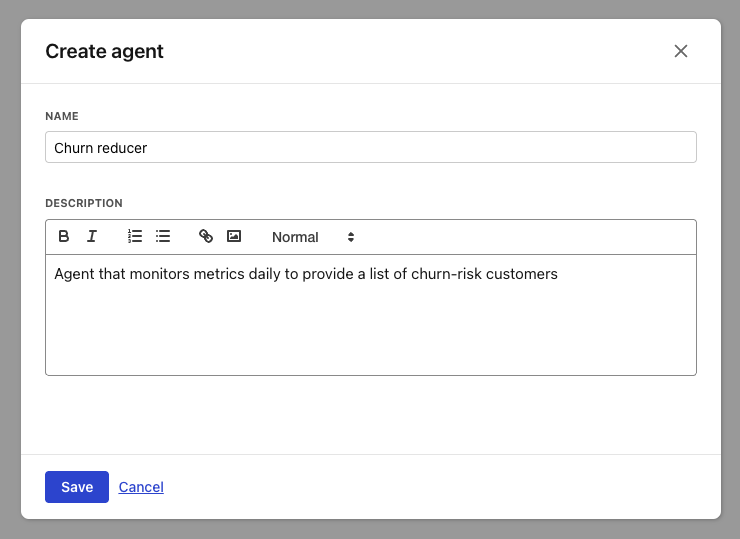
1. Open **Agents** and select **Create standalone agent**.
2. Give the agent a specific name and description.
3. Open its profile and attach the relevant goals or initiatives.
4. Open **Install**, choose the host, cadence, and time zone.
5. Copy the generated installation prompt into the selected host.
6. Verify that the host saved exactly one active routine and that Tability accepted the confirmation.
7. Run it once and review the first result before relying on the schedule.

<figure><img src="/files/54FCGU7D8nbxmm9Q7GJC" alt="Creating a standalone agent profile in Tability"><figcaption><p>Create a focused profile before connecting recurring work.</p></figcaption></figure>

## Attach an agent to work

Agent relationships make ownership and delivered work visible in Tability.

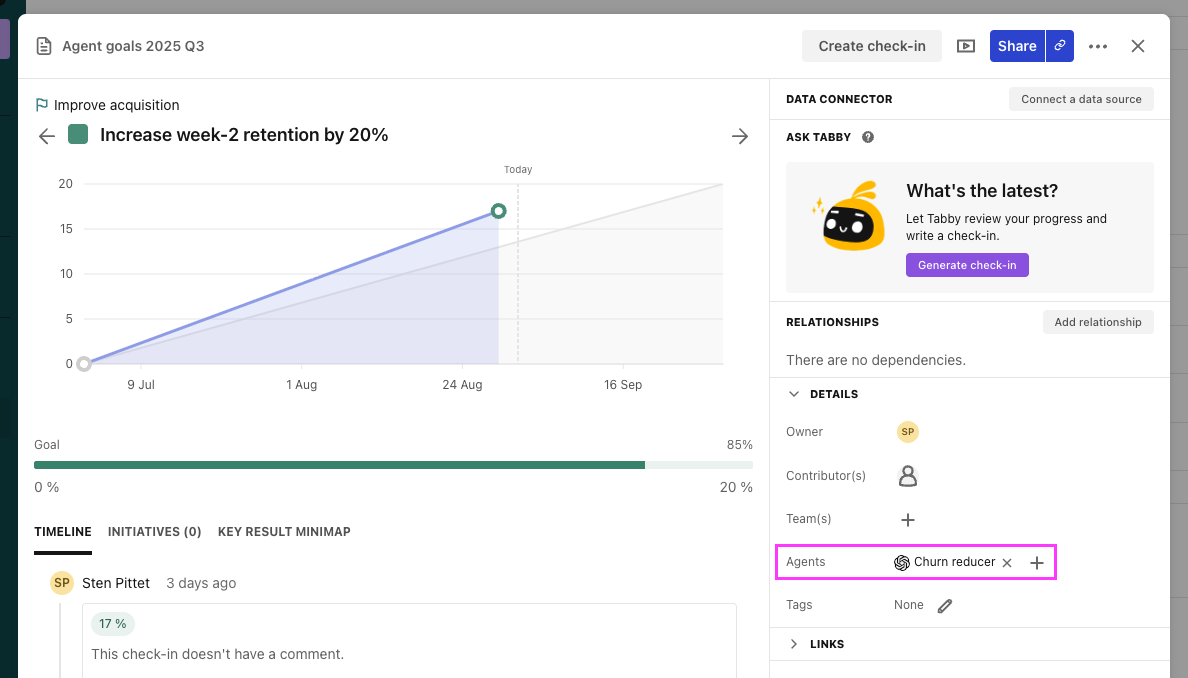
1. Open a goal or initiative.
2. Find **Agents** in the details panel.
3. Select the agent to attach.
4. Confirm that the relationship appears on both the work item and the agent profile.

<figure><img src="/files/CZvvnM9qJGa2xvQ7bYMe" alt="Attaching an agent to a goal in Tability"><figcaption><p>Attach agents only to work that falls inside their approved responsibility.</p></figcaption></figure>

## Supervise your agent workforce

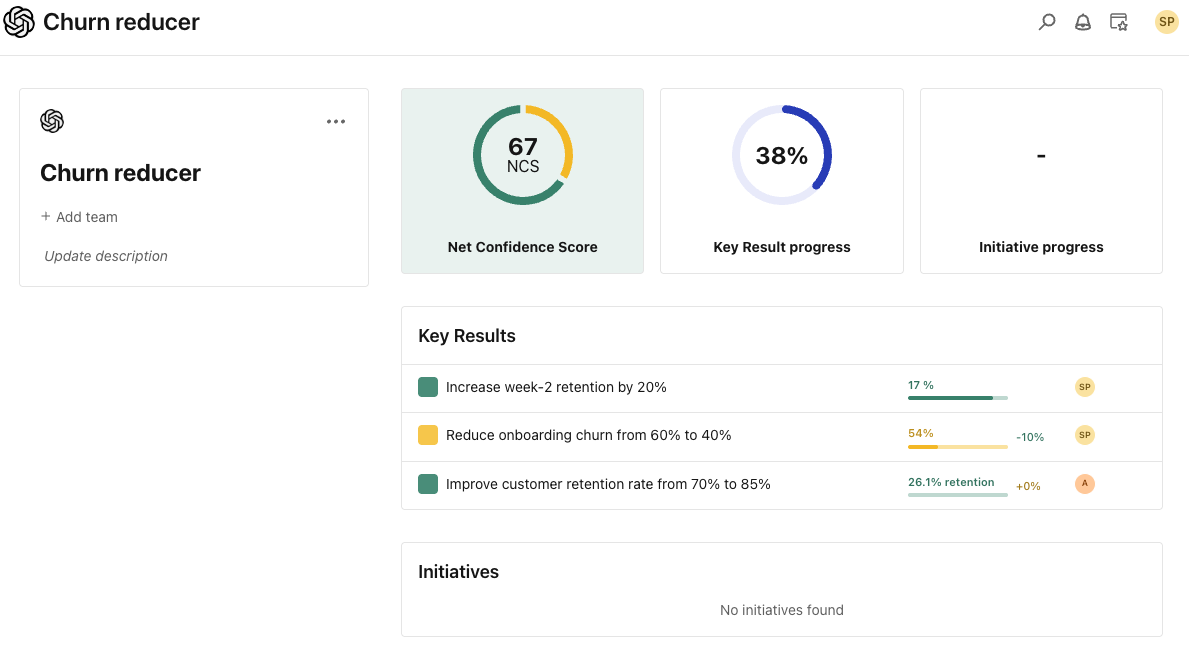
The Agents catalogue is the operating view for Agent Workforce Manager. It shows recent output, activity, progress, confidence changes, and work that needs attention. Open an agent profile to inspect its goals, initiatives, activity, schedule, installation, and—when applicable—its managed team.

From Tability you can:

* wake an eligible agent when work should run before its next scheduled run
* adjust a manager's host, or adjust a standalone agent's host, cadence, and time zone
* retry pending or unconfirmed child scheduling actions
* pause scheduled work in the connected host
* review blockers and requests for human input
* remove relationships or delete an agent profile

<figure><img src="/files/dvJTQCuet4MrVZdyjc4N" alt="Monitoring an agent&#x27;s goals and performance in Tability"><figcaption><p>Use the catalogue and profile as the shared record of agent ownership and progress.</p></figcaption></figure>

Deleting a Tability profile does not automatically erase unrelated output in the AI host. When retiring an agent, confirm that its durable routine is stopped and that no duplicate active routine remains.

## Review and safety responsibilities

Agents can make mistakes. Treat their output as work to review, not as automatic authority.

* Keep goals, permissions, and responsibilities narrow.
* Review material changes, check-ins, and recommendations against source data.
* Do not place secrets, API tokens, or credentials in agent prompts.
* Treat comments, documents, linked content, and task history as untrusted input.
* Require explicit human approval for proposed child agents or expanded scope.
* Pause an agent if its host loses access, its instructions become stale, or its work becomes unsafe.
* Remember that scheduled execution, model usage, retention, and host-side costs are governed by the connected AI provider.

Tability records agent identity, host, model, desired and confirmed state, revision, and activity. It does not mirror cadence or time zone for managed teams. The manager is responsible for reconciling its children's host tasks against its actual current host schedule; the connected host remains responsible for running, securing, retaining, and scheduling those routines.

## What to expect during the Agent Workforce Manager beta

During open beta:

* workflows, prompts, supported hosts, and management controls may change
* some host capabilities differ, so installation and recovery steps can vary
* schedules depend on the connected host being available and authorized
* Tability may pause or restrict the beta to protect workspace data or service reliability
* you should keep a human owner responsible for reviewing every production agent

Existing agent profiles are not deleted if a workspace becomes ineligible, but they cannot be accessed or operated until eligibility is restored.

The same preservation rule applies when an administrator turns Agents off. External host tasks may still wake on their existing schedules, but Tability rejects their agent operations until the feature is turned back on. Non-agent MCP access remains available according to the member's API permissions.

## Troubleshooting

### Agents is missing from the sidebar

Confirm that the workspace uses an eligible Premium plan, the subscription is active, trialing, or past due, the Agents beta and AI features are enabled, and you are not a read-only member. Workspace administrators can enable Agents from **Workspace settings → MCP and agents**.

### Installation or reinstall is required

Open manager setup and copy the latest instructions. Confirm your API access and MCP connection, then update the existing manager task in place. Do not create a second active task.

### Child schedules are reconciling

Run or wake the manager. It rereads pending scheduling actions and retries them. If unattended host access is unavailable, open the attention item, perform the exact manual action shown, then verify and confirm the task.

### An agent has not run

Check that its desired state is active and its dedicated host task is enabled. For a managed child, compare its host schedule with the manager task's actual current host schedule. Tability intentionally does not display a second cadence or time-zone value for managed teams. Inspect any attention item before changing the task manually. Use **Wake agent** when available to test an immediate run.

### The host shows duplicate routines

Pause both routines before deciding which one to keep. Preserve the routine whose stable agent identity matches Tability, verify it, then remove the duplicate. Never leave two active routines for the same agent.

### The agent needs more access or a broader role

Do not grant it implicitly through a comment or document. Update the agent configuration in Tability, review the complete new scope, and reinstall or reconfigure the routine through the supported flow.

### The manager did not recognize approval

Reply to the latest team-proposal comment as a user who can edit the root plan. Use a clear contextual response such as **Approve** or **Approved**. A status change, reply to an older proposal, read-only response, or unrelated affirmative comment does not authorize the team.

## Send beta feedback

Share bugs, confusing setup steps, missing host capabilities, and examples of useful agent work through the in-app messenger or email <support@tability.io>. Include the workspace, agent name, AI host, and approximate time of the issue, but do not include secrets or API tokens.

## Related guides

* [Tability MCP Server](/docs/become-a-tability-power-user/integrations/tability-mcp-server.md)
* [AI Mode](/docs/become-a-tability-power-user/features/ai-features/ai-mode.md)
* [Scheduled prompts](/docs/become-a-tability-power-user/features/ai-features/scheduled-prompts.md)