> For the complete documentation index, see [llms.txt](https://guides.tability.io/docs/llms.txt). Markdown versions of documentation pages are available by appending `.md` to page URLs; this page is available as [Markdown](https://guides.tability.io/docs/become-a-tability-power-user/integrations/slack.md).
# Slack
Get reports and check-in reminders in Slack
## Overview
You can connect Tability to your Slack workspace to:
* Get check-in reminders via direct messages
* Update progress from Slack
* Get progress digests in your Slack channels
## Connect your workspace to Slack
You must be a workspace **Owner** or **Admin** to connect Slack.
1. Select **Settings** in the left sidebar.
2. Open **Integrations**.
3. Find **Slack** and select **Connect to Slack**.
4. In Slack, choose the workspace and approve the requested access.
The connection is shared by your Tability workspace. Once connected, you will receive a Slack DM confirming that setup is complete.
## Using the integration
### Check-ins reminders
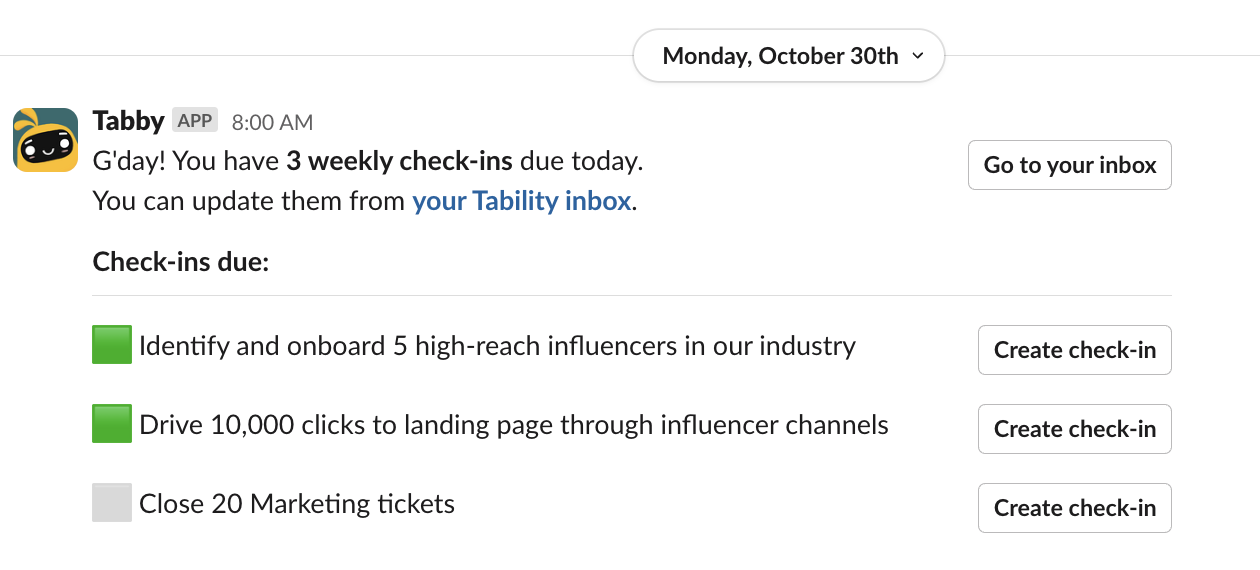
Tability can send weekly check-in reminders to you by Slack DM when chat notifications are enabled.
Select **Create check-in** in a reminder to update progress, or select **Go to your inbox** to open **My focus** in Tability.
To stop these reminders:
1. Open your profile menu.
2. Select **Manage your notifications**.
3. Under **Chat notifications**, turn off **Send me weekly check-ins reminders via chat**.
4. Select **Save**.
### Getting a weekly digest in Slack
You can connect a Tability plan to a Slack channel to get a weekly summary of progress while the plan is active.
1. Open the plan dashboard.
2. Open the **Notifications** panel.
3. Under **Slack notifications**, select **Select channel** or **Edit**.
4. On the **Plan notifications** page, choose the Slack channel.
5. Select **Save**.
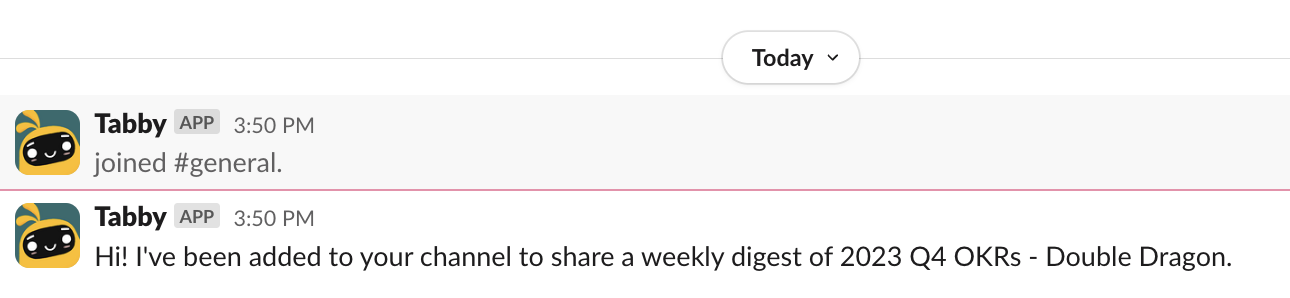
Once saved, you will see a notification in the channel indicating that the plan is connected.
If the workspace has not been connected to Slack, the Notifications panel shows **Connect to Slack**. Workspace owners and admins can complete the connection; other members should ask a workspace admin.
#### If you cannot find the channel in the list
Large Slack workspaces can have more channels than Tability can show in the picker. If the channel is missing, paste its Slack channel ID into **Select or paste Slack channel ID**, choose **Use Slack channel ID**, and select **Save**. Tability validates the channel and stores its name when the connection succeeds.
To find a Slack channel ID:
1. Open the channel in Slack
2. Click the channel name at the top of Slack
3. Copy the channel ID from the channel details
Private channels are supported too. Add Tability to the private channel first, then paste the channel ID in Tability.