> For the complete documentation index, see [llms.txt](https://guides.tability.io/docs/llms.txt). Markdown versions of documentation pages are available by appending `.md` to page URLs; this page is available as [Markdown](https://guides.tability.io/docs/become-a-tability-power-user/how-tos/how-to-have-key-results-with-different-due-dates-in-a-plan.md).
# How to have key results with different due-dates in a plan
When you need certain key results to finish first, try this method
In Tability, each plan has a timeline. This sets the start and end dates for all of the OKRs within that plan. But occasionally, teams want to have an earlier due-date for certain key results within a plan. And while we always suggest keeping all of your OKRs with the same due-date for simplicity’s sake (even if you expect to hit your target early, think of stretch targets), you can still set this up if you need to.
{% hint style="info" %}
use this sparingly. Having more than one or two key results with a different due date not only increases complexity, but likely means that you should reassess your OKRs.
{% endhint %}
### Create your plan
First, create the plan for the quarter/year. These should be the OKRs that will last the whole time. Publish your plan and then we’ll create a second plan.
For your second plan, set the timeline for when you want the key result to be due. Reminder: when you set your timeline, it’ll apply to all of the key results within that plan.
When setting your objective(s), set the same objective as with the other plan. Your team won’t spend much time in this plan, instead focusing on their My focus page to keep the key result(s) updated, but it’ll be nice to see what the objective is at a glance.
For your key result, for clarity, we recommend including your due date in the title of the key result. For example “Hire 15 new SDRs by February 15.”
After publishing this second plan, we’ll be ready to move on to the next step.
### Link your key result to your another objective
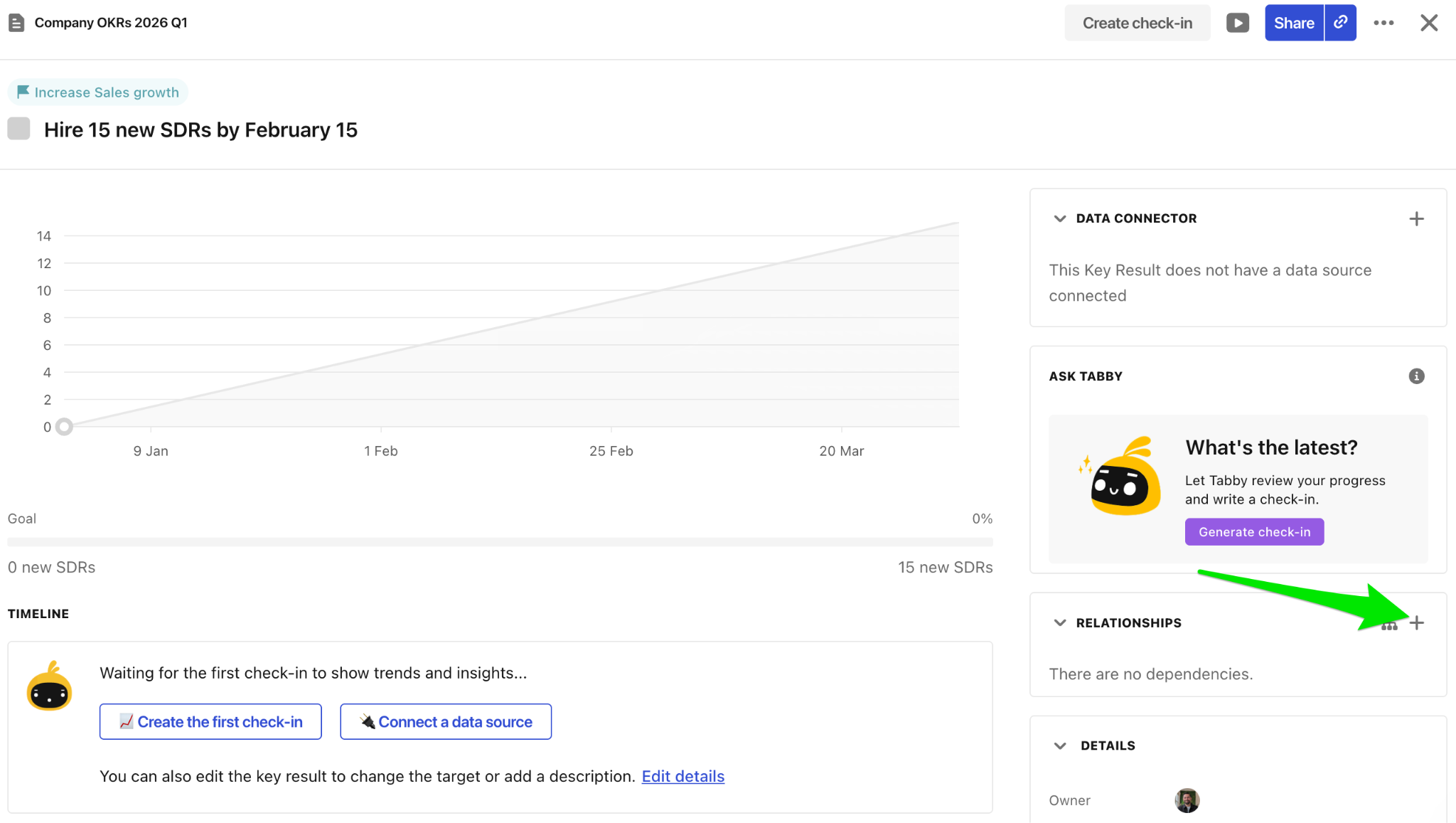
Click on your key result with the different due date. Then click on the + next to Relationships.
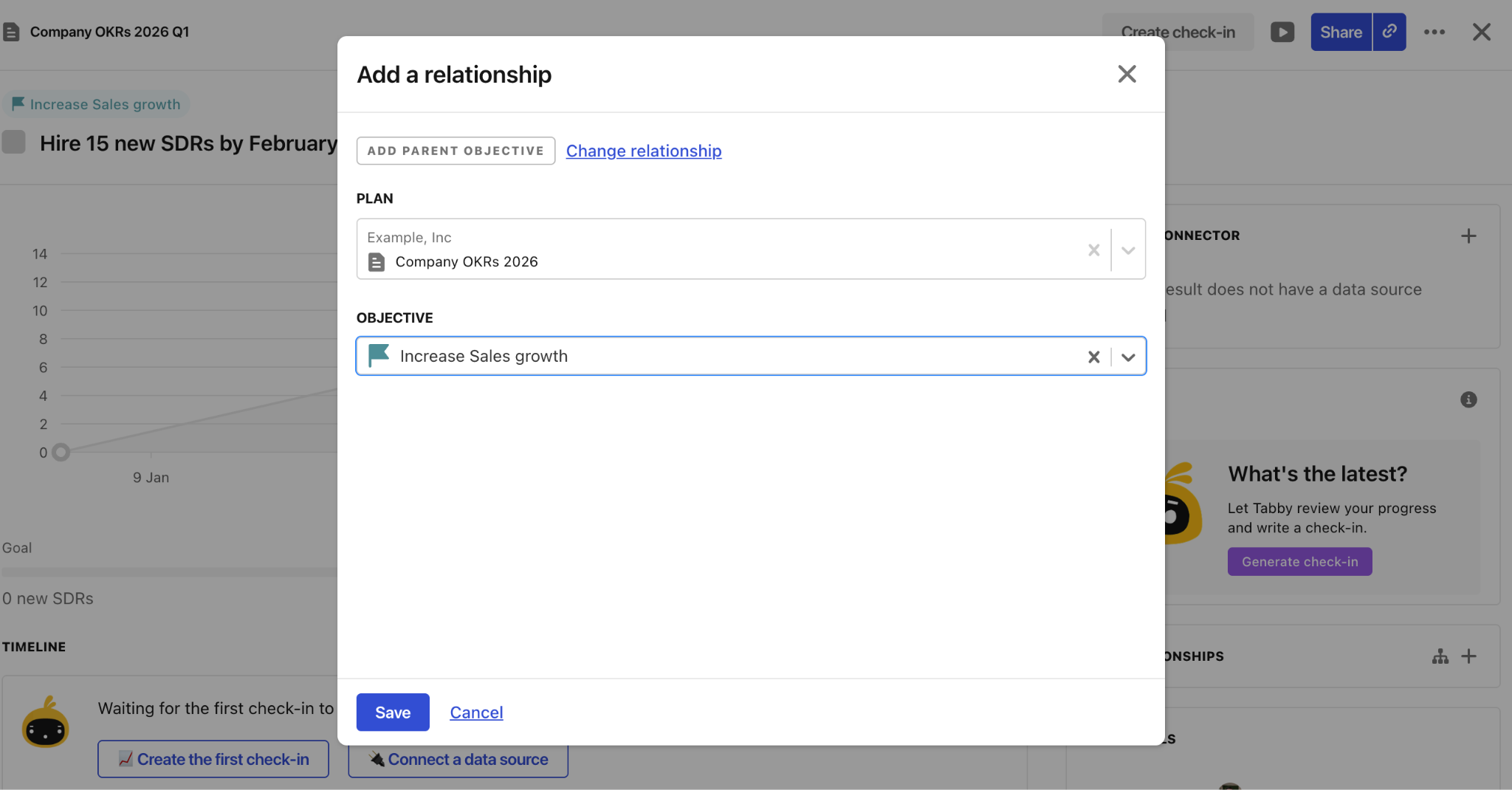
Next, add a parent objective from your other plan:
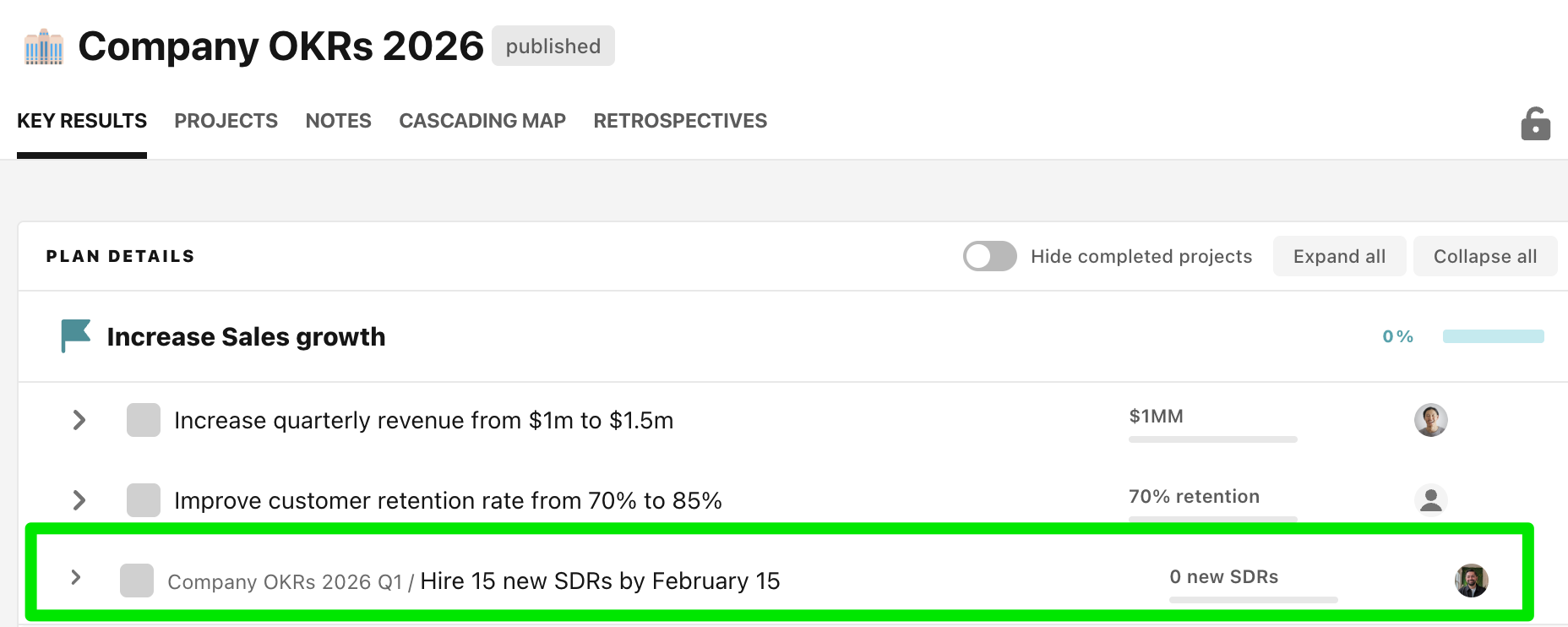
Hit save, and you’ll notice that on this plan (with the different due-date), you’ll see no difference. However, if we go to the plan with the regular due-dates, we’ll see the additional key result displayed:
### What happens next?
Your team will update their key results as they usually do– typically from the My focus page. The only difference is that we’ll stop asking for updates on the key results with the shorter due-dates before we stop asking for updates for the other key results.