> For the complete documentation index, see [llms.txt](https://guides.tability.io/docs/llms.txt). Markdown versions of documentation pages are available by appending `.md` to page URLs; this page is available as [Markdown](https://guides.tability.io/docs/become-a-tability-power-user/features/security-and-admin/scim-provisioning-microsoft-entra-id.md).
# SCIM Provisioning - Microsoft Entra ID
Here's how you can set up user provisioning with SCIM with Microsoft Entra ID.
## Single Sign On (SSO) vs. provisioning
If you're using an external directory to manage your users, there are two distinct capabilities to enable:
* Setting up SSO to allow your users to log in using the credentials configured in your directory.
* Setting up provisioning to control the list of users and roles that have access to Tability from your directory.
This guide covers provisioning.
## Before: enable SAML SSO in Microsoft Entra ID
Complete the steps in the [SAML SSO - Microsoft Entra ID](/docs/become-a-tability-power-user/features/security-and-admin/saml-sso-microsoft-entra-id.md) guide to add a new Tability application in your Entra ID service.
## Part 1: Getting your SCIM base URL and auth token from Tability
1. Sign in to Tability with an admin account
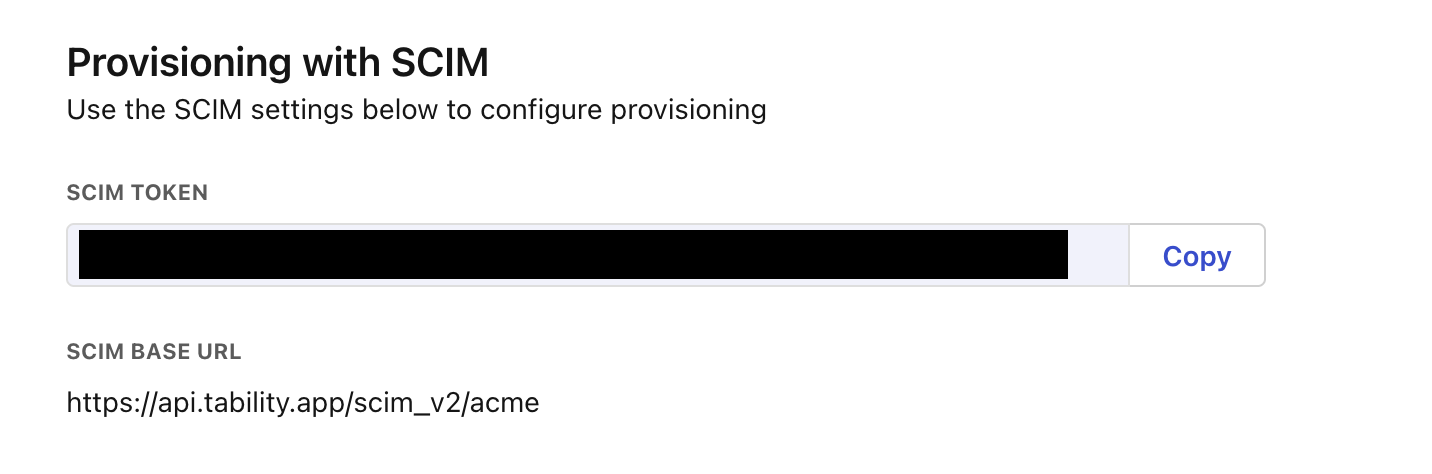
2. Open up the admin section and go to **SSO & Provisioning**
At the bottom of the page you will find the **SCIM authentication token** and the **SCIM base URL** that you will need later to configure Okta.
## Part 2: Setting up provisioning in Entra ID
1. Sign in to Microsoft Azure
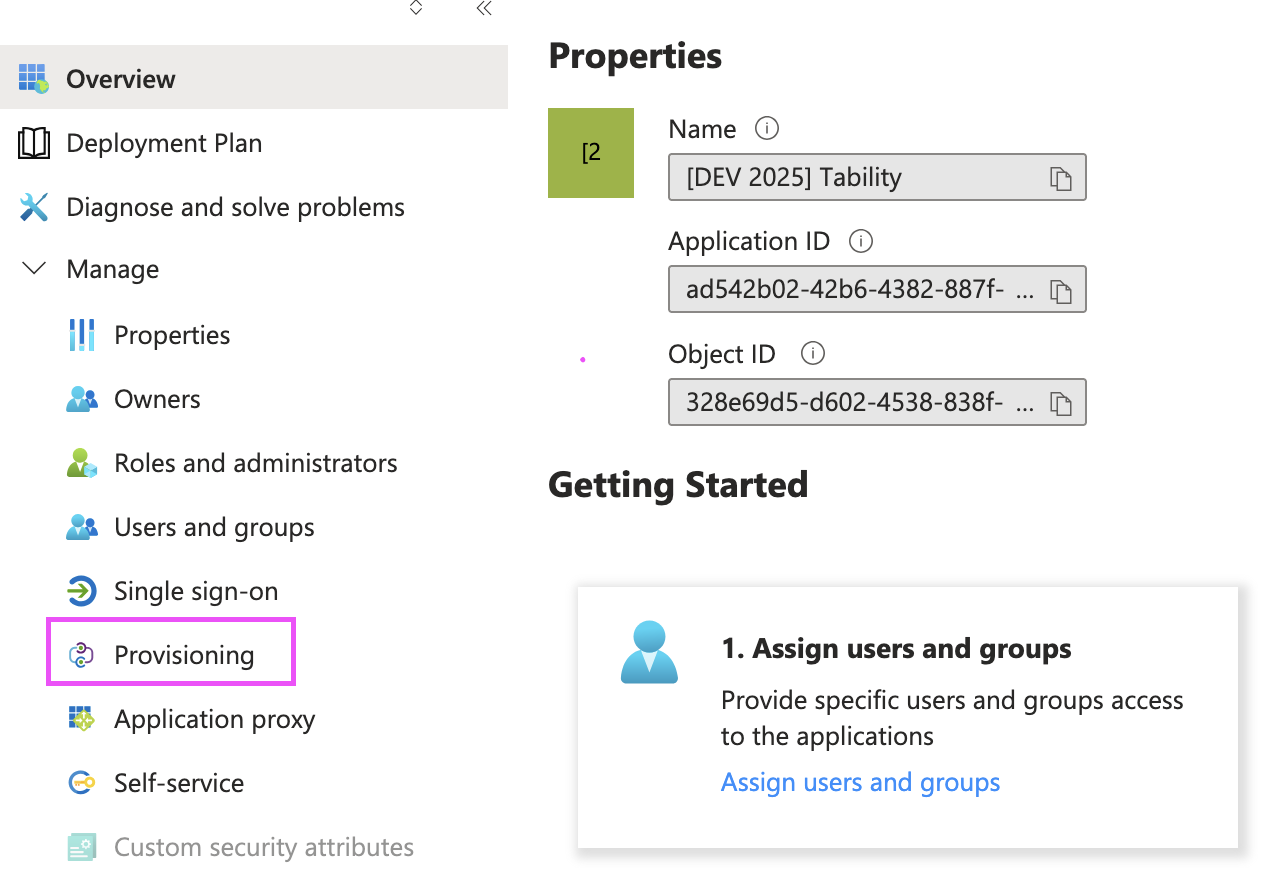
2. Go to **Microsoft Entra ID** > **Enterprise Applications** > **\**
3. Click on **Manage** > **Provisioning** in the menu of your applicaiton
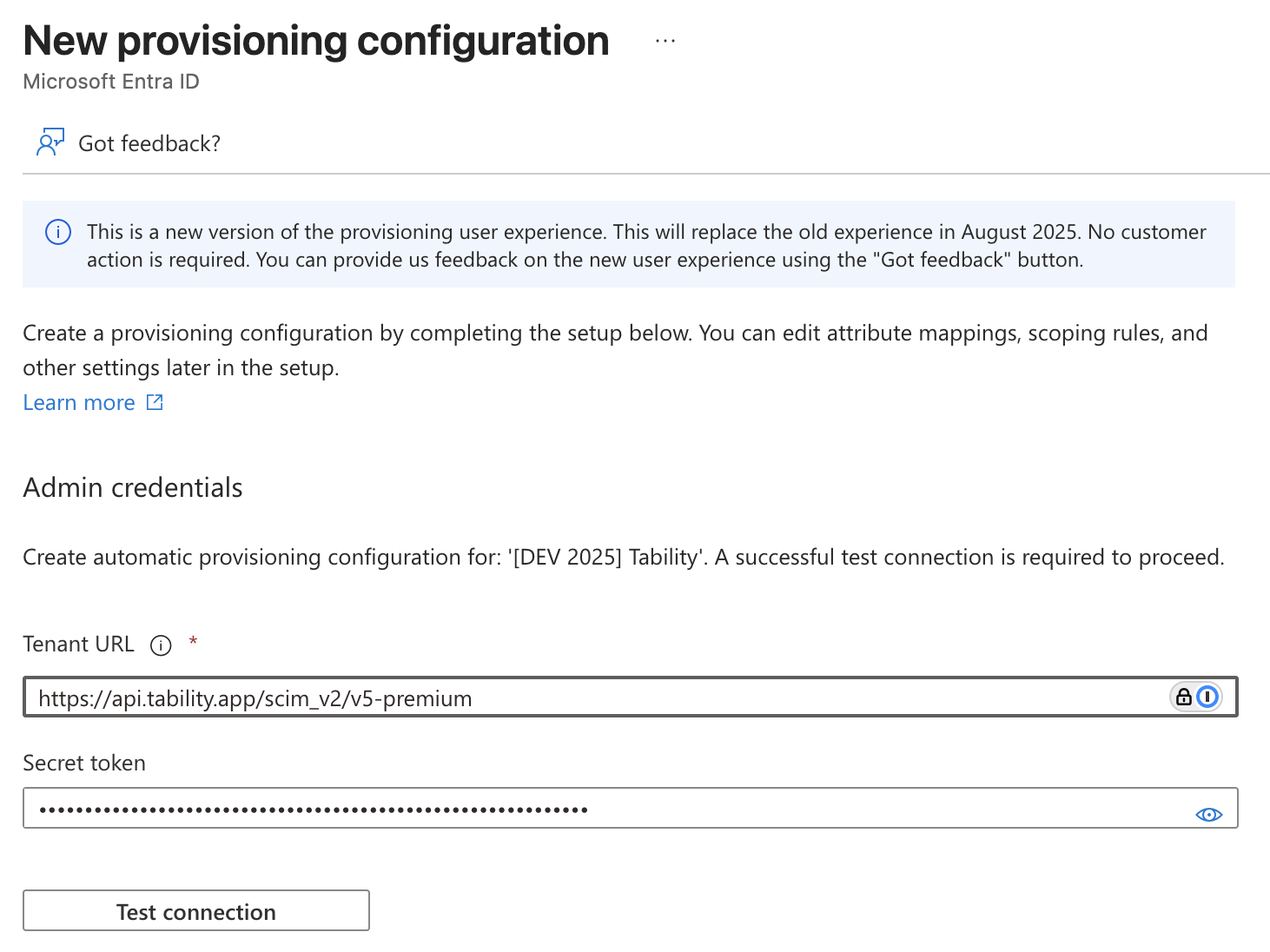
4. Click on **Connect your application**
5. Use the following settings to complete your connection
1. **Tenant URL:** copy the SCIM base URL from Tability
2. **Secret Token:** add the SCIM authentication token from Tability
6. Click **Test Connection**.
7. Once the connection is validated click **Create** to complete the setup
## Part 3: Provisioning configuration
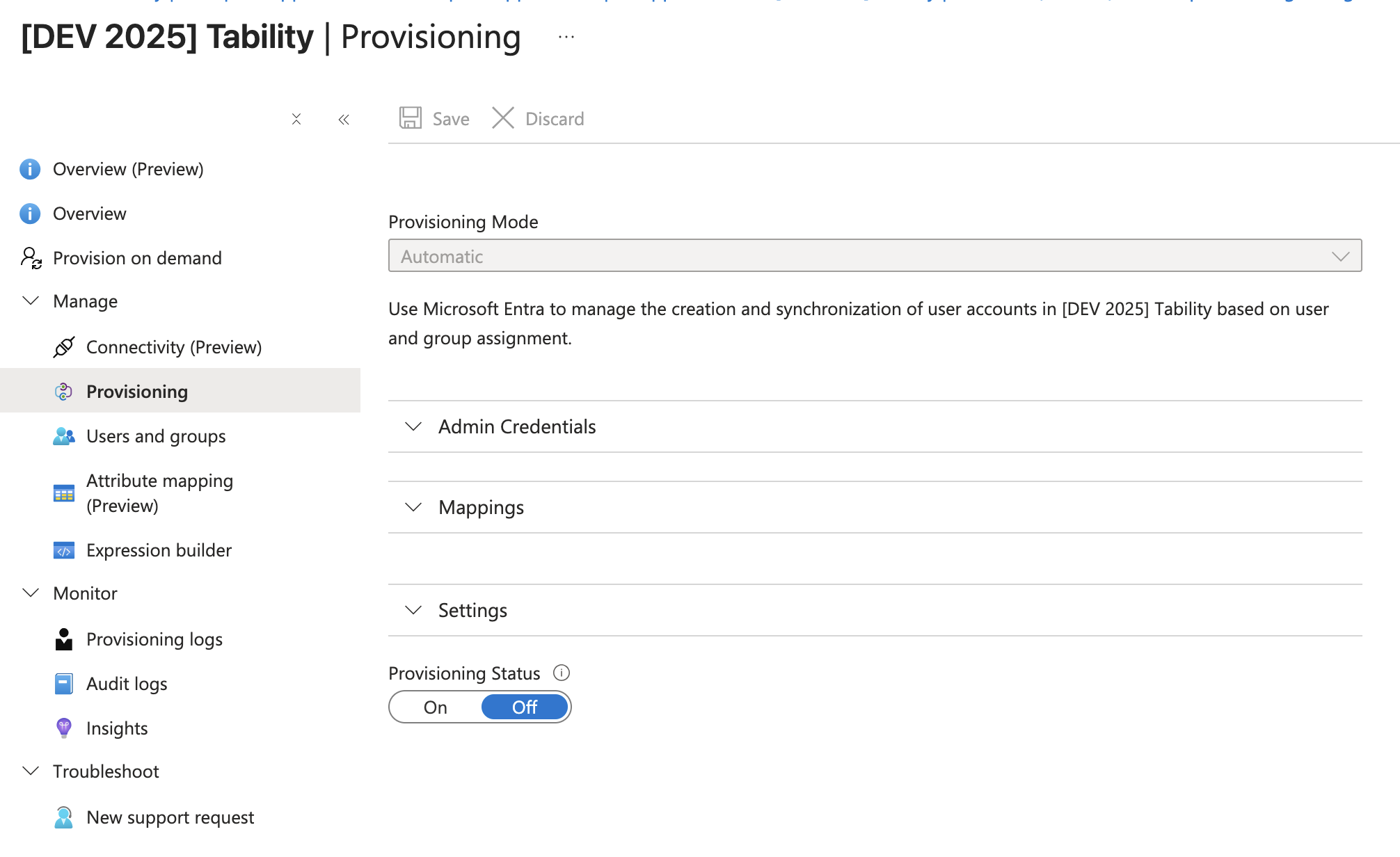
Click on **Manage > Provisioning** to access the provisioning configuration of the Entra ID application for Tability.
### Configure users mapping
1. **Click on Mappings > Provision Microsoft Entra ID Users**
2. Make sure that the following Attribute Mappings are configured
| Application attribute | Microsoft Entra ID attribute |
| --------------------- | ------------------------------------------------------------ |
| userName | userPrincipalName |
| active | Switch(\[IsSoftDeleted], , "False", "True", "True", "False") |
| name.givenName | givenName |
| name.familyName | surname |
| externalId | objectId |
### Enable provisioning
At the bottom of the Provisioning settings, make sure the the **Provisioning Status** is set to **On**.
## Part 4: Creating the groups
Tability uses virtual named group to automatically map user roles to the group they belong to.
### Creating the groups to manage assignments
Create the corresponding groups in your Tability Enterprise Application.
Go to **Groups** in your Microsoft Azure portal.
Here are the supported Tability role groups:
| Entra group name | Tability role |
| -------------------- | ------------- |
| `Tability Owners` | Owner |
| `Tability Admins` | Admin |
| `Tability IT Admins` | IT admin |
| `Tability Users` | User |
| `Tability Readonly` | Read-only |
### Group naming conventions
Tability maps Microsoft Entra groups to workspace roles by looking for one of the supported Tability group names at the start or end of the Entra group name.
You can use the exact group names:
| Entra group name | Result |
| -------------------- | --------- |
| `Tability Owners` | Owner |
| `Tability Admins` | Admin |
| `Tability IT Admins` | IT admin |
| `Tability Users` | User |
| `Tability Readonly` | Read-only |
You can also add your own prefix or suffix when you need separate groups for different apps, environments, or workspaces:
| Entra group name | Result |
| ------------------------------ | --------- |
| `Tability Admins - Production` | Admin |
| `Tability Users - Staging` | User |
| `Production - Tability Owners` | Owner |
| `Staging - Tability Readonly` | Read-only |
The Tability group name must be at the beginning or end of the Entra group name. Matching is case-sensitive, so use the spelling and capitalization shown above.
Avoid including more than one Tability role name in a single group name. For example, don't use a name like `Tability Admins - App - Tability Users`.
If a user belongs to multiple SCIM groups, Tability applies the highest role in this order:
`Owner > Admin > IT admin > User > Read-only`
### Assign groups to the Tability application
Once your groups are created, you can assign them to the Tability application in Entra ID.
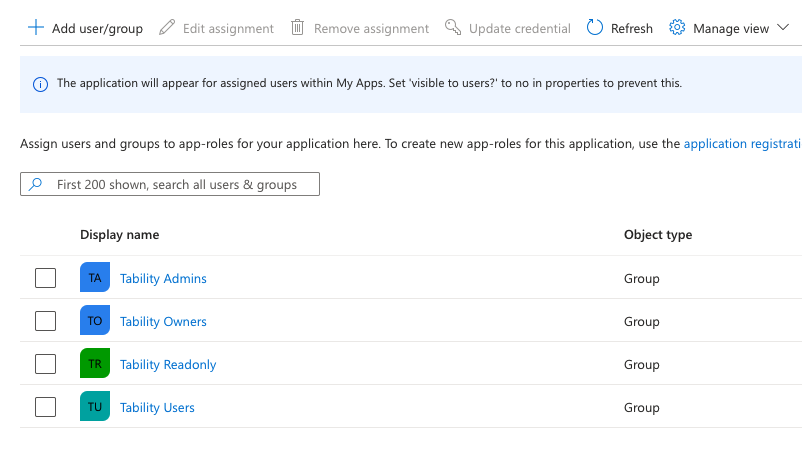
1. Go to **Microsoft Entra ID > Enterprise Applications > \ > Provisioning**
2. Go to the **Manage > Users and groups**

3. Click on **Add user/group**
4. Select the group `Tability Owners`
5. Repeat this process with the other groups. At the end you should have the following mapping with the roles assigned.
## Part 5: Assigning users
That's it! You can now add users to the different Tability groups and they will be added to Tability with the right set of permission.
{% hint style="danger" %}
Please note that Entra ID provisioning is performed every 40 minutes so you might have to wait a bit before the first set of user is synced.
{% endhint %}