> For the complete documentation index, see [llms.txt](https://guides.tability.io/docs/llms.txt). Markdown versions of documentation pages are available by appending `.md` to page URLs; this page is available as [Markdown](https://guides.tability.io/docs/become-a-tability-power-user/features/security-and-admin/saml-sso-microsoft-entra-id.md).
# SAML SSO - Microsoft Entra ID
Here's a step-by-step tutorial on how you can setup SAML SSO with Microsoft Entra ID
## Part 1: Enable SAML SSO in Tability
1. Go to your workspace SSO settings and select the SAML SSO option as the authentication method.
2. Keep this screen open, we'll need it later.
## Part 2: Create a new application for Tability in Microsoft Entra ID
1. Open a new tab and go to Entra ID and click on **Enterprise applications** in the sidebar.

2. Create a new application by clicking on **New Application**.

3. In the Entra Gallery, click on the option to *Create your own application* and create a new app with the name "Tability".

## Part 3: Configure SAML SSO in Entra ID
1. In your created application, go to the Single sign-on screen and select SAML.

2. Edit the basic SAML configuration and copy the value from your workspace SSO settings in Tability.

1. **Identifier (Entity ID)**: copy the value of the SP Entity ID ()\
2. **Reply URL**: copy the value of the SP Consumer URL: ()\
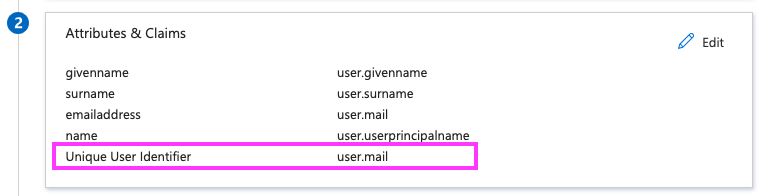
3. Edit the **Attributes & Claims** to change the Unique User Identifier to `user.email`
4. Save the settings in Azure Directory
## Part 4: Update SAML SSO settings in Tability
1. Download the Base 64 encoded SAML signing certificate from your application in Entra ID.

2. Update the SAML SSO settings in Tability.
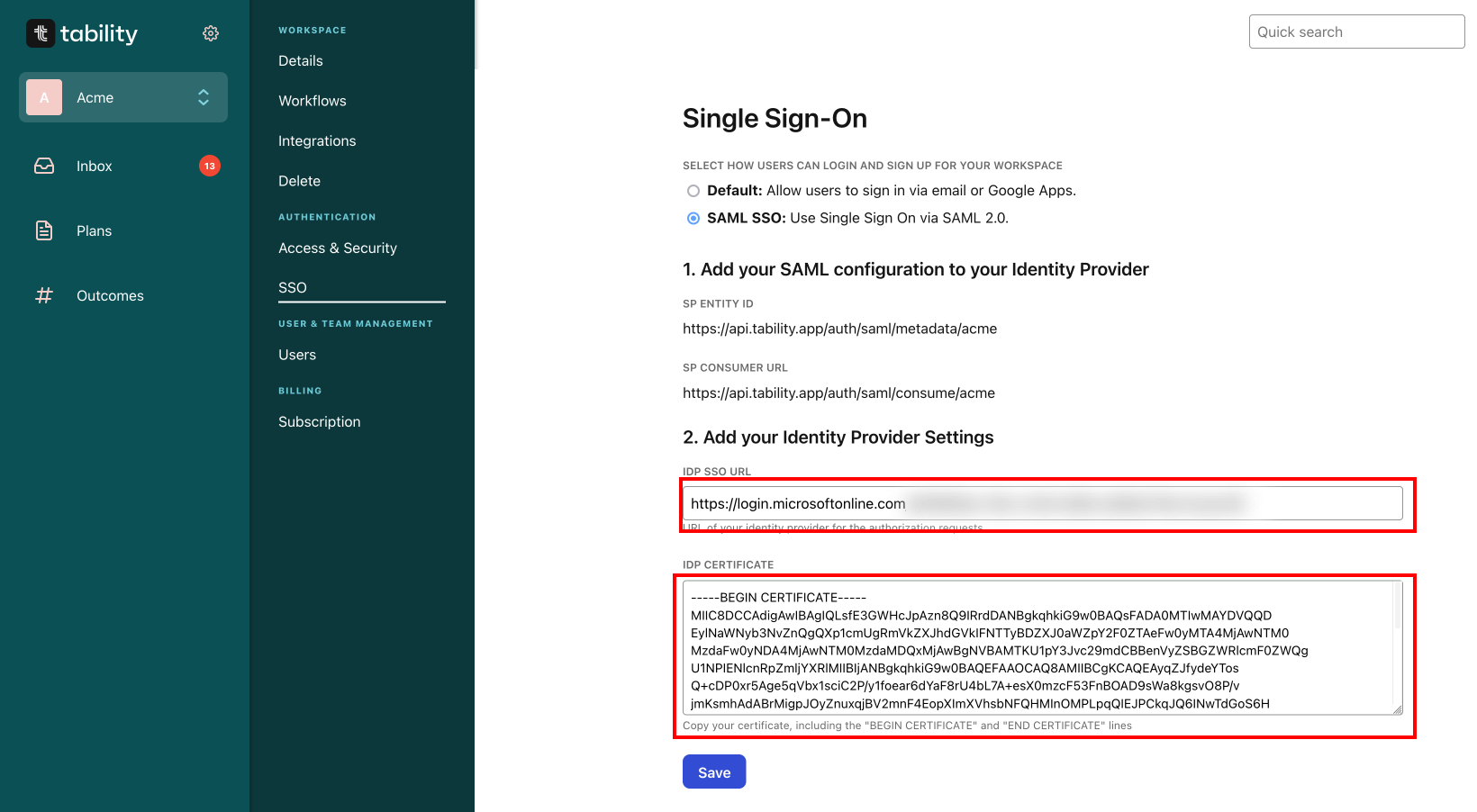
* Copy the content of the certificate, including the **BEGIN CERTIFICATE** and **END CERTIFICATE** to the IDP certificate field.
* Copy the Login URL from Entra ID, and paste it into the IDP SSO URL field in Tability.
3. Click **Save** to confirm your settings.
## Part 5: Sign in via SSO to finalize your setup
Once SAML is activated, it will be the only authentication method for your workspace. Make sure that your admin account in Tability is associated to a user in your Entra ID, otherwise, you might lose access to your workspace settings.
To finalize the integration you need to sign in once via SAML SSO to validate your configuration.

Click on the **Log in via SSO** button to sign in.
Once you're logged in you should see a confirmation message at the top of your screen saying that "SAML SSO is enabled for all users."