> For the complete documentation index, see [llms.txt](https://guides.tability.io/docs/llms.txt). Markdown versions of documentation pages are available by appending `.md` to page URLs; this page is available as [Markdown](https://guides.tability.io/docs/become-a-tability-power-user/features/reporting/custom-dashboards.md).
# Custom Dashboards
Use widgets to create tailored dashboards for your needs
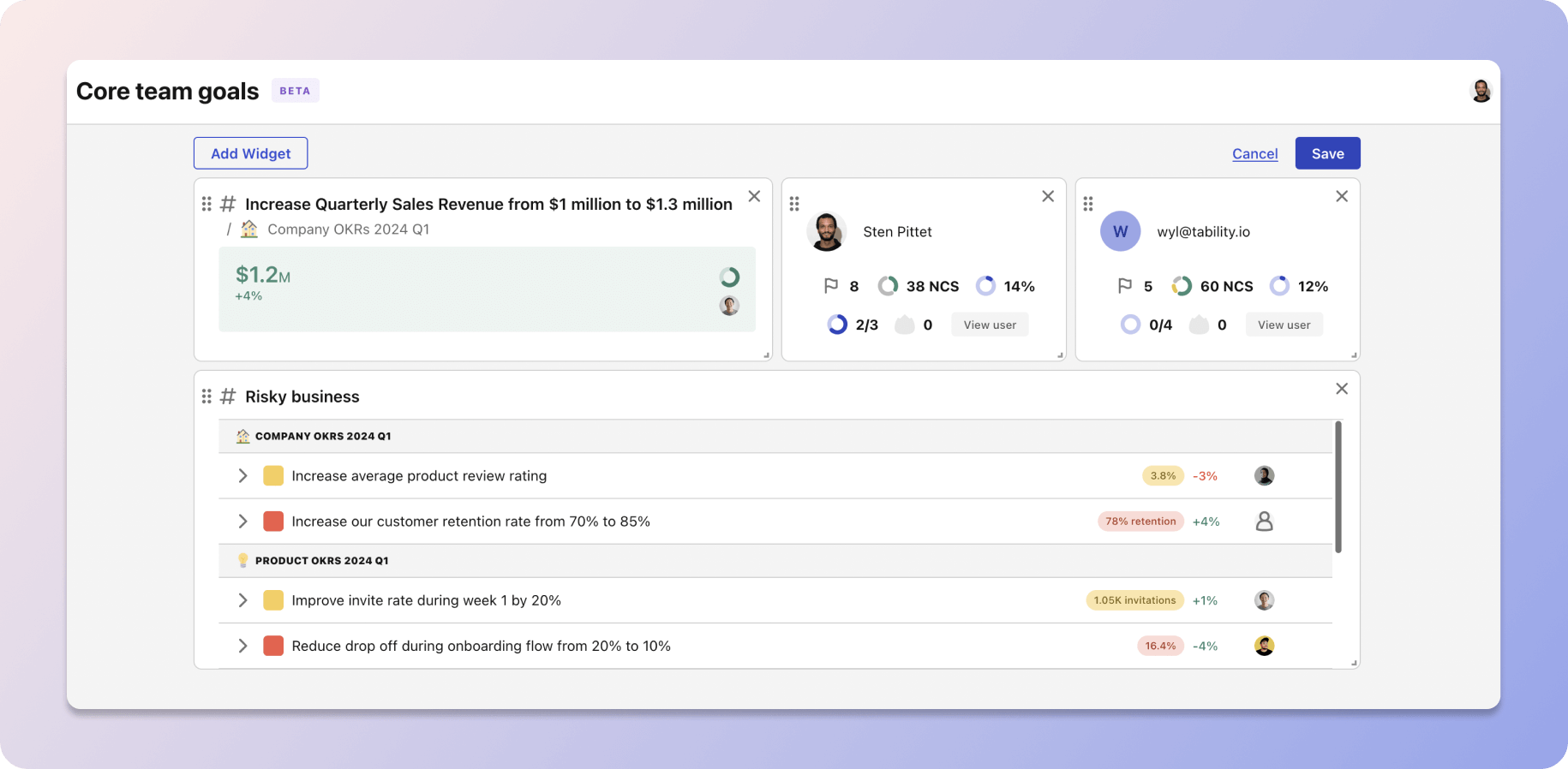
A custom dashboard mode in Tability
## What are Custom Dashboards?
**Custom Dashboards** let you assemble your own reporting view with widgets. They are best when you want one place to monitor a specific team, workflow, or operating rhythm.
For instance, you can create a dashboard that contains:
* A summary of the top-level company OKRs
* Profile widgets for your collaborators
* A list of all the key results that are currently off-track or at-risk
Unlike the built-in **People**, **Outcomes**, and **Tasks** dashboards, custom dashboards are fully editable. Use them when the pre-made dashboards are close but not tailored enough to your use case.
If you need a diagnostic view of how the workspace is being used overall, use [Workspace Insights](/docs/become-a-tability-power-user/features/reporting/workspace-insights.md) instead. Insights is for workspace health and engagement, while custom dashboards are for building your own operational view.
## How to create a new dashboard
Follow these steps to create a new dashboard:
1. Click **Dashboards** in the workspace sidebar.
2. Click on the **Create dashboard** button
3. Give a name to your dashboard and hit **Create**
The **Dashboards** area also includes built-in tabs for **People**, **Outcomes**, **Tasks**, and **Insights**.
### Dashboard content and privacy
* All dashboards live at the workspace level.
* Members only see the data they already have permission to access.
* Read-only users can open dashboards, but they cannot create or edit them.
* You can mark dashboards as favorites for faster access.
## How to add widgets to your dashboard
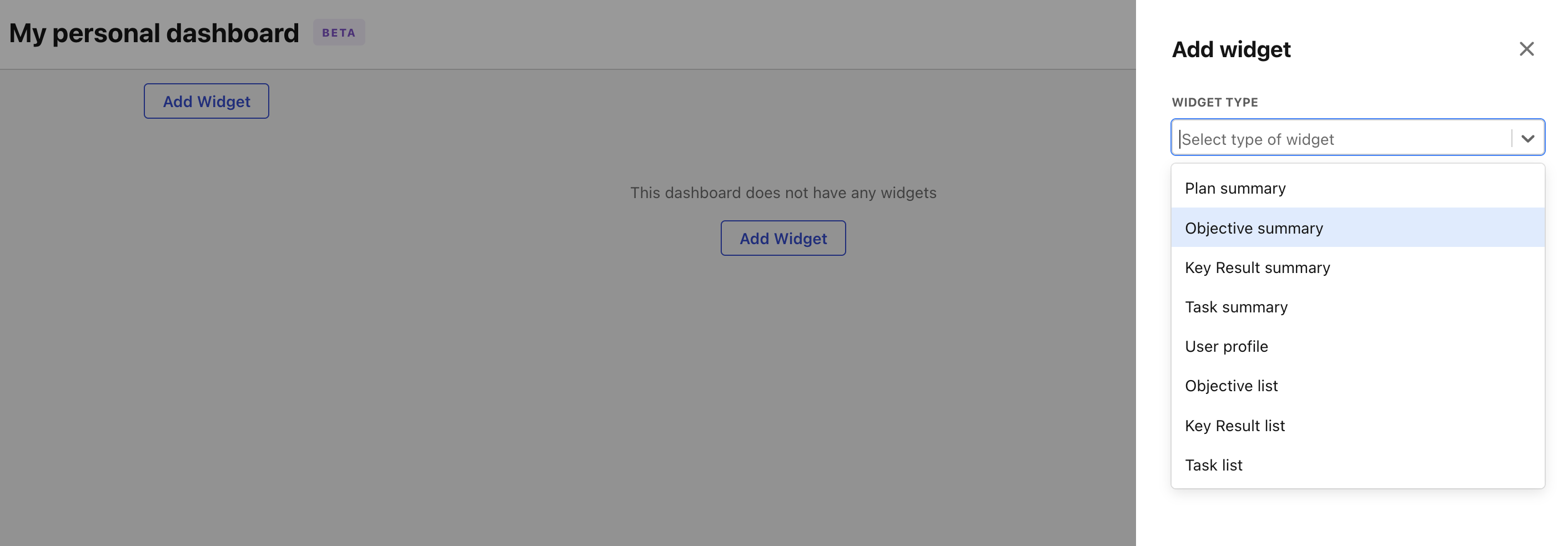
After creating your dashboard, you will be redirected to edit mode. From there you can add widgets by clicking **Add Widget**.
Adding widgets to your dashboards
Once widgets are added, you can resize and rearrange them.
When you're done, click **Save** to return to the dashboard view.
## Common dashboard workflows
Custom dashboards support a few useful workflows beyond basic editing:
* **Duplicate a dashboard** when you want to reuse an existing layout.
* **Favorite dashboards** to pin the ones you use most often.
* **Use built-in dashboards first**, then copy or supplement them with a custom dashboard if you need more control.
## Which reporting surface should you use?
Use **Custom Dashboards** when you want a shared, reusable workspace view that you design yourself.
Use [Workspace Insights](/docs/become-a-tability-power-user/features/reporting/workspace-insights.md) when you want to diagnose workspace usage, plan quality, or engagement patterns.
Use [Presentation Mode](/docs/become-a-tability-power-user/features/reporting/presentation-mode.md) or [TV Mode](/docs/become-a-tability-power-user/features/reporting/tv-mode.md) when you want to review a single plan live with an audience.
Use [Retrospectives](/docs/become-a-tability-power-user/features/reporting/retrospectives.md) when you want to capture written reflections and learnings, not just monitor current status.