> For the complete documentation index, see [llms.txt](https://guides.tability.io/docs/llms.txt). Markdown versions of documentation pages are available by appending `.md` to page URLs; this page is available as [Markdown](https://guides.tability.io/docs/become-a-tability-power-user/features/plans/goal-setting-ai.md).
# Goal-setting AI
## Overview
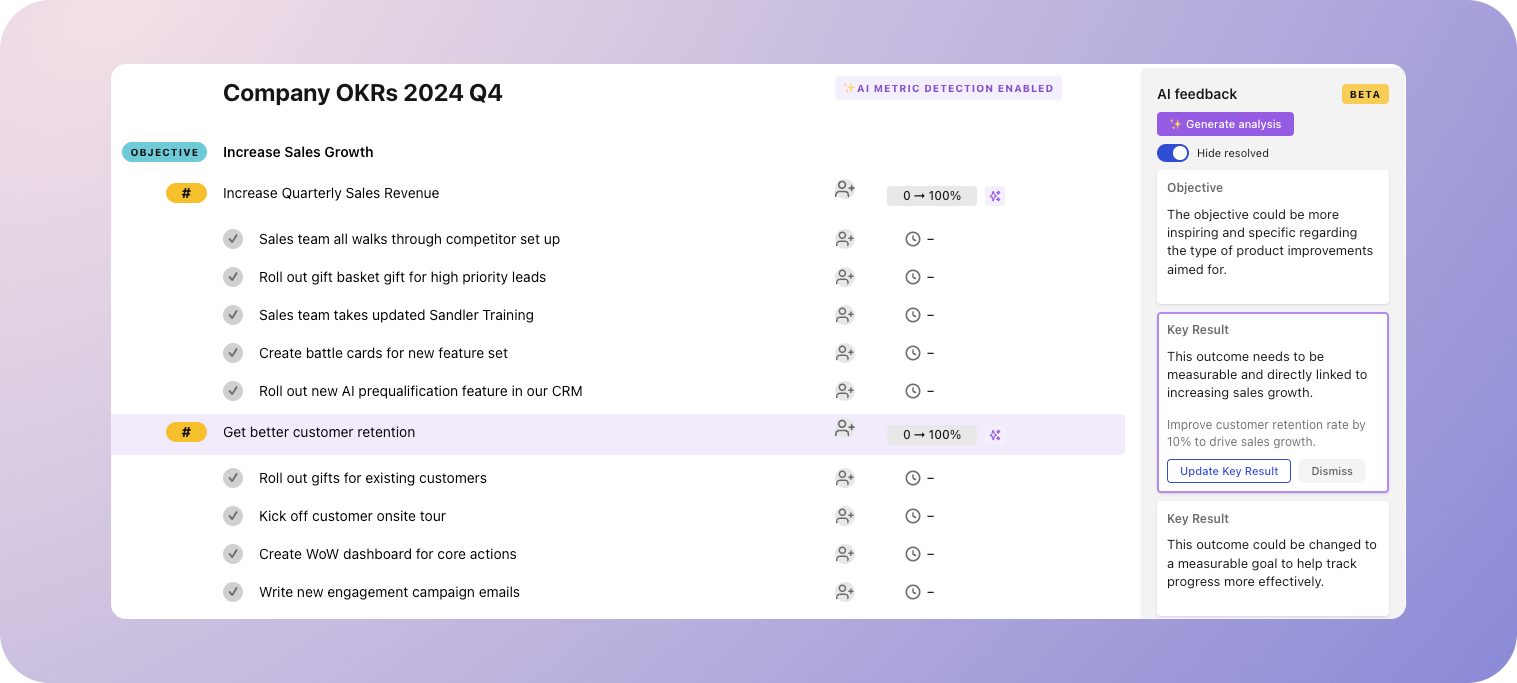
Tability comes equipped with the ability to generate a full set of OKRs from a prompt, using an integration with OpenAI. You can also use our goal-setting AI to get feedback on the OKRs that your team has written while creating your plan.
### How to use the Goals Generator
To use the goal generator from an existing plan:
1. Go to your plan and click the **Edit Content** button.
2. Scroll to the bottom of your plan and click on the **Generate goals using AI** button.
3. The AI will suggest a goal automatically based on the other content in the plan. Feel free to ask it to give you a different suggestion.
4. If you're happy with the results, tell the AI to add these goals to your plan. If not, you can chat with the AI to refine your suggestion:
To use the goal generator in a new plan:
1. Go to the **Plans** via the left-side navigation and click the blue **Create a New Plan** button.
2. Click on **Chat with our AI** on the right.
3. Give the AI an overview of what you'd like to work on. The more context you give, the better the suggestion will be. If you're not sure, ask the AI for ideas on what to work on.
4. If you're happy with the results, tell the AI to add these goals to your plan. If not, you can chat with the AI to refine your suggestion.
### Use AI feedback
To use AI feedback for an existing plan:
1. Go to your plan and click the **Edit Content** button.
2. Click on the purple **Generate analysis** button on the right side under **AI feedback.**
3. Click on each suggestion. If you're happy with the suggestion, click **Update Objective/Key Result.** If not, click **Dismiss.**
To use AI feedback in a new plan:
1. Go to the **Plans** via the left-side navigation and click the blue **Create a New Plan** button.
2. Add your OKRs through import, using the goal-setting AI, or by manually writing them
3. Click on the purple **Generate analysis** button on the right side under **AI feedback.**
4. Click on each suggestion. If you're happy with the suggestion, click **Update Objective/Key Result.** If not, click **Dismiss.**
{% hint style="info" %}
Integration and access to OpenAI is active by default. I f you would like to turn this feature off for security reasons see [OpenAI integration](/docs/become-a-tability-power-user/integrations/openai.md)
{% endhint %}