> For the complete documentation index, see [llms.txt](https://guides.tability.io/docs/llms.txt). Markdown versions of documentation pages are available by appending `.md` to page URLs; this page is available as [Markdown](https://guides.tability.io/docs/become-a-tability-power-user/features/plans/bulk-importing-plans.md).
# Legacy bulk importer
Use Tability's legacy XLSX and DOCX templates to create Plans
{% hint style="warning" %}
This page describes Tability's template-based **Legacy importer**. For flexible, AI-powered spreadsheet analysis with a review step before anything is created, use the [AI Importer](/docs/become-a-tability-power-user/features/plans/import-okrs-and-kpis-with-ai.md).
{% endhint %}
## Overview
The Legacy importer can create multiple Plans at once using its fixed `.xlsx` or `.docx` templates.
Unlike the AI Importer, the Legacy importer requires the structures documented below and does not create a reviewable proposal first.
## Bulk importing plans with their data (via spreadsheet)
### About this option
The spreadsheet importer will allow you to import multiple plans with all their data (objectives, outcomes/KRs, initiatives, owners...) in a workspace.
Use this option if you want to collaborate on your plans in Google Docs, and then import them to Tability.
### How to bulk import plans
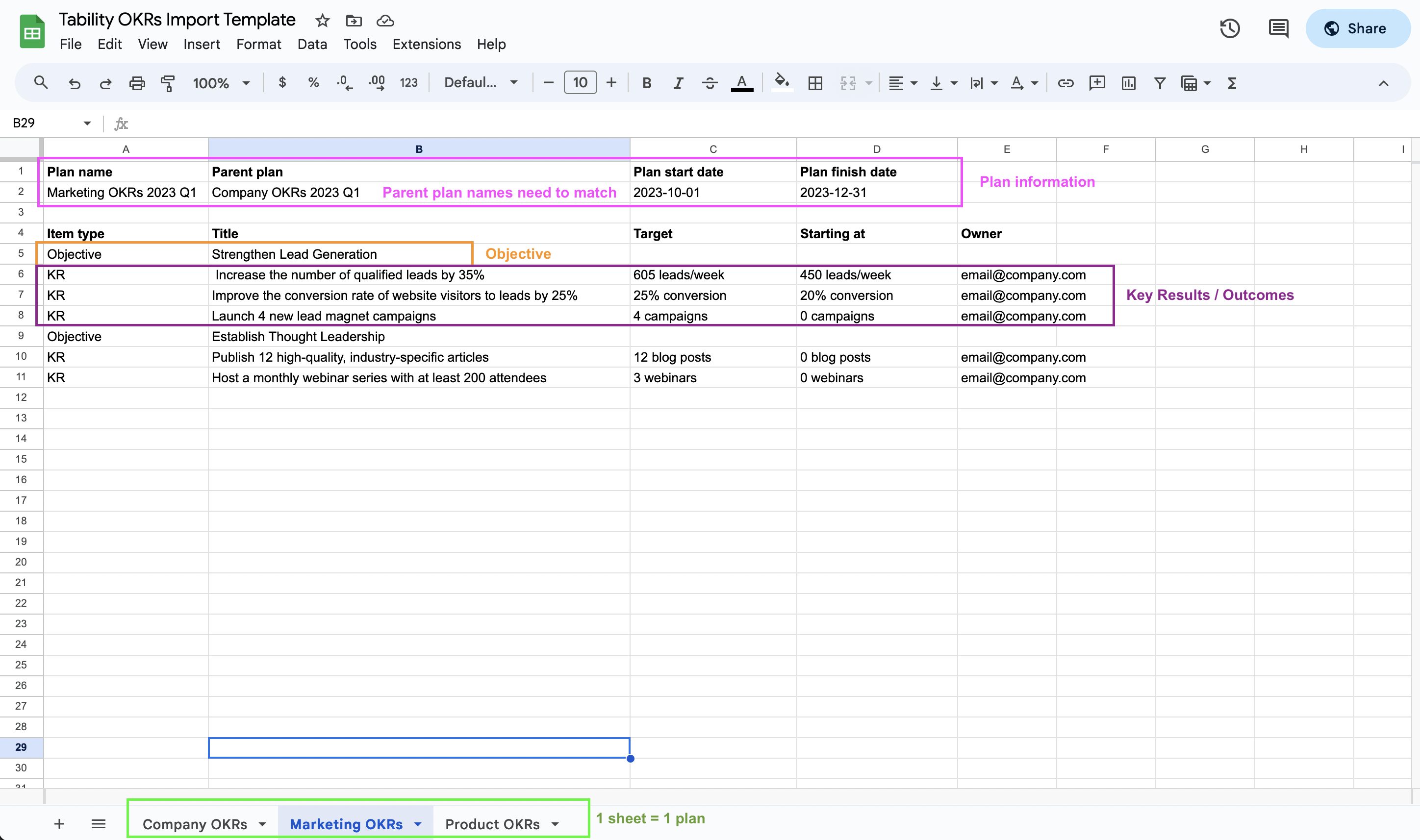
1. Copy the Google Spreadsheet template, and update the data to match your goals (see [#spreadsheet-format](#spreadsheet-format "mention"))
2. Export your spreadsheet to the .xlsx format
3. Go to your Tability workspace
4. Make sure that all the owner emails have a corresponding account in Tability (otherwise they won't be attached to the goals)
5. Go to the **Plans** listing of your workspace
6. Open the import menu and select **Legacy importer**
7. Use your .xlsx file in the option 1 and click **Import**
Tability will create one plan per sheet, and will attach the corresponding owners (if they're already added to your workspace).
### Spreadsheet format
You can copy the Google Spreadsheet linked below to get started 👇
[Spreadsheet template](https://docs.google.com/spreadsheets/d/15-OyWdYjGrxlCJu16es2bFjYQ-1r_-VZZMa_EcqUsb4/edit#gid=870239563)
#### General structure
* Each sheet of the spreadsheet corresponds to a different plan
* The first 2 lines of the spreadsheet contain the plan metadata
* The plan content (objectives and KRs/outcomes) starts at line 4
#### Plans and sub-plans
The plan data must include:
* Plan name in cell A2
* Plan start date and finish date in cell C2 and D2
You can indicate a parent plan by adding the name of the parent plan in cell B2.
{% hint style="warning" %}
* The parent plan sheet must be listed before the sub-plan sheet
* The parent plan name must be written exactly the same way as it is written in the parent plan sheet (in cell A2 of the parent plan).
{% endhint %}
#### Plan content
You can add objectives, KRs/outcomes, and initiatives to your spreadsheet.
If you want to attach an owner to an outcome/KR, they must be added to the workspace prior to the import.
KR owners will only be attached if the user already exists in the workspace.
## Bulk creating empty plans (via doc)
### About this option
The doc importer will allow you to create a workspace structure in 1 click, using a simple .docx file.
Use this option if you want to organise the structure of your workspace for your team, and then let your team add their goals in Tability.
### How to bulk create plans
1. Copy the Google Doc template, and update the data to match your plans (see [#spreadsheet-format](#spreadsheet-format "mention"))
2. Export your doc to the .docx format
3. Go to your Tability workspace
4. Go to the **Plans** listing of your workspace
5. Open the import menu and select **Legacy importer**
6. Use your .docx file in the option 2 and click **Import**
Tability will create one plan per list item, and will try to automatically detect the timeline of your plan based on the title.
### Doc format
You can copy the Google Doc linked below to get started 👇
[Doc template](https://docs.google.com/document/d/1hEVr6l1Hdx3GxUCkXXJTD8BvuXynDFFDNmAdXkwepek/edit)
#### General structure
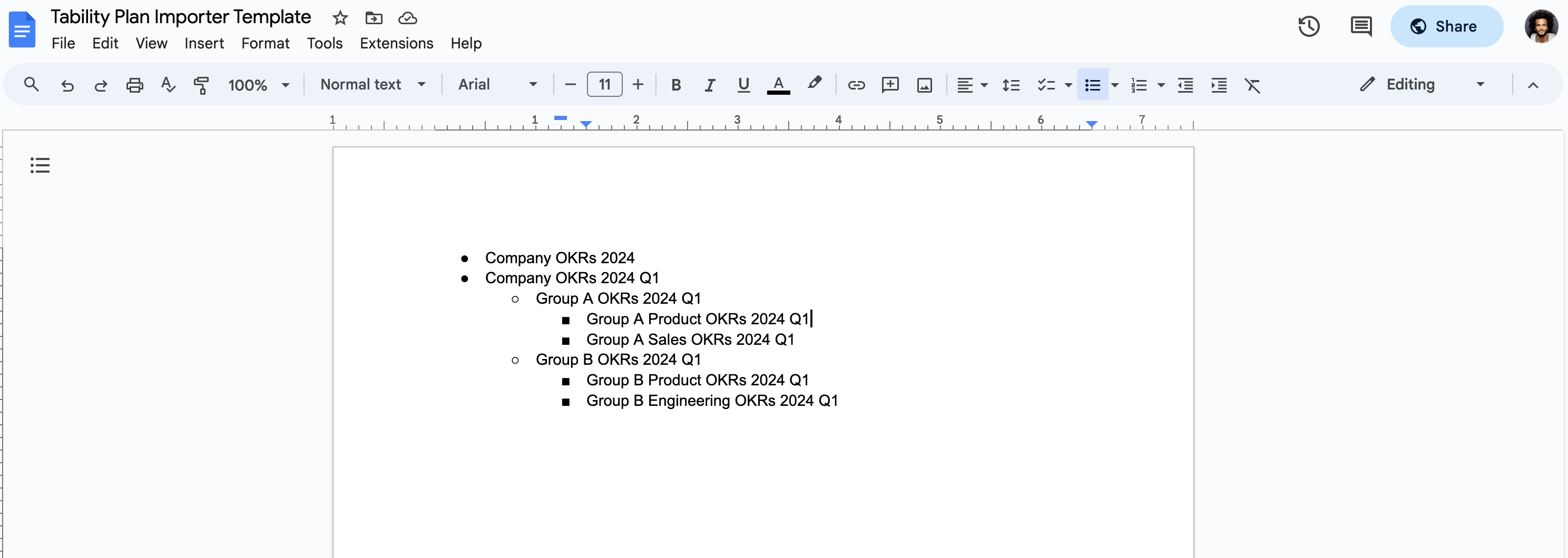
* Use a bullet point per plan – it will become the plan title
* Tability can auto-detect timelines if they're included in the title (ex: "2024 Q2", "2024 H1")
* Indent the bullet points to create sub-plans
#### Auto-detection of timeline
Tability will parse each line to extract the timeline if it exists. It will then create a plan that has the corresponding timeline.
Ex:
* "Marketing OKRs 2024 Q1" will create a plan called *Marketing OKRs 2024 Q1* starting on Jan 1st 2024, and finishing on March 31st, 2024.
* "Product OKRs 2024 H1" will create a plan called *Product OKRs 2024 Q1* starting on Jan 1st 2024, and finishing on June 30th, 2024.
* "Company OKRs 2024" will create a plan called *Product OKRs 2024 Q1* starting on Jan 1st 2024, and finishing on December 31st, 2024.
#### Plan content
{% hint style="warning" %}
You cannot add content to your plans using the doc importer. All plans will be empty.
{% endhint %}